Domain Reseller Application and Panel Setup Guide
This guide explains the basic steps such as domain reseller application process, panel settings, payment operations, domain registration, API, and security settings. Entering the contact and billing information requested in the reseller application wizard completely and accurately is important for the proper configuration of your reseller account and your security. This document will guide you to complete the process smoothly and securely.
Reseller Application
Click the link below to apply for a reseller account.
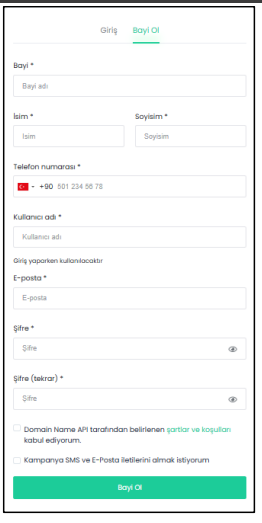
Fill in the Name, Surname, Phone number, and Email information of the reseller account owner in the relevant section. These details must be your real Name, Surname, and active phone and email information.
The primary security layer for accessing your reseller account consists of the username and password you define here. Therefore, do not share your username and password with others.
You must accept the Terms and Conditions determined by Domain Name API.
By clicking the “Become a Reseller” button, you will be redirected to the 2FA setup page.
2FA Setup
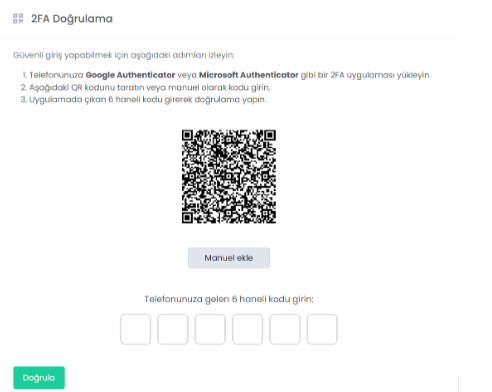
Complete the 2FA configuration; this is a mandatory step to become a reseller. After completing 2FA, you will be redirected to the reseller configuration wizard.

Reseller Application and Panel Settings Guide
Reseller Configuration Wizard
3 steps to become a reseller!
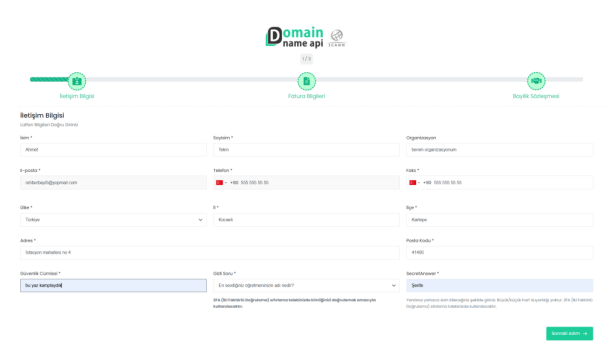
Contact Information
The information you enter in this section will define your default contact details. Please enter your information accurately.
Additionally, define your security phrase for reseller identity verification and your secret question and answer for 2FA recovery if needed.
Reseller Application and Panel Settings Guide
After filling in your information, click the “Next Step” button to proceed to step 2.
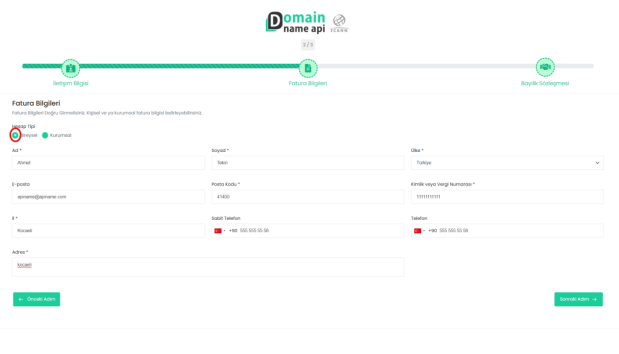
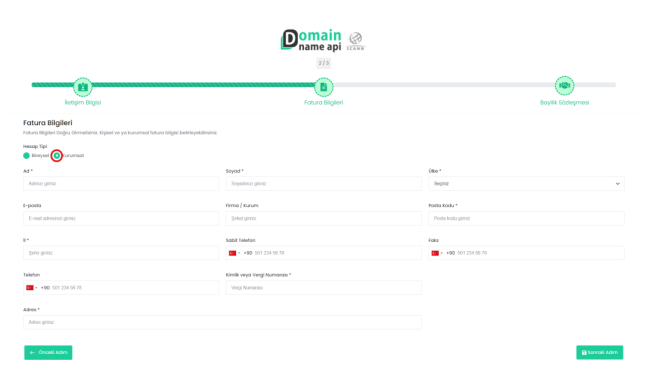
Billing Information
Select the billing type that suits you: Individual or Corporate.
Reseller Application and Panel Settings Guide
Reseller Application and Panel Settings Guide
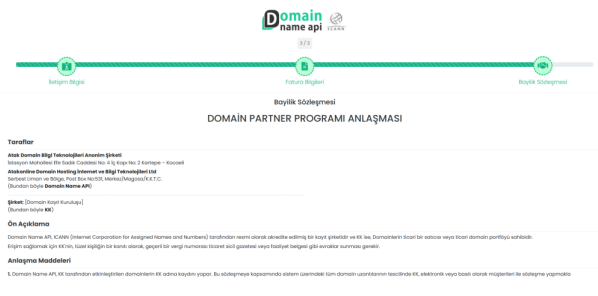
Reseller Agreement
In the final step of the reseller configuration wizard, read and approve the agreement.
Reseller Application and Panel Settings Guide
Check “I Agree” and click Complete.

Reseller Application and Panel Settings Guide
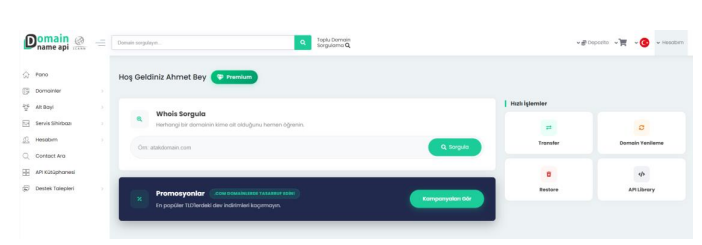
You will gain access to the Reseller Dashboard.
Reseller Application and Panel Settings Guide
Your reseller account is now fully configured. You can make a deposit and start registering domains.
Deposit Payment
From the left main menu, click Deposit under “My Account” or click the deposit button at the top right and then click “Add Deposit” in the modal to access the deposit page and load funds using your preferred method.
Deposit Payment Methods;
- Credit Card
- Stripe
- PayPal
- Bank Transfer (EFT/Wire)
Notes:
Bank transfer is the most preferred method as it is commission-free.
There is no minimum or maximum limit for deposit payments. You can deposit 1 TL or 100,000 TL.
Credit Card Payments:
Payments with Turkish credit cards can only be made in TRY and will be reflected in your deposit as TRY.
Payments made from abroad using Turkish bank cards may be rejected by the Ziraat Bank virtual POS system.
Payments made with foreign credit cards using a Turkish IP address may also result in errors.
Domain Registration
Domain Search
To register a domain, you must first check its availability. Enter the domain name with its extension in the search box at the top of the page; for example: mydomain.com
Add to Cart
Add the available domain to your cart.
Click the “Continue” button to proceed to the cart configuration and purchase section.
Cart Configuration and Period Selection
Select the purchase period from the dropdown menu.
When a reseller account is first created, the information entered in the reseller configuration wizard is set as default contact details, and system default DNS addresses (tr.apiname.com and eu.apiname.com) are assigned to domains.
You can click the Configure button to open the domain configuration modal and set custom contact details and DNS for the domain.
Purchase
After completing the required settings, you can purchase the domain by selecting it from the checkbox on the left.
Updating Default Contact Information
From the left menu, click “Default Information” under My Account.
Your contact details entered in the wizard are automatically set as default. However, you can add a new contact by clicking the “Add New Contact” button and saving the form.
You can set the added contact as default. It will automatically be assigned as the domain contact information for new domain purchases.
Updating Billing Information
You can access your billing information page from My Account in the left menu. The information entered in the wizard will be pre-filled, but you can update it, including the billing type.
Setting Default DNS Information
From the left main menu under My Account → Reseller Settings → Reseller Configurations, you can update the default nameserver information with your own.
The default nameservers for domains added to the cart are determined here.