How to Install an SSL Certificate on cPanel
To install an SSL certificate on cPanel, go to SSL/TLS → Manage SSL Sites, select your domain, paste the CRT code into the Certificate field, and click Autofill by Certificate. cPanel automatically populates the KEY and CA Bundle fields. Click Install Certificate to finish. If your CSR has already been generated and domain validation is complete, the whole process typically takes just a few minutes. This guide covers every step with screenshots, explains what to do when Autofill leaves the KEY field empty, and includes both methods for setting up the HTTPS redirect.
Quick Overview: cPanel SSL Installation
- Log in to cPanel
Access cPanel from your hosting provider's control panel or directly via yourdomain.com/cpanel. - Open SSL/TLS
Type 'SSL' in the cPanel search box and click the SSL/TLS icon. - Click Manage SSL Sites
Click the "Manage SSL sites" link under "INSTALL AND MANAGE SSL FOR YOUR SITE (HTTPS)". - Select domain & paste CRT
Choose your domain from the dropdown, then paste the full CRT code including BEGIN/END lines. - Click Autofill by Certificate
KEY and CA Bundle fields populate automatically if the CRT matches. - Click Install Certificate
Complete the installation. - Enable HTTPS redirect
Configure a 301 redirect via cPanel Redirects or .htaccess. - Verify
Confirm the padlock and run an SSL Labs test.
What You Need Before Starting
Have all of these ready before you open cPanel. Missing any one of them will stop the installation mid-process.
| Requirement | Details |
|---|---|
| SSL certificate | A valid certificate purchased and fully validated for your domain. |
| CRT code | The certificate file from your CA. Copy the entire block — -----BEGIN CERTIFICATE----- through -----END CERTIFICATE----- — including the dashes. |
| KEY (Private Key) | Generated on your server when you created the CSR. Autofill usually finds it automatically. If not, locate it manually in your server's key store. |
| CA Bundle (Intermediate Certificate) | The certificate chain file from your CA. Autofill fills it in automatically; without it, some browsers will show a security warning even after installation. |
| cPanel access | Admin-level login to the cPanel account hosting your domain. |
| Domain name | The exact domain the SSL was issued for — must match the certificate's Common Name. |
Step 1 — Log In to cPanel
Access cPanel from your hosting provider's management dashboard — find your hosting plan and click "Control Panel" or "Manage". You can also go directly to yourdomain.com/cpanel in your browser and log in with your cPanel credentials.
ℹ️ Don't know your cPanel login? Check the welcome email from your hosting provider, or contact their support team. Credentials are separate from your main account login.
Step 2 — Open SSL/TLS
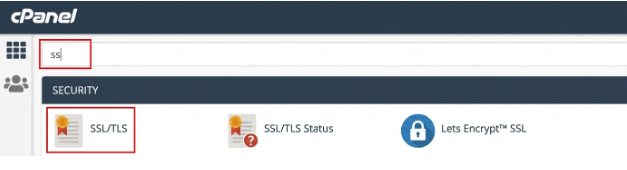
On the cPanel dashboard, type SSL in the search box at the top of the screen. Click the SSL/TLS icon that appears under the Security section.
Step 3 — Open Manage SSL Sites
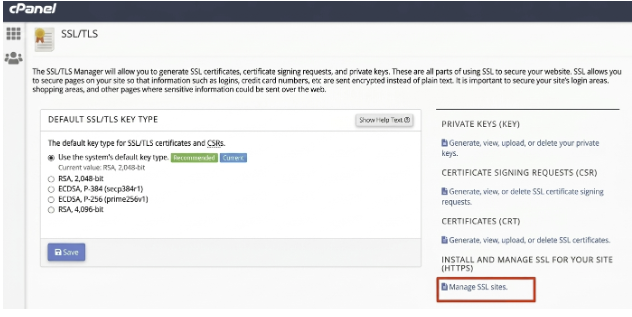
On the SSL/TLS screen, scroll to the bottom section labelled "INSTALL AND MANAGE SSL FOR YOUR SITE (HTTPS)" and click the "Manage SSL sites." link.
Step 4 — Select Your Domain and Paste the CRT
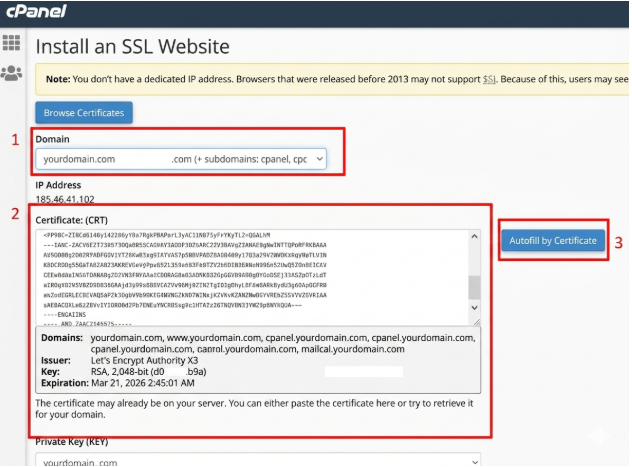
On the Manage SSL Sites page, select the domain you want to secure from the "Domain" dropdown.
Open your certificate file and copy the complete CRT code — from -----BEGIN CERTIFICATE----- through -----END CERTIFICATE-----. Every character matters, including the dashes. Paste it into the "Certificate: (CRT)" field.
⚠️ Copy the CRT exactly as-is. A single missing character or extra whitespace prevents Autofill from matching the private key. If in doubt, copy directly from the .crt file rather than from an email body.
Step 5 — Click Autofill by Certificate
Click the "Autofill by Certificate" button (visible on the right in the screenshot above). Here is how to interpret what happens next:
| Autofill Result | What It Means | Action |
|---|---|---|
| KEY fills automatically | CRT is correct and matches the private key on this server | Proceed to Step 6 |
| CA Bundle fills automatically | Intermediate certificate chain found and added | No action needed |
| KEY stays empty | CRT does not match the private key — wrong certificate or wrong server | Stop — verify you copied the correct CRT for this exact domain |
| CA Bundle stays empty | Intermediate cert not found automatically | Paste the CA Bundle from your CA manually into the CA Bundle field |
Why does the KEY field stay empty? The KEY and CRT are a matched pair — both must come from the same CSR. If KEY is empty after Autofill, you almost certainly pasted a CRT from a different domain or a different server. Double-check the certificate file, confirm it was issued for this domain, and verify the CSR was generated on this server.
Step 6 — Click Install Certificate
Once both KEY and CA Bundle are filled in, scroll down and click "Install Certificate" to complete the installation.

✅ Your SSL certificate is now installed. However, this step alone does not redirect HTTP visitors to HTTPS — you still need to configure that in Step 7.
Step 7 — Enable the HTTPS Redirect
Installing SSL does not automatically redirect http:// traffic to https://. Without a redirect, visitors who type your address or follow old HTTP links will still land on the unsecured version of your site.
Method A — cPanel Redirects (Recommended)
- From the cPanel dashboard, open Redirects.
- Set Type to Permanent (301).
- Select your domain and set the redirect destination to https://www.yourdomain.com.
- Click "Add".
Method B — .htaccess
Open cPanel > File Manager > public_html > .htaccess and add:
RewriteEngine On
RewriteCond %{HTTPS} off
RewriteCond %{HTTP_HOST} !^www\. [NC]
RewriteRule ^(.*)$ https://www.%{HTTP_HOST}%{REQUEST_URI} [L,R=301]
RewriteRule ^(.*)$ https://%{HTTP_HOST}%{REQUEST_URI} [L,R=301]
Always use 301, not 302. A 301 (permanent) redirect transfers all SEO authority to the HTTPS URL permanently. A 302 (temporary) redirect does not — your HTTP URLs may remain indexed separately and link equity will not consolidate. The .htaccess above also handles non-www to www normalisation to avoid duplicate content.
Step 8 — Verify Your SSL Installation
Confirm everything is working before going live:
- Open https://www.yourdomain.com in a browser — a padlock in the address bar confirms HTTPS is active.
- Test http://yourdomain.com — it should redirect automatically to HTTPS.
- Open the browser console (F12 > Console) and check for Mixed Content warnings.
- Run a full test at ssllabs.com/ssltest — aim for an A grade or above — achieving A+ may require additional configuration such as HSTS.
- Note the certificate expiry date and set a renewal reminder at least 30 days before it expires.
✅ No padlock? The most common cause is a missing CA Bundle — the certificate chain is incomplete. Go back to Manage SSL Sites, paste the CA Bundle manually, and reinstall. Use SSL Labs to identify exactly which chain certificate is missing.
Reselling SSL certificates to your customers?
Domain Name API's SSL reseller program gives you API access to DV, OV, EV, and Wildcard certificates with WHMCS, HostBill, and Blesta module support.
Common cPanel SSL Errors and How to Fix Them
| Error | Likely Cause | Fix |
|---|---|---|
| KEY field empty after Autofill | Wrong CRT — doesn't match the private key on this server | Verify the CRT was issued for this domain and the CSR was generated on this server. |
| CA Bundle not filled | Intermediate cert not found automatically | Paste the CA Bundle from your CA manually into the CA Bundle field. |
| Browser shows security warning post-install | Incomplete chain or Mixed Content | Add CA Bundle; update any HTTP resource URLs in your site to HTTPS or protocol-relative. |
| No padlock — HTTPS not working | No redirect configured | Add a 301 redirect via cPanel Redirects or .htaccess (Step 7). |
| Certificate installed on wrong domain | Wrong domain selected in dropdown | Reinstall — select the correct domain from the Domain dropdown. |
| CRT rejected | Missing dashes or hidden characters | Re-copy from source file including BEGIN/END lines; avoid copying from email body where formatting can break. |
cPanel SSL Best Practices
Always Include the CA Bundle
Even if Autofill doesn't populate it, always paste the CA Bundle manually. Without it, older browsers and operating systems may fail to verify the full certificate chain — resulting in security warnings for some visitors even when the certificate itself is valid.
Test Both www and non-www Redirects
Confirm that both http://yourdomain.com and http://www.yourdomain.com redirect to https://www.yourdomain.com. A missing redirect on either variant creates duplicate content and splits link equity.
Wildcard Certificates — One Install Covers All Subdomains
For a Wildcard certificate (*.yourdomain.com), select the root domain (yourdomain.com) from the Domain dropdown in Manage SSL Sites. cPanel applies the certificate to all first-level subdomains automatically — no separate installation needed per subdomain. Note: the root domain (yourdomain.com) itself may need to be listed separately in the SAN field, depending on your CA.
Fix Mixed Content After Going HTTPS
After switching to HTTPS, pages may load resources (images, scripts, stylesheets) over HTTP, triggering Mixed Content warnings. Use the browser console (F12 > Console) to identify them and update hardcoded HTTP URLs to HTTPS.
Set a Renewal Reminder Before Expiry
SSL certificates are typically valid for one year. Set a calendar reminder at least 30 days before expiry. An expired certificate causes immediate browser warnings and traffic loss — don't rely solely on CA notification emails.
How to Install a Wildcard SSL Certificate on cPanel
A Wildcard SSL certificate (*.yourdomain.com) protects the root domain and all first-level subdomains with a single certificate. The installation process on cPanel is identical to a standard certificate:
- Select the root domain (yourdomain.com) from the Domain dropdown.
- Paste the Wildcard CRT code.
- Click Autofill by Certificate, then Install Certificate.
The certificate applies to all subdomains covered by the wildcard — shop.yourdomain.com, mail.yourdomain.com, api.yourdomain.com, and so on — without separate installations.
ℹ️ Wildcard certificates cover *.yourdomain.com. Whether they also cover the root (yourdomain.com) depends on your CA — check the SAN field in your certificate details. Second-level wildcards (*.sub.yourdomain.com) require a separate certificate.
Offering Wildcard SSL to your hosting customers?
Domain Name API's SSL reseller program includes Wildcard certificates with API provisioning and billing module integrations.
Frequently Asked Questions
How do I install an SSL certificate on cPanel?
Go to cPanel > SSL/TLS > Manage SSL Sites. Select your domain, paste the complete CRT code, click Autofill by Certificate, then click Install Certificate. Finish by setting up a 301 HTTP-to-HTTPS redirect via cPanel Redirects or .htaccess.
What is a CRT and where do I find it?
A CRT is the certificate file issued by your Certificate Authority once domain validation is complete. Your CA sends it by email or makes it available in your account dashboard. Copy everything from -----BEGIN CERTIFICATE----- to -----END CERTIFICATE----- including the dashes.
Why does the KEY field stay empty after Autofill?
The KEY and CRT must come from the same CSR. If KEY stays empty, you pasted a CRT that doesn't match the private key stored on this server — typically because the wrong certificate file was used, or the CSR was generated on a different server. Verify the certificate matches this domain and this server.
Can I install SSL without a CA Bundle?
Technically yes, but it's not recommended. Without the CA Bundle, some browsers and operating systems cannot verify the full certificate chain and will display security warnings — even though your certificate is valid. Always include the CA Bundle.
Does HTTPS activate automatically after SSL installation?
No. Installing SSL enables HTTPS on port 443, but HTTP traffic is not redirected automatically. You need to configure a 301 redirect via cPanel Redirects or .htaccess. Step 7 of this guide covers both methods.
Can I use a Wildcard certificate to cover multiple subdomains on cPanel?
Yes. Install the Wildcard certificate once using the root domain. The certificate applies to all first-level subdomains covered by the wildcard (*.yourdomain.com). No separate installation is needed per subdomain, depending on your hosting configuration.
What is Mixed Content and how do I fix it?
Mixed Content occurs when an HTTPS page loads resources such as images, scripts, or fonts over HTTP. Browsers block or warn about this. Open the browser console (F12 > Console) to identify offending URLs, then update them to HTTPS or switch to protocol-relative paths (//).
How do I renew an SSL certificate on cPanel?
Get the new CRT from your CA after renewal, go to cPanel > SSL/TLS > Manage SSL Sites, select the domain, paste the new CRT, click Autofill by Certificate, and click Install Certificate. Your existing redirect settings do not need to change.
Is there support available for cPanel SSL installation?
Domain Name API provides technical documentation and integration resources for its SSL reseller program. For details, visit the SSL Reseller page.
Summary
cPanel SSL installation comes down to three actions: paste the CRT, click Autofill, click Install Certificate. The step most commonly missed — and the one that actually makes the site secure for visitors — is the HTTPS redirect. Don't skip Step 7.
Once the padlock is confirmed in your browser, run an SSL Labs test to validate the configuration, note the expiry date, and you're done.
If you manage SSL for multiple clients or run a hosting business, automating certificate provisioning through Domain Name API's SSL reseller program or the domain reseller platform eliminates manual handling at scale.
Managing SSL at Scale?
Domain Name API provides SSL reseller access, a REST API for automated provisioning, and ready-made modules for WHMCS, HostBill, and Blesta.