How to Set Up Private Nameservers for cPanel Reseller Hosting
The short answer
Private nameservers let you show your customers your own brand instead of your hosting provider's. When a customer checks their domain, they see ns1.yourbrand.com and ns2.yourbrand.com.
To set them up, you register ns1 and ns2 under your domain with the IP addresses you were given, define them as your reseller nameservers in WHM, and then point your customers' domains to them.
Who this guide is for: Resellers on Linux cPanel Reseller Hosting who want to offer hosting under their own brand. Last updated: October 3, 2026
Setup at a Glance
| Step | What you'll do | Where |
|---|---|---|
| 1 | Gather your ns1 and ns2 hostnames and IP addresses | Your service details |
| 2 | Create host records for ns1 and ns2 | Domain Name API panel › Host Records |
| 3 | Set your reseller nameservers | WHM (or our support team) |
| 4 | Point customer domains to ns1 and ns2 | The customer domain's nameserver settings |
| 5 | Test the setup | Command line or any DNS lookup tool |
Hands-on time: about 10–15 minutes. DNS updates: can take a few more hours to show up everywhere.
Where should you start?
Setting this up for the first time? Check the list below, then go to Quick Setup.
Already set up, but something isn't working? Jump to Troubleshooting.
Want to understand how it all fits together? How It Works covers glue records, the Link button, and DNS propagation.
What You'll Need
| Requirement | Notes | |
|---|---|---|
| ☐ | An active Linux Reseller Hosting plan | Your cPanel/WHM reseller service must be active. |
| ☐ | WHM access | Your WHM login address is in your activation email and service details. WHM runs over HTTPS on port 2087. |
| ☐ | The domain you'll use | Ideally the domain that represents your brand, such as yourbrand.com. |
| ☐ | IP addresses for ns1 and ns2 | If they aren't in your service details, ask our support team. |
| ☐ | Access to manage that domain | Your Domain Name API panel, or the panel of the registrar where the domain is registered. |
Are WHM Nameservers, Host Records, and a Domain's Nameservers the Same Thing?
No. They're three separate tasks, and you need all three.
| Task | Where it happens | What it does |
|---|---|---|
| Host record (child nameserver / glue) | Your domain's registrar | Links ns1.yourbrand.com to an IP address and announces it to the internet. |
| Reseller nameservers | WHM | Decides which nameservers are written into the DNS zones of your hosting accounts. |
| Domain nameserver change | The customer domain's settings | Sends the customer's domain to your nameservers. |
In short
The host record introduces your nameservers, WHM sets up the hosting side, and the nameserver change connects each customer's domain to you. Doing one doesn't replace the others.
Quick Setup
Step 1: Gather Your Nameserver Details
Write down the hostnames and IP addresses you'll use. You'll enter them exactly the same way in the next steps.
| Detail | Example |
|---|---|
| Your domain | yourbrand.com |
| ns1 / IPv4 | ns1.yourbrand.com → 192.0.2.10 |
| ns2 / IPv4 | ns2.yourbrand.com → 192.0.2.11 |
Don't use the example IPs
The 192.0.2.x range is reserved for documentation (RFC 5737) and doesn't work on the internet. Use the real IP addresses from your service details or from our support team. Please don't guess them by pinging your WHM server; DNS may run on different addresses.
By the end of this step, you should have two different hostnames, each with a real IP address assigned to you.
Step 2: Create Host Records in Domain Name API
Follow this step if the domain behind your nameservers is registered in your Domain Name API account. If it's registered elsewhere, do the same thing in that registrar's panel (see How It Works › “What if my domain is registered somewhere else?”).
2.1 Open the domain
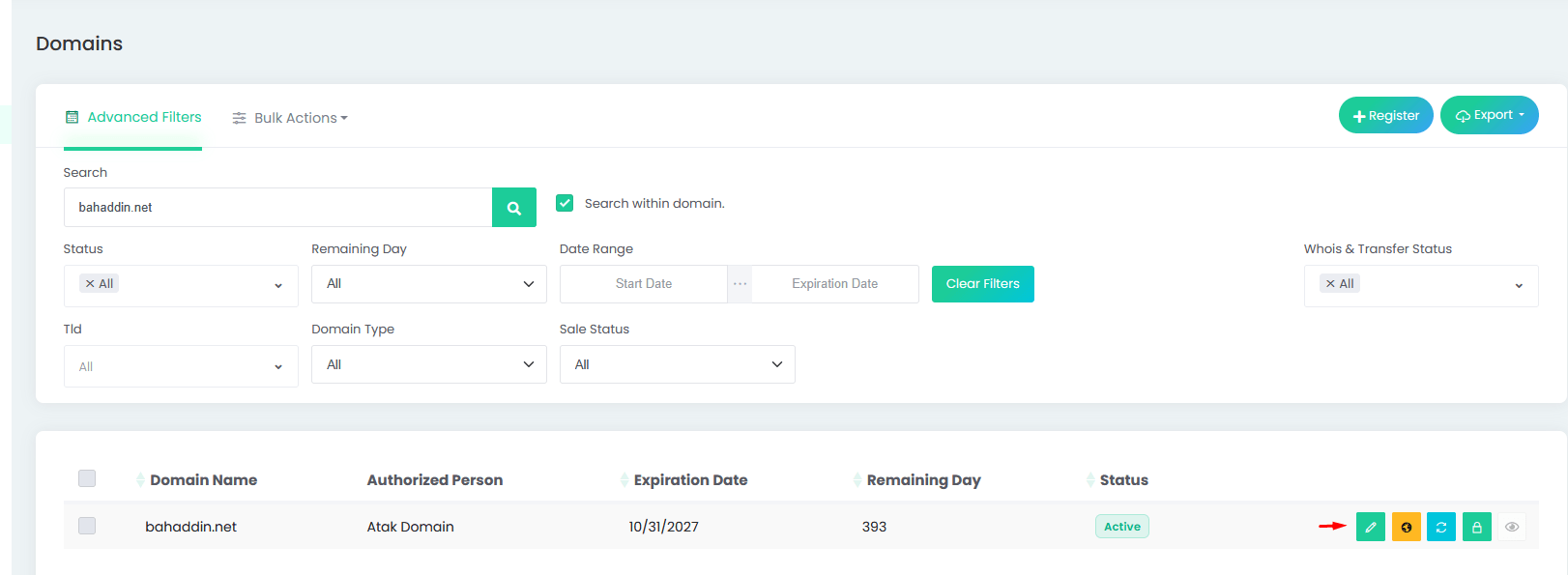
- In your reseller panel, open Domains.
- Type your domain into Search and click the search button.
- Make sure the domain's status is Active.
- Click the green pencil (edit) icon on the right side of the row.
2.2 Go to the Host Records tab
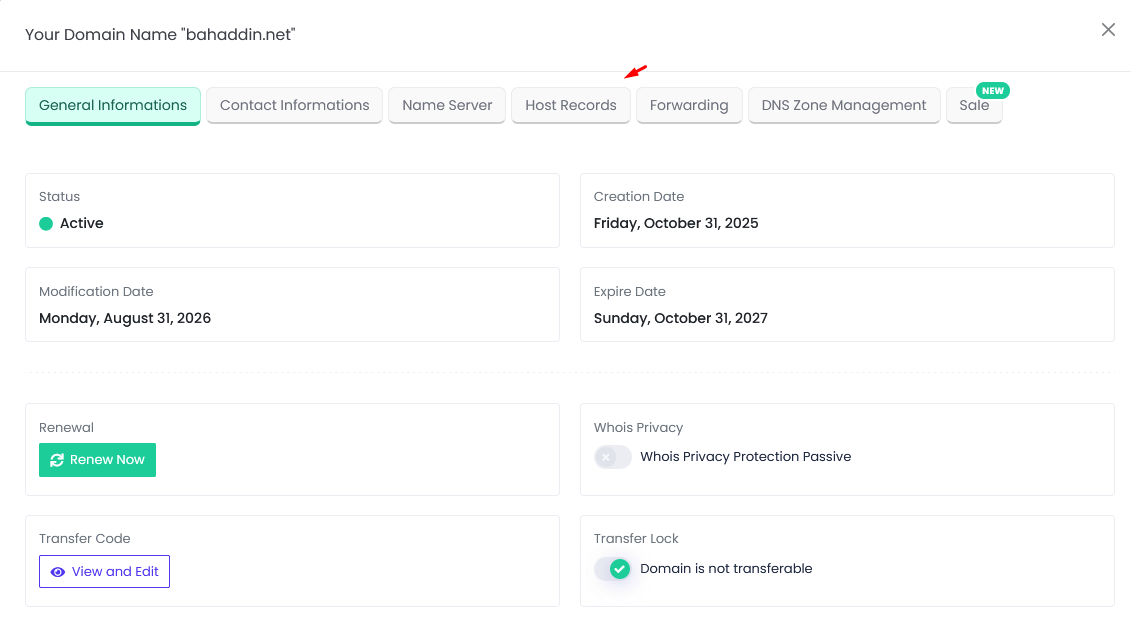
The domain window opens on General Informations. Click the Host Records tab. If you haven't added any records yet, the list will be empty.
2.3 Add ns1
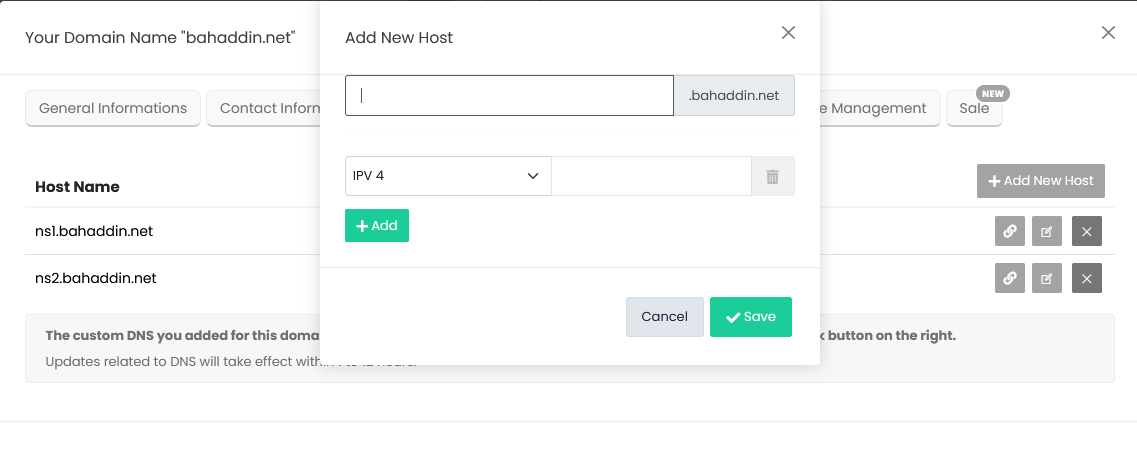
- Click Add New Host.
- In the first field, type only
ns1. The panel adds your domain automatically. - Leave the type set to IPV 4 and enter the IP address assigned to ns1.
- If you were also given an IPv6 address, click Add to open a new row and enter it there. If you weren't, skip this; IPv6 is optional.
- Click Save.
Checkpoint
What you should see: ns1.yourbrand.com in the Host Records list, with the IP address you entered.
Most common mistake: Typing the full hostname (ns1.yourbrand.com) into the form. Because the panel adds the domain for you, you'd end up with ns1.yourbrand.com.yourbrand.com.
Next: Repeat the same steps for ns2.
2.4 Add ns2
Click Add New Host again, enter ns2 with its own IP address, and save. Both records should now appear in the list.
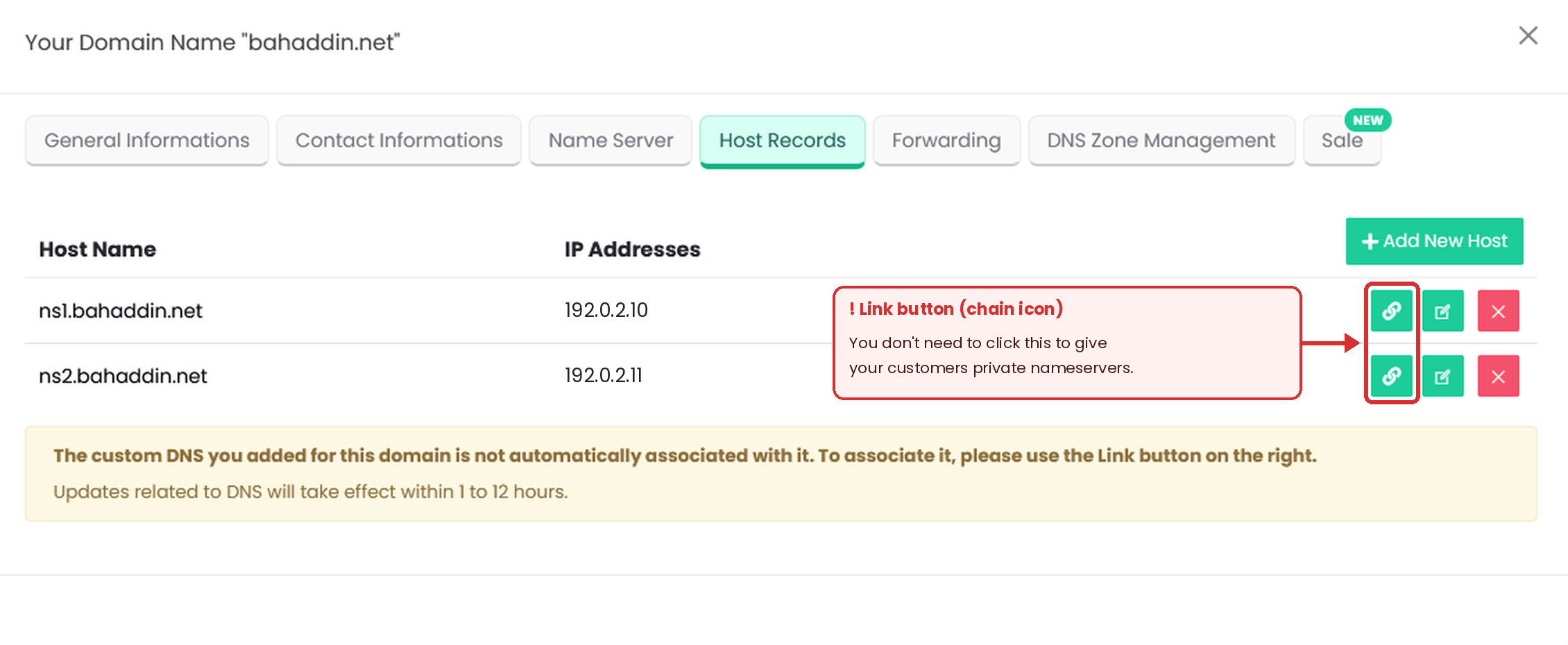
Each record has three buttons on the right: Link (chain icon), Edit (pencil icon), and Delete (cross icon). To change an IP address later, use Edit.
You don't need the Link button for this
The panel notes that the records you add aren't automatically associated with the domain, and that you can use the Link button (chain icon) to do so. Linking is about your own domain (yourbrand.com) using these nameservers too.
To give your customers ns1/ns2.yourbrand.com, you don't have to link your own domain.
If you do want to move your own domain onto these nameservers, read How It Works › “What does the Link button do?” first. Linking too early can take your website and email offline.
How long until it's live
The panel says DNS updates take effect within 1 to 12 hours. Until then, some lookups may return old results and others new ones. That's normal.
Can't see the Host Records tab or the Add New Host button? Contact our support team. Some country-code domains (ccTLDs) follow different rules for host records.
Step 3: Set Your Reseller Nameservers in WHM
This setting makes sure ns1/ns2.yourbrand.com are written into the DNS records of every hosting account you create. Depending on your account's permissions, one of two options applies.
Option A: You can see “Basic WebHost Manager Setup” in WHM
- Log in to WHM with your reseller credentials, using the WHM address from your activation email and service details (HTTPS, port 2087).
- Type
Basic WebHost Manager Setupinto Search Tools at the top left and click the result. You'll also find it under Server Configuration in the menu. - Scroll to the bottom of the page to the Nameservers section.
- Enter
ns1.yourbrand.comin the first box andns2.yourbrand.comin the second. - The third and fourth boxes are optional. If you were given two nameservers, leave them empty and clear any old values.
- Click the blue Save Changes button at the bottom of the page.
Here's what you'll see on that page:
| On the page | What it looks like | What to do |
|---|---|---|
| Page title | Basic WebHost Manager Setup | Confirm you're on the right page. |
| Upper sections | Sections such as Contact Information and Basic Config. Depending on your permissions, some may be hidden. | No changes needed here. |
| Nameservers (bottom of the page) | Four text boxes, one under the other, for the first to fourth nameserver. | Enter ns1.yourbrand.com and ns2.yourbrand.com in the first two. |
| Configure Address Records | A button next to each nameserver box. | Optional. See the note below. |
| Save Changes | At the very bottom. | Click it to save. |
What does Configure Address Records do?
It creates an A record (or AAAA for IPv6) for the nameserver in a DNS zone. A window opens, looks up the nameserver, shows its IP, and lets you change it.
This only makes sense if the DNS zone for yourbrand.com lives on this server, and it does not replace the host record from Step 2. If you're unsure, skip it and just enter the nameserver names and save.
Expected result
WHM confirms that your changes were saved. From now on, new hosting accounts you create will list ns1.yourbrand.com and ns2.yourbrand.com as their nameservers.
Option B: You can't find the nameserver setting in WHM
That's normal. In cPanel, reseller nameservers are managed in Edit Reseller Nameservers and Privileges, a screen only the hosting provider (root) can access. Open a support ticket with these details:
Subject  : Private nameserver setup for reseller account
Service  : Linux Reseller Hosting - <your WHM username>
NS1      : ns1.yourbrand.com
NS2      : ns2.yourbrand.com
Note     : Please also update / do not update the NS records
           of my existing accounts.
Once this is in place, new hosting accounts will list ns1/ns2.yourbrand.com as their nameservers. Accounts created before the change may still show the old ones. If you don't have permission to edit DNS zones in WHM, ask our support team to update them.
Updating nameservers on existing accounts
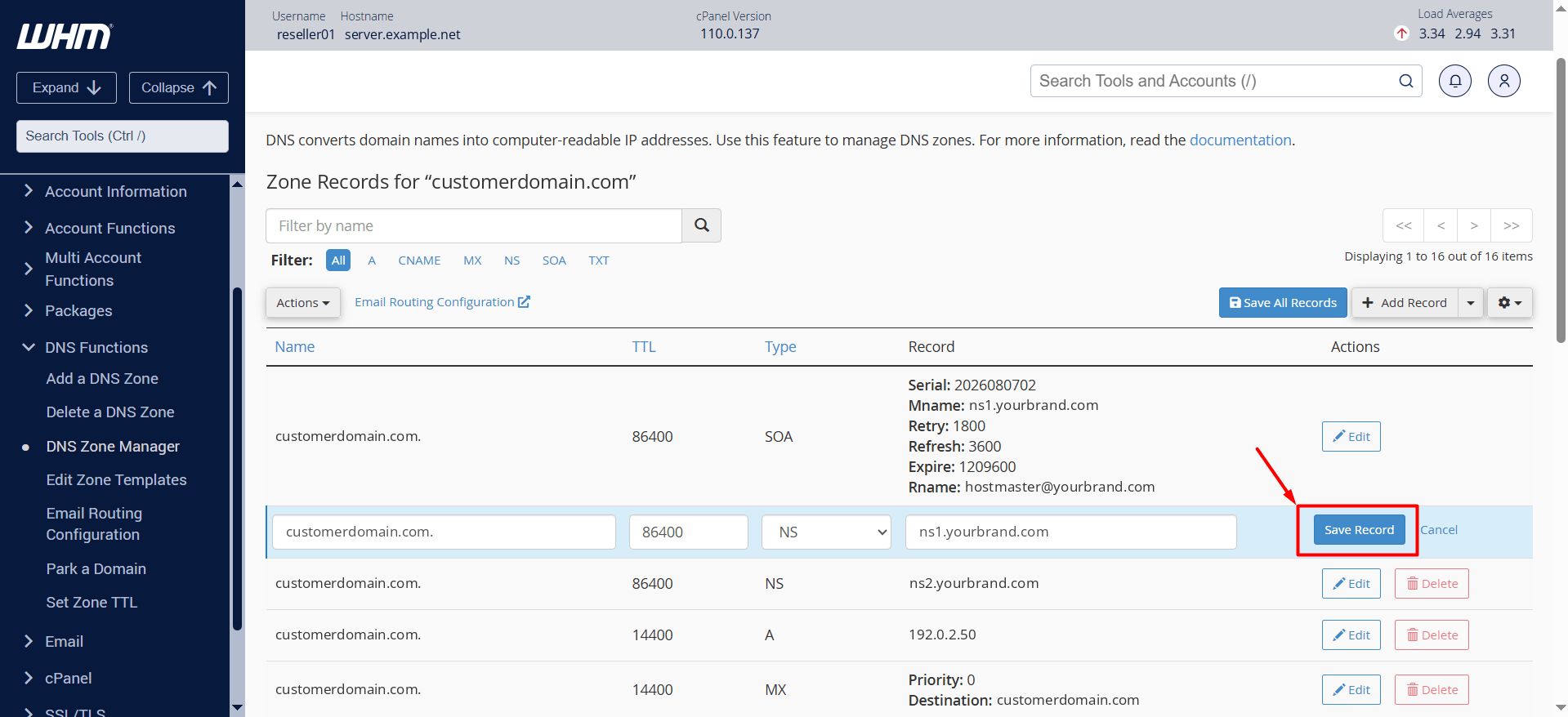
If you have DNS Zone Manager in your WHM menu, you can update the NS records of an existing account yourself:
- In WHM, go to DNS Functions › DNS Zone Manager.
- Find the domain and click Manage.
- Click Edit next to the first record whose type is NS.
- Enter
ns1.yourbrand.comin the Record field and click Save Record. - Update the second NS record to
ns2.yourbrand.comthe same way. - For consistency, we also recommend changing Mname in the SOA record to
ns1.yourbrand.com.
Heads up
This only updates the DNS zone on the hosting server. You still need to change the nameservers at the customer domain's registrar (Step 4). If DNS Zone Manager isn't in your menu, ask our support team to make the change.
Step 4: Point Customer Domains to Your Nameservers
Once your customer's hosting account is set up under your reseller account, change their domain's nameservers to:
Nameserver 1 : ns1.yourbrand.com
Nameserver 2 : ns2.yourbrand.com- If the customer's domain is with Domain Name API, use the Name Server tab in the domain window.
- If it's with another registrar, make the change in that registrar's panel.
Checkpoint
What you should see: ns1.yourbrand.com and ns2.yourbrand.com in the customer domain's nameserver settings.
Most common mistake: Creating host records on the customer's domain too. Host records are created once, on your domain only. On customer domains, you only change the nameservers.
Next: Test the setup.
Step 5: Test Your Setup
Open Command Prompt on Windows, or Terminal on macOS and Linux, and run two lookups:
# 1) Does your nameserver resolve to the right IP?
nslookup ns1.yourbrand.com
# 2) Is the customer's domain using your nameservers?
nslookup -type=NS customerdomain.com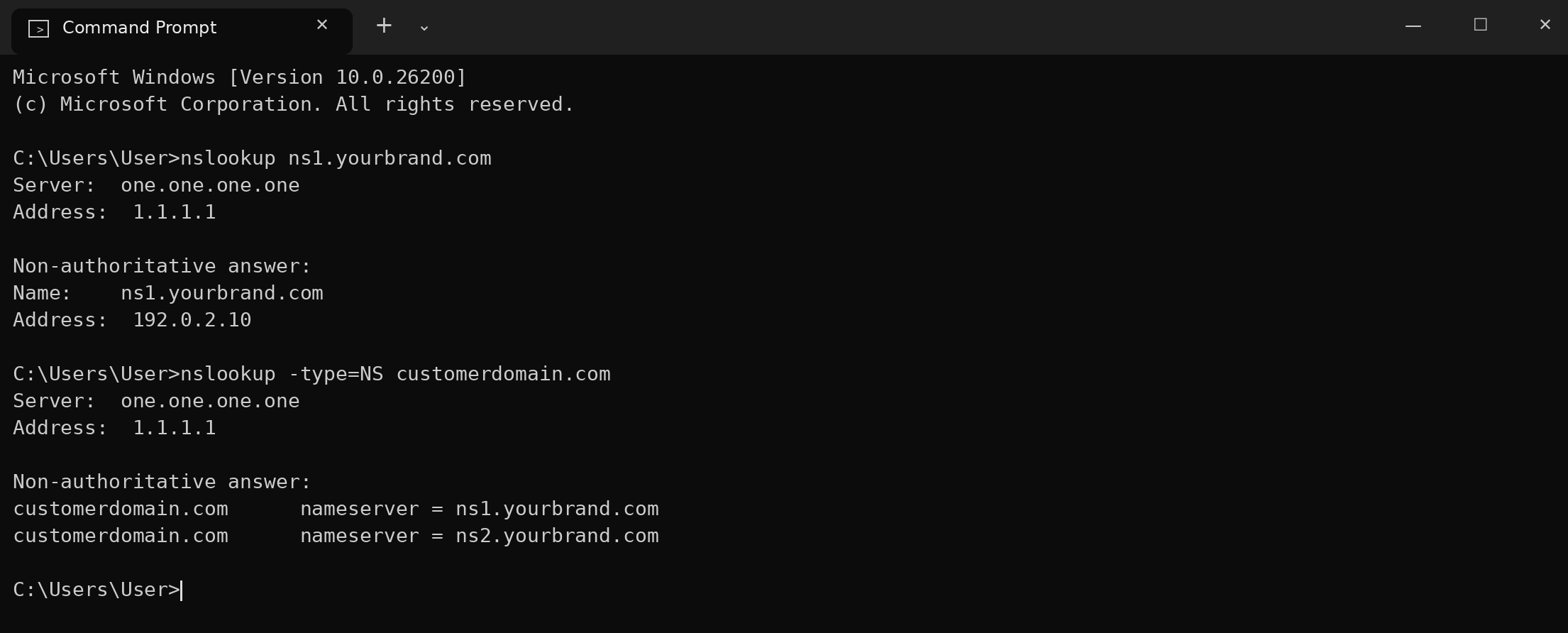
What does “Non-authoritative answer” mean?
It isn't an error. It means the answer came from an intermediate DNS resolver (1.1.1.1 in this example) rather than directly from the domain's own nameserver. What matters is that the IP address and nameserver names match yours.
Expected result
The first lookup returns the IP address assigned to ns1. The second returns ns1.yourbrand.com and ns2.yourbrand.com.
If both look right, you're done. If not, wait a few hours and try again. If it still doesn't look right, go to Troubleshooting.
All set? If your tests passed, you're finished. Everything below is for when you want the technical background or need to troubleshoot.
How It Works
What Is a Private Nameserver?
A private nameserver is a nameserver hostname under your own domain that lets you offer hosting under your brand.
Instead of ns1.provider-example.net, your customer uses ns1.yourbrand.com. The DNS servers behind it are the same; only the name your customer sees changes.
Technically, a nameserver is the server that publishes a domain's DNS records. When someone visits customerdomain.com, their browser first finds out which nameservers the domain uses, then asks those servers for the website's IP address. A private nameserver simply gives those servers a name under your domain.
What Do Private Nameservers Give You?
When customers check their domain's nameserver settings, they see your nameservers, not your provider's. In practice, that means:
- Your brand is what customers see in their nameserver settings. They see your domain there instead of your provider's nameserver domain.
- You can sell under your own name. You offer hosting as a white-label service, under your brand.
- Infrastructure changes are easier to manage. Because customers use your nameserver names, a future infrastructure change usually means updating the IPs in your host records, not asking every customer to change their nameservers.
The Three Layers of the Setup
[1] REGISTRAR / REGISTRY
    Host record (child nameserver / glue)
    ns1.yourbrand.com  ->  192.0.2.10
    ns2.yourbrand.com  ->  192.0.2.11
                 |
                 v
[2] HOSTING SERVER (WHM)
    Reseller nameservers
    Written into new accounts' DNS: ns1/ns2.yourbrand.com
                 |
                 v
[3] CUSTOMER DOMAIN
    customerdomain.com  ->  NS: ns1/ns2.yourbrand.com
Order matters: create the host records before you point customer domains to them. For many extensions (such as .com and .net), a nameserver that isn't registered with the registry can't be assigned to another domain.
What Are Child Nameservers and Glue Records?
A child nameserver is a nameserver you create under your own domain, such as ns1.yourbrand.com. A glue record publishes that nameserver's IP address at the registry level, so DNS resolvers can find it.
In the Domain Name API panel, you create these on the Host Records tab.
Here's why glue matters: if yourbrand.com uses ns1.yourbrand.com as its nameserver, finding that nameserver's IP would mean asking yourbrand.com, which is a loop. The glue record breaks the loop by publishing the IP in the parent zone (for example, .com).
Registrars use different names for the same thing:
| What you might see | What it means |
|---|---|
| Host Records, Child Name Server | Registering a nameserver under your domain |
| Register Nameserver, Nameserver Registration | Announcing the nameserver to the registry |
| Hostnames | The host object at the registry |
| Glue Records | The IP published in the parent zone |
| Personal / Private Nameserver | Marketing names for the same task |
Is an A Record Enough?
No. An A record publishes your nameserver's IP inside your domain's own DNS zone; a glue record keeps the same information at the registry, where resolvers look before they reach your zone. For this setup, create both the host (glue) record and the matching A record, and keep their IP addresses consistent.
An A record alone won't do it
Think of it this way: the A record is the list of apartments inside a building, and the glue record is the building's address in the city directory. If the address isn't in the directory, nobody can find the building, let alone the apartments.
In this setup, create both and keep their IP addresses consistent.
What Does the Link Button Do?
Link makes your own domain (yourbrand.com) use the ns1/ns2 nameservers you created. You don't need it to give customers private nameservers.
Before you link your own domain, make sure that:
yourbrand.comis set up as a hosting account under your reseller account, and its DNS zone is on the server.- That zone has A records for
ns1andns2pointing to the correct IPs. - Your website and email records (A, MX, TXT, and so on) are complete in the new zone.
- If DNSSEC is enabled on your domain, the DS record matches the new setup.
If you're not sure about any of these, talk to our support team before linking.
What If My Domain Is Registered Somewhere Else?
You create the host records in the panel of the registrar where your domain is registered. Your hosting being with Domain Name API doesn't change that. Menu names vary by registrar, but the flow is usually:
- Open
yourbrand.comin your registrar's panel. - Look for a section called Child Nameservers, Register Nameserver, Host Records, or Private Nameservers.
- Enter
ns1orns1.yourbrand.com(depending on what the form expects), add the IP address, and save. - Repeat for
ns2. - If you can't find the section, ask your registrar's support team to “create child nameservers / host records.”
If your domain's DNS is hosted with another provider, also add A records for ns1 and ns2 with the same IPs in that provider's DNS zone.
Heads up
Don't confuse this with the “change nameservers” screen. Changing nameservers decides which DNS servers a domain uses; the child nameserver screen introduces a new nameserver to the internet.
Reseller Nameservers vs. Individual cPanel Accounts
According to cPanel's official documentation, resellers can use their own nameservers, but individual cPanel accounts can't have their own. Your ns1/ns2.yourbrand.com pair is shared by every hosting account under your reseller account. If one of your customers wants nameservers under their own brand, they'll usually need a reseller account of their own.
How Long Does DNS Propagation Take?
There's no fixed time. The Domain Name API panel quotes 1–12 hours for host record updates, and on some networks changes can take 24–48 hours to appear.
DNS changes don't actually “spread” from one central place. Internet providers and public DNS services cache the records they look up for a set time (the TTL). As those caches expire, people start seeing the new records. Registrar and registry processing adds to this. That whole process is what people usually call “DNS propagation.”
So it's normal to get different results from different networks right after a change. To skip the caches, query your own nameserver directly (see Troubleshooting).
Troubleshooting
Use this section if you've completed the setup but aren't getting the expected results. The commands below use dig on macOS and Linux; Windows equivalents are included. Replace the example names with your own.
Quick Diagnosis
| Symptom | Likely cause | What to do |
|---|---|---|
ns1.yourbrand.com doesn't return an IP | Missing or incorrect A record or host record | Check Step 2 and the A record in your domain's DNS zone. |
| You can't set ns1/ns2 on a customer domain | The host record isn't at the registry yet, or hasn't taken effect | Check Step 2 and allow time for the update. |
| Nameservers look right, but the site won't load | The hosting account doesn't exist, or its DNS zone isn't on the server | Confirm the account exists under your reseller account and run the authoritative test below. |
| New accounts still show the old nameservers | WHM reseller nameservers weren't set | Complete Step 3 or ask our support team. |
| Works on some networks but not others | Caching, mismatched IPs, or a DNSSEC mismatch | Wait for the TTL; check that host and A records match and review the DS record. |
| Your own website or email went down | Your domain was linked before its DNS zone was ready | Review the conditions in “What does the Link button do?” and contact support if needed. |
Advanced DNS Checks (for System Administrators)
If the quick diagnosis didn't solve it, these lookups show exactly which layer the problem is in.
Do your nameserver hostnames resolve to the right IP?
dig +short A ns1.yourbrand.com
dig +short A ns2.yourbrand.com
# If you set up IPv6:
dig +short AAAA ns1.yourbrand.com
Expected result
Each command returns the IP assigned to you. An empty or different result points to a problem with the A record or the host record.
Is the host (glue) record registered?
# Host record at the registry (.com / .net):
whois -h whois.verisign-grs.com "nameserver ns1.yourbrand.com"
# Glue in the parent zone, if your domain uses ns1/ns2:
dig +norec @a.gtld-servers.net NS yourbrand.com
Expected result
The whois output lists the nameserver and its IP. In the dig output, the ADDITIONAL SECTION shows the IPs for ns1/ns2; it's only populated if your own domain uses these nameservers. For other extensions, find the registry's servers with dig NS <tld> +short.
Do your nameservers answer authoritatively for the customer's domain?
dig @ns1.yourbrand.com customerdomain.com SOA
dig @ns2.yourbrand.com customerdomain.com A
Expected result
The flags line includes aa (authoritative answer). REFUSED or an empty answer means the domain's zone isn't on the server or the wrong IP is in use.
Customer domain delegation and the full chain
dig +short NS customerdomain.com
dig +trace customerdomain.com
Windows equivalents
nslookup ns1.yourbrand.com
nslookup -type=NS customerdomain.com
nslookup customerdomain.com ns1.yourbrand.com
The last command sends the query straight to your nameserver, which is handy for ruling out caching.
DNSSEC check
dig DS customerdomain.com +shortIf a domain has DNSSEC enabled and an old DS record is left in place when you change nameservers, the domain won't resolve at all on networks that validate DNSSEC.
If the output shows a DS record and the new DNS setup doesn't sign the domain with the same keys, remove or update the DS record at the registrar before changing nameservers.
Common Mistakes
| Mistake | What to do instead |
|---|---|
| Creating only an A record in the DNS zone | Create the host record as well. |
| Using example or guessed IPs | Use the IPs from your service details or our support team. |
| Using different IPs in the host record and the A record | Use the same IP in both places. |
| Typing the full hostname into Add New Host | Type only the prefix: ns1 or ns2. |
| Creating host records on customer domains | On customer domains, only change the nameservers. |
| Creating host records but not pointing customer domains to them | Complete Step 4 for each customer domain. |
| Skipping the WHM step | Complete Step 3 or ask our support team. |
| Clicking Link before your domain's zone is ready | Prepare the DNS zone and records before moving your own domain. |
| Changing settings before DNS updates take effect | Query your own nameserver directly and check the result. |
| Forgetting the DNSSEC DS record | Check the DS record before changing nameservers. |
Frequently Asked Questions
What is a private nameserver?
A nameserver hostname under your own domain that lets you offer hosting under your brand. Customers see ns1.yourbrand.com and ns2.yourbrand.com instead of your provider's nameservers, while the DNS infrastructure behind them stays the same.
What's the difference between a glue record and an A record?
An A record lives in your domain's own DNS zone; a glue (host) record is kept at the registry through your registrar. For this setup, create both and keep their IP addresses consistent.
Where do I find the IP addresses for ns1 and ns2?
In your Reseller Hosting activation email or service details. If they're not there, ask our support team. Please don't guess them.
Why can't I find the nameserver setting in WHM?
In cPanel, reseller nameservers are managed from a provider-level (root) screen, and Basic WebHost Manager Setup may be disabled for your account. If so, open a support ticket with your nameserver names.
Can both nameservers use the same IP address?
Many registrars allow it, but then both names depend on a single point and you lose redundancy. Use the IP addresses you were given exactly as provided.
My domain is registered with another company. What should I do?
Create the child nameservers (host records) in that registrar's panel. Your hosting being with Domain Name API doesn't prevent this.
Do private nameservers completely hide the infrastructure?
No. With private nameservers, your ns1/ns2 hostnames appear in the domain's DNS delegation. Other technical details, such as the server hostname, email headers, IP addresses, and reverse DNS (rDNS), can still reveal information about the underlying infrastructure.
Why isn't the website loading after a nameserver change?
The most common causes are DNS updates that haven't taken effect yet, a hosting account that doesn't exist under your reseller account, a wrong IP, or an old DNSSEC DS record. Work through the Quick Diagnosis table in Troubleshooting.
Summary
- Gather your ns1 and ns2 hostnames and IP addresses.
- Create both records on the Host Records tab in the Domain Name API panel.
- Set your reseller nameservers in WHM, or ask our support team to do it.
- Point customer domains to
ns1/ns2.yourbrand.com. - Test with
nslookup; if something's off, use Troubleshooting.
Already using Domain Name API Reseller Hosting?
Having trouble with your private nameservers? Open a support ticket and include your reseller username, your ns1/ns2 hostnames, and any test output. It helps us resolve it faster.
Open a Support TicketLooking for white-label reseller hosting?
Sell hosting under your own brand with cPanel/WHM, private nameservers, and reseller tools.
Explore Reseller Hosting