How to Create a Hosting Package in WHM
The short answer
A hosting package in WHM is a template that defines the disk space, monthly bandwidth, email accounts, and databases for the cPanel accounts you create for your customers. For example, you create a “STARTER” package with 10 GB of disk, 100 GB of monthly bandwidth, 10 email accounts, and 5 databases, then assign it to every new customer who buys that plan.
You create packages in WHM > Packages > Add a Package.
Creating a package doesn't create a hosting account
A package only defines limits. The actual account that hosts your customer's website and email is created separately in WHM > Account Functions > Create a New Account, where you assign the package.
Who this guide is for: Resellers on cPanel Reseller Hosting who are setting up the first package they'll sell. Last updated: October 4, 2026 Source: official cPanel & WHM documentation
The Short Version: Create a Package in 7 Steps
- Log in to WHM using the address you were given.
- Open WHM > Packages > Add a Package.
- Choose a package name. You can't change it later.
- Enter disk, bandwidth, email, and database limits in MB.
- Check the Feature List and Locale settings.
- Click Add.
- Assign the package to your first customer in Create a New Account.
Hands-on time: If you've already decided on your limits, creating the package takes a few minutes. Most of the time goes into deciding which limits to set.
Where should you start?
Ready to create the package now? Create Your First Package
Not sure what values to enter? Which Limits Should I Choose?
Can't find the screen or save the package? If You Can't Create a Package
What Is a Hosting Package in WHM?
A WHM hosting package is a reusable configuration that defines, under a single name, the disk, monthly bandwidth, email, database, and domain limits for a cPanel account, along with the cPanel features that account can use. You can assign the same package to multiple customer accounts, within your reseller plan's resource and account limits.
In practice, each package corresponds to a hosting plan you sell. Every customer on STARTER starts with the same limits. When you want to change a limit, you update the package instead of editing accounts one by one.
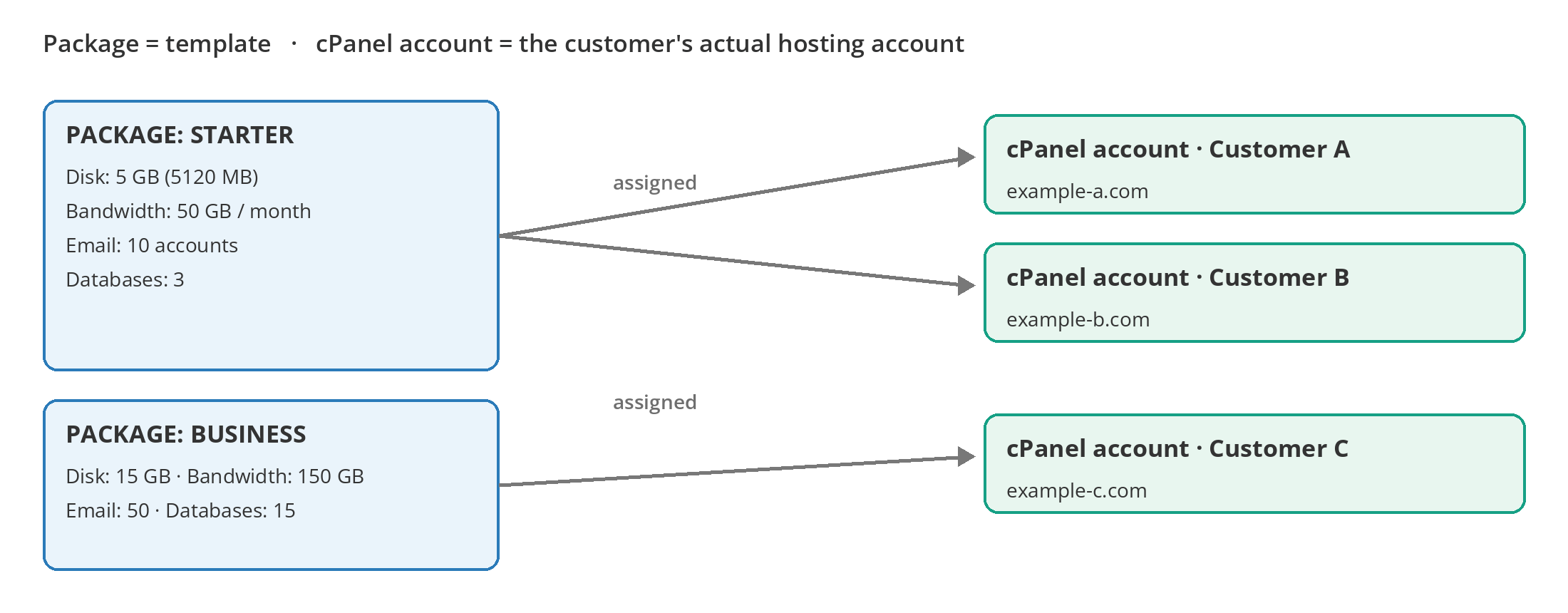
Package vs. cPanel Account
| Hosting package | cPanel account |
|---|---|
| A template. | Your customer's actual hosting account. |
| Defines resource limits and features. | Hosts the website, email, and databases. |
| Reused across many accounts. | Belongs to one customer and one domain. |
| Managed under WHM > Packages. | Created under WHM > Account Functions. |
You create the package first, then assign it to your customer's account in Create a New Account.
Before You Start
| Requirement | |
|---|---|
| ☐ | An active Linux cPanel Reseller Hosting plan |
| ☐ | Your WHM login details (in your activation email) |
| ☐ | Your reseller plan's total disk and bandwidth limits |
| ☐ | The type of customer you'll sell this package to (personal site, business site, agency, and so on) |
| ☐ | How many websites, email accounts, and databases the package will include |
Your reseller plan's capacity is the ceiling for the packages you can sell. For example, if your plan includes 75 GB of storage and you give each customer 5 GB, you can host about 15 full-capacity accounts on disk alone. Even if your plan allows more accounts, storage is usually what sets the real limit. You can check your plan's current capacity on the Reseller Hosting plans page.
If you exceed your total limits
If your provider limits your reseller account by resource usage and doesn't allow overselling, you may not be able to create a new account that would push you past your total allocation. If you're not sure how your account is set up, ask our support team.
Create Your First Package
Step 1: Log In to WHM
Log in to WHM with your reseller username and password, using the address from your activation email and service details. It usually looks like this:
https://<your-WHM-server-address>:20872087 is WHM's secure (HTTPS) port. 2083 is the port your customers use to log in to their own cPanel. Use 2087 for package tasks.
Step 2: Open Add a Package
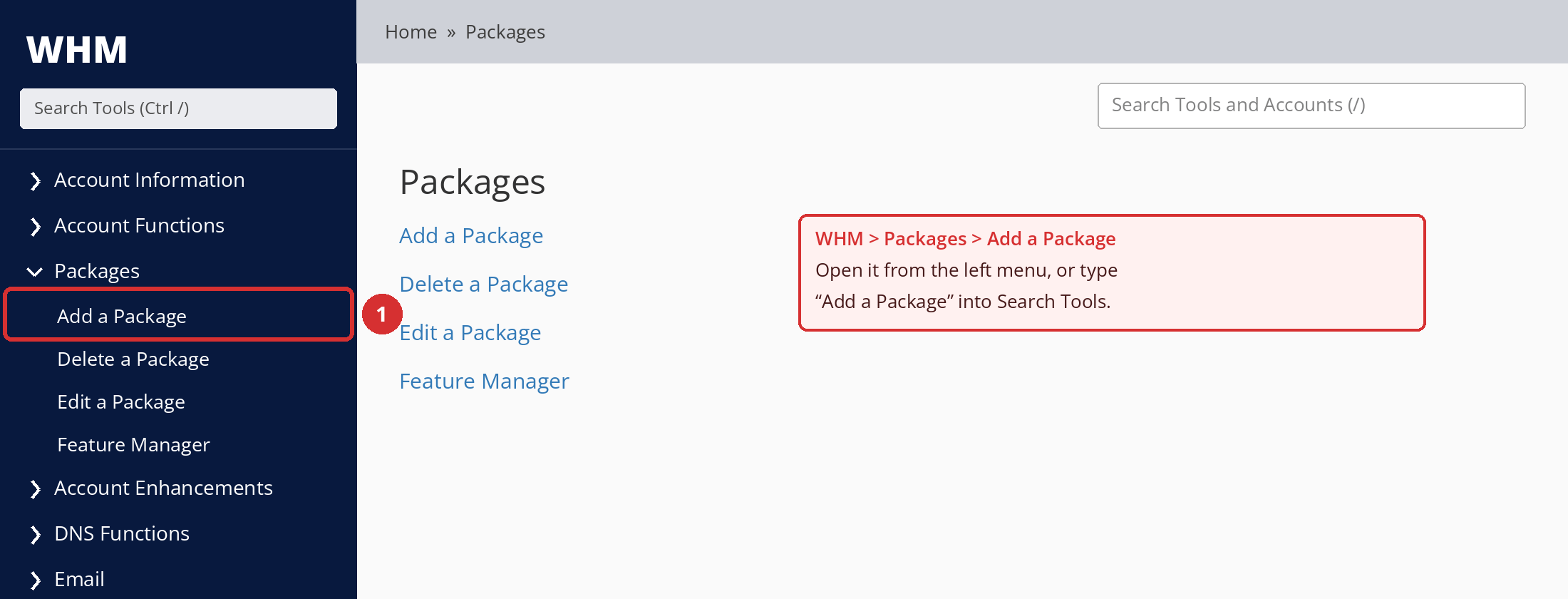
In the left menu, expand Packages and click Add a Package. You can also type Add a Package into Search Tools at the top left.
Can't see the menu?
cPanel notes that hosting providers can enable or disable the Add a Package screen for reseller accounts. If you don't see Packages or Add a Package in your menu, contact our support team.
Step 3: Choose a Package Name
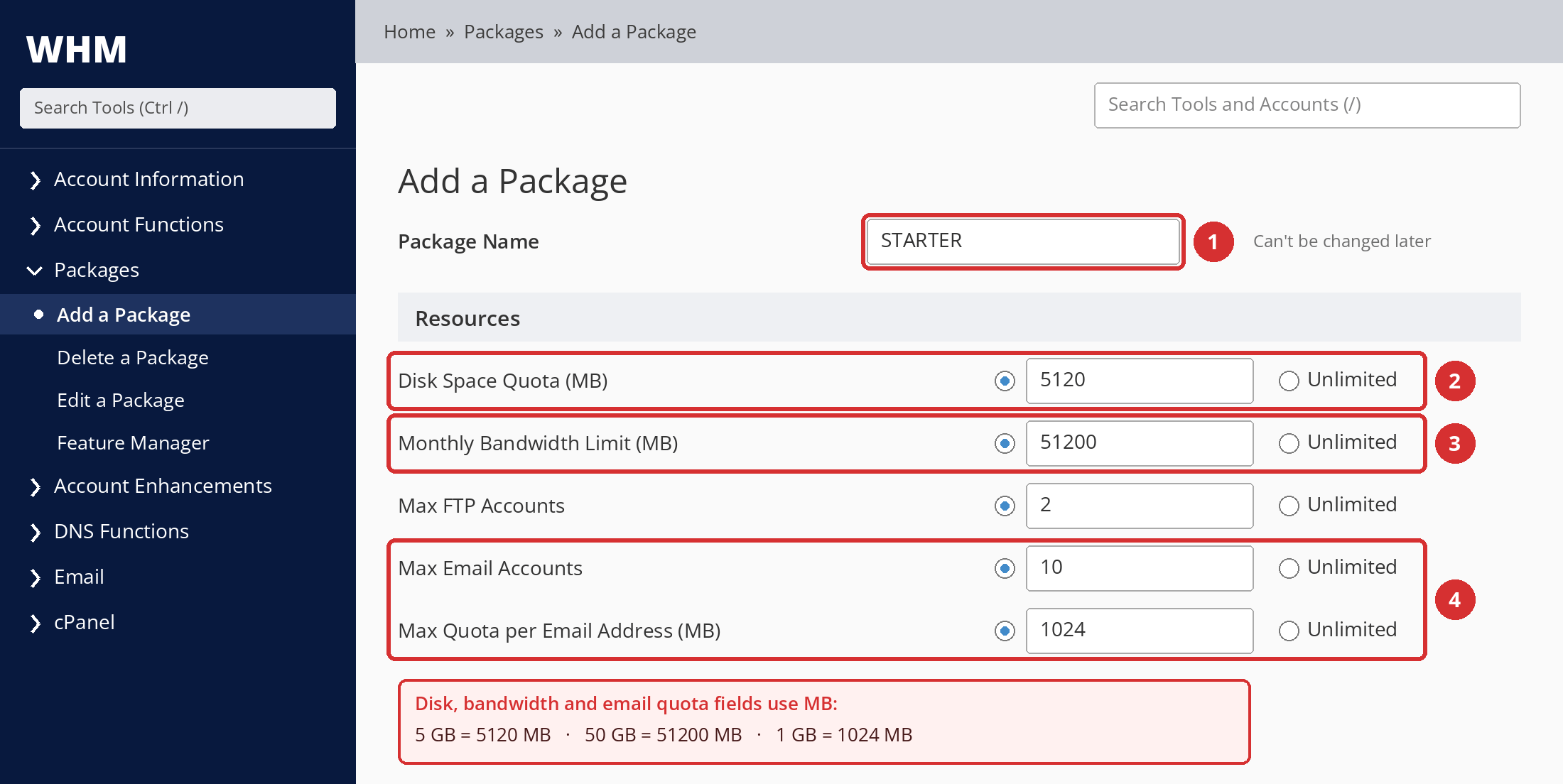
Enter a name in Package Name. You can't rename a package later, so don't include anything that might change, such as prices, promotions, dates, or resource amounts.
| Avoid | Prefer | Why |
|---|---|---|
10GB-5USD | STARTER | If the price or disk size changes, the name becomes misleading. |
2026-PROMO-PLAN | BUSINESS | The promotion ends; the package name stays. |
3-DOLLARS-MONTHLY | PRO | Prices are managed in your billing system, not in WHM. |
These names aren't required; use your own plan names if you prefer. cPanel recommends keeping the number of packages small and the names short so they're easier to manage. You can't use extensions as a package name.
You may see your username in front of the package name
Packages created by a reseller account may appear in WHM lists with your username in front (for example, reseller01_STARTER). Your customer only sees the package name (STARTER) in their cPanel.
Step 4: Enter the Resource Limits
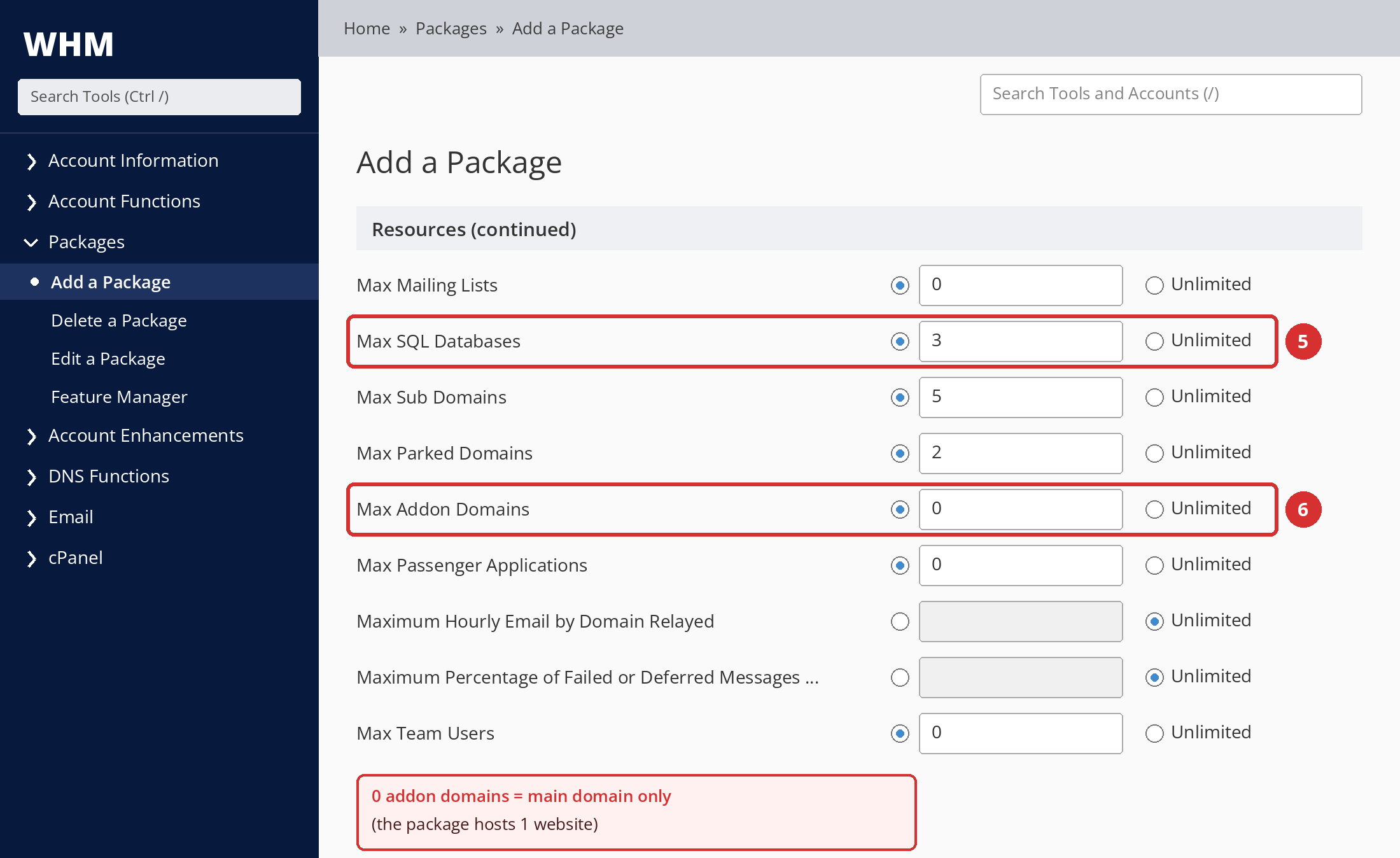
In the Resources section, enter a value for each field or select Unlimited. The screenshots below show example values for a first package; each field is explained in detail in Which Limits Should I Choose?.
Which values should I choose?
Start by deciding who you'll sell this package to. A single business website and an agency managing several client sites need very different amounts of disk, email, and databases. Example starting points:
| STARTER | BUSINESS | PRO | |
|---|---|---|---|
| Disk | 5 GB | 15 GB | 30 GB |
| Websites | 1 | 5 | 15 |
| Email accounts | 10 | 50 | 150 |
For every field and the exact MB values to enter in WHM, see Example Package Design.
Entering 10 for disk space doesn't mean 10 GB
Disk Space Quota, Monthly Bandwidth Limit, and Max Quota per Email Address all expect values in MB. To give 10 GB, enter 10240. If you enter 10, your customer gets 10 MB.
Quick conversions: 1 GB = 1024 MB · 5 GB = 5120 MB · 10 GB = 10240 MB · 50 GB = 51200 MB · 100 GB = 102400 MB
0 doesn't mean the same thing in every field
In Max Sub Domains, Max Parked Domains, and Max Addon Domains, 0 means the customer can't use that feature.
In Maximum Hourly Email by Domain Relayed, 0 means unlimited. If you want to limit hourly sending, don't enter 0 here.
Checkpoint
Expected result: Every resource field has either a number or Unlimited selected.
Most common mistake: Entering a GB value straight into an MB field (typing 10 for 10 GB).
Next: Move on to Settings.
Step 5: Check the Feature List and Locale
In the Settings section, you choose which cPanel features the package can use and the account's default interface language. For a first package, you can leave most settings at their defaults.
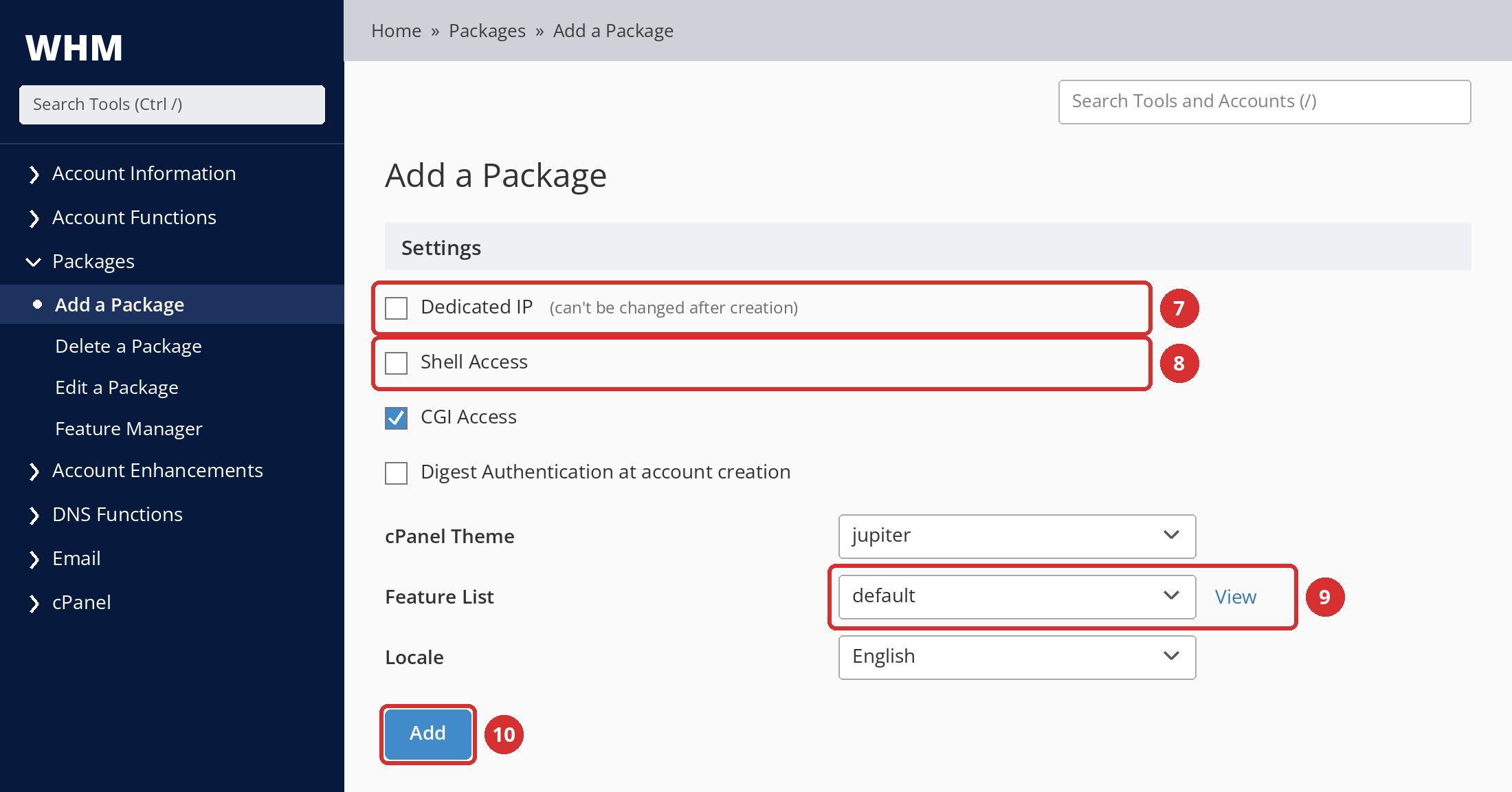
- Feature List: Controls which tools the account sees in cPanel. If you don't have your own list, choose your provider's default list (usually
default). Don't assign the list named disabled to a package; cPanel notes that it isn't meant to be assigned to packages or accounts. - Locale: The default language of your customer's cPanel. Choose the language most of your customers use; they can change it later in their own cPanel.
- Dedicated IP and Shell Access: Leave them unchecked unless you have a business need. Details are in Which Limits Should I Choose?.
Step 6: Save the Package
Click Add at the bottom of the page.
Checkpoint
Expected result: WHM confirms the package was created, and it appears in the package lists on Edit a Package and Create a New Account.
Most common mistake: Assuming the customer account was created along with the package. It wasn't; you create it in the next step.
Next: Assign the package to your first customer.
Step 7: Assign the Package to Your First Customer
Open WHM > Account Functions > Create a New Account. Enter the customer's domain, username, and contact email, then choose your package from Choose a Package in the Package section and create the account.
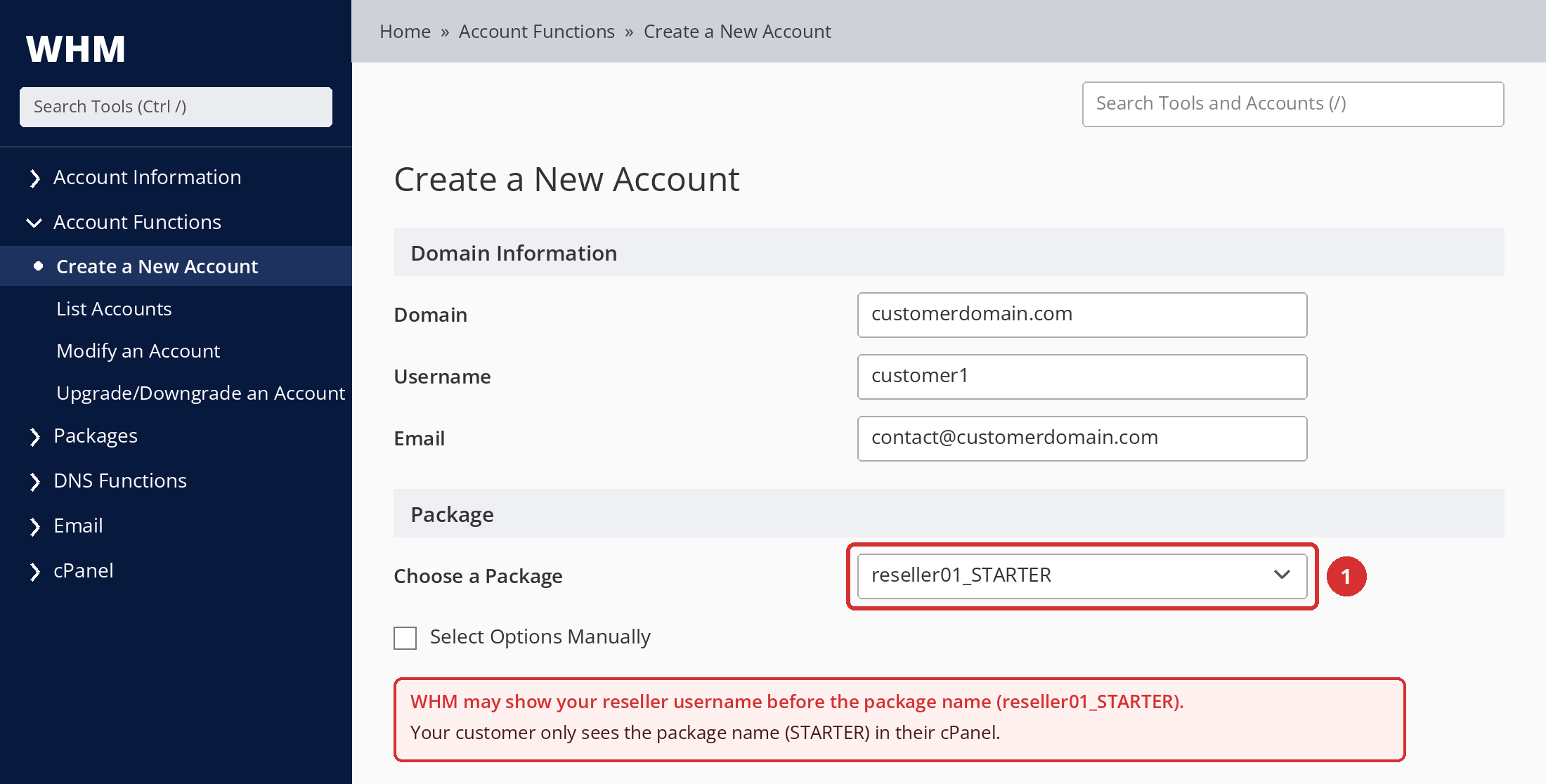
The full account setup is covered in a separate guide: How to create a new cPanel account in WHM.
Package ready? If you've created the package and assigned it to an account, the basic setup is done. The sections below help you choose limits deliberately and manage the package later.
Which Limits Should I Choose?
How Many MB Should I Enter for 10 GB of Disk Space in WHM?
For 10 GB of disk space, enter 10240 in WHM's Disk Space Quota field. WHM's disk, monthly bandwidth, and email quota fields expect megabytes (MB), calculated as 1 GB = 1024 MB.
| What you want to give | What to enter in WHM (MB) |
|---|---|
| 1 GB | 1024 |
| 2 GB | 2048 |
| 5 GB | 5120 |
| 10 GB | 10240 |
| 20 GB | 20480 |
| 50 GB | 51200 |
| 100 GB | 102400 |
| 500 GB | 512000 |
Disk Space vs. Bandwidth
Disk space is the total amount of data an account can store on the server. Bandwidth (monthly traffic) is the amount of data the account can transfer to visitors and other servers in a month. One limits storage; the other limits what moves in and out of it each month.
For example, a site using 10 GB of disk might use 100 GB of bandwidth a month. Image-heavy or high-traffic sites use bandwidth faster. There's no reliable way to convert a bandwidth amount into a number of visitors; page size and visitor behavior decide that.
Every Resource Field Explained
These are the resource options defined in cPanel's official Add a Package documentation. Some may not appear in your account, depending on your WHM version or your provider's settings.
The six fields that matter most for a first package
| Field | What it controls | How to decide | Watch out for |
|---|---|---|---|
| Disk Space Quota (MB) | Total space the account can use on the server. | Base it on what the customer will host; a single business site and an image-heavy site don't need the same space. | Too low, and uploads fail, email may not be delivered, and database writes can stop. |
| Monthly Bandwidth Limit (MB) | Data the account can transfer per month. | A few times the disk allocation is a common starting point for small sites. | When the limit is reached, the site may become unavailable until the period resets or the limit is raised. |
| Max Email Accounts | Number of email accounts (mailboxes). | Think about how many people work at your target customer. | This limits the number of mailboxes, not their size. |
| Max Quota per Email Address (MB) | The largest quota the customer can set when creating a single email account. | Plan it alongside disk space; mailboxes use the account's disk. | Changing this value later doesn't affect existing email accounts. |
| Max SQL Databases | Databases allowed per database type. | Apps like WordPress use a database; allow one for each additional app. | If both MySQL and PostgreSQL are enabled, a value of 5 means 5 of each. |
| Max Addon Domains | Separate websites the account can host besides the main domain. | Websites per package = 1 main domain + addon domain limit. | 0 means the package hosts one website. |
Other resource limits
For a first package, you can usually leave these at their defaults or set low values.
| Field | What it controls | How to decide | Watch out for |
|---|---|---|---|
| Max FTP Accounts | Additional FTP accounts the customer can create. | A few are enough for small plans; agency plans may need more. | Customers can also upload files with cPanel's File Manager. |
| Max Mailing Lists | Number of Mailman mailing lists. | Keep it low if you don't offer newsletter or list services. | — |
| Max Sub Domains | Number of subdomains (e.g., blog.example.com). | A few subdomains are useful for testing and staging. | 0 prevents creating subdomains. |
| Max Parked Domains | Number of alias domains. | For customers who want the same site under different domains. | 0 prevents adding aliases. |
| Max Passenger Applications | Number of Node.js, Python, or Ruby apps. | Leave it at 0 if you don't support these apps. | — |
| Maximum Hourly Email by Domain Relayed | Emails each domain on the account can send per hour. | Set a sensible limit to reduce spam risk, or use your provider's default. | 0 means unlimited. The value can't exceed the server-wide limit. |
| Maximum Percentage of Failed or Deferred Messages | The share of failed or deferred messages a domain can reach before sending is temporarily blocked. | Leave the default unless you have a specific reason to change it. | — |
| Max Team Users | Number of team users that can be added to the account. | Only appears in versions that support it; on the edit screen it may be called “Max Team Users with Roles.” | — |
Email Limits: Three Separate Settings
Max Email Accounts sets how many mailboxes can be created, Max Quota per Email Address sets how large one mailbox can be, and Maximum Hourly Email by Domain Relayed sets how many emails a domain can send per hour. None of them replaces the others.
| Setting | What it limits | Example |
|---|---|---|
| Max Email Accounts | Number of mailboxes | 20 email accounts |
| Max Quota per Email Address (MB) | Size of a single mailbox | Up to 2 GB each (2048 MB) |
| Maximum Hourly Email by Domain Relayed | Hourly sending | 200 emails per hour |
“20 email accounts with 2 GB each” and “200 emails per hour” are different limits. And “unlimited email” doesn't mean physically unlimited resources: mailboxes use the account's disk space, and sending is subject to server-wide rules.
Addon Domains, Subdomains, and Aliases
| Type | What it does | Example |
|---|---|---|
| Addon domain | Hosts a separate website in the same account. | example-b.com hosted inside the example-a.com account |
| Subdomain | Creates a separate section under the main domain. | blog.example-a.com |
| Alias (parked domain) | Makes another domain show the same site. | example-a.net opening the example-a.com site |
For package design, the addon domain limit matters most because it sets how many websites the package can host: for example, 0 addons for STARTER (1 site) and 4 addons for BUSINESS (5 sites). WHM still uses the older term (Parked Domains); in current cPanel versions these are called Aliases, and customers usually manage domains from the Domains screen.
What Is a Feature List?
A Feature List defines which cPanel features a package can access. Resource limits answer “how much can they use?”, while the Feature List answers “which tools can they use?”
| Resource limit (Resources) | Feature (Feature List) |
|---|---|
| Amount of disk space | Access to File Manager |
| Number of email accounts | Backup tools |
| Number of databases | Use of FTP |
Feature Lists are managed in WHM > Packages > Feature Manager. On the Add a Package screen, the View link next to the list shows what's in it. Some features may be disabled server-wide by your provider; even if they're checked in the list, the customer may not see them.
Locale and cPanel Theme
Locale sets the default language your customers see in cPanel for accounts on this package. The cPanel Theme sets the interface theme. In current versions, Jupiter is for experienced users who want access to every tool, while Meridian offers a simpler, task-focused experience. Which themes appear depends on your server's configuration.
Advanced Settings: Dedicated IP, Shell Access, CGI
Unless you have a business need, the safest choice is to leave these settings at their defaults or as your provider recommends.
| Setting | What it does | Recommendation |
|---|---|---|
| Dedicated IP | Gives the account an IP address it doesn't share with other accounts. | Leave it unchecked if your shared reseller service doesn't include dedicated IPs. You can't change this after the package is created; you'd need a new package. |
| Shell Access | Lets the customer access the server from the command line. | Keep it off by default for security. Enable it only in a separate package for customers who truly need it and whom you trust. |
| CGI Access | Allows the account to run CGI scripts. | Leave it at your provider's default. |
| Digest Authentication | Enables Digest Authentication for Web Disk access over unencrypted connections. | Leave it at the default unless you have a specific need. |
Should I Make Everything Unlimited?
Usually not. Unlimited means WHM doesn't enforce a cap on that field; it doesn't mean the physical capacity of the server or your reseller plan is infinite.
- High resource usage by a customer with no package limit can use up your reseller plan's total capacity and affect your other customers.
- Clear limits make it obvious what a customer has bought and when it's time to move to a bigger plan.
- Your provider may restrict Unlimited on your reseller account; if so, the option won't appear or can't be selected.
If you plan to advertise “unlimited” on your sales page, make sure you have the capacity to back it up.
Example Package Design
These values are examples
The values below only illustrate how packages work and aren't official plans recommended by Domain Name API. Set your real limits based on your reseller plan's capacity, your target customers, and your business model.
| Field | STARTER | BUSINESS | PRO |
|---|---|---|---|
| Disk | 5 GB (5120) | 15 GB (15360) | 30 GB (30720) |
| Monthly bandwidth | 50 GB (51200) | 150 GB (153600) | 300 GB (307200) |
| Websites (Max Addon Domains) | 1 site (0) | 5 sites (4) | 15 sites (14) |
| Email accounts | 10 | 50 | 150 |
| Mailbox quota | 1 GB (1024) | 2 GB (2048) | 5 GB (5120) |
| Databases | 3 | 15 | 50 |
| FTP accounts | 2 | 10 | 30 |
| Subdomains | 5 | 20 | 50 |
Make sure the differences between packages mean something to the customer. Three packages with clear differences are easier to sell and manage than five that look almost the same.
Do I Set the Package Price in WHM?
No. A WHM package is a technical template for an account's resources and features; it has no price field. You manage pricing, invoicing, and renewals in your billing or e-commerce system.
In systems like WHMCS or WiseCP, you usually map each hosting product to a WHM package name when you set it up. For details, see the integration guides: Setting up reseller hosting with WHMCS and Setting up reseller hosting with WiseCP.
Managing the Package Later
Changing a Package's Limits
You edit an existing package in WHM > Packages > Edit a Package. According to cPanel's API documentation, changes to a package apply to every account that uses it.
- Open WHM > Packages > Edit a Package.
- Select the package from Package and click Edit.
- Make your changes and click Save Changes. To discard them before saving, click Reset.
Before you change anything
Lowering a limit affects every customer on that package at once. If some customers are already using more than the new limit, let them know first.
Changing Max Quota per Email Address doesn't affect existing email accounts; it only applies to new ones.
The Dedicated IP setting can't be changed after the package is created.
If you changed an account's limits individually with Modify an Account, updating the package may overwrite those custom values.
If You Want to Rename a Package
Packages can't be renamed. cPanel's recommended approach is to create a new package with the name you want and move accounts to it.
Upgrading or Downgrading a Customer's Package
To move a customer from STARTER to BUSINESS, use WHM > Account Functions > Upgrade/Downgrade an Account: select the account, choose the new package, and save. The account takes on the new package's limits. For the detailed steps, see: How do I change a customer's hosting package?
If You Can't Create a Package
Troubleshooting
| Problem | Likely cause | What to do |
|---|---|---|
| Add a Package isn't in the menu | Your provider may have disabled this screen for your reseller account. | Ask our support team about your account's package permissions. |
| The Unlimited option is missing or can't be selected | Creating packages with unlimited resources may be restricted on your reseller account. | Enter a specific value; if you need unlimited, talk to support. |
| You can't rename a package | cPanel doesn't allow package renames. | Create a new package with the new name and move accounts to it. |
| The disk limit is much smaller than expected | A GB value was entered into an MB field (10 instead of 10 GB). | Fix it in Edit a Package using MB (10 GB = 10240). |
| The customer can't send email | The hourly sending limit or the failed-message percentage may have been reached. | Check the email sending limits in the package. |
| The package doesn't appear in Create a New Account | It may have been created under a different reseller user, or not saved. | Check whether it's listed in Edit a Package; if not, create it again. |
| You can't create an account without choosing a package | Your provider may not allow your reseller account to set account limits manually. | That's expected; create the account by selecting an existing package. |
| You can't create a new account | Your reseller account may have reached its account or total resource limit. | Check your usage; to upgrade your plan, talk to support. |
Common Mistakes
| Mistake | Why it's a problem | What to do instead |
|---|---|---|
| Treating the package as a hosting account | No customer account exists yet. | Create the account in Create a New Account after the package. |
| Giving 10 MB instead of 10 GB | The site runs out of space on the first upload. | Enter MB: 10240. |
| Putting the price in the package name | Names can't change; the price will. | Use lasting names like STARTER or BUSINESS. |
| Making everything Unlimited | One customer can use up your total capacity. | Set measured, clear limits. |
| Setting limits without a target customer in mind | The package is either too small or wastes resources. | Start from the target customer's site and email needs. |
| Confusing email account count with quota | Customers get smaller mailboxes than they expect. | Set the number of accounts and the quota separately. |
| Confusing disk space with bandwidth | The site may go offline when bandwidth runs out. | Plan the two values separately. |
| Setting the wrong addon domain limit | The package hosts more or fewer sites than you sold. | Websites = 1 + addon domain limit. |
| Entering 0 for the hourly email limit | 0 means unlimited in this field. | Enter a positive number to set a limit. |
| Not checking the Feature List | Customers can't find tools they expect. | Review the list with View. |
| Enabling Shell Access unnecessarily | It increases security risk. | Enable it only in packages that need it. |
| Creating packages that look almost the same | Selling and managing them gets harder. | Create a few packages with clear differences. |
Before You Start Selling the Package
| Check | |
|---|---|
| ☐ | The package name is lasting and clear (no price or date). |
| ☐ | Disk and bandwidth values were entered correctly in MB. |
| ☐ | The number of email accounts and the mailbox quota were set separately. |
| ☐ | Database and addon domain limits match the number of sites the package promises. |
| ☐ | Feature List and Locale were checked. |
| ☐ | Shell Access and Dedicated IP are on only if needed. |
| ☐ | You created a test cPanel account with this package, and the limits look right in cPanel. |
Test before you go live
Before you sell the package, create a test account and check disk space, email, and database limits in cPanel. This catches mistakes like a wrong unit or a missing feature before your customer does. You can delete the account after testing.
Frequently Asked Questions
What is a hosting package in WHM?
A WHM hosting package is a reusable template that defines a cPanel account's disk space, monthly bandwidth, email, database, and domain limits, plus the cPanel features it can use. You create it once, then assign it to every customer who buys that plan.
Does creating a package create a hosting account?
No. A package only defines limits. The account that hosts your customer's website and email is created separately in WHM > Account Functions > Create a New Account, where you assign the package.
Why can't I see Add a Package in WHM?
cPanel notes that hosting providers can enable or disable this screen for reseller accounts. If you don't see Packages or Add a Package in your menu, ask our support team about your account's package permissions.
Can I rename a package later?
No. cPanel doesn't allow package renames. If you want a different name, create a new package and move accounts to it with Upgrade/Downgrade an Account. That's why you shouldn't put prices or promotions in package names.
Can I change a package's limits later?
Yes. You can change limits in Edit a Package, and the changes apply to every account using that package. The exceptions: changing the mailbox quota doesn't affect existing email accounts, and the Dedicated IP setting can't be changed afterward.
Should I use Unlimited?
Usually not. Unlimited means WHM doesn't enforce a cap on that field; your reseller plan's capacity is still finite. High usage by a customer with no limit can affect your other customers. Clear, measured limits make both resource management and upgrades easier.
What's the difference between disk space and bandwidth?
Disk space is the total data an account can store on the server. Bandwidth is the data it can transfer in a month. A site using 10 GB of disk might use 100 GB of bandwidth a month. You set the two separately, and both are entered in MB in WHM.
What's the difference between Email Accounts and Email Quota?
Max Email Accounts sets how many mailboxes can be created. Max Quota per Email Address sets the maximum size of a single mailbox. For example, “20 email accounts, up to 2 GB each” uses both settings together.
What is a Feature List?
A Feature List defines which cPanel tools accounts on a package can see. Resource limits answer “how much”; the Feature List answers “which tools.” You manage lists in WHM > Packages > Feature Manager.
Where do I set the package price in WHM?
There's no price field in WHM. A WHM package is a technical resource template. You manage pricing, invoicing, and renewals in WHMCS, WiseCP, or another billing system, where you map the product to the WHM package.
Can I change a customer's package later?
Yes. In WHM > Account Functions > Upgrade/Downgrade an Account, select the account and assign the new package. The account takes on the new limits. If you're lowering limits, make sure the customer's current usage fits within them.
Can I use these packages with WHMCS or WiseCP?
Yes. In these systems you usually map each hosting product to a WHM package; when a customer orders, the account is created with that package. For setup details, see the WHMCS and WiseCP integration guides.
Summary
- A package is a template; the customer account is created separately.
- Create the package in WHM > Packages > Add a Package.
- Pick a lasting name; you can't rename it later.
- Enter disk, bandwidth, and mailbox quota in MB.
- Check the Feature List and Locale, and don't enable advanced settings you don't need.
- Test the package on a test account, then assign it to customers.
Already using Domain Name API Reseller Hosting and stuck?
If you can't see Add a Package or can't save your package, open a support ticket. Including your reseller username and the error message you see helps us resolve it faster.
Open a Support TicketLooking for white-label reseller hosting?
Build your own hosting packages with cPanel/WHM and sell hosting under your own brand.
Explore Reseller Hosting