Sub-Reseller Management Guide
In this guide: The sub-reseller system lets you build your own domain reseller network. Each sub-reseller account you create works just like a standard reseller account — your clients can register, renew, and transfer domains independently. You control the pricing, load their balance, and manage everything from a single dashboard.
What you'll learn in this guide
- → How to create a new sub-reseller account
- → How to view, search, and edit sub-resellers
- → How to assign and change pricing groups
- → How the deposit (balance) system works
- → Sub-reseller login URL and credentials
- → Frequently asked questions & troubleshooting
Overview
From your reseller panel (dm.domainnameapi.com), you can:
- Create, edit, and suspend sub-reseller accounts
- Assign and update pricing groups for each sub-reseller
- Load deposits (balance) into sub-reseller accounts
- Log in as a sub-reseller to troubleshoot or make changes on their behalf
User Management
Creating a Sub-Reseller Account
To add a new sub-reseller to your account:
- Go to Sub-Reseller > Reseller List from the left menu.
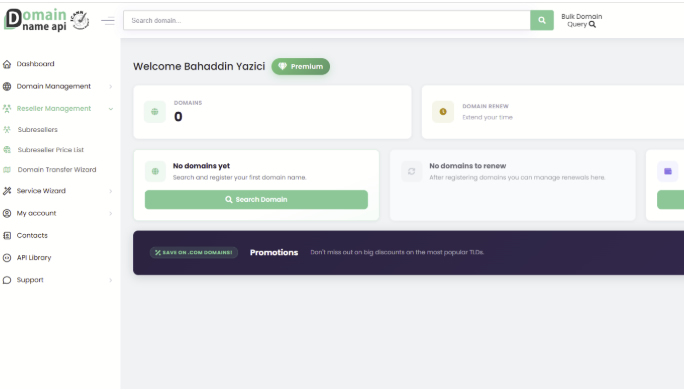 Figure 1 — Reseller panel: navigate to Sub-Reseller > Reseller List from the left sidebar
- Click + Add new sub-reseller in the top-right corner.
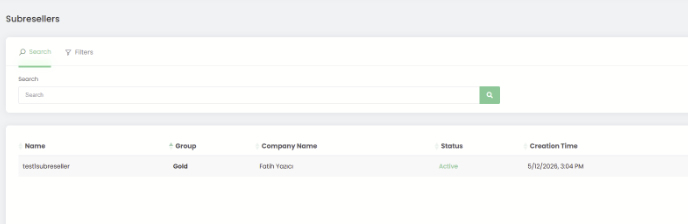 Figure 2 — Subresellers list: existing accounts shown with Group, Company Name, Status, and Creation Time
- Fill in all required fields in the form (see the field reference table below).
- Click Save at the bottom of the page. The account is activated immediately.
Account Information
Login Credentials
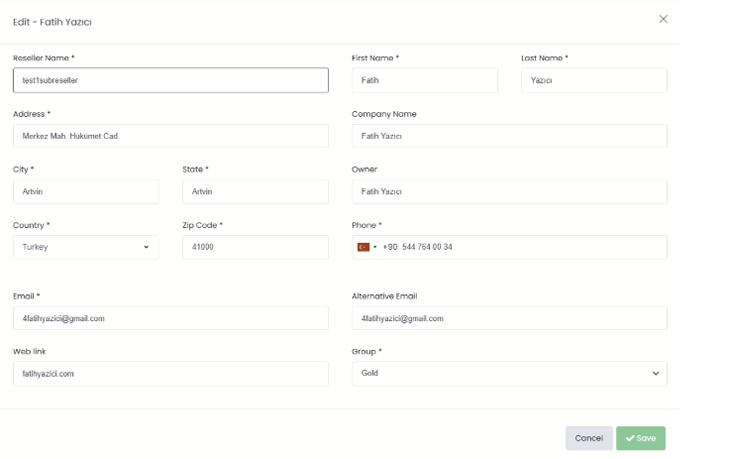
Viewing and Editing Sub-Resellers
To find, review, or update an existing sub-reseller:
- Go to Sub-Reseller > Reseller List from the left menu.
- Optionally, type part of the reseller name in the search box to filter the list.
- Click the reseller's name to open their account.
- Make your changes, then click Save at the bottom of the page.
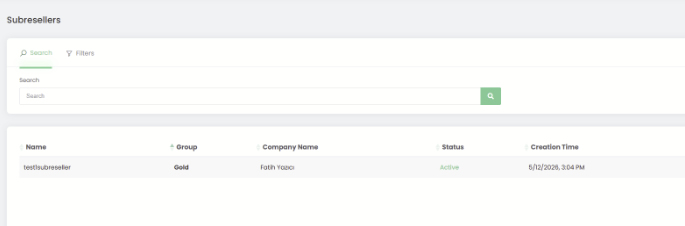
What You Can Do from the Edit Screen
Clicking a sub-reseller's name opens their edit screen. Here's a quick reference of available actions:
Pricing Groups
Pricing groups control the domain prices applied to each sub-reseller. Every sub-reseller must be assigned a group at creation. If no group is assigned, the system applies default pricing.
To view existing groups or create a new one: go to Sub-Reseller > Sub-Reseller Pricing from the left menu.
Assigning a Pricing Group
- Go to Sub-Reseller > Reseller List.
- Click the sub-reseller you want to update.
- Select a group from the Pricing Group dropdown.
- Click Save.
Deposit Management
Sub-resellers need a balance (deposit) in their account to register, renew, or transfer domains. You load deposits from your own account — there's no limit on how much you can add, and you can top up at any time.
How the Deposit System Works
The deposit system uses a layered limit: your sub-reseller's usable balance is capped by the balance available in your own reseller account.
Example: Your reseller account has $1,000. You assign $5,000 in deposits to your sub-reseller. In practice, the sub-reseller can only spend up to $1,000 — the limit of your own account. Once you top up your balance, your sub-reseller's effective limit increases automatically.
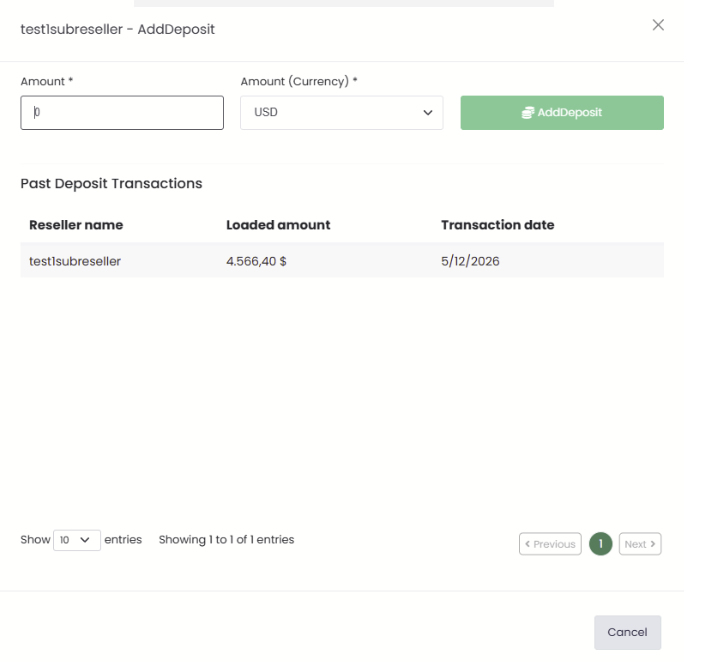
Loading a Deposit
To add balance to a sub-reseller account:
- Go to Sub-Reseller > Reseller List.
- Click the sub-reseller's name.
- Enter the amount in the Amount field and select the currency.
- Click AddDeposit.
Sub-Reseller Login
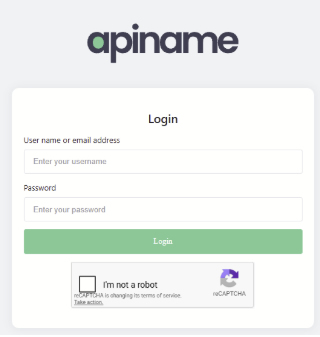
Sub-resellers use a separate login portal — not the main reseller panel. Make sure they have the correct URL before they try to log in.
Related Resources
Looking for more? These guides cover related features and workflows:
- Domain Reseller Program — Benefits of a reseller account and how to get started
- Sub-Reseller Pricing Groups — Creating pricing plans and setting TLD-level prices
- Reseller Panel Guide — Full walkthrough of dm.domainnameapi.com
- Domain Registration Guide — Step-by-step instructions for registering your first domain
- REST API Documentation — Manage sub-resellers programmatically via the API
Frequently Asked Questions
Q: How do I create a sub-reseller account?
A: Go to Sub-Reseller > Reseller List, click + Add new sub-reseller, fill in the required fields, and click Save. The account is active immediately.
Q: What services can a sub-reseller offer?
A: Sub-resellers can only provide domain services: registration, renewal, and transfer. Email hosting, SSL certificates, and other services are not available to sub-reseller accounts.
Q: What is the sub-reseller login URL?
A: Sub-resellers log in at srp.apiname.com — not the main reseller panel. To set up a custom login URL, create a subdomain and point its DNS A record to 185.46.43.245.
Q: Why is the sub-reseller's password being rejected?
A: The password must be at least 12 characters and include at least one uppercase letter, one lowercase letter, one number, and one special character. Example: Abc123!@#Xyz
Q: My sub-reseller can't log in — what should I check?
A: First, confirm they're using srp.apiname.com (not dm.domainnameapi.com). Then check that their account status is Active and their password meets the policy requirements.
Q: Can I reverse a deposit transfer?
A: No. Deposits cannot be reversed once confirmed. Always verify the amount and currency before clicking AddDeposit. Also keep in mind that your sub-reseller's effective spending limit is capped by your own account balance — even if you assign $5,000, they can only spend up to what you have available.
Q: Can I change a sub-reseller's pricing group later?
A: Yes. Open the sub-reseller from Reseller List, select a new group from the Pricing Group dropdown, and click Save. The change applies immediately to all future transactions.
Q: Can I act on behalf of a sub-reseller?
A: Yes. Open the sub-reseller from Reseller List and switch into their account from the edit screen. Click Log Out when you're done to return to your own panel.
Q: Are 'sub-reseller' and 'alt bayi' the same thing?
A: Yes. 'Alt bayi' is the Turkish term used in the reseller panel. Both refer to the same account type: a reseller account that sits beneath yours in the hierarchy.
Ready to build your reseller network?
Log in to your reseller panel, go to Sub-Reseller > Reseller List, and create your first sub-reseller account in minutes.
dm.domainnameapi.com