Post-Migration WHMCS, WiseCP, HostBill, Blesta and ClientExec Configuration Guide
To avoid any disruption between your automation platform (WHMCS, WiseCP, HostBill, Blesta, or ClientExec) and Domain Name API, you must replace your old username and password credentials with the Reseller ID and API Key information sent to you via email.
📩 How Can You Access Your API Credentials?
Once your migration process has been completed, our system automatically sends an email to your registered email address with the subject line "Important Notice: Reseller account migration successfully completed".
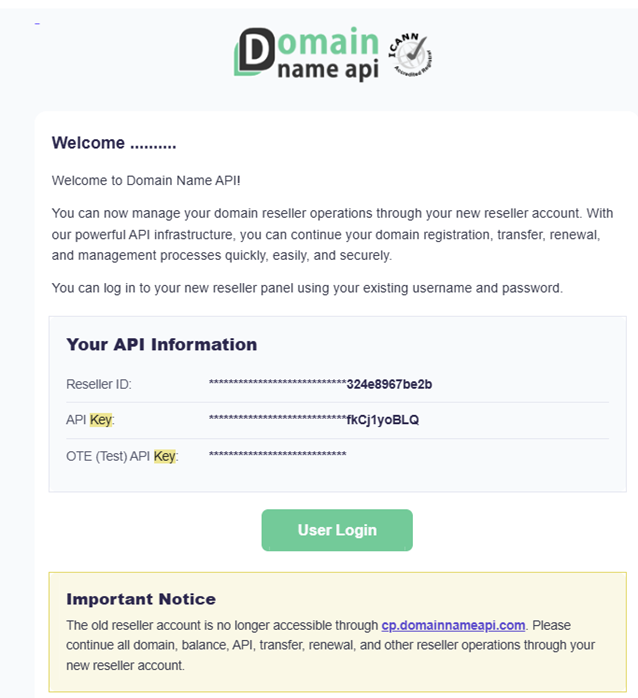
If you cannot locate this email or would like to generate a new API Key from your control panel, you can follow all required steps in our How to Create an API Key? Step-by-Step Guide.
Latest WHMCS module files: GitHub - whmcs-dna
Latest WiseCP module files: GitHub - wisecp-dna
Latest HostBill module files: GitHub - hostbill-dna
Latest Blesta module files: GitHub - blesta-dna
Credentials Used in Module Settings
- Reseller ID: Must be entered into the Username field.
Example:6e575f24-986d-44b1-851d-324e8967be2b - API Key: Must be entered into the Password or Token field.
Example:BxdNVgwUFPdtWTm9EOa0QCLJ0uc0n6fkCj1yoBLQ
⚙️ Update Instructions by Automation Platform
1. WHMCS Module Update
- Log in to your WHMCS Admin Panel.
- Navigate to System Settings > Domain Registrars.
- Locate the DomainNameAPI registrar module from the active registrar list.
- Click the Configure button.
- Enter your Reseller ID into the Username field.
- Enter your API Key into the Password field.
- Save the changes.
Latest WHMCS module files: GitHub - whmcs-dna
2. WiseCP Module Update
- Log in to your WiseCP Admin Panel.
- Navigate to Products/Services > Domain Registration > Setup/Settings.
- Select the DomainNameAPI module from the list and open the configuration screen.
- Go to the Reseller Credentials section.
- Enter your Reseller ID into the Username field.
- Enter your API Key into the Password field.
- Click Save to complete the update.
Latest WiseCP module files: GitHub - wisecp-dna
3. HostBill Module Update
- Log in to your HostBill Admin Panel.
- Navigate to Settings > Modules.
- Select the DomainNameAPI registrar plugin under Domain Registrars.
- Open the Configuration Fields section.
- Enter your Reseller ID into the Username field.
- Enter your API Key into the Password field.
- Save the settings and perform a connection test.
Latest HostBill module files: GitHub - hostbill-dna
4. Blesta Module Update
- Log in to your Blesta Admin Panel.
- Navigate to Settings > Company > Modules.
- Find the Domain Name API module under the Installed list.
- Click the Manage button next to the module.
- Edit the relevant account entry.
- Replace the old username with your Reseller ID and the old password with your API Key.
- Save the changes.
Latest Blesta module files: GitHub - blesta-dna
5. ClientExec Module Update
- Log in to your ClientExec Admin Panel.
- Navigate to Settings > Plugins > Registrars.
- Select the DomainNameAPI module from the dropdown menu or plugin list.
- Remove the old authentication credentials.
- Enter your Reseller ID into the Username field.
- Enter your API Key into the Password / Token field.
- Save the changes.
Still Receiving Connection Errors?
If you continue to experience connection issues, please verify the following:
- Ensure that your WHMCS, WiseCP, HostBill, Blesta, or ClientExec module is updated to the latest version released in June 2026 or later on our GitHub page.
- Make sure that Sandbox / Test mode is turned off.
- Ensure that the newly generated API Key has been entered correctly.
- Confirm that your Reseller ID has been entered into the Username field.
- Verify that your IP permissions / whitelist settings are active and correctly configured.
- If the issue persists, please contact our support team by submitting a support ticket.