How to Activate the DomainNameAPI Module in WiseCP: Step-by-Step Setup Guide
Difficulty: Easy
What You'll Need: Reseller ID + API Key
This guide was written for WiseCP 3.x, PHP 7.4+, and the DomainNameAPI module.
30-Second Summary
Steps
- Copy the “coremio” folder into your WiseCP installation directory.
- Go to Products/Services > Domain Registration, complete setup.
- Enter your Reseller ID and API Key, and save.
- Click Test Connection.
- Import your TLDs from the Import Extensions tab.
- If you have existing domains, match and import them from the Import tab.
What You'll Learn From This Guide
By the end of this guide, you'll be able to:
- ✔ Install the DomainNameAPI module in WiseCP correctly
- ✔ Configure your reseller credentials and verify the connection
- ✔ Import extensions and domains
- ✔ Read the error codes and resolve the most common issues on your own
Introduction: What Does This Module Actually Do?
If you're reselling domains through WiseCP, the DomainNameAPI module connects your registration, renewal, transfer, and pricing operations directly to your WiseCP panel. Set up correctly, your customers can search and register domains right from your panel, and you manage all of it from one place, without manual data entry.
This guide walks through the entire activation process — from uploading the files, to entering your reseller credentials, to testing the connection, to importing extensions and domains. We cover exchange rate sync and pricing optimization separately, in our WiseCP multi-currency guide.
Prerequisites
Before you start, confirm:
- WiseCP version 3.0 or later
- PHP version 7.4 or later
- The PHP Soap extension is enabled on your server
- You have your Reseller ID and API Key from your Domain Name API account
What Happens If the PHP Soap Extension Isn't Enabled?
The module uses the SOAP protocol to communicate with DomainNameAPI's servers. If the PHP Soap extension isn't enabled, the connection test and domain operations can fail silently. Confirm with your hosting provider or server panel that this extension is active.
Step-by-Step Setup
1) Uploading the Module Files
Copy the “coremio” folder from the downloaded package into your WiseCP installation directory (for example: /home/wisecp/public_html). Don't delete the .gitignore, README.md, or LICENSE files.
After uploading, confirm the folder structure is correct; the file path should look like this:
2) Completing the Setup
- Log in to the WiseCP admin panel.
- Go to the Products/Services menu and select “Domain Registration.”
- If the files uploaded correctly, click the “Setup” step to activate the DomainNameApi module.
3) Entering Your Reseller Details and Pricing Settings
The module uses your Reseller ID and API Key combination for authentication. You can find both on Reseller Settings > Integration Details in your panel. In WiseCP, you enter these on the “Import” tab of the “Initial Settings” screen — the same screen where you also configure your pricing settings.
- Enter your Reseller ID in the “Reseller Username” field.
- Enter your API Key in the “Reseller Password” field.
- Optionally, enter the amount you'll charge customers for WHOIS privacy in the “Whois Privacy Fee” field (default: 0).
- Check the “Auto Update Costs” box: this pulls your costs automatically every day and recalculates your sale prices based on the profit rate you set.
- Select the currency your registrar cost is quoted in under “Cost Currency” (usually USD).
- Enter the margin you want to apply under “Profit Rate (%).”
- Click “Save Settings.”
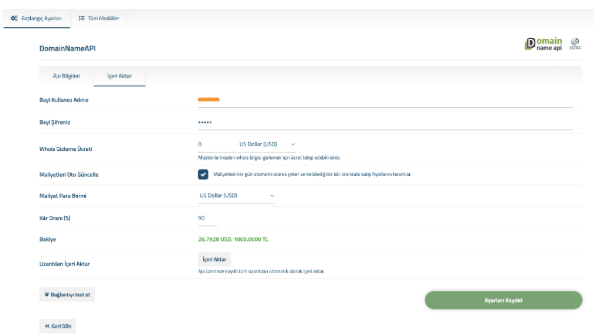
The real settings screen for the DomainNameAPI module in WiseCP: Reseller Username, Reseller Password, Whois Privacy Fee, Auto Update Costs, Cost Currency, Profit Rate (%), Balance, and the Import Extensions / Test Connection / Save Settings controls all live on one screen. Note: this screenshot is from a Turkish-language WiseCP installation; the field positions and behavior are identical in English, just with English labels.
4) Testing the Connection
After saving your settings, verify your credentials actually work before going live.
- Click “Test Connection.”
- A successful connection shows a confirmation message; if it fails, check your credentials and your IP Whitelist setting.
5) Importing Extensions
- Click the “Import” button under “Import Extensions.”
- Every extension registered on the API will be imported automatically.
Once this step is done, the profit rate you entered in step 3 is applied automatically across every imported extension. For more advanced pricing and exchange rate settings, see our WiseCP multi-currency guide.
6) Importing Existing Domains (Optional)
If you're moving to WiseCP from another system and already have domains registered under your Domain Name API account, you can import those too.
- Click the “Import” tab to view your domains.
- Match each domain shown in the list to the right customer and click “Import.”
One Thing to Watch For When Updating
Post-Activation Checks
- Did the connection test return a success message?
- Do extension prices show up correctly on the customer-facing domain search?
- Does a test domain lookup return the correct result?
- Does the number of imported extensions match what you expected?
- If you imported existing domains, are the customer matches correct?
Return and Error Codes
The module can surface response codes coming back from DomainNameAPI during domain operations. Knowing these saves real time when something goes wrong:
Common Mistakes
1) The module doesn't show up in the list
Symptom: There's no DomainNameApi option on the Products/Services > Domain Registration screen
Cause: The “coremio” folder was uploaded to the wrong directory or at the wrong depth
2) 2200 Authentication error
Symptom: The connection test or domain operations fail
Cause: The Reseller ID or API Key is wrong, partially copied, or an email address was typed into the username field by mistake
3) Test Connection fails
Symptom: The connection won't establish even though everything looks correct
Cause: The PHP Soap extension isn't enabled, or the server's IP isn't on the IP Whitelist
4) Settings disappear after an update
Symptom: The module was updated, but the reseller details reset
Cause: config.php was overwritten during the update
5) Extensions won't import
Symptom: The “Import Extensions” tab is empty or returns an error
Cause: The connection hasn't been verified yet, or the credentials are wrong
6) 2302 Object exists error
Symptom: An error appears while trying to register a domain
Cause: The domain name is already registered in the system
7) 2303 Object does not exist error
Symptom: A renewal or update operation fails
Cause: The domain or nameserver record you're trying to act on doesn't exist in the system
8) WiseCP or PHP version mismatch
Symptom: The module errors unexpectedly or won't load at all
Cause: An older version of WiseCP (pre-3.0) or PHP (pre-7.4) is in use
9) Imported domains match the wrong customer
Symptom: A domain shows up under the wrong account in the customer panel
Cause: A matching mistake was made manually during the Import step
10) Running an outdated module version
Symptom: Behavior doesn't match this documentation
Cause: The module hasn't been updated
Reseller Not Found Error Explained
GitHub Repository: domainreseller/wisecp-dna
Download the Latest Version and Release Notes
Troubleshooting Flow
If the Module Isn't Working, Check in This Order
- Is the coremio folder in the right directory? → Verify the file path.
- Is the PHP Soap extension enabled? → Confirm with your server provider.
- Are the Reseller ID and API Key entered correctly? → Re-copy them from Integration Details.
- Does Test Connection succeed? → If not, check your IP Whitelist.
- Is the error code 2200, 2302, or 2303? → Follow the explanation in the code table above.
- Still stuck? Check the current module version on GitHub, or contact support.
Best Practices and Security
- Keep the module up to date; the GitHub repository is actively maintained (40+ releases to date).
- Back up your config.php before updating, but don't include it again when you re-upload the update package.
- Restrict access to your Reseller ID and API Key to authorized admin accounts only.
- Use IP Whitelisting where possible to limit the connection to your own server.
- Verify the integration with a small test domain lookup before going live.
Checklists
Pre-Setup Checklist
- WiseCP 3.0+ and PHP 7.4+ confirmed
- PHP Soap extension enabled
- Reseller ID and API Key on hand
Post-Setup Checklist
- coremio folder uploaded to the correct directory and the module appears in the list
- Reseller credentials entered and saved
- Test Connection succeeded
- Extensions imported
- Existing domains, if any, imported and matched to the right customers
Maintenance Checklist
- Module updates are tracked regularly
- config.php is never re-uploaded during an update
- Error codes (especially 2200) are monitored periodically
Frequently Asked Questions
What are the minimum requirements to install the DomainNameAPI module in WiseCP?
WiseCP 3.0 or later, PHP 7.4 or later, and a PHP Soap extension enabled on your server.
Where do I upload the module files?
Copy the “coremio” folder from the downloaded package into your WiseCP installation directory (for example, /home/wisecp/public_html).
The module doesn't appear in the list — what should I do?
Check the file path; the correct structure is /coremio/modules/Registrars/DomainNameApi/DomainNameApi.php. Modules uploaded to the wrong directory never show up in WiseCP.
What should I enter in the reseller username and password fields?
Not your email address — enter your Reseller ID from your Domain Name API account in the username field, and your API Key in the password field.
What does a 2200 Authentication error mean?
It's a credentials error: your Reseller ID or API Key may be wrong, or the domain you're trying to act on may be registered with a different registrar.
Why does Test Connection keep failing?
The most common causes are the PHP Soap extension not being enabled, incorrect credentials, or your server's IP not being on the IP Whitelist.
How do I update the module?
Upload the coremio folder again, but don't include config.php — that file holds your current settings, and overwriting it can wipe them out.
What does importing extensions actually do?
It brings every extension available for sale on Domain Name API into your WiseCP installation, so your customers can search for and register them.
How do I bring my existing domains into WiseCP?
Use the “Import” tab to view the domains in your Domain Name API account, match each one to the right customer, and import it.
Why does a 2302 Object exists error happen?
Because the domain name or nameserver you're trying to register already exists in the system.
Why does a 2303 Object does not exist error happen?
Because the domain or nameserver record you're trying to act on isn't in the system yet — usually, a new registration needs to happen first.
What does the 2105 error mean?
The domain's status doesn't allow renewal, usually because of a status lock like clientupdateprohibited.
How do I set up pricing after activating the module?
After importing extensions, configure your profit rate and currency settings; we cover this in depth in our WiseCP multi-currency and exchange rate guide.
Is the module free?
Yes, Domain Name API's WiseCP module is free and distributed publicly on GitHub.
Is the module actively maintained?
Yes, the GitHub repository has more than 40 releases, which reflects regular maintenance.
Do I need IP Whitelisting for this module?
If IP Whitelisting is active on your account, your WiseCP server's outbound IP needs to be on that list — otherwise, the connection test and domain operations can fail even with correct credentials.
Related Resources
- WiseCP Multi-Currency & Exchange Rate Optimization
- Unauthorized API Access Error: Causes and Fixes
- Reseller Not Found Error Explained
- Domain Name API Test Platform Information
Conclusion
Activating the DomainNameAPI module in WiseCP is a 10-15 minute job when you follow the steps in order: upload the files, enter your credentials, test the connection, import your extensions. Most of the errors you'll run into — especially 2200 Authentication error — trace back to credentials or file path, and resolve quickly once you follow this guide.
Once the module is active, the real value comes from getting your pricing and exchange rate settings right. Pair this guide with our WiseCP multi-currency guide, and you'll have a complete system that protects your margin no matter which way the exchange rate moves.
Start Selling on WiseCP in 10 Minutes with DomainNameAPI
✔ Free, open-source WiseCP module
✔ 850+ TLDs
✔ Automatic price updates (Auto Update Costs)
✔ REST API
✔ Sandbox (Test/OT&E) environment
✔ 24/7 technical support