How to Automatically Sync TLD Pricing in WHMCS
30-Second Summary
Steps
1. Install the Domain Name API WHMCS module and activate it with your Reseller ID / API Key.
2. Go to Utilities > Registrar TLD Sync.
3. Select DomainNameApi from the list.
4. Define your markup, as a percentage or a fixed amount.
5. Select the extensions and import the pricing.
6. Confirm registration/renewal/transfer pricing with a test order.
Introduction: Why Manual Price Updates Stop Working
When you start out reselling domains with 5 or 10 extensions, entering prices by hand is fine. But once your catalog grows to 100, 300, or 800 extensions, the math changes. Registrar costs shift, exchange rates move, competitor pricing drifts — and every time, you're stuck updating hundreds of rows in WHMCS one at a time.
That creates three concrete problems:
Wasted time:
manually updating hundreds of TLDs takes hours you could be spending on sales instead.
Risk of selling below cost:
if a registrar's cost rises and you don't catch it, you start losing money on every sale of that extension.
Inconsistent margins:
some extensions end up at a 40% margin, others at 5%, simply because updates happen irregularly and by chance.
In this guide, you'll see how to use the TLD & Pricing Sync tool that ships in WHMCS's core, alongside the Domain Name API module; exactly how much of this is genuinely “automatic”; the full setup; the most common mistakes; and the best practices worth building into your workflow.
This guide is for you if you're a WHMCS administrator, a domain reseller, a hosting company, a system administrator, or a developer integrating the Domain Name API module into WHMCS.
How Domain Pricing Works in WHMCS
WHMCS tracks several distinct pieces when it calculates the price for an extension. Understanding them makes the sync logic much easier to follow.
Every one of these is a standard field defined in WHMCS's own domain registrar module development documentation (registration/renewal/transfer price, grace fee, redemption fee, currency, EPP requirement, and so on). The Domain Name API module uses this exact structure to bring pricing data into WHMCS.
How TLD Pricing Sync Works with Domain Name API
WHMCS 7.10 introduced a core tool called TLD & Pricing Sync (also labeled Registrar TLD Sync in the menu). It gives any registrar module that supports it a shared, standardized sync screen. Domain Name API's own official WHMCS setup guide describes exactly how this works with the module:
During this process, the table on screen shows the cost price, your current retail price, and the margin between them (as a percentage or an amount) side by side for every extension. Any extension being sold below cost is visually flagged, so you don't miss where you're losing money.
What “Automatic” Actually Covers (An Important Clarification)
Even though this guide is titled around “automatic” syncing, it's worth being precise here: WHMCS's TLD & Pricing Sync tool is triggered manually from the Utilities menu. When you open the Registrar TLD Sync screen and select DomainNameApi, the system pulls current cost data for every extension and recalculates hundreds of rows at once based on your markup rule — that part is genuinely automatic and bulk. But there's no official documentation showing WHMCS re-running this on its own, on a recurring schedule (say, every night).
What's Automatic vs. What's Manually Triggered
Automatic: pulling cost data for hundreds of TLDs in one pass and calculating + applying your retail price according to a markup rule you've defined.
Manually triggered: the moment that process starts. You need to open Utilities > Registrar TLD Sync and trigger it yourself; WHMCS doesn't repeat this on its own on any schedule.
A separate feature worth not confusing this with: “Enable Domain Sync” (General Settings > Domains) and the related “Domain Sync Settings” (Automation Settings) keep already-registered domains' status and expiry dates in sync — that's a completely different mechanism from TLD pricing sync, and it does run automatically via cron.
The practical takeaway: treat price syncing as a recurring habit (for example, once a month, or whenever you know registrar costs have changed). If you want to wire this into a fully automated cron job, that goes beyond WHMCS's standard, documented behavior and would require custom development — we're not presenting that as a guaranteed built-in feature.
Manual Updates vs. Registrar TLD Sync
Benefits of Pricing Sync
As WHMCS's own product team has pointed out, this tool delivers value in several concrete ways:
Faster setup for new users:
import hundreds of TLDs in one pass, with pricing rules already applied.
Discover extensions you're not selling yet:
see what's available from your registrar that you haven't added to WHMCS.
Verify your margins:
see the real percentage or amount you're making on each extension; below-cost pricing is flagged.
Handle price increases gracefully:
when registrar costs rise, update your retail pricing by the same proportion easily.
Bulk operations:
update hundreds of rows in a single rule-based pass instead of opening and saving each one.
Percentage or fixed-amount markup:
define your margin however makes sense for your business.
Rounding options:
round calculated prices to a friendly, memorable ending like .50 or .95.
Fewer manual-entry errors:
eliminates typos and calculation mistakes from manual data entry.
Fewer support tickets:
incorrect pricing causes fewer customer disputes and internal errors.
Scales with you:
your pricing operation doesn't need to grow at the same pace as your catalog.
Step-by-Step Setup
1) Prerequisites
Before you start, confirm:
WHMCS 7.8 or later (the TLD & Pricing Sync tool itself requires WHMCS 7.10+)
PHP 7.4 or later (PHP 8.1 recommended)
The PHP SOAPClient extension is enabled
Your Reseller ID and API Key from your Domain Name API account
2) Uploading the Module Files
Copy the “modules” folder from the downloaded package into your WHMCS installation directory (for example: /home/whmcs/public_html). Don't delete the .gitignore, README.md, or LICENSE files.
3) Module Configuration
System Settings > Domain Registrars
In the WHMCS admin area, go to System Settings > Domain Registrars.
If the files were uploaded correctly, “Domain Name API” appears here; click it and activate it.
Enter the Reseller ID and API Key you were issued.
Once saved, your username and current balance are displayed.
If needed, map the Turkish ID Number / Tax Number custom fields used for .tr domain registrations.
4) Domain Pricing Settings
System Settings > Domain Pricing
Go to System Settings > Domain Pricing.
Select the extensions you want to sell (for example, .com.tr).
Select “Domain Name API” for automatic registration.
Enable the EPP Code option.
You can enter prices manually here, or use the bulk sync covered in the next step.
5) Bulk Pricing Sync (TLD & Pricing Sync)
Utilities > Registrar TLD Sync
Go to Utilities > Registrar TLD Sync.
Select “DomainNameApi” from the list and wait for the data to load.
Every extension in our system gets matched against the extensions in WHMCS; cost, current retail price, and margin are displayed for each.
Define your markup rule (percentage or fixed amount), and a rounding preference if you want one.
Select which extensions to import or update, then confirm.
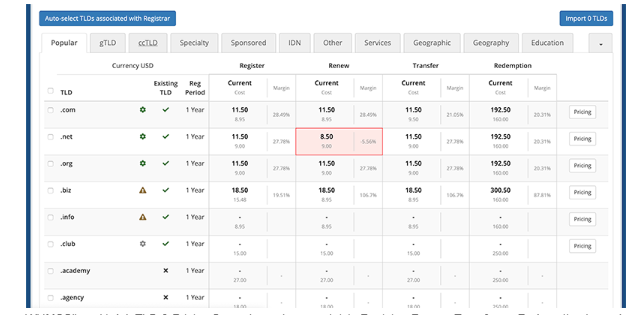
WHMCS's core TLD & Pricing Sync screen: cost and margin are shown per extension across Register, Renew, Transfer, and Redemption; rows priced below cost (the .net renew row in this view) are highlighted in red.
6) General Settings (Domains)
System Settings > General Settings > Domains
Under System Settings > General Settings > Domains tab:
“Allow clients to register domains”:
lets customers register domains on their own.
“Allow clients to transfer domains to you”:
lets customers initiate a domain transfer.
“Enable renewal orders”:
allows renewal orders to be created before expiry.
“Automatic renewal on payment”:
processes the renewal automatically once payment is received.
“Enable Domain Sync” (recommended):
regularly checks and syncs the status of existing domains — separate from pricing sync, this is domain status synchronization.
“Allow IDN Domains”:
enables support for Turkish, Arabic, Russian, and other IDN domains.
Enter your default nameserver information.
7) Domain Sync Settings
System Settings > Automation Settings > Domain Sync Settings
Go to System Settings > Automation Settings > Domain Sync Settings. Enable domain synchronization; turn on “Sync Next Due Date” if you also want expiry dates updated. Adjust the remaining settings based on your server load.
Post-Sync Checks
Before going live, run through these checks after completing a sync:
Domain search:
confirm pricing displays correctly on the customer-facing domain search.
Registration:
place a test order to confirm the registration price calculates correctly.
Transfer:
confirm the transfer price displays separately and correctly.
Renewal:
confirm renewal pricing, keeping in mind it can differ from registration pricing.
Redemption:
confirm the redemption price for an expired domain looks reasonable (usually well above standard pricing).
Premium domains:
confirm premium pricing wasn't affected by the standard sync and is managed separately.
Common Mistakes
1) Prices don't update after syncing
Symptom: The sync “completes,” but retail prices stay the same
Cause: The relevant extensions weren't selected or confirmed during import
Fix: Reopen Registrar TLD Sync and explicitly select and confirm the changes
2) Currency mismatch
Symptom: Prices look absurdly high or low
Cause: The currency your cost price is defined in doesn't match your WHMCS currency setup
Fix: Compare the module's and WHMCS's currency settings; configure currency conversion correctly if needed
3) No markup applied at all
Symptom: Retail price equals or falls below cost
Cause: Pricing was imported without defining a markup rule during sync
Fix: Enter your markup percentage/amount in the TLD Sync screen and reapply
4) Registrar not assigned
Symptom: Auto-registration doesn't work for a given extension
Cause: “Domain Name API” wasn't selected as Auto Registration in Domain Pricing for that extension
Fix: Edit the extension in Domain Pricing and assign the registrar
5) Module not detected
Symptom: “Domain Name API” doesn't appear under System Settings > Domain Registrars
Cause: Module files were uploaded to the wrong directory
Fix: Check the file path (e.g., /home/whmcs/public_html/modules/registrars/...)
6) Unauthorized / Authentication Failed
Symptom: Authentication error during sync or domain operations
Cause: Wrong Reseller ID/API Key, or the server's IP isn't on the IP Whitelist
Fix: Verify your credentials and IP Whitelist — see our dedicated guide below
7) Invalid API Key error
Symptom: The API Key is rejected as invalid
Cause: The key is outdated, was copied incorrectly, or was rotated without updating the module
Fix: Re-enter the current key from your Integration Details page
8) Reseller Not Found error
Symptom: The system doesn't recognize the Reseller ID
Cause: An email address was typed into the username field, or the Reseller ID is outdated
Fix: Enter the correct Reseller ID instead of an email — see our dedicated guide below
9) Selling below cost (negative margin)
Symptom: Some rows appear flagged/highlighted in the TLD Sync screen
Cause: Registrar cost increased but retail price wasn't updated
Fix: Re-sync the affected extensions and reapply your markup
10) Forgetting renewal pricing differs from registration pricing
Symptom: Customers hit unexpected pricing at renewal
Cause: Registration and renewal prices are separate fields, and that wasn't accounted for
Fix: Check both prices separately in the sync screen
11) Premium domain pricing gets mixed up
Symptom: A premium domain sells at standard pricing (loss risk)
Cause: Premium domain pricing was confused with standard TLD sync
Fix: Manage premium domains under their own pricing logic; don't rely on bulk sync for them
12) Rounding produces unexpected results
Symptom: Prices round to unexpected endings
Cause: The rounding rule is misconfigured or was set without realizing it
Fix: Review your rounding preference and adjust or disable it as needed
13) Sync appears stuck or takes a long time
Symptom: The Registrar TLD Sync screen takes a long time to load
Cause: A large number of extensions are being processed at once, or the API response is slow
Fix: Wait without reloading; if it persists, check API response time in the Module Log
14) Running an outdated module version
Symptom: Sync behavior doesn't match the documentation
Cause: The module hasn't been updated
Fix: Download the current version from the domainreseller organization on GitHub
15) Module Log shows nothing because logging is disabled
Symptom: There's clearly an issue, but you can't see any detail
Cause: Debug logging is off (the recommended default for performance)
Fix: Temporarily enable debug logging while diagnosing, then turn it back off
For step-by-step fixes to the authentication errors above (Unauthorized, Invalid API Key, Reseller Not Found):
Troubleshooting Flow
If Pricing Looks Wrong, Check in This Order
1. Did the sync actually complete, or did it error out? → Check the Module Log.
2. Does the currency match your WHMCS setup? → If not, fix it and re-sync.
3. Is a markup rule defined? → If not, add one and reapply.
4. Is the correct registrar assigned to the extension (Domain Pricing screen)? → If not, assign it.
5. Is there an authentication error (Unauthorized/Invalid API Key/Reseller Not Found)? → Verify your credentials using our dedicated guides.
6. Still stuck? Enable debug logging in the Module Log, inspect the request/response, and contact support with the log attached if needed.
Best Practices
How Should You Set Your Markup?
There's no single correct percentage — it depends on your competitive landscape, target market, and cost structure. Two things are worth building in regardless: a buffer that absorbs normal currency volatility, and a different margin strategy for premium/competitive extensions (for example, a thinner margin on .com, a wider one on niche extensions).
How Often Should You Sync Pricing?
There's no fixed rule, but a practical baseline: at least once a month during periods of high currency volatility, and immediately whenever you're notified of a registrar cost change. Make this a defined responsibility on your team rather than a task that's easy to forget.
How Should You Handle Exchange Rates?
If your cost pricing is USD-based and your WHMCS installation runs in a different currency, make sure currency conversion is configured correctly. The same logic we cover in our WiseCP multi-currency and exchange rate guide applies here: general currency settings shape the customer experience, while registrar cost synchronization protects your profitability — both need to work together.
Managing Premium Domains
Premium domains are priced by the registry well outside standard rules, and they aren't managed by the same logic as bulk TLD sync — WHMCS's premium domain support is a separate mechanism. Don't assume bulk sync will also “fix” premium pricing for you; check it separately.
“Premium domain” gets used as if it's one category, but in practice it can mean three different things:
The TLD & Pricing Sync process in this guide only covers standard registration/renewal/transfer/redemption pricing. Registry Premium pricing is typically managed through WHMCS's separate Premium Domain Pricing mechanism; aftermarket domains fall outside this process entirely.
Security
Store your API Key in environment variables; never hard-code it into source code.
Use IP Whitelisting where possible to restrict API calls to trusted servers.
Rotate your API Key on a regular basis.
Keep debug logging in the Module Log turned off in production; it affects performance and can accumulate unnecessary sensitive data.
Make sure only authorized admin accounts can trigger sync and domain operations.
Checklists
Pre-Setup Checklist
WHMCS version is 7.8+ (7.10+ recommended for the TLD Sync tool)
PHP 7.4+ (8.1 recommended) with the SOAPClient extension enabled
Your Reseller ID and API Key are on hand
Existing module files are backed up, if upgrading
Post-Setup Checklist
Module files are in the correct directory and visible in WHMCS
Reseller ID/API Key entered, balance displays correctly
Registrar assigned to the relevant extensions in Domain Pricing
Pricing imported via Registrar TLD Sync, with markup applied
Registration/renewal/transfer pricing confirmed with a test order
General Settings (Domains) and Domain Sync Settings configured
Maintenance Checklist
Pricing sync is on a recurring schedule (e.g., monthly)
Extra checks happen during periods of high currency volatility
Module Log is checked periodically when issues are suspected
The module is kept on its current version
Premium domain pricing is reviewed separately
Frequently Asked Questions
What is TLD pricing sync in WHMCS?
It's a core WHMCS tool (Utilities > Registrar TLD Sync) that pulls current cost pricing from your registrar module (like Domain Name API) and bulk-calculates your retail price based on a markup rule you define.
Is this feature really automatic?
The calculation and bulk application are automatic. Starting the process — opening Utilities and triggering the sync — is a manual step. WHMCS doesn't repeat it on its own on a schedule.
Is TLD Sync the same as Domain Sync?
No. TLD Sync handles pricing; Domain Sync keeps the status/expiry of domains you've already registered up to date. Domain Sync runs automatically via cron; TLD Sync is manually triggered.
Which WHMCS version do I need?
The TLD & Pricing Sync tool requires WHMCS 7.10 or later; WHMCS 7.8+ is the minimum recommended for the Domain Name API module overall.
Does the Domain Name API module support this feature?
Yes. Domain Name API's official WHMCS setup guide explicitly describes using Utilities > Registrar TLD Sync with “DomainNameApi” selected to bulk-sync pricing.
How do I define my markup?
In the sync screen, define your markup rule as a percentage or a fixed amount, and optionally round the calculated price to a specific ending (like .95).
How do I know if I'm selling below cost?
The TLD & Pricing Sync screen visually flags rows priced below cost, so you can spot the extensions losing you money quickly.
Can renewal pricing differ from registration pricing?
Yes, WHMCS treats them as separate fields; check both during sync.
Are premium domains affected by this sync?
Premium domain pricing is set by the registry outside standard rules and is managed by a separate mechanism; don't rely on bulk TLD sync for it, check it separately.
What currency should I price in?
Whatever currency your registrar's cost pricing is defined in needs to match your WHMCS currency setup; if it doesn't, you'll need to configure currency conversion correctly.
I'm getting an Unauthorized error during sync — what's wrong?
That's an authentication issue, not a pricing issue. Check your Reseller ID, API Key, and IP Whitelist configuration; see our dedicated guide for the full walkthrough.
Does Invalid API Key block pricing sync?
Yes — sync requires the same valid Reseller ID and API Key as every other API call.
I'm getting Reseller Not Found — is that pricing-related?
No, that's also an authentication error, usually caused by an email address ending up in the username field instead of the Reseller ID.
Can I wire this sync into an automated cron job?
That's not part of WHMCS's standard, documented behavior. Doing so would require custom development, independent of whether your module or the API itself supports it.
Where do I upload the module files?
Into your WHMCS installation directory, for example under /home/whmcs/public_html, without deleting the .gitignore, README.md, or LICENSE files.
The module doesn't show up in System Settings — what now?
Confirm the files were uploaded to the correct directory; modules placed in the wrong location simply won't appear in WHMCS.
Can I use Domain Name API for WHOIS lookups too?
Yes, select “DomainNameApi” under the “Lookup Provider” setting in Domain Pricing and choose which extensions it should apply to.
How long does a sync take?
It depends on the number of extensions and the API's response time; large catalogs can take a few minutes.
Will this work with an outdated module version?
It might not, or it might behave unpredictably; we'd recommend using the current version from the domainreseller organization on GitHub.
How do I diagnose a sync error?
Go to System Logs > Module Log and click into the relevant entry to see the request/response detail; you can temporarily enable debug logging if needed.
Related Resources
Conclusion
WHMCS's TLD & Pricing Sync tool, used together with the Domain Name API module, lets you update pricing for hundreds of extensions through rules instead of editing each one by hand. Starting the process is a manual step, but the calculation and bulk application genuinely are automatic and fast. Make it a regular habit, and you'll save time while eliminating the risk of selling below cost.
If you run into anything during setup, the detailed records in the Module Log and our support team are both here to help.
Automate Your Domain Sales with WHMCS
You can create your free reseller account today, configure pricing sync with Domain Name API's WHMCS module in minutes, and start managing hundreds of extensions from a single panel.
Free reseller account, with no activation fee and no minimum deposit
The WHMCS module is free and ready to go, with setup that takes minutes
A sandbox (Test/OT&E) environment to test risk-free
850+ TLDs, manageable from a single panel
Infrastructure trusted by 40,000+ resellers in 200+ countries
24/7 technical support via ticket, phone, and live chat