How to Install WHMCS?
Domain Name API – Installation and Integration Guide
This documentation explains how to integrate your DomainNameAPI account into the WHMCS software.
Minimum Requirements
- WHMCS 7.8 or higher
- PHP 7.4 or higher (recommended: 8.1)
- The PHP SOAPClient extension must be enabled.
- Custom fields with Turkish ID Number / Tax Number / Tax Office information. (Optional)
Warning!!! If you are performing an upgrade, please back up your old files before installation.
Uploading
Copy the “modules” folder from the downloaded package into the directory where WHMCS is installed. (Example: /home/whmcs/public_html)
Note: Do not delete the .gitignore, README.md, and LICENSE files.
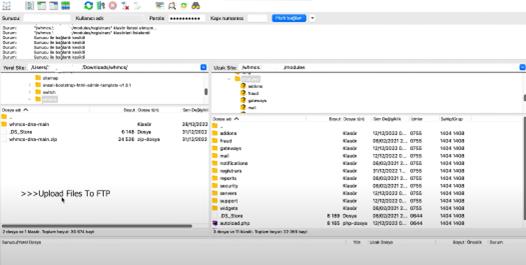
If the files are uploaded incorrectly, the module cannot be detected by WHMCS.
Module Configuration
After uploading the files, go to the “System Settings” section in the WHMCS administration panel.
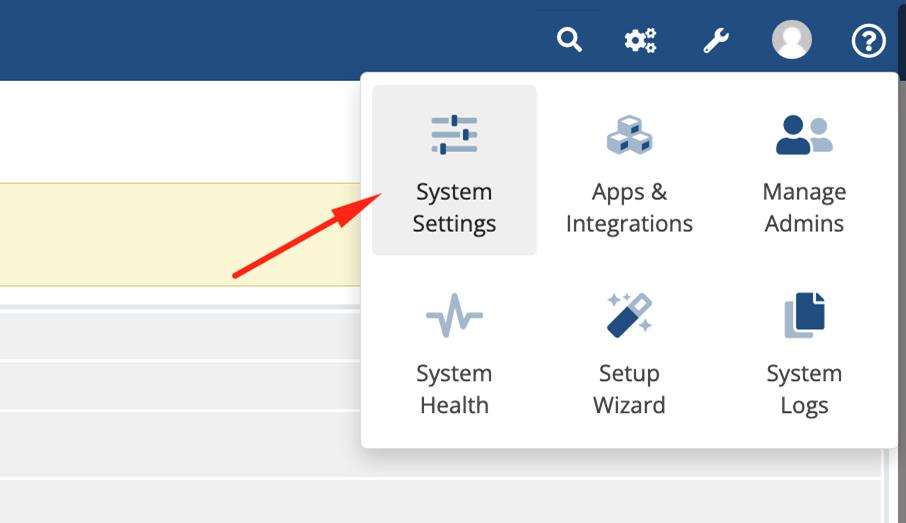
Once you access “System Settings”, navigate to the “Domain Registrars” section.
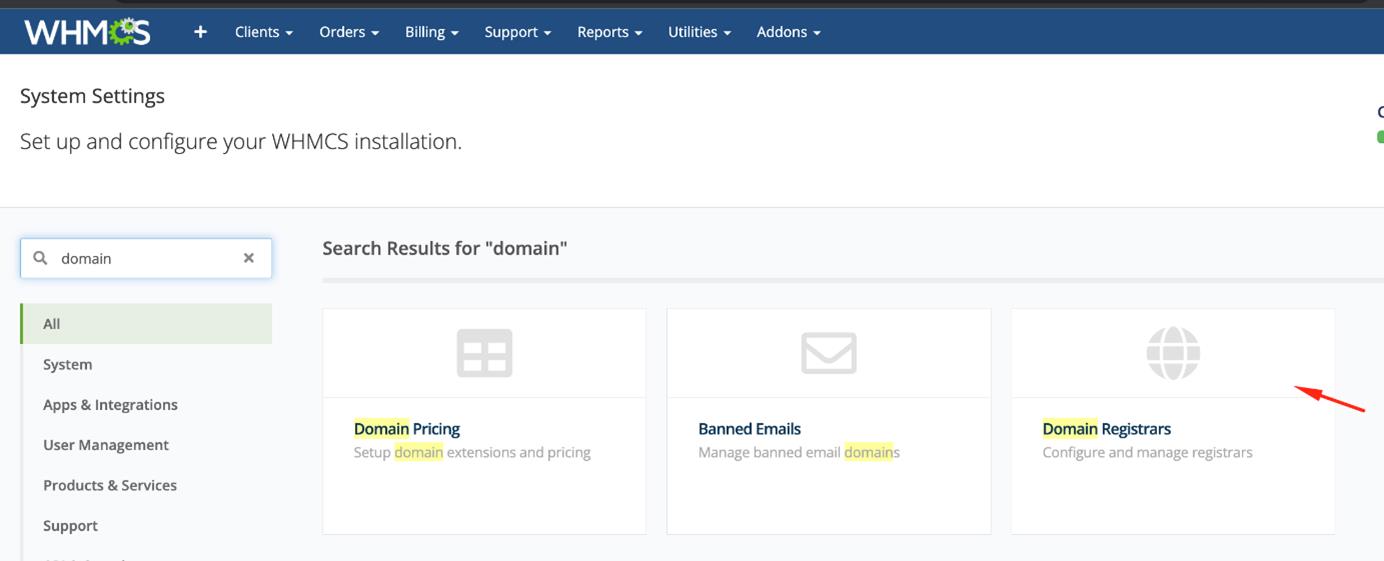
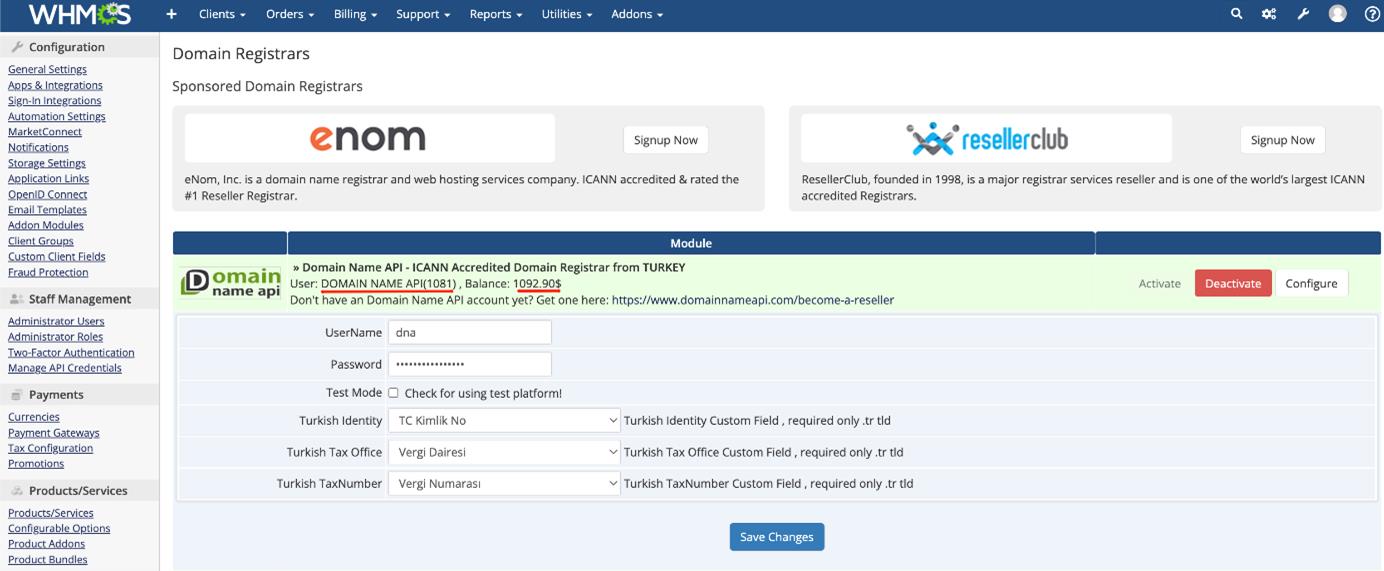
If you placed the module files in the correct directory, “Domain Name API” will appear here.
After activation, enter the username and password provided to you.
Once saved, your username and current balance will be displayed.
If necessary, map the Turkish ID number and tax number fields that will be used for registering .tr domain names for your users.
Domain Pricing Settings
After configuring the module settings, navigate to System Settings.
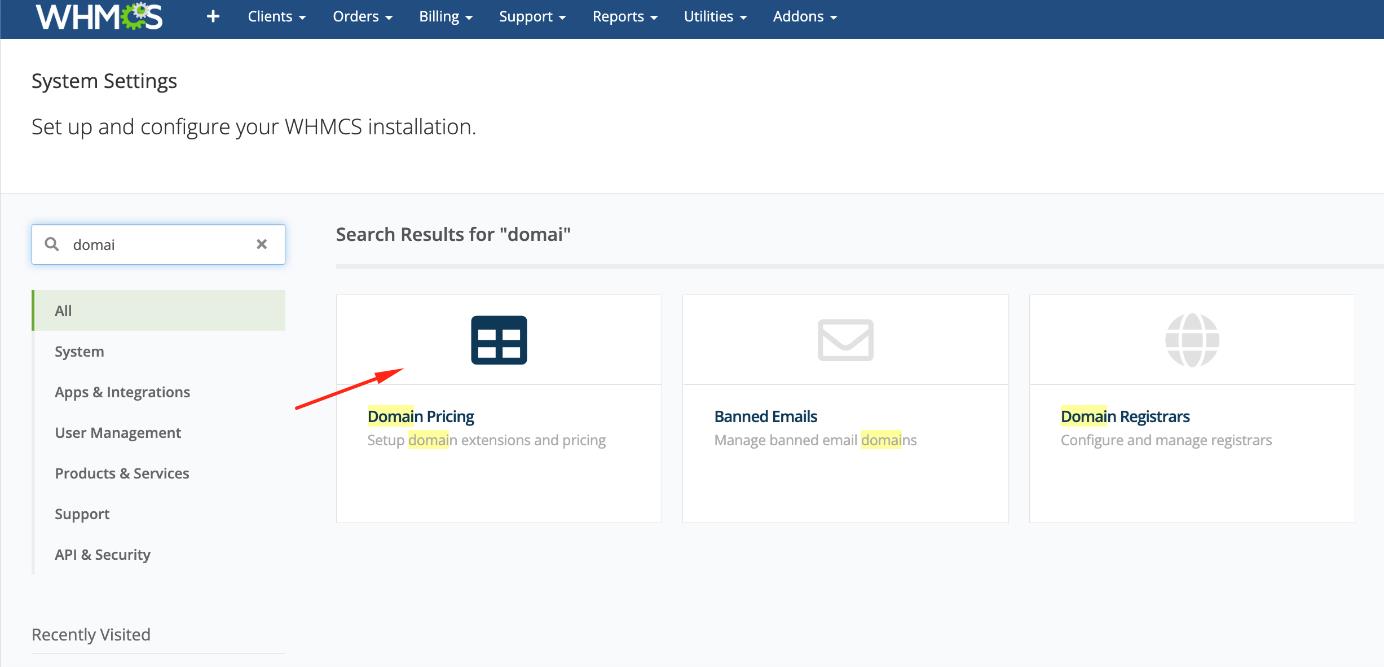
Select the TLDs you want to sell (Example: .com.tr).
Select “Domain Name API” for automatic registration.
Select the EPP Code option.
Pricing can be set manually. Alternatively, you can configure tiered pricing (explained in the next section).
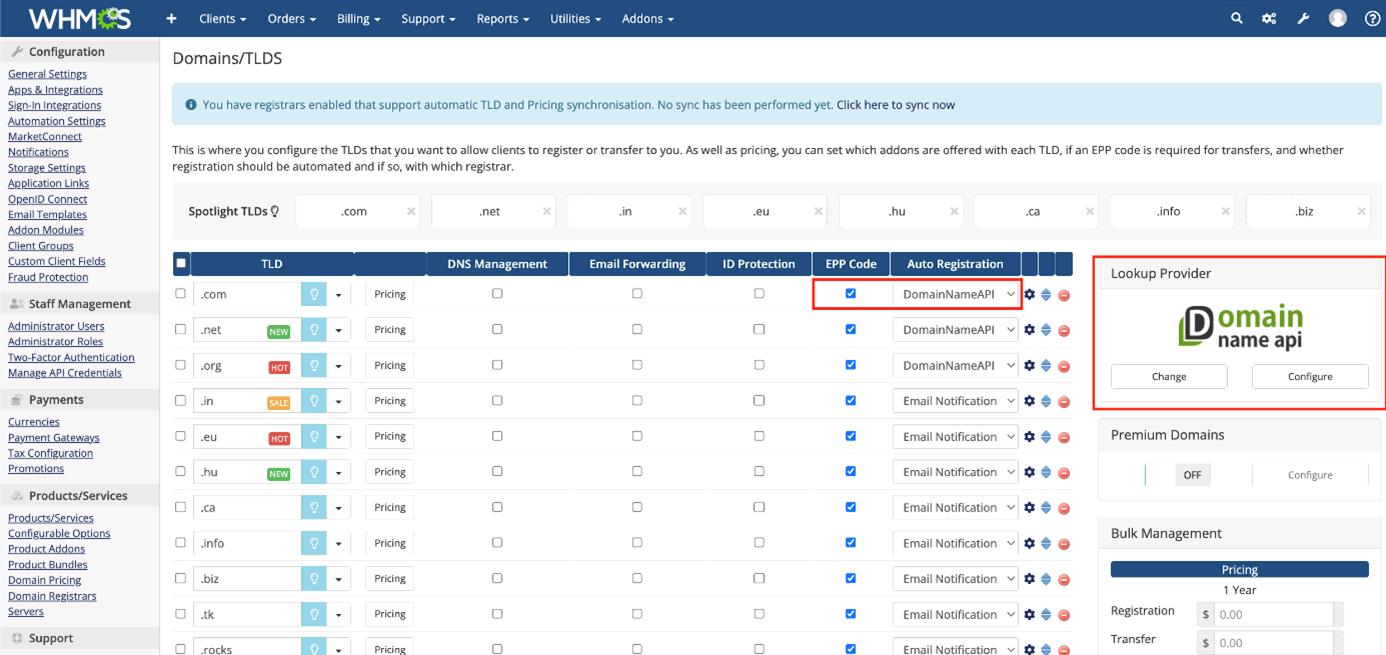
Instead of using public WHOIS servers as a lookup source, you can use DomainNameAPI. To do this, click “Change” under “Lookup Provider”, select “DomainNameApi”, and specify which TLDs it should apply to.
Tiered Pricing & Automated Pricing
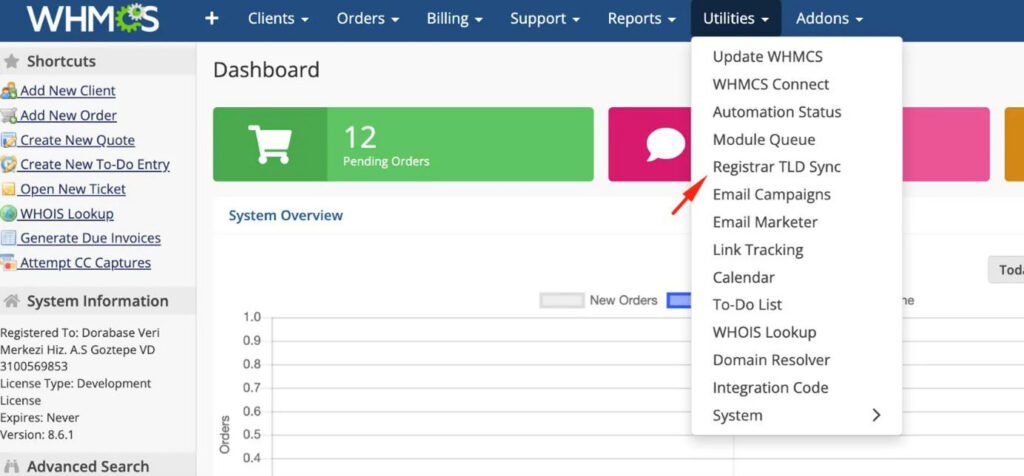
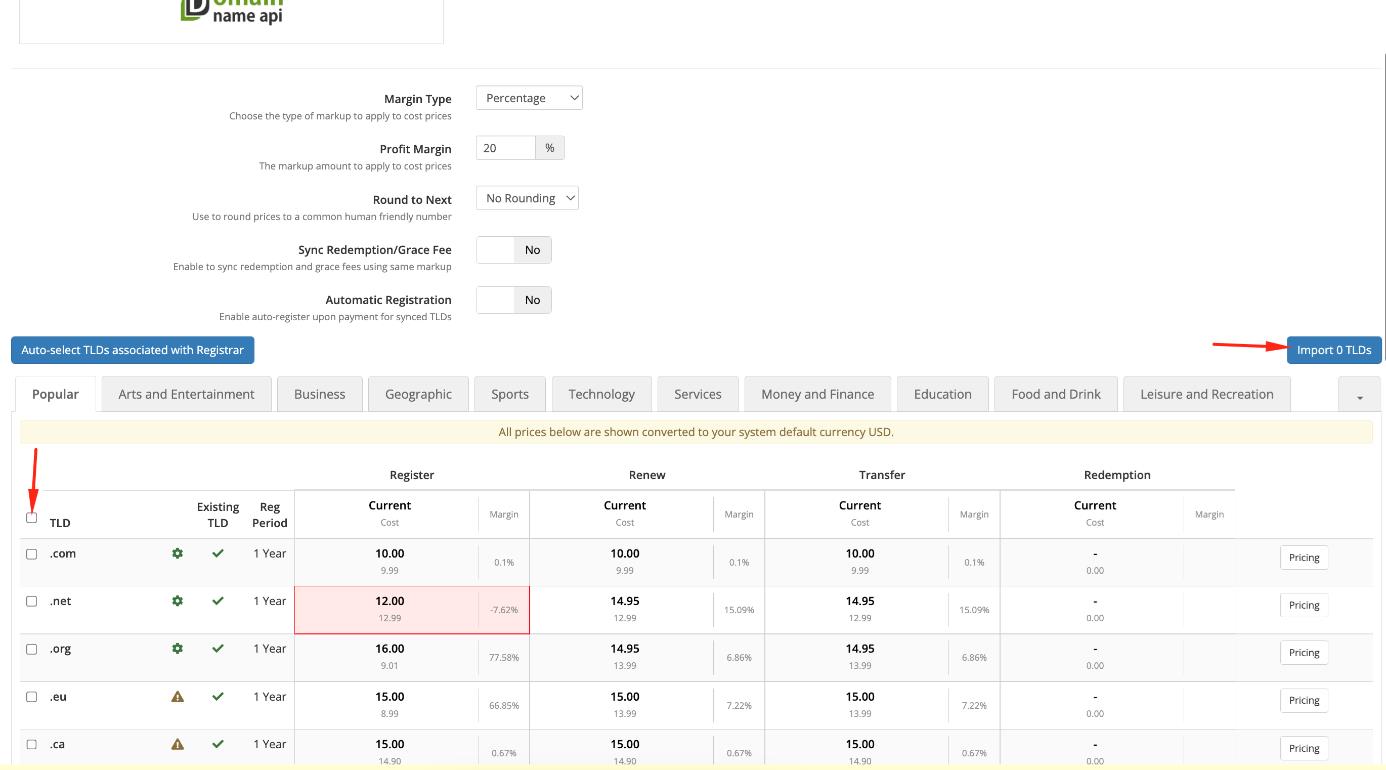
Go to “Utilities” → “Registrar TLD Sync”. Select “DomainNameApi” on the displayed screen and wait a moment.
In the next step, all TLDs in our system will be matched with the TLDs in WHMCS. Profit and loss margins will be calculated and displayed collectively, allowing you to import them.
How to Install WHMCS?
More information: WHMCS TLD Sync
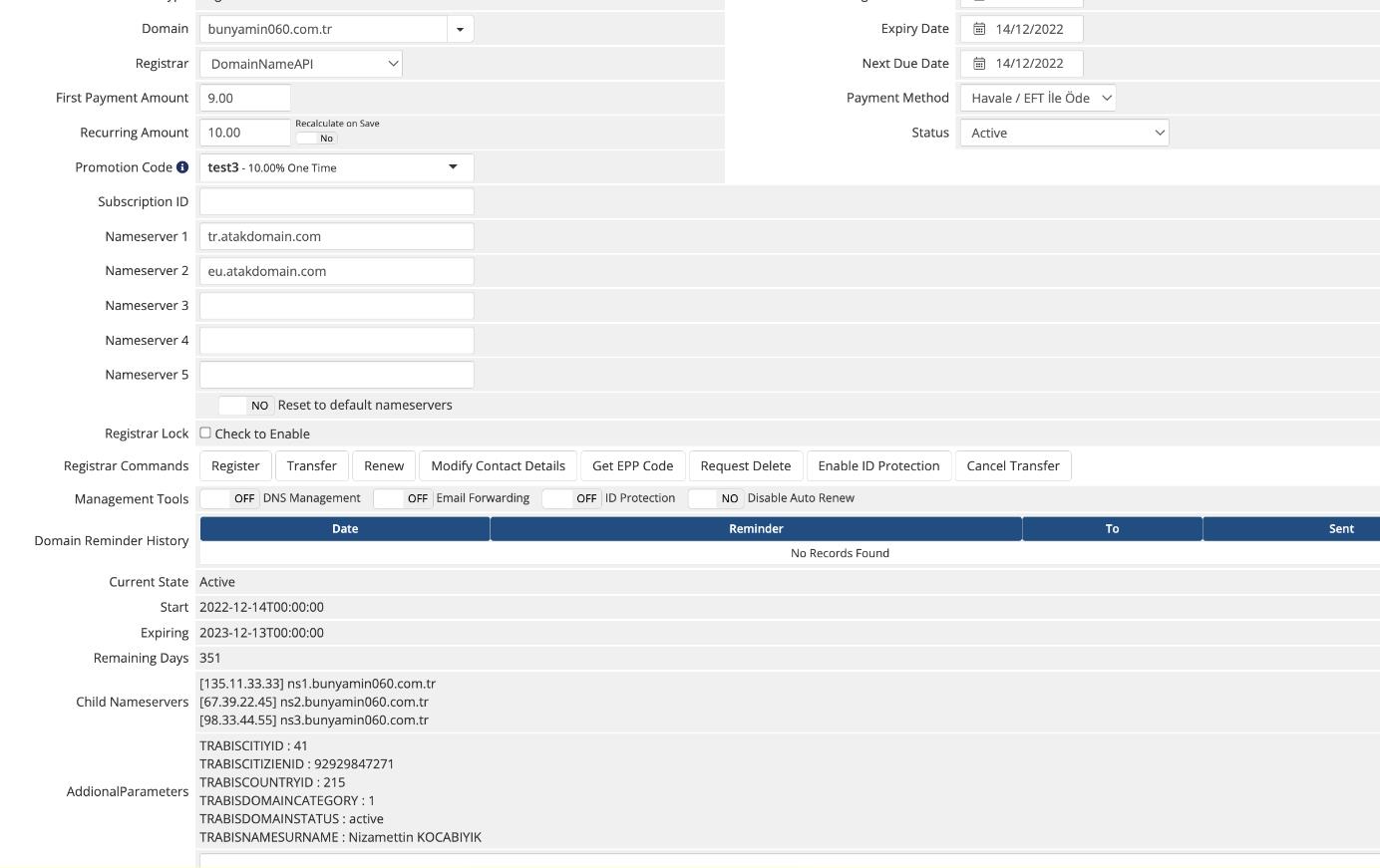
From the Administrator’s Perspective
- You can send a “Delete Request” for a domain name.
- You can perform a “Transfer Cancellation” for a domain name.
- You can view the live status as well as the start and end dates of the domain.
- You can list your subdomains.
- You can view additional custom field information.
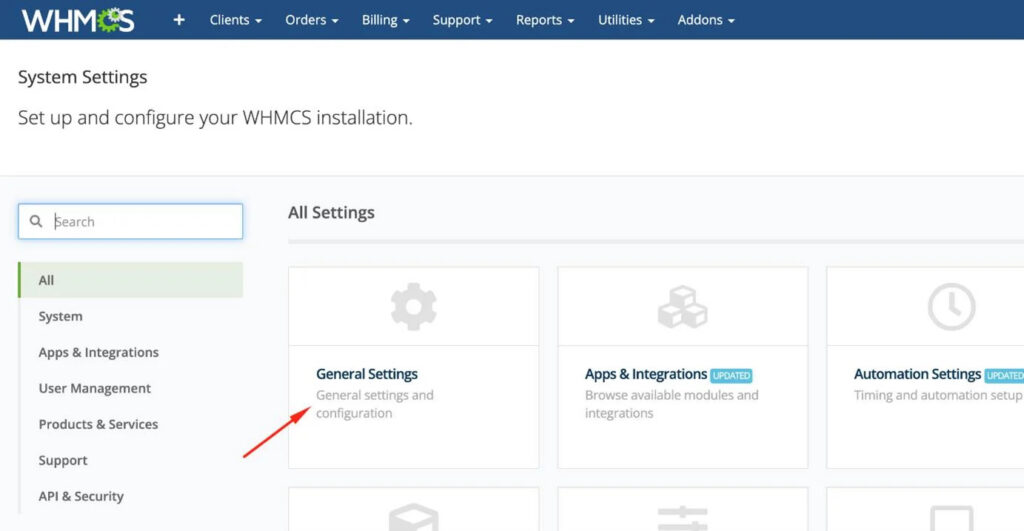
General Settings
Go to “General Settings” in System Settings and select the “Domains” tab.
Enable “Allow clients to register domains” if your clients should be able to register domains themselves.
Enable “Allow clients to transfer domains to you” if your clients should be able to transfer domains themselves.
Enable “Enable renewal orders” if clients should be able to renew their domains before expiration.
Enable “Automatic renewal on payment” if renewals should be processed automatically after payment.
Enable “Enable Domain Sync” to regularly check and synchronize existing domains (recommended).
If you want to manage Turkish, Hebrew, Arabic, Russian, etc. domain names, enable the “Allow IDN Domains” option.
Enter your nameserver information under “Default Nameservers”.
How to Install WHMCS?
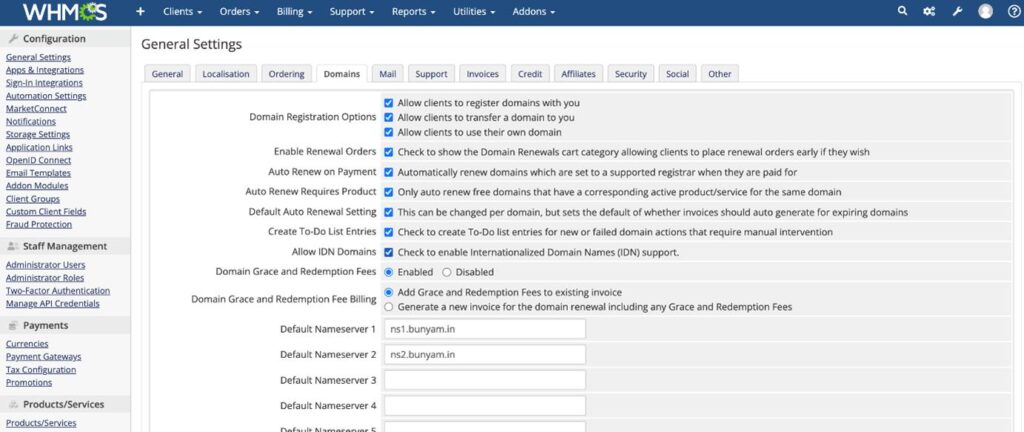
Synchronization Settings
Go to Automation Settings under System Settings and open the “Domain Sync Settings” section.
Enable domain synchronization.
Enable “Sync Next Due Date” if the expiration date should be updated during synchronization.
Adjust other settings according to system load.
Error – Detailed View
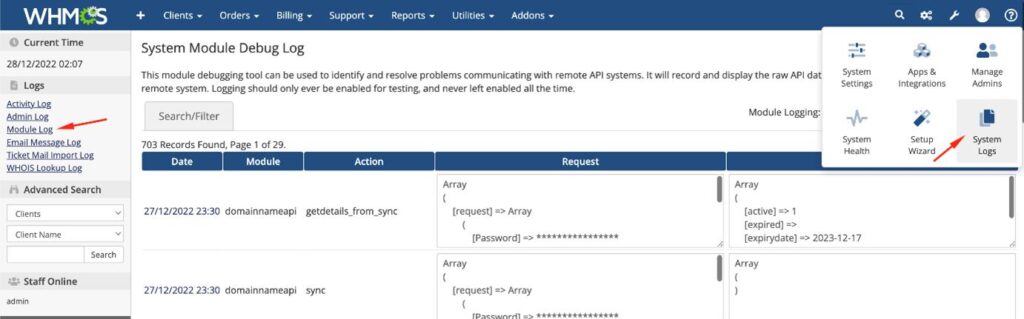
Navigate to “System Logs” → “Module Log”.
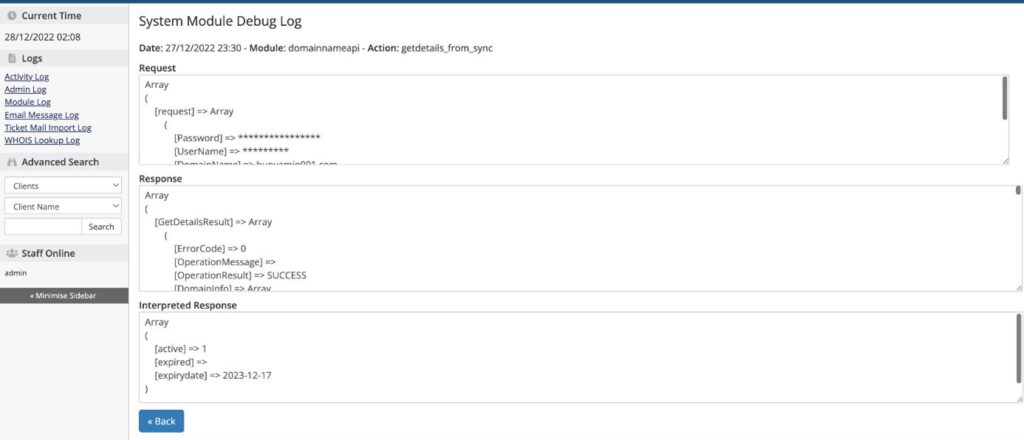
Find the relevant log entry and click on the date.
You can view detailed requests, responses, and filtered responses.
!! For performance reasons, we recommend disabling system logging during daily operation. More information: WHMCS Logging
Debugging
To enable debugging, click “Utilities // Logs // Module Log”.
Enable logging using “Enable Debug Logging” if available. If the “Disable Debug Logging” button is visible, logging is already enabled.
All successful or failed domain requests and responses are logged in this module.
If issues occur, you can view details by clicking the date of the relevant log entry.
Video Tutorial