Add Your First Customer: How to Create a Customer and Subscription in Plesk
The short answer
To add your first customer in Plesk, go to Customers > Add a Customer and enter the customer's contact details and Plesk login. On the same form, select Create a subscription for the customer, enter the domain, set the system user, choose the Service Plan you prepared earlier, and click OK.
This creates both the customer account and the customer's hosting service, the Subscription. Websites, email, and databases live inside that subscription, within the plan's limits.
Creating a customer doesn't create a hosting account
A Customer is the record of who owns the service. To host the domain, the customer also needs a Subscription. If you create a customer without selecting the subscription checkbox, you get a customer record but no hosting service.
Who this guide is for: Plesk Reseller Hosting users who have created their first Service Plan and are adding their first customer. Last updated: October 4, 2026 Sources: Plesk Obsidian Reseller's Guide and the Domain Name API product workflow
The Short Version: Add Your First Customer in 7 Steps
- Log in to Plesk with your reseller account.
- Open Customers > Add a Customer.
- Enter the customer's contact details and Plesk login.
- Select Create a subscription for the customer and enter the domain.
- Set a username and password for the subscription's system user (FTP).
- Choose the Service Plan the customer bought and click OK.
- Check that the subscription is Active and the hosting environment works.
Hands-on time: A few minutes if the customer details and plan are ready. Getting the site to load on the domain depends on DNS and can take longer.
Where should you start?
To add the customer now: Step 1: Open Add a Customer
To choose the right plan: Step 5: Choose the Customer's Service Plan
To avoid mixing up logins: Step 4: Set the System User
To check the account: Check That the Hosting Account Is Ready
If something isn't working: If You Can't Create a Customer or Subscription
About the interface
Menu names in this guide are in English. If you use Plesk in another language, they appear translated. The options you see can vary with the Plesk version, your reseller permissions, and the server configuration.
What Are Customers, Service Plans, and Subscriptions in Plesk?
A Service Plan defines what you sell, a Customer defines who you sell it to, and a Subscription is the hosting service you open for that customer. In Plesk, a subscription is a copy of a Service Plan assigned to a specific customer; the customer uses websites, email, and databases within the subscription's resources and permissions.
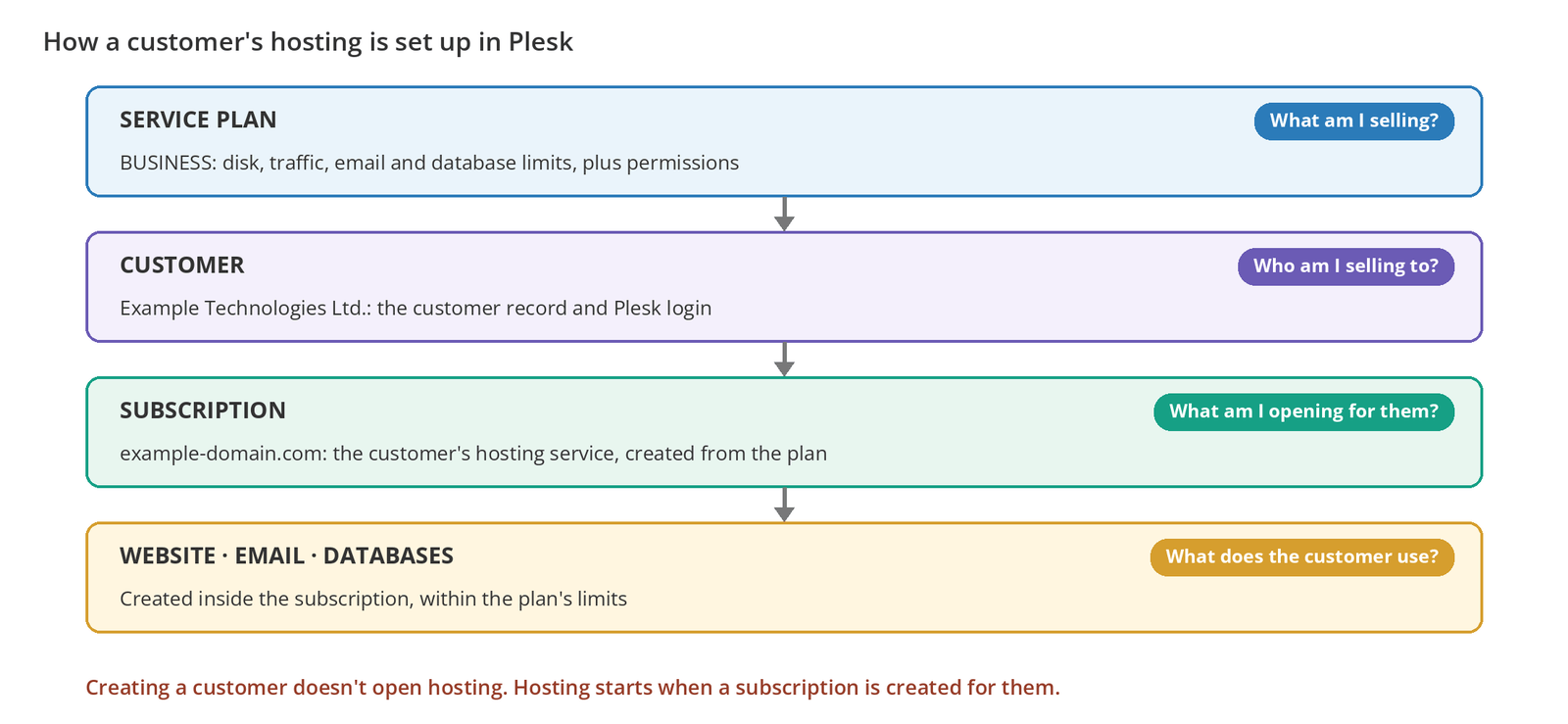
| Concept | What it does | Example |
|---|---|---|
| Service Plan | A reusable template that defines resources and permissions. | BUSINESS |
| Customer | The record of who owns the service; the customer's Plesk login account. | Example Technologies Ltd. |
| Subscription | The customer's hosting service, created from the plan. | example-domain.com |
| Domain | A domain hosted in the subscription. A subscription can hold as many domains as the plan allows. | example-domain.com |
| System User | The user that accesses the subscription's files over FTP/SFTP. | exampleuser |
Before You Start
| Requirement | |
|---|---|
| ☐ | An active Domain Name API Plesk Reseller Hosting plan and your Plesk login details |
| ☐ | At least one Service Plan (if not, complete Create Your First Hosting Package: How to Create a Service Plan in Plesk first) |
| ☐ | The customer's name or company name and a reachable email address |
| ☐ | A registered domain (e.g., example-domain.com) |
| ☐ | Access to change the domain's DNS or nameservers |
| ☐ | Enough capacity on your reseller account for a new subscription |
Step by Step: Create Your First Customer and Subscription
Step 1: Open Add a Customer
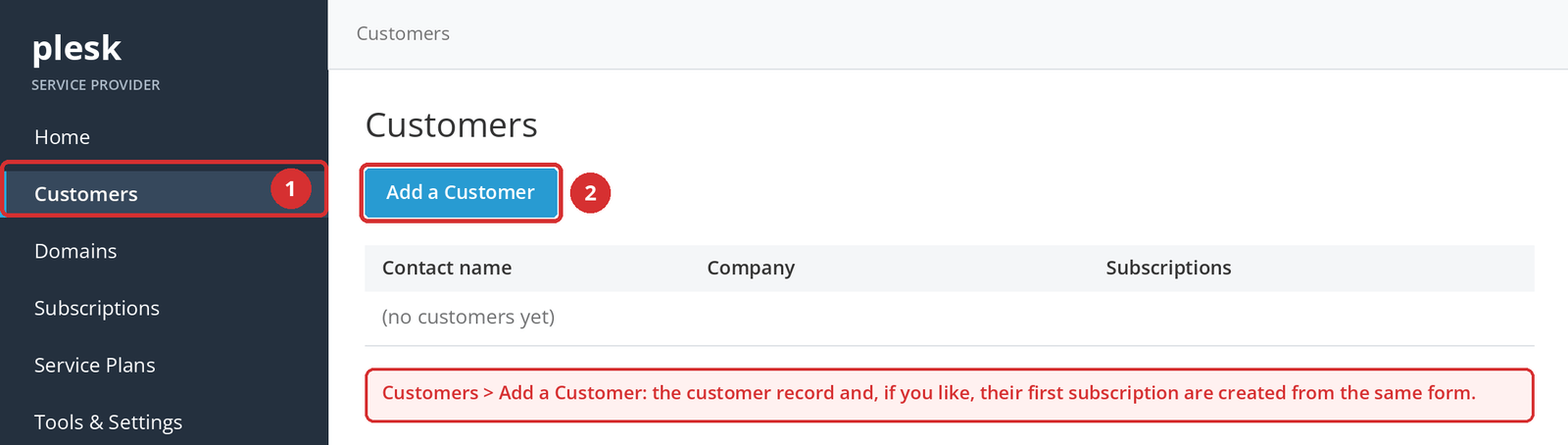
Log in to Plesk with your reseller account, using the address in your activation email (usually https://<your-plesk-server-address>:8443). Click Customers in the left menu, then Add a Customer.
Checkpoint
Expected result: The Add a Customer form opens.
Most common mistake: Starting from the Subscriptions menu. If you use Add Subscription there without choosing an existing customer, the subscription belongs to you (your reseller account).
Next: Enter the customer details.
Step 2: Enter the Customer Details
In the top part of the form, enter the customer's contact details and the username and password they'll use to log in to Plesk.
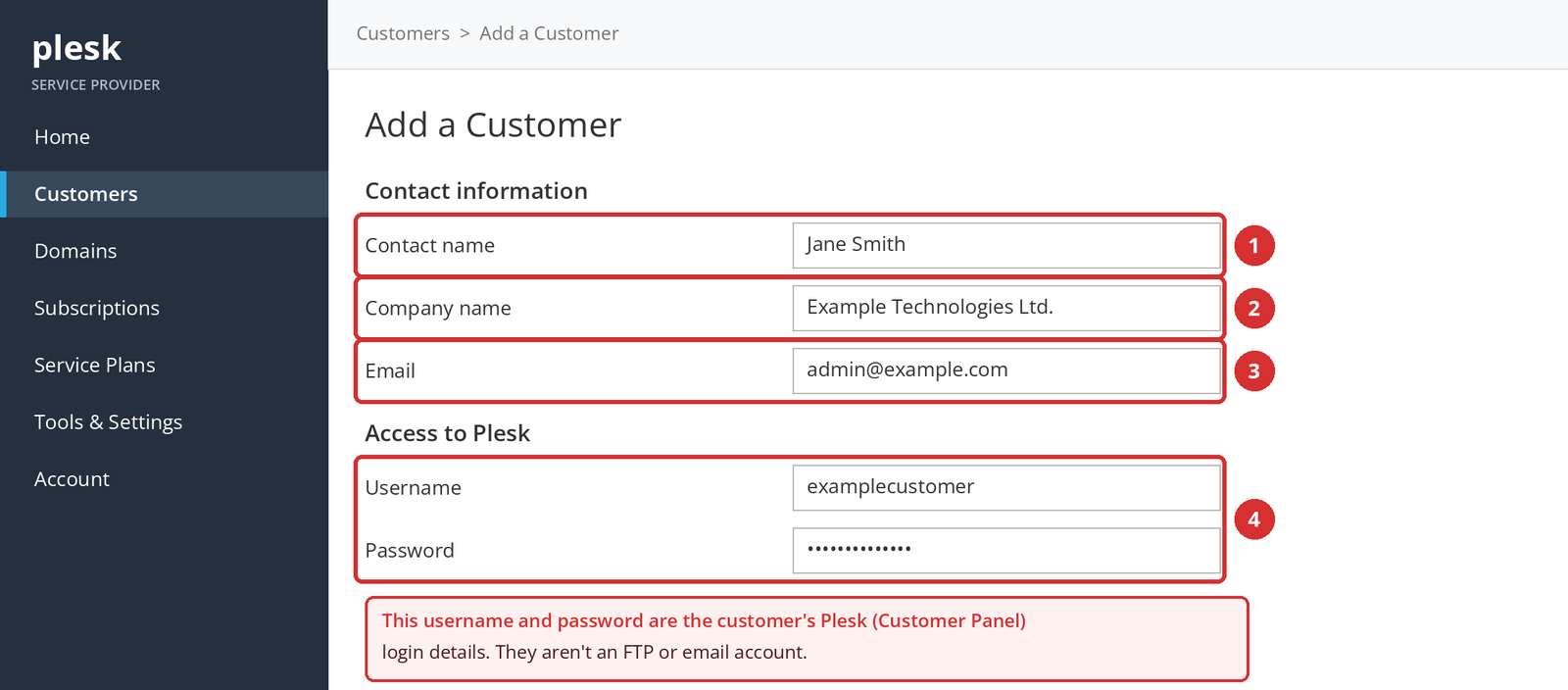
| Field | What to enter |
|---|---|
| Contact name | The name of the customer's contact person (e.g., Jane Smith). |
| Company name | The company name, if any (e.g., Example Technologies Ltd.). |
| An address the customer can reach right now. Email on the new domain may not be working yet, so prefer an address on another domain. | |
| Username / Password | The customer's Plesk (Customer Panel) login. Use a strong, unique password. |
| Additional information / Description | Optional: Additional information is visible to the customer; Description is visible only to you. |
Step 3: Open the Subscription and Enter the Domain
A subscription is the hosting service opened for the customer's domain. Creating it doesn't register the domain; the domain must already be registered with a registrar.
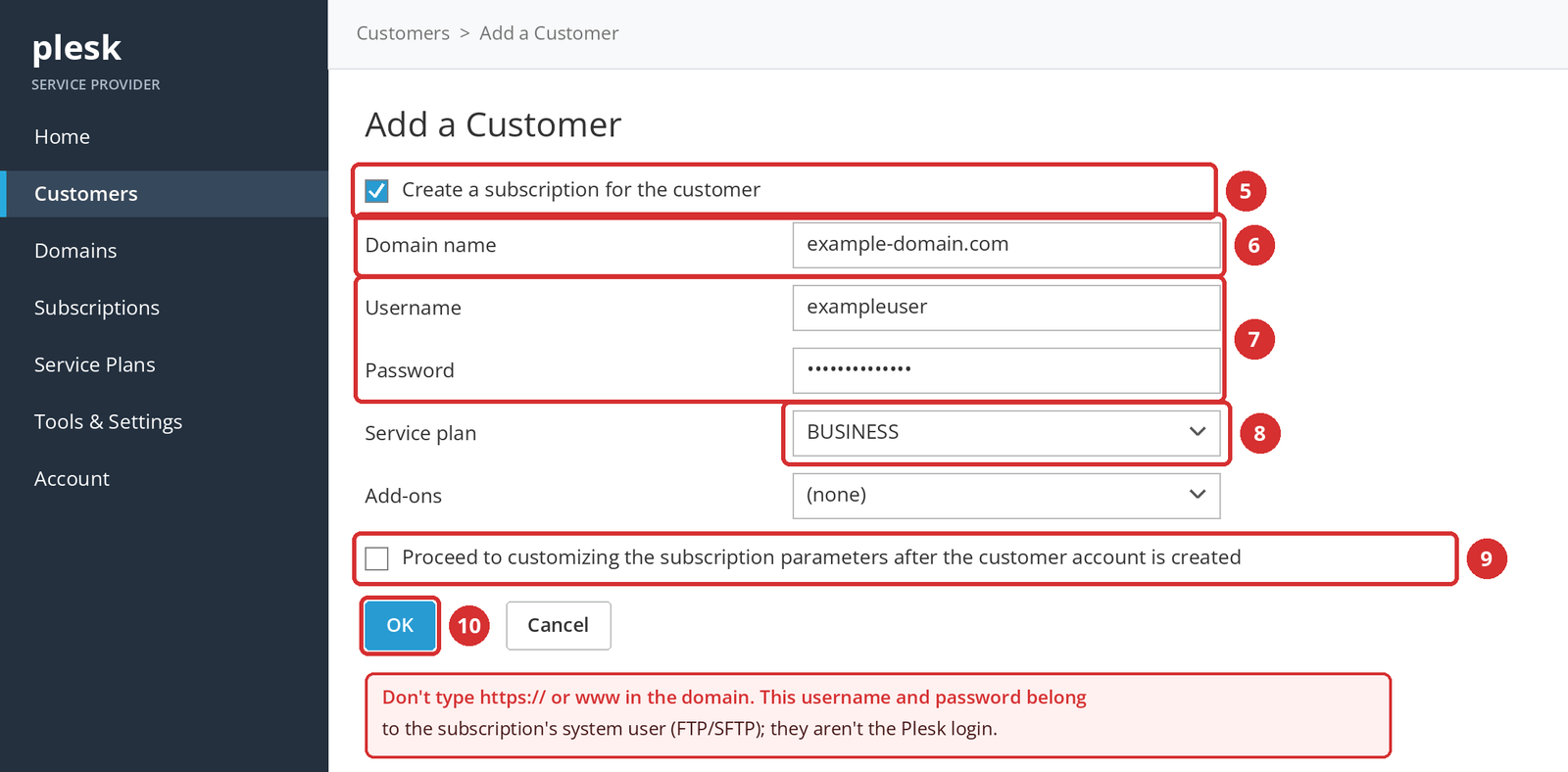
In the lower part of the form, make sure Create a subscription for the customer is selected, and type only the domain in Domain name: example-domain.com. Don't add https:// or www.
The domain can be registered with Domain Name API or with another company. Either way, you set up the domain's DNS separately so the site reaches this subscription.
Step 4: Set the System User
The username and password in the subscription section belong to the subscription's system user. They're used to access files over FTP or SFTP and are different from the customer's Plesk login.
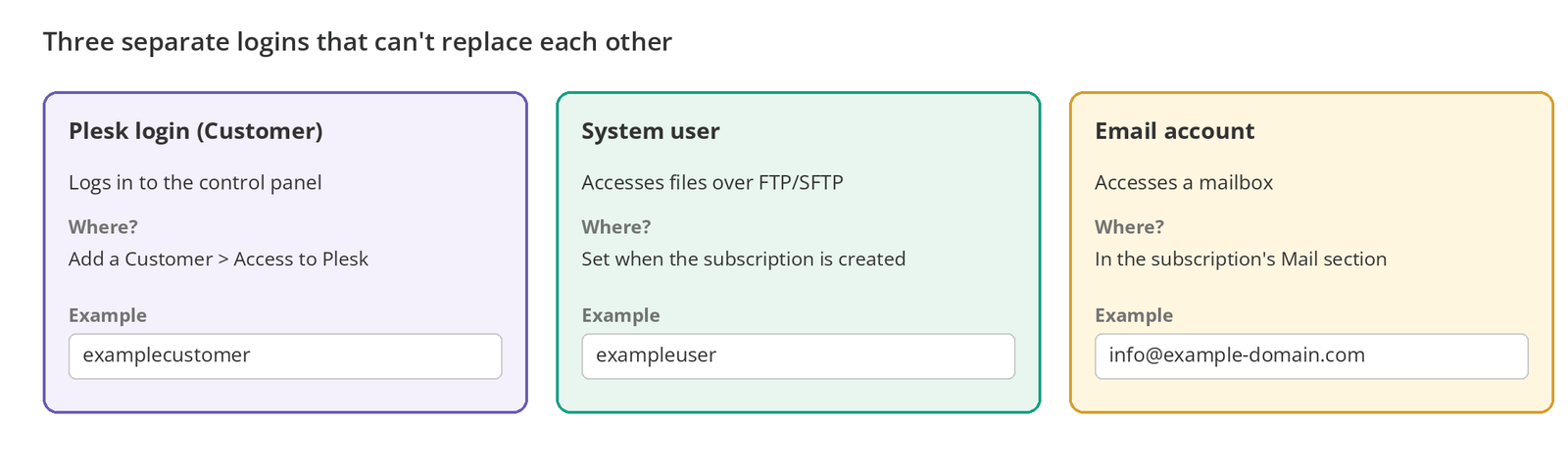
| Account | What it's for | Where it's set |
|---|---|---|
| Plesk login (Customer) | The customer logs in to the control panel | Add a Customer > Access to Plesk |
| System user | File access over FTP/SFTP | When the subscription is created (can be changed later with Change Hosting Settings) |
| Email account | Mailbox access | In the subscription's Mail section |
Note
When you send details to the customer, state clearly which username is for what. Many “I can't log in” tickets come from customers using FTP details instead of their Plesk login.
Step 5: Choose the Customer's Service Plan
From the Service plan menu, choose the plan that matches what the customer bought. The subscription takes its disk, traffic, domain, mailbox, and database limits, its customer permissions, and hosting settings such as PHP from this plan.
- Choose the right plan. If the customer bought BUSINESS and you choose STARTER, the subscription opens with lower limits.
- Add-ons: If you sell extra resources, you can choose an add-on plan. You usually won't need one for your first customer.
- Leave “Proceed to customizing the subscription parameters…” unchecked. It lets you customize the subscription after it's created, but a customized subscription is locked and no longer receives plan changes automatically.
Note
Example plan names (STARTER, BUSINESS, PRO) are for illustration; they aren't official Domain Name API packages. Use your own plan names.
Step 6: Create the Customer and Subscription
Click OK at the bottom of the form. Plesk creates the customer account and the subscription together.
Checkpoint
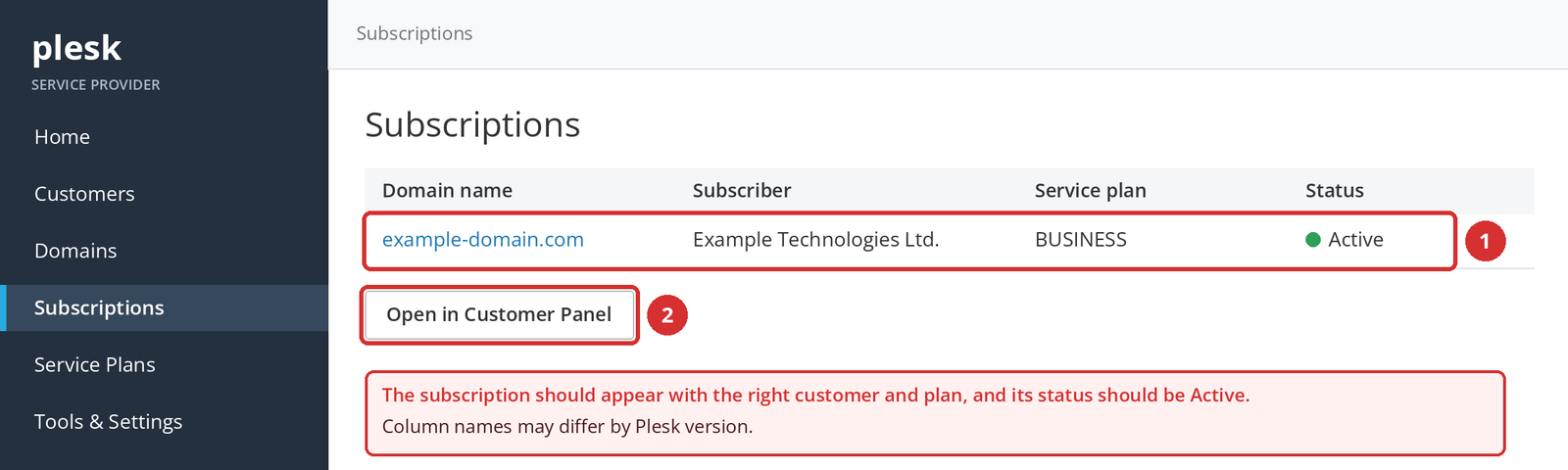
Expected result: The Subscriptions list shows the domain, the right customer, the right Service Plan, and an Active status.
Most common mistake: Assuming you're done once you see the success message. Confirm the hosting environment with the checklist below.
Next: Check the hosting account.
Alternative: Add a subscription for an existing customer
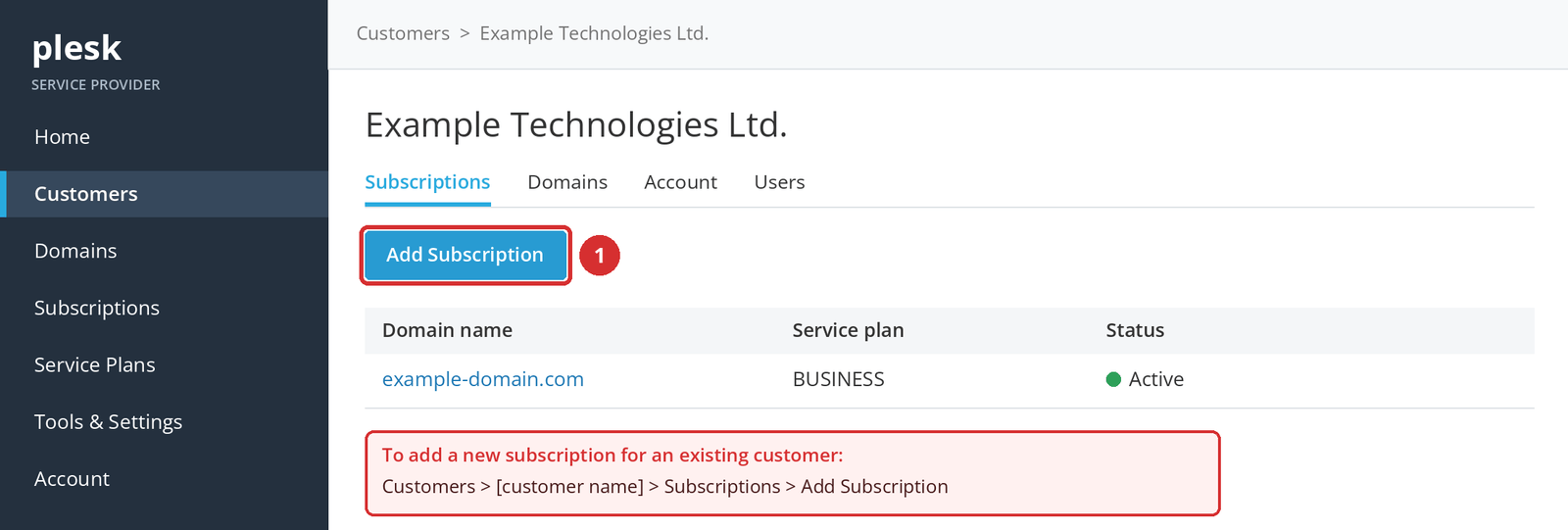
If you created the customer without a subscription, or you're opening a service for an existing customer's second domain: Customers > [customer name] > Subscriptions > Add Subscription. Enter the domain, system user, and plan in the same way.
Check That the Hosting Account Is Ready
Once the subscription exists, don't rely on the success message alone; open it in the Customer Panel and confirm the hosting environment actually works. Use the Open in Customer Panel link next to the subscription in the Subscriptions list to see what the customer sees.
| Check | |
|---|---|
| ☐ | The customer appears in the Customers list with the correct details. |
| ☐ | The subscription is linked to the right customer, and the domain is spelled correctly. |
| ☐ | The right Service Plan is assigned, and the subscription status is Active. |
| ☐ | Disk, traffic, mailbox, and database limits match the plan. |
| ☐ | Websites & Domains opens. |
| ☐ | File Manager opens and shows the site folder (usually httpdocs). |
| ☐ | If the plan includes them, a database and a mailbox can be created. |
| ☐ | The PHP version and settings are as expected. |
| ☐ | The customer's Plesk login and, if needed, FTP login work. |
Walkthrough: Testing Your First Customer
Note
This is an example for learning purposes only. Customer, domain, and plan names are illustrative.
- Create a customer for Example Technologies Ltd.
- Use Create a subscription for the customer to open a subscription for
example-domain.comand choose the BUSINESS plan. - Open the subscription from the Subscriptions list with Open in Customer Panel.
- In File Manager, upload a simple
index.htmltest file to the site folder. - If the domain's DNS doesn't point to this server yet, you can preview the site by adding the server IP to your computer's hosts file; once DNS is pointed, test with the domain.
- If the plan includes email and databases, create a test mailbox and database to confirm the limits match the plan, then delete the test data.
Subscription active? The next step is pointing the domain to this subscription and sending the login details to your customer securely.
After the Subscription Is Created
Does the Domain Start Working Automatically?
Not always. Creating the subscription prepares the hosting space; for visitors to reach it, the domain's DNS must point to this server. These are two separate tasks.
| Scenario | What to do |
|---|---|
| The domain will use your private nameservers | Change the nameservers at the registrar. Details: How to Set Up Private Nameservers for Plesk Reseller Hosting |
| The domain's DNS is managed elsewhere | At that provider, update the A record for the website and the MX records for email to match the subscription. |
DNS changes don't appear for everyone at once. DNS resolvers cache records for the TTL; as that time runs out, the new records appear. SSL/TLS certificates such as Let's Encrypt can usually only be issued once the domain points to this server.
How Does the Customer Log In to Plesk?
The customer logs in to Plesk with the username and password you set when you created their customer account, and manages their own subscriptions in the Customer Panel. The login address is usually https://<your-plesk-server-address>:8443.
- Don't email login details in plain text; use a separate, secure channel, or ask the customer to change their password on first login.
- To check the customer's panel yourself, use the Open in Customer Panel link in the Subscriptions list.
- If the customer account is suspended, the customer can't log in to Plesk.
Can One Customer Have Several Subscriptions?
Yes. A customer can have several subscriptions, and they can be on different plans. A single subscription can also hold several domains, up to the plan's Domains limit. The two setups work differently.
| Separate subscriptions | Several domains in one subscription | |
|---|---|---|
| Example | Two subscriptions, for example-a.com and example-b.com | Adding example-b.com to the example-a.com subscription |
| Resources | Each subscription has its own plan and limits. | Domains share the subscription's disk, traffic, and other limits. |
| System user | Separate for each subscription. | The domains use the same system user. |
| When it fits | Different packages, or sites that should be kept apart. | Several sites from the same customer sharing one package. |
To add a domain to a subscription, use Websites & Domains > Add Domain in the Customer Panel; how many you can add depends on the plan's Domains limit.
How Syncing Between Service Plans and Subscriptions Works
In Plesk, a new subscription starts in sync with its plan and receives plan changes automatically. If you change the subscription with Customize, it becomes locked and no longer receives plan changes. If Plesk can't provide something the plan defines, the subscription is marked unsynced.
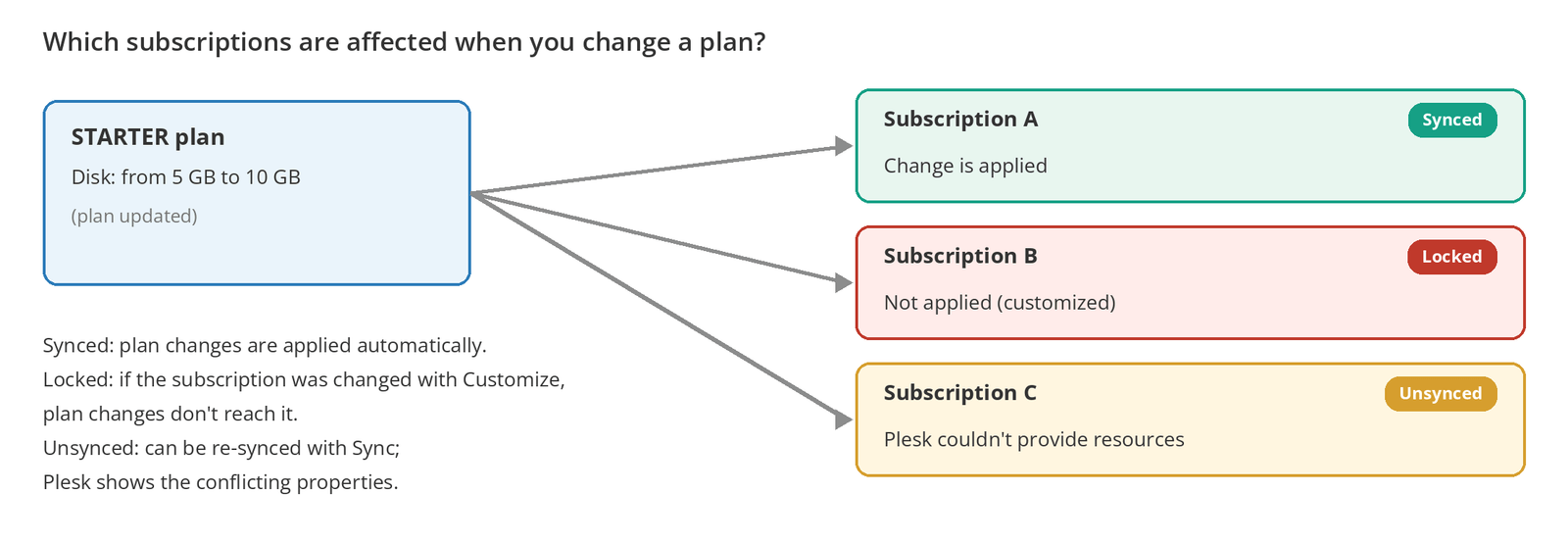
For details, see the “What happens if I change the plan later?” section of Create Your First Hosting Package: How to Create a Service Plan in Plesk.
Where Is the Hosting Price Set?
Plesk manages hosting resources and permissions; the selling price isn't set in the Service Plan or the subscription. Pricing, invoicing, and renewals are managed in WHMCS, WiseCP, or another billing system you use.
If You Can't Create a Customer or Subscription
| Problem | Likely cause | What to do |
|---|---|---|
| Customers or Add a Customer isn't visible | You may not be in the Service Provider view, or your account's permissions may be limited. | Check that the left menu is in the Service Provider view; if the problem continues, contact our support team. |
| Add Subscription isn't visible | You're not on the customer's page, or your reseller capacity may be full. | Use Customers > [customer] > Subscriptions; check your capacity. |
| The Service Plan isn't listed | It may have been created under Add-on Plans instead of Hosting Plans, or not saved. | Check the Service Plans > Hosting Plans list. |
| “Domain already exists” error | The domain may already be in another subscription on the server (yours or another account's). | Search for the domain in the Domains and Subscriptions lists. If you can't find it, contact our support team. |
| Username already in use | The same Plesk login or system user name exists on another account. | Choose a different, unique username. |
| Password isn't accepted | It doesn't meet the server's password strength rule. | Use a longer password with letters, numbers, and symbols. |
| The customer exists but there's no hosting | Create a subscription for the customer wasn't selected. | Open a subscription with Customers > [customer] > Subscriptions > Add Subscription. |
| The wrong Service Plan was chosen | The plan wasn't checked against the order. | Change the plan from the subscription's page (Change Plan) and check the limits again. |
| Resource limit error / can't open a new subscription | Your reseller account's total disk, traffic, or account limit may be full. | Check your usage; to upgrade your plan, talk to our support team. |
| The subscription shows as suspended | The validity period may have ended, it may have been suspended by the overuse policy, or it may have been suspended manually. | Activate the subscription; check the plan's validity period and overuse policy. |
| The subscription exists but the site won't load | DNS doesn't point to this server, or no content has been uploaded. | Check the subscription status first, then the domain's DNS, then the content. |
| Mail or Databases isn't visible | The relevant resource is 0 in the plan, or the permission is off. | Check the plan's Resources, Permissions, and Mail tabs. |
| MSSQL isn't visible | MSSQL is only available on Windows Plesk servers that offer it. | On Linux Plesk, this is expected. |
| The PHP version you need isn't there | That version isn't installed on the server. | Choose a compatible offered version; ask our support team if needed. |
| The customer can't log in to Plesk | They're using FTP details, the password is wrong, or the customer account is suspended. | Make sure they use their Plesk login; reset the password if needed and check the account status. |
| The subscription isn't in sync with the plan | It was locked with Customize, or Plesk couldn't provide a resource (unsynced). | Check the subscription's state; if it's unsynced, retry with Sync. |
| The SSL certificate can't be issued | The domain doesn't point to this server yet. | Try again once DNS is pointed. |
Common Mistakes
| Mistake | Result | Better approach |
|---|---|---|
| Treating a customer as a hosting account | No hosting service is opened for the customer's site. | Select the subscription checkbox, or add a subscription later. |
| Opening the subscription for the wrong customer | Services and billing get mixed up. | Add the subscription from the customer's page. |
| Choosing the wrong Service Plan | The subscription opens with different limits. | Check the plan against the order. |
| Typing https:// or www in the domain | The domain is rejected or created incorrectly. | Type only example-domain.com. |
| Mixing up the Plesk login and FTP user | The customer can't get into the panel. | Send the three accounts separately, with labels. |
| Assuming DNS will point automatically | The site keeps loading from the old server. | Update the nameservers or DNS records. |
| Using Customize when it isn't needed | The subscription is locked and stops receiving plan changes. | Use an add-on or a different plan for extra resources. |
| Handing over without testing | The customer finds the mistakes first. | Complete the checklist. |
| Using a test plan for a real customer | The customer works with the wrong limits. | Choose the plan that matches what was sold. |
| Looking for the price in Plesk | Wasted time. | Manage pricing in your billing system. |
Before You Hand It Over to the Customer
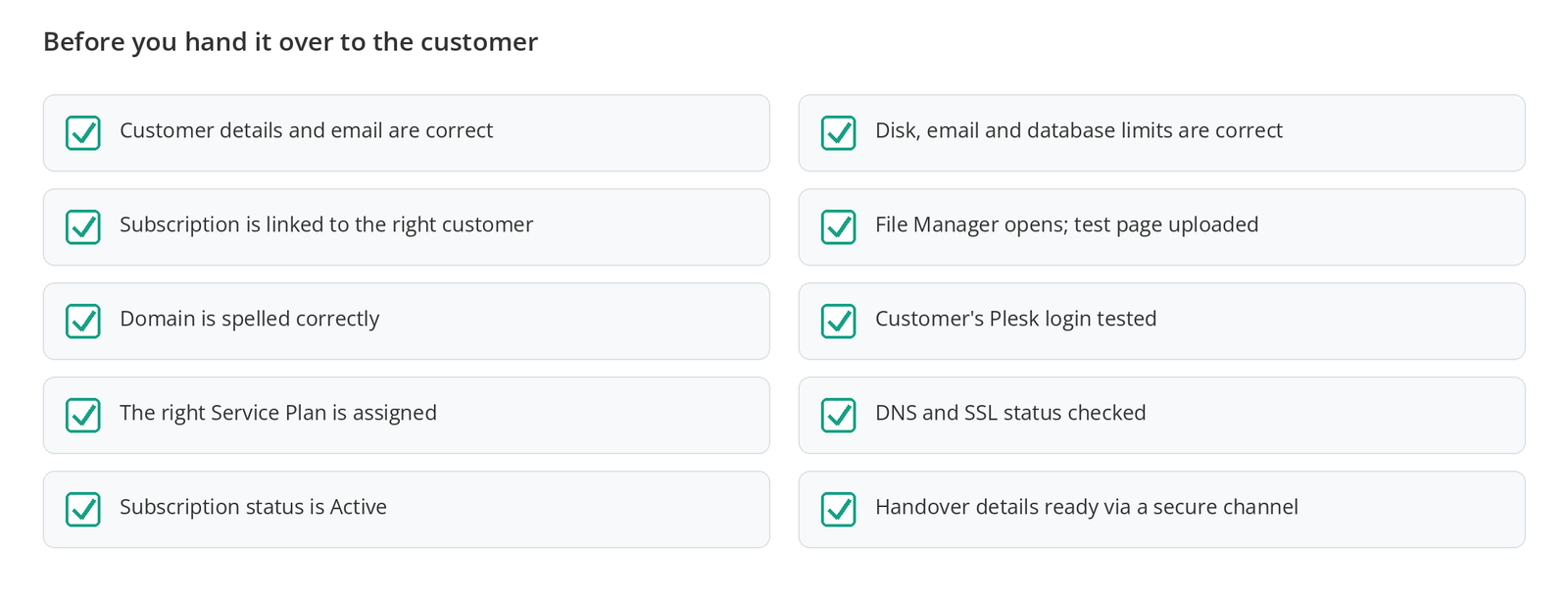
Once the checklist is complete, let your customer know the hosting is active, and send the domain, package name, Plesk login address and username, any DNS instructions, and your support channel. Share passwords through a separate, secure channel.
Frequently Asked Questions
How do I add a customer in Plesk?
Go to Customers > Add a Customer and enter the customer's contact details and Plesk login. On the same form, select Create a subscription for the customer and enter the domain, system user, and Service Plan to create the customer and subscription together.
How do I create a subscription in Plesk?
Use the Create a subscription for the customer checkbox when adding a new customer, or, for an existing customer, go to Customers > [customer name] > Subscriptions > Add Subscription. Enter the domain, system user, and Service Plan, then click OK.
What's the difference between a Customer and a Subscription?
A Customer is the record of who owns the service and the customer's Plesk login account. A Subscription is the hosting service opened for that customer for a specific domain. One customer can have several subscriptions.
What's the difference between a Service Plan and a Subscription?
A Service Plan is the template that defines resources and permissions. A Subscription is a copy of that template assigned to a specific customer. Websites, email, and databases are created inside the subscription, within the plan's limits.
I created a customer, so why is there no hosting account?
Most likely, Create a subscription for the customer wasn't selected when the customer was created. A customer record alone doesn't open hosting. Add a subscription with Customers > [customer name] > Subscriptions > Add Subscription.
Can I add several subscriptions for one customer?
Yes. A customer can have several subscriptions, and they can be on different Service Plans. Each subscription has its own resources and its own system user.
Can a subscription have several domains?
Yes, up to the plan's Domains limit. Extra domains are added in the Customer Panel with Websites & Domains > Add Domain and share the subscription's disk, traffic, and other resources.
What should I do if I chose the wrong Service Plan?
Change to the right plan from the subscription's page, then recheck the disk, email, and database limits in the Customer Panel. If you're moving to a lower plan, make sure the customer's current usage fits the new limits.
Can I change the Service Plan later?
Yes. Plan changes are applied automatically to all synced subscriptions on that plan. Subscriptions customized with Customize, which are locked, don't receive those changes.
Does the domain start working automatically once the subscription exists?
Not always. The subscription prepares the hosting space; for visitors to reach it, the domain's DNS or nameservers must point to this server. Because of caching, DNS changes can appear at different times on different networks.
Does creating a subscription change DNS automatically?
No. Plesk prepares its own DNS zone for the subscription, but it doesn't change the domain's nameserver settings at the registrar. You need to update the nameservers or external DNS records separately.
How does the customer log in to Plesk?
The customer logs in at the Plesk login address (usually https://<your-plesk-server-address>:8443) with the username and password set when their customer account was created. You can also open their panel with the Open in Customer Panel link in the Subscriptions list.
Is the customer login the same as the FTP account?
No. The customer login is for the Plesk control panel. The system user set in the subscription is for accessing files over FTP or SFTP. Email accounts are separate from both.
Where is the hosting price set in Plesk?
Plesk has no price field. Service Plans and subscriptions only define technical resources and permissions. Pricing, invoicing, and renewals are managed in WHMCS, WiseCP, or another billing system you use.
Why does a subscription show as suspended?
If the plan has a validity period, the subscription is suspended on that date. With the Overuse is not allowed policy, it's also suspended when a limit is exceeded. It may also have been suspended manually. Websites, FTP, and email aren't accessible on a suspended subscription.
Why isn't my Service Plan listed?
The plan may have been created on the Add-on Plans tab instead of Hosting Plans, or not saved. Check the Service Plans > Hosting Plans list.
If I delete a customer account, what happens to their subscriptions?
In Plesk, deleting a customer account also deletes all of the customer's subscriptions and websites. Backups the customer created in Plesk's internal storage are removed too. Back up the data and let the customer know before deleting.
Next Step
Your first customer's subscription is ready. Now point the domain to this subscription. If you'll use private nameservers: How to Set Up Private Nameservers for Plesk Reseller Hosting. If you don't have a hosting plan yet: Create Your First Hosting Package: How to Create a Service Plan in Plesk.
Having trouble creating a customer or subscription in your Plesk Reseller Hosting account?
In your support ticket, include the domain, customer name, Service Plan, the step where the error occurred, the full text of the error message, and a screenshot if possible. Make sure no passwords are visible in the screenshot.
Open a Support TicketWant to sell hosting under your own brand?
Open hosting for your customers with Plesk and offer the service under your own brand.
Explore Plesk Reseller Hosting