How to Suspend, Unsuspend and Terminate a cPanel Account in WHM
Quick answer
In WHM, you use Suspend to stop a customer's hosting account temporarily and Unsuspend to reopen it. A suspended account shows an "account suspended" page instead of its websites; cPanel login, FTP, outgoing email and database access stop, but files, email and databases stay on the server. Terminate permanently removes the account from the server and can't be undone. Suspend and Terminate work at account level, not domain level: every domain in the account is affected. Before you terminate, confirm the right username, every domain in the account and a verified backup stored outside the account.
Written by: Domain Name API Hosting Support Team · Technical review: Domain Name API Hosting / Systems Operations Team · Last updated: 5 Oct 2026 · Source: official cPanel & WHM documentation
Screens are representative WHM views prepared with sample data. Your access to these screens depends on the privileges your hosting provider has assigned to your reseller account. Examples use example.com, exampleuser and 192.0.2.10.
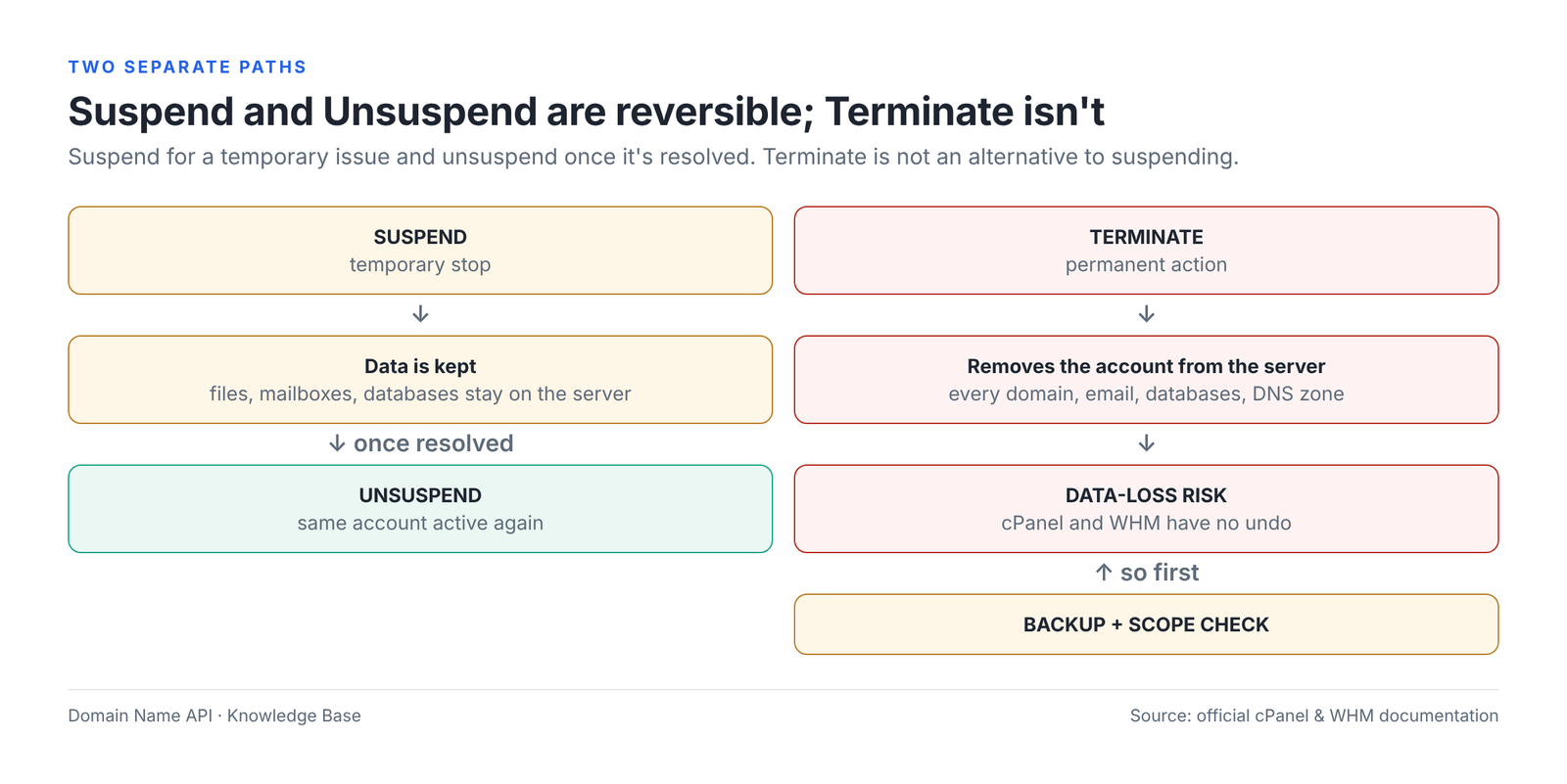
Which should I use: Suspend, Unsuspend or Terminate?
Use Suspend if the service needs to stop temporarily, Unsuspend once the reason for the suspension is resolved, and Terminate only if the service has definitely ended and the backup is verified. Don't terminate for a temporary issue such as a late payment: suspend the account instead, and when the issue is resolved you can reopen the same account with Unsuspend.
| Action | What it does | Data | Website | FTP | Reversible? | When? | |
|---|---|---|---|---|---|---|---|
| Suspend | Stops the account temporarily | Stays on the server | "Suspended" page | Sending and mail download stop; incoming mail depends on a server setting | Login fails | Yes, with Unsuspend | Late payment, abuse review, security incident, customer request |
| Unsuspend | Reopens a suspended account | As before the suspension | Back online | Works again | Works again | – | When the reason for suspension is resolved |
| Terminate — PERMANENT | Removes the account from the server | Deleted | Removed | Mailboxes and messages deleted | Accounts deleted | No — only from a backup stored outside the account | When the service has ended in writing, after the backup is verified |
SUSPENDING IS NOT FOR DELETING DATA
Suspend is a temporary state; Terminate removes the hosting account. Don't use Terminate for a late payment, suspected abuse or a customer's temporary request.
Key concepts
What is WHM?
WHM (Web Host Manager) is the control panel where resellers create, suspend, unsuspend and delete their customers' hosting accounts. Your hosting provider decides which WHM screens a reseller can access.
What is a cPanel account?
A cPanel account is the customer's hosting account: a username, a home directory, and the website files, email and databases kept in that directory. One cPanel account can contain more than one domain.
What is a primary domain?
The primary domain is the domain given when the account is created. Additional domains (addon domains), subdomains and aliases can be added to the account later; they are all part of the same account.
What is a package?
A package is the resource and feature template assigned to an account: disk quota, bandwidth, number of email accounts and databases, and so on. A package is a template, not the account itself.
What is Suspend?
Suspend stops a cPanel account temporarily without deleting it. According to the cPanel documentation, visitors see a suspension message instead of the sites; the user can't log in to cPanel, FTP users can't connect, email can't be sent, databases can't be accessed and cron jobs are stopped.
What is Unsuspend?
Unsuspend reopens a suspended cPanel account. The account's data is used as it was before the suspension. If the server administrator locked the suspension, only a user with root privileges can unsuspend it.
What is Terminate?
Terminate permanently removes a cPanel account from the server. According to the cPanel documentation, the action can't be undone and the system deletes the account's data; the account's DNS zones are also deleted by default.
cPanel/WHM structure: reseller, account and domain
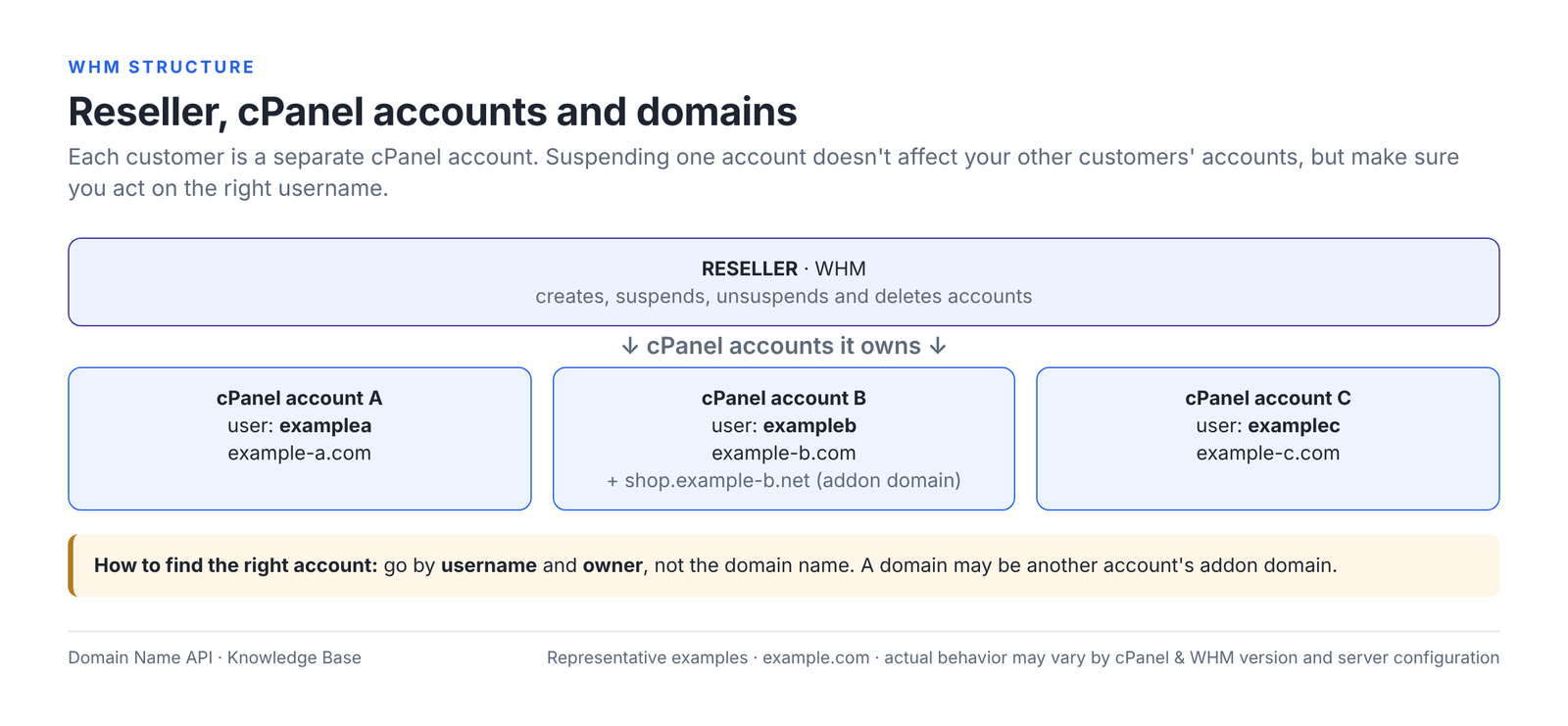
As a reseller, you create a separate cPanel account in WHM for each customer. Suspending one account doesn't affect your other customers' accounts, but to make sure you act on the right account, check the username and the owner, not just the domain name.
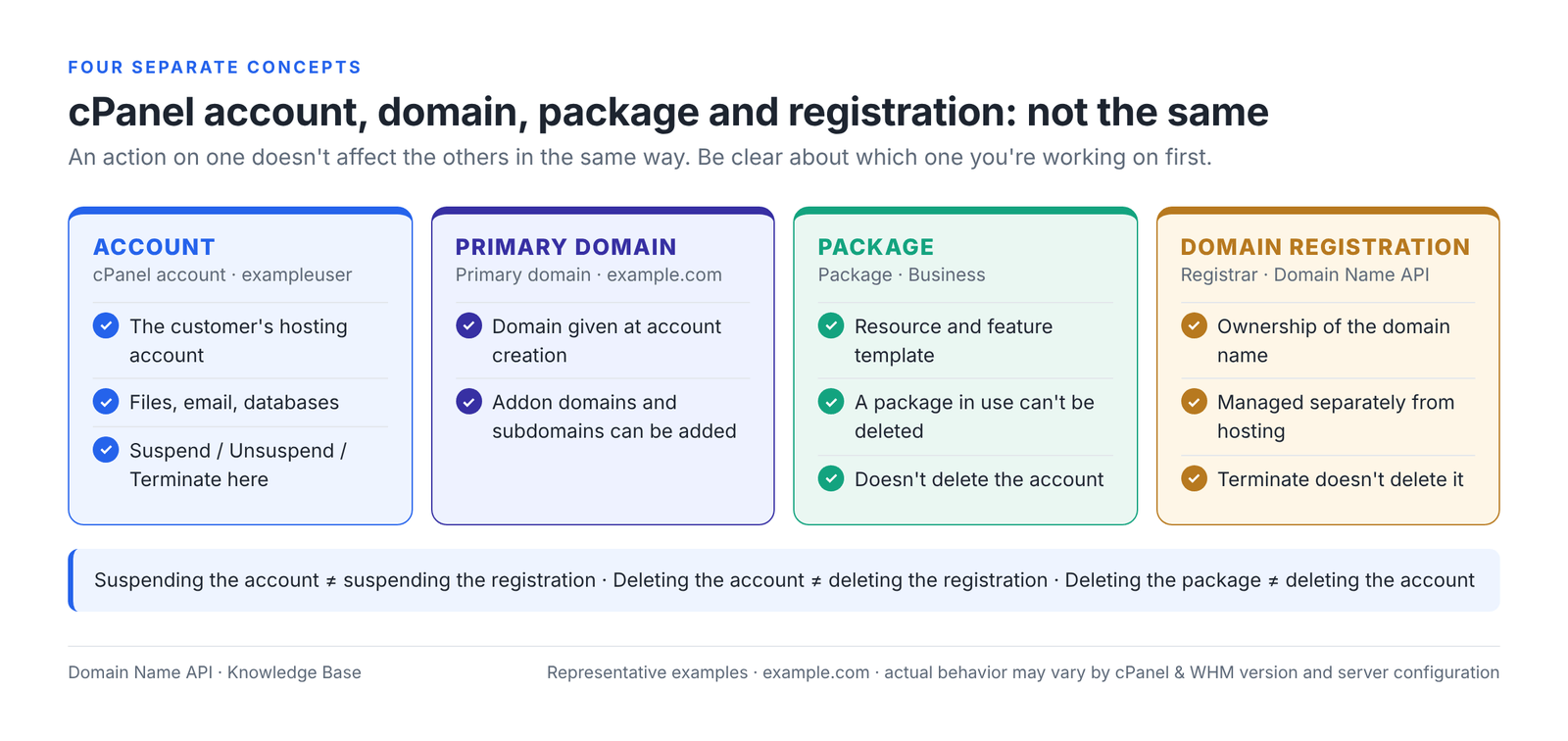
A cPanel account, a domain and a hosting package are not the same thing
A cPanel account is the customer's hosting account, the primary domain is the main domain attached to that account, a package is the resource template assigned to the account, and the domain registration is the ownership record held at the registrar. An action on one of them doesn't affect the others in the same way.
| Action | What happens? | What doesn't happen? |
|---|---|---|
| Suspending a cPanel account | Every site and service in the account stops | The domain registration isn't suspended |
| Terminating a cPanel account | The account's data and (by default) its DNS zone are deleted | The domain registration isn't deleted |
| Deleting a package | A package in use can't be deleted | The customer's cPanel account isn't deleted |
| Letting a domain registration lapse | Ownership of the domain ends | The hosting account isn't deleted automatically |
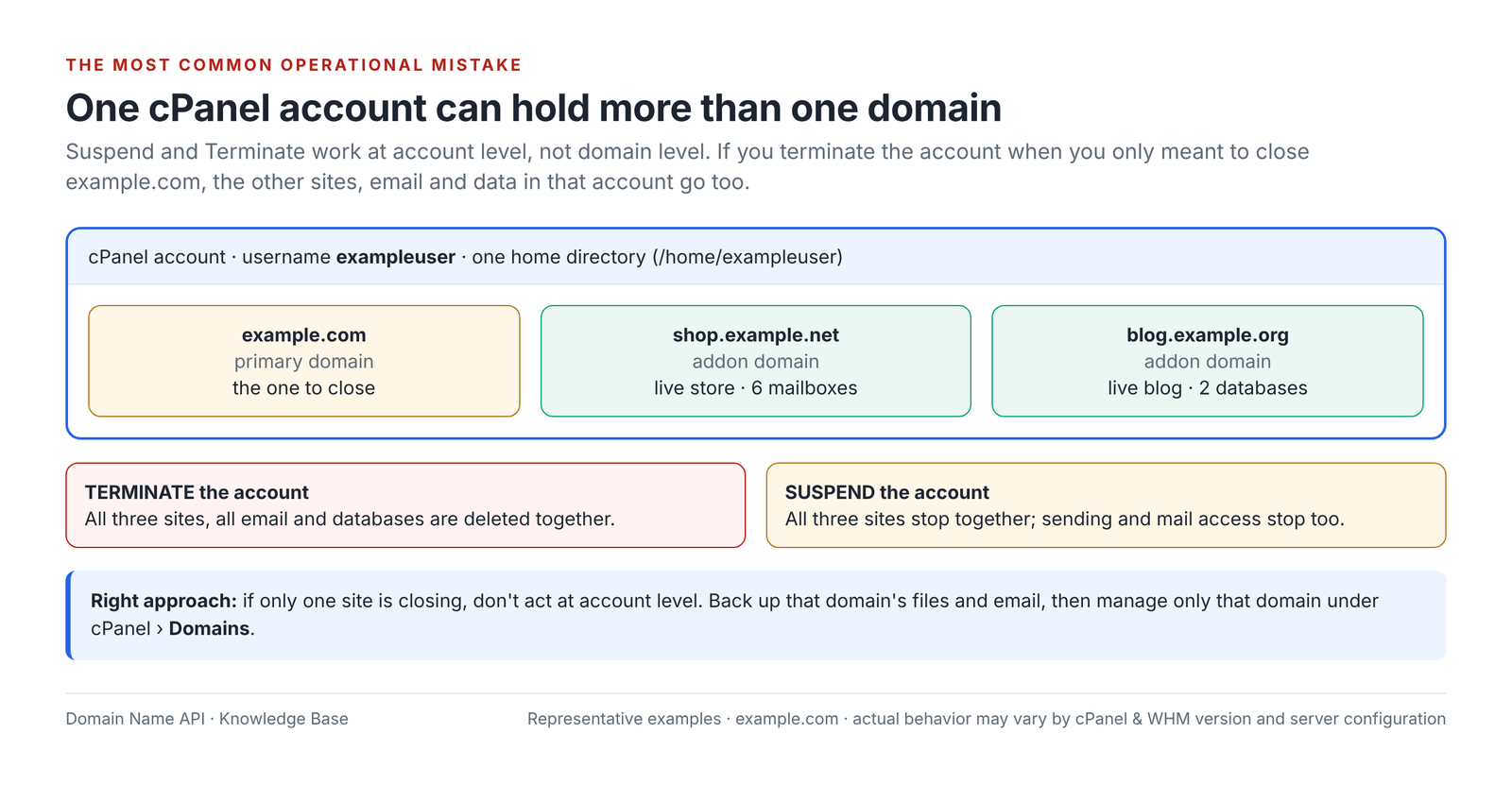
What happens if a cPanel account has more than one domain?
Suspend and Terminate work at account level, not domain level. Besides the primary domain, a cPanel account can contain additional domains (addon domains), subdomains and aliases, and they all share the same home directory, the same mail server and the same database space. If you terminate the account when you only meant to close example.com, the other sites, email accounts and databases in that account are deleted too.
| Domain type | What it is | If the account is suspended | If the account is terminated |
|---|---|---|---|
| Primary domain | The main domain given when the account was created | Stops | Deleted |
| Addon / additional domain | A domain added to the account that runs as a separate site | Stops | Deleted with its files, email and databases |
| Subdomain | A sub-name of a domain (e.g. blog.example.com) | Stops | Deleted |
| Alias (parked) | A domain that shows the same site as another domain | Stops | Removed |
If only one site needs to close
Don't use Suspend or Terminate at account level. Back up that domain's files and email accounts, then manage only that domain under cPanel › Domains. How removing a domain affects its folder and email accounts can vary by cPanel version, so check which files and email accounts remain afterwards.
Before you terminate, don't rely on the domain name alone. Also check the cPanel username and the other domains in the same account; in WHM, expanding the account's row on the List Accounts screen shows the domains attached to it.
How do I suspend a cPanel hosting account in WHM?
You suspend the account in WHM from Account Functions › Manage Account Suspension, or by expanding the account's row on Account Information › List Accounts and clicking Suspend Account. Your access to these screens depends on the privileges your hosting provider gives your reseller account. Run this quick check first:
- Is it the right customer?
- Is it the right primary domain?
- Is it the right cPanel username?
- Are there other domains in the account, and should they stop too?
- Is the reason for the suspension clear and recorded?
- Has the customer been notified?
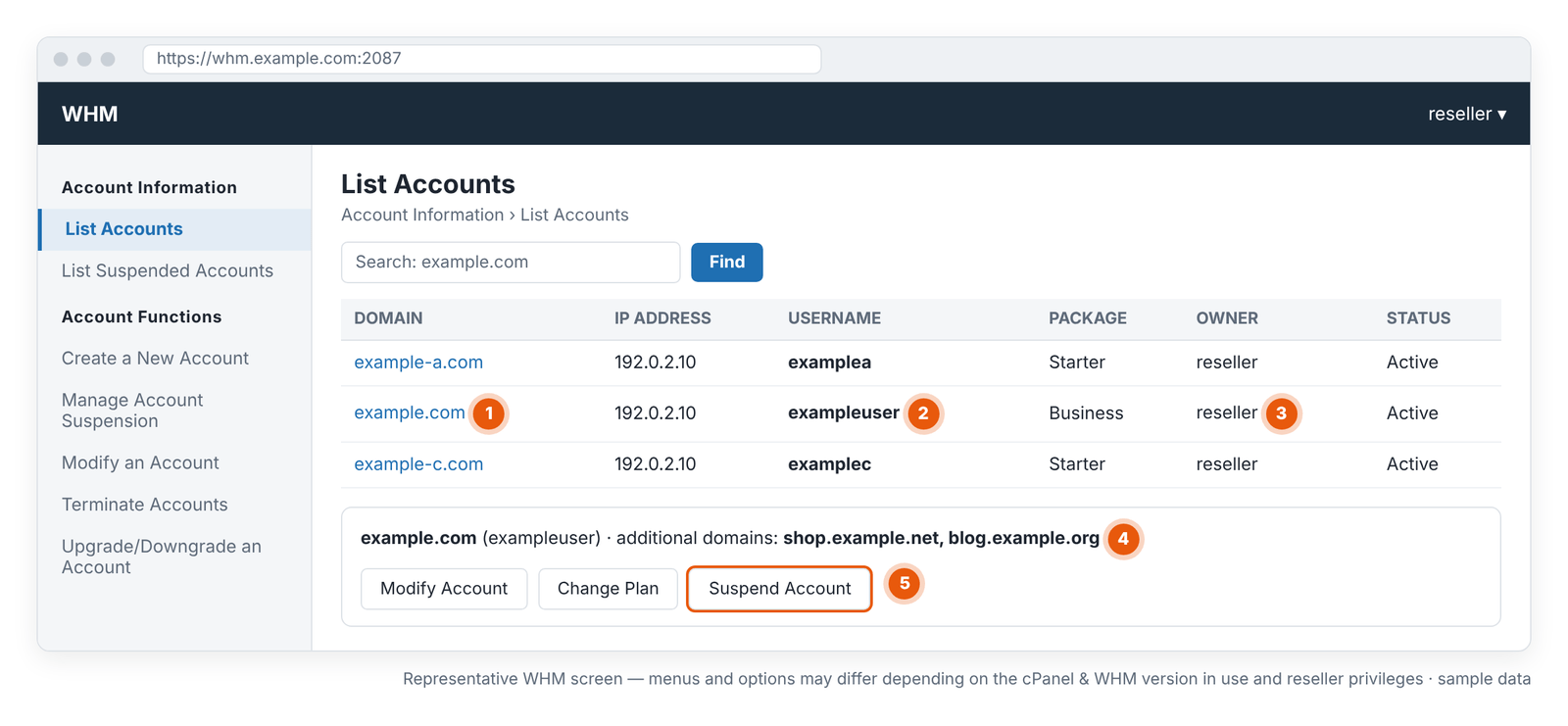
- 1 · Domain: the account's primary domain.
- 2 · Username: act on this username; it's unique.
- 3 · Owner: the reseller who owns the account.
- 4 · Addon domains: suspension and deletion affect these too.
- 5 · Suspend Account: suspends the account.
| Step | What I do | Why | Expected result | Watch out |
|---|---|---|---|---|
| 1 | Log in to the WHM reseller panel | The action needs reseller privileges | WHM opens | Log in to WHM, not the customer's cPanel |
| 2 | Open List Accounts | To verify the account | The account list appears | Use the search box |
| 3 | Find the customer's primary domain | First step in finding the account | The row appears | The domain may be another account's addon domain |
| 4 | Verify the username | The username is unique | The right account is selected | Don't be misled by similar domains |
| 5 | Verify the owner if needed | To make sure the account is yours | Owner is you | If it belongs to another reseller, don't act |
| 6 | Choose Suspend | To stop the account without deleting it | The reason field opens | Don't open the Terminate screen |
| 7 | Enter a Reason | So everyone knows later why it was suspended | The reason is saved | No personal data or passwords |
| 8 | Confirm | To apply the suspension | The account is suspended | – |
| 9 | Check the account status | To confirm the action was applied | Status is Suspended; the reason is shown | If the status didn't change, refresh the page |
| 10 | Test the site from outside | To see what visitors see | "Suspended" page | Cloudflare/CDN may show an old page |
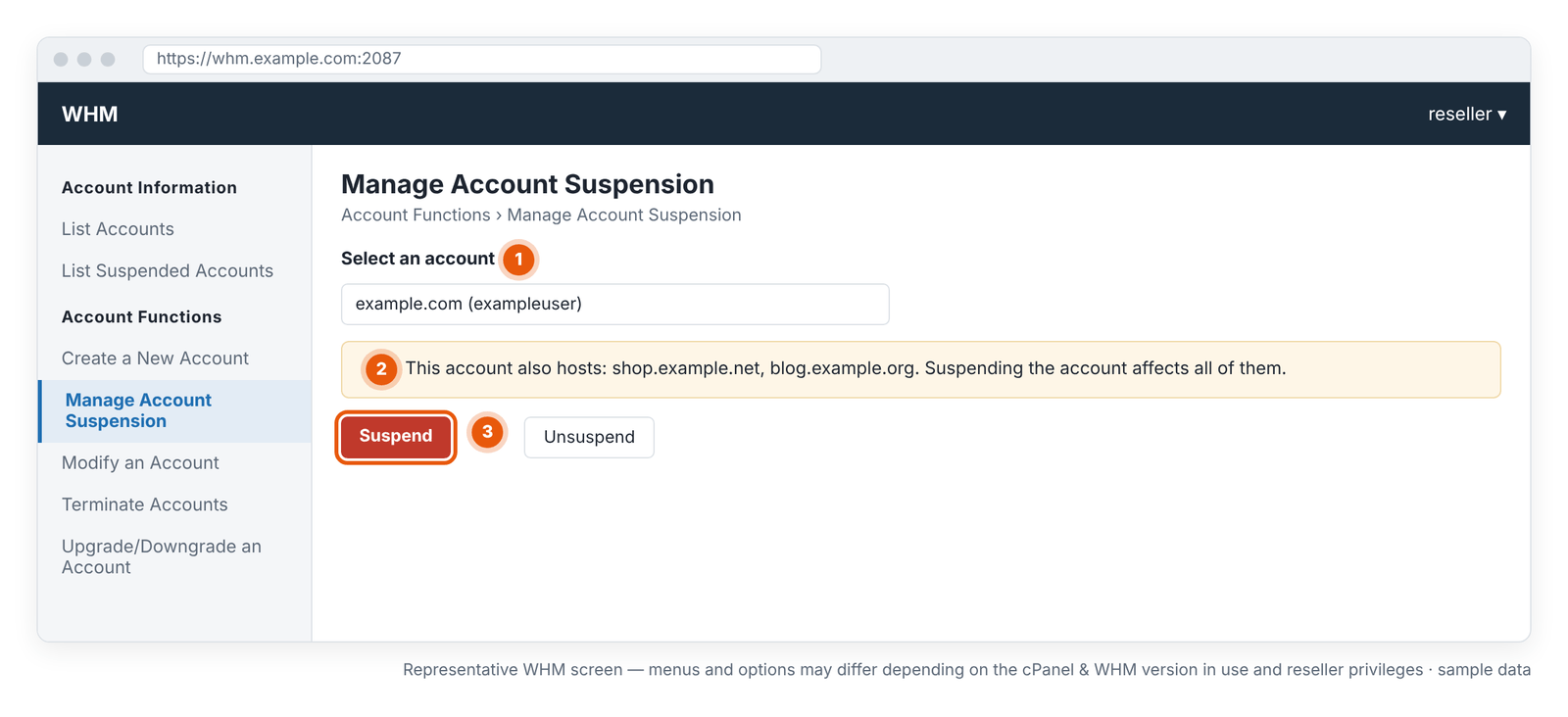
- 1 · Account selection: by domain and username.
- 2 · Addon domain warning: suspension affects every domain in the account.
- 3 · Suspend: suspends the account without deleting it.
Why does the suspension reason matter?
The suspension reason (Reason) lets you, your team and, if needed, the support team understand later why the account was stopped. cPanel also recommends that you always enter a reason when suspending. Keep it short and factual.
| Reason | Example wording |
|---|---|
| Late payment | Payment overdue – invoice 2026-10 |
| Abuse investigation | Abuse investigation – ticket #12345 |
| Security incident | Security incident – malware cleanup pending |
| Customer request | Customer request – temporary suspension until 15 Oct 2026 |
| Temporary administrative hold | Administrative hold – contract review |
For abuse and security reasons, don't enter sensitive internal details, the complainant's personal data or passwords; keep the details in the support ticket or your internal records.
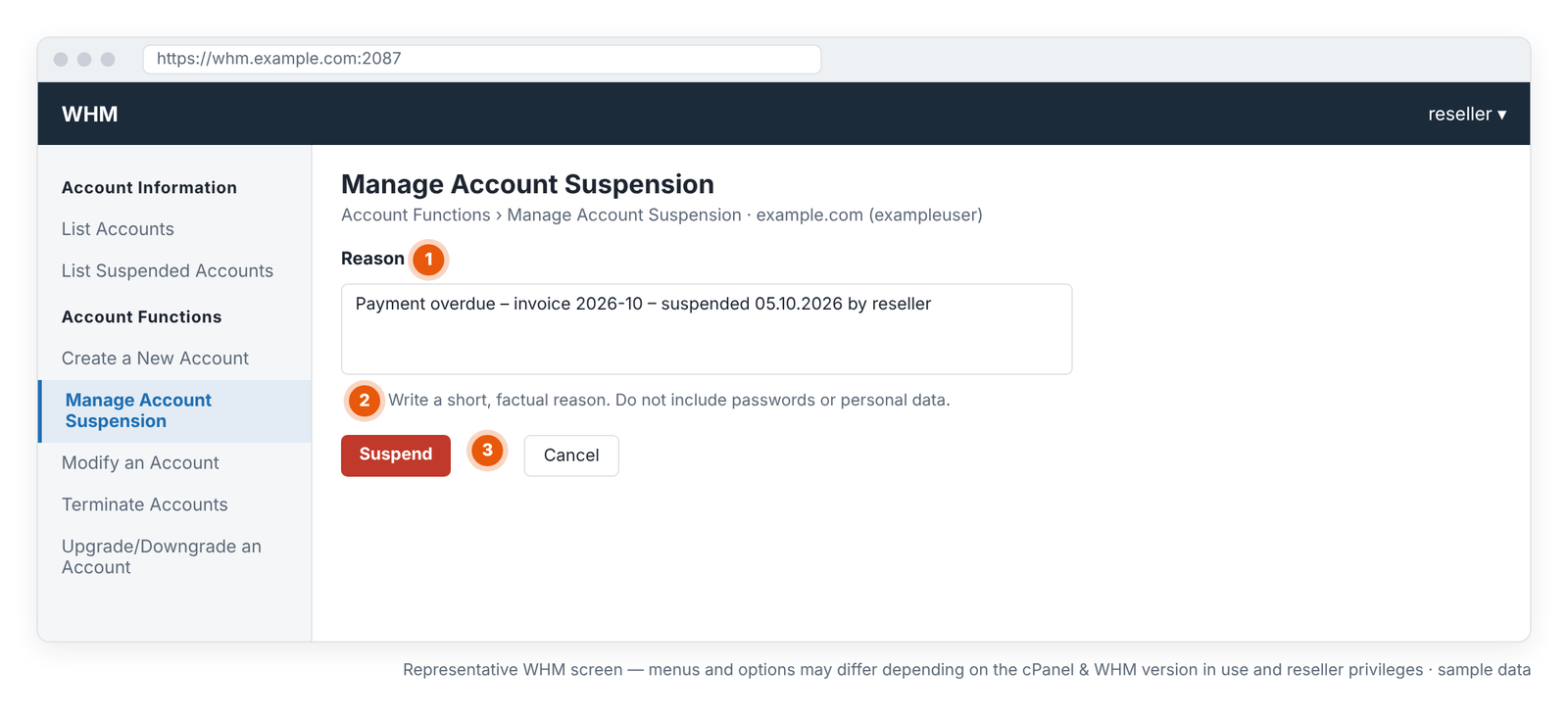
- 1 · Reason: why the account is suspended.
- 2 · Warning: no passwords or personal data.
- 3 · Suspend: applies the suspension.
What happens when a cPanel account is suspended?
According to the cPanel documentation, a suspended account shows a suspension message instead of its websites; the user can't log in to cPanel, the account's processes are stopped, FTP users can't connect, email users can't send or download mail, and MySQL users can't access databases. Files, email and databases stay on the server. What happens to incoming email depends on the setting chosen by the server administrator.
| Component | In a suspended cPanel account | Note |
|---|---|---|
| Website | Visitors see an "account suspended" message | Applies to every domain in the account |
| HTTPS | The suspension message is also served over HTTPS; the certificate isn't deleted | If a certificate renewal falls during the suspension, check it when you reopen |
| cPanel login | The user can't log in | The account password can't be changed while suspended |
| FTP | FTP users can't log in | – |
| SFTP/SSH | The account's processes are stopped; access isn't available | May vary with server configuration |
| Outgoing email | Can't be sent; queued messages fail | – |
| Incoming email | Depends on a server setting | Options: deliver normally, accept and discard, reject at SMTP, or queue (about 4 days) |
| Mailbox data | Not deleted | Users can't download mail during the suspension |
| Mailing lists | Don't work | – |
| MySQL/MariaDB databases | Not deleted; users can't access them | – |
| Remote database access | Database users can't connect | – |
| Cron jobs | Stopped | Re-enabled when the suspension is lifted; check they run after reopening |
| DNS zone | Suspension doesn't delete the DNS zone | The domain keeps resolving to the server and the suspension page appears |
| SSL certificate | Not deleted | – |
| Files | Not deleted | Some directory permissions change while suspended, so they may not be included in backups |
| Existing backups | Not deleted | Suspension doesn't remove backup files |
| Subdomains, addon domains | All suspended | Suspension is account-level |
| Redirects | Usually don't work; visitors see the suspension page | – |
Bottom line
Suspension is reversible and doesn't delete data, but every site in the account and all outgoing email stop. If the customer's email is on this server, tell them in advance that the suspension will affect email traffic too.
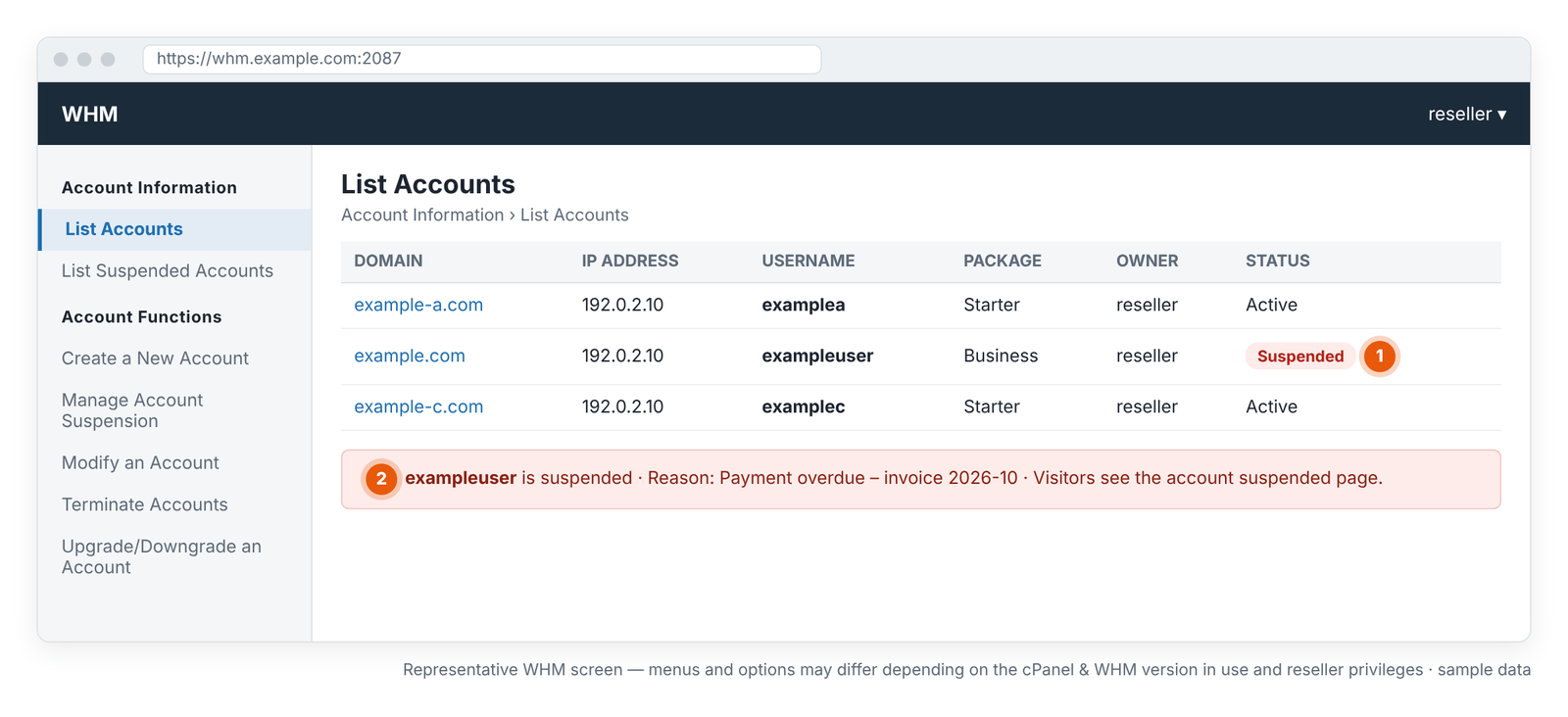
- 1 · Suspended: the account is suspended; other accounts aren't affected.
- 2 · Reason: the suspension reason and the page visitors see.
What's the difference between suspending for payment and suspending for abuse or security?
A suspension for late payment can be lifted once the payment is confirmed. An account suspended for abuse or security reasons, however, shouldn't be reopened just because the customer has paid: the cause of the suspension must be fixed first, otherwise the same spam or attack starts again as soon as the account is back online.
| Abuse/security reason | Check before reopening |
|---|---|
| Spam, excessive outgoing email | Find the source; change the affected mailbox passwords; check the mail queue |
| Compromised mailbox | Reset the password; check the other mailboxes too |
| Malware, hacked site, malicious PHP script | Scan and clean the site; update the CMS and plugins |
| Phishing page | Remove the page and its source; close the entry point |
| Resource abuse | Find and fix the cause (bot, script, cron) |
| Blacklisting | Check IP and domain reputation; contact the support team |
Detailed steps for email-related abuse: cPanel Email Sending Limits, Spam and Blacklist Protection.
How do I unsuspend a suspended cPanel account in WHM?
Select the account on Account Functions › Manage Account Suspension and click Unsuspend, or reopen it from the account's row on List Accounts. If the server administrator locked the suspension (Prevent resellers from unsuspending), you can't unsuspend it as a reseller; contact the support team instead. Before you reopen, ask one question: why was the account suspended?
| Suspension reason | Before reopening |
|---|---|
| Payment issue | Has the payment been confirmed? |
| Abuse | Has the abuse been fixed and the source closed? |
| Hack / malware | Has the account been cleaned and have passwords been changed? |
| Resource issue | Has the cause (bot, script, quota) been fixed? |
| Customer request | Has the customer asked for it to be reopened? |
- On Manage Account Suspension, select the account and read the suspension reason.
- Confirm the cause has been resolved.
- Click Unsuspend.
- Check on List Accounts that the account no longer shows as suspended.
- Run the 12 checks below.
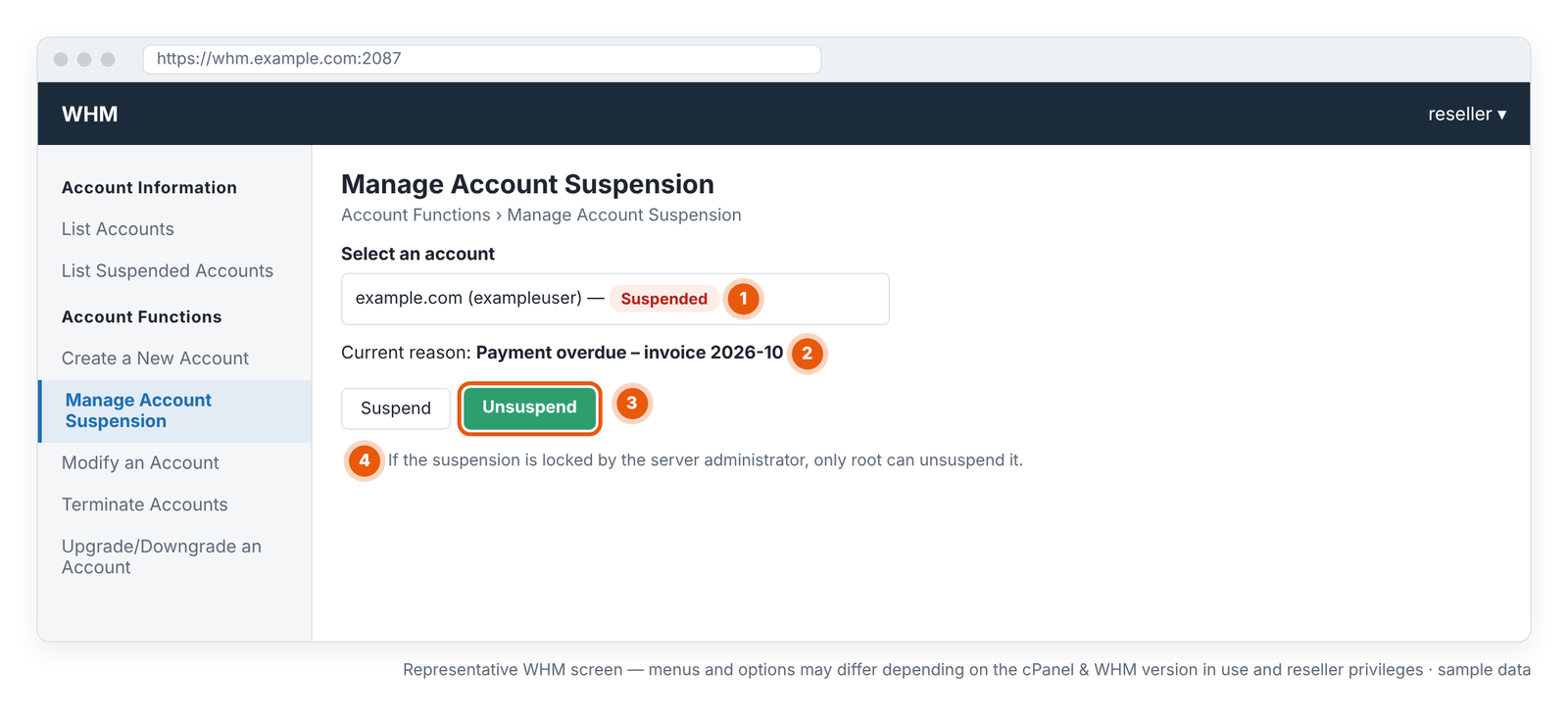
- 1 · Suspended account.
- 2 · Current reason: confirm it's resolved before reopening.
- 3 · Unsuspend: reopens the account.
- 4 · Locked suspension: only root can unsuspend.
What should I check after unsuspending?
Even if Unsuspend appears to have worked, test the website and email services before you tell the customer. An account no longer showing as suspended in WHM doesn't prove that every service works properly.
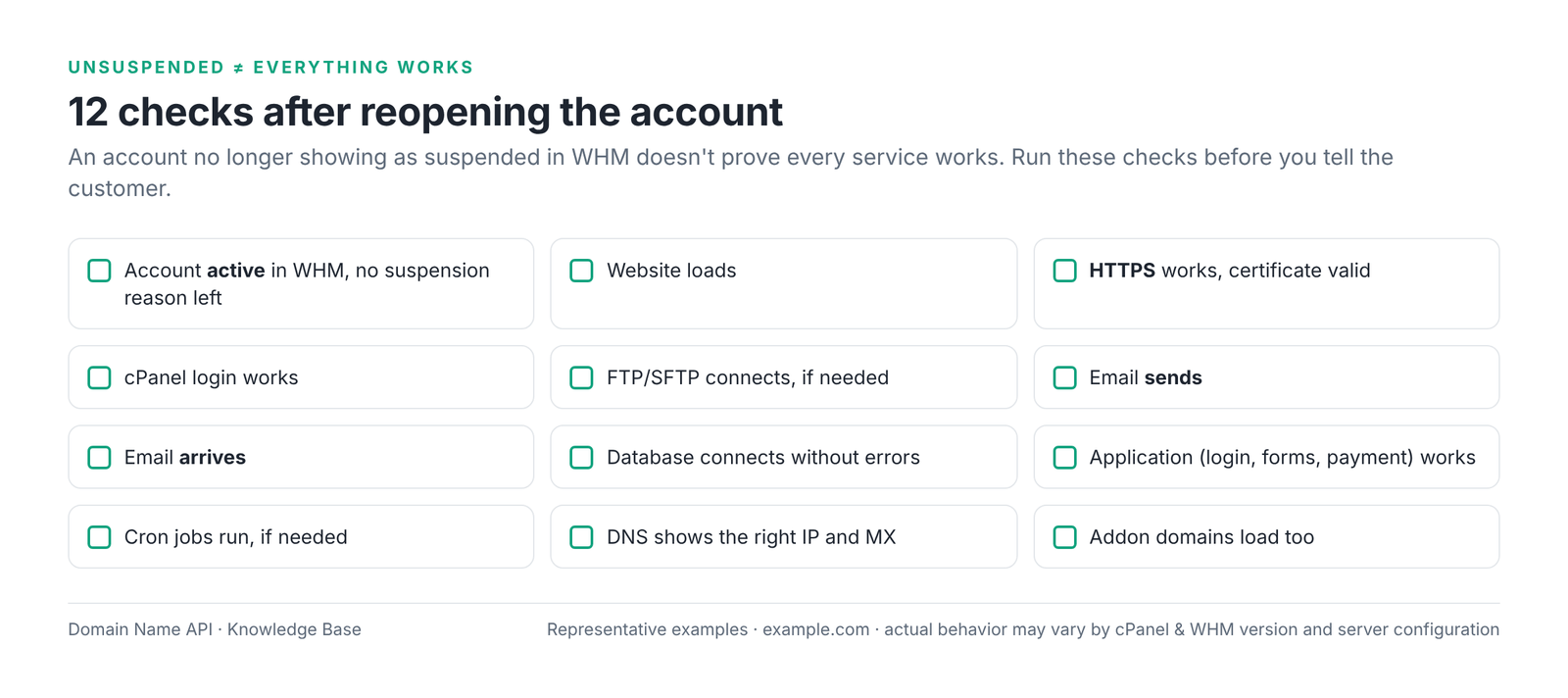
- Account active in WHM
- Website loads
- HTTPS works
- cPanel login works
- FTP/SFTP works, if needed
- Email sends
- Email arrives
- Database connection works
- Application works
- Cron runs, if needed
- DNS is correct
- SSL is valid
I unsuspended the cPanel account, so why isn't the site working?
Most problems after reopening an account have nothing to do with the suspension; they relate to caching, DNS, SSL, the application, the database or resource limits. Don't upgrade the package for every issue; diagnose in order first.
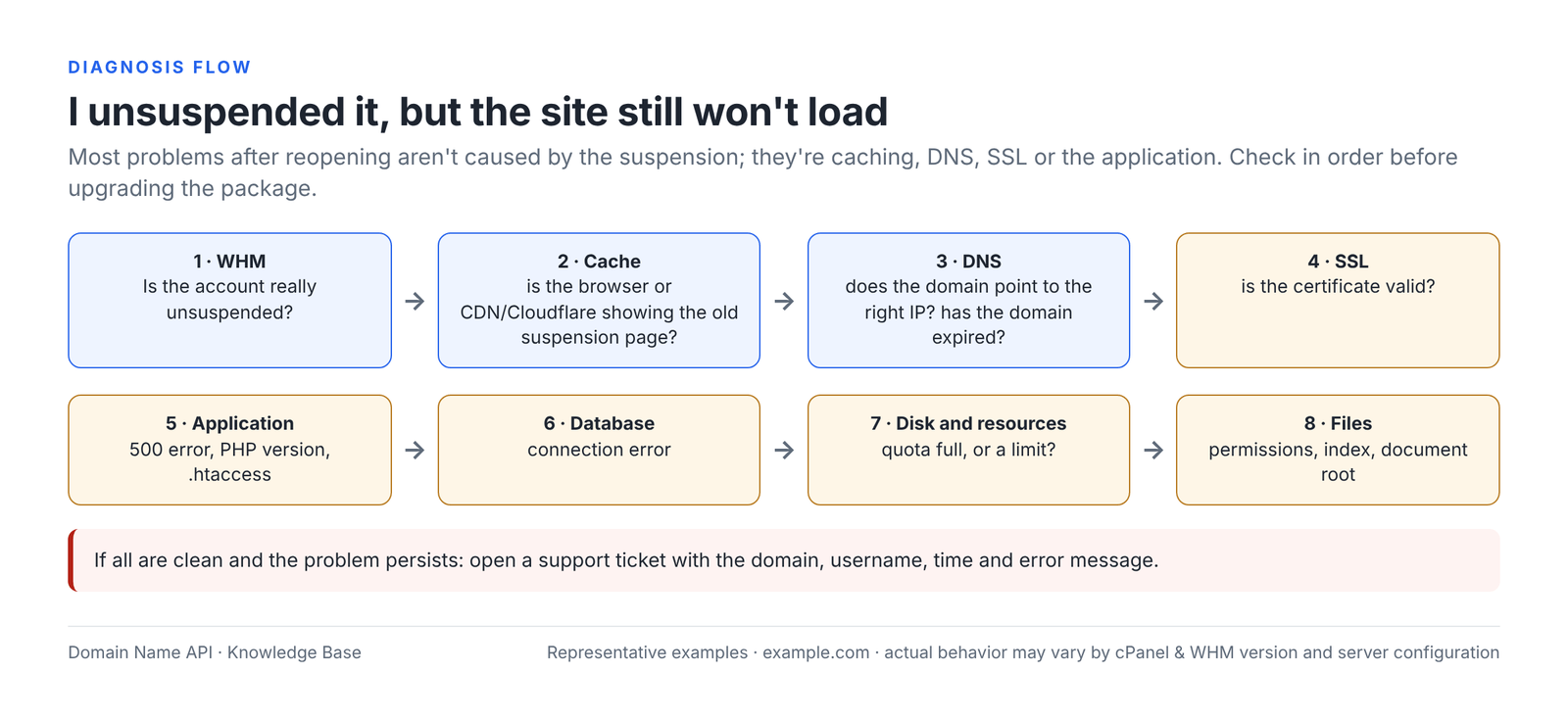
| Symptom | Likely cause | Where to check | First action |
|---|---|---|---|
| Suspension page still shows | Account still suspended, or a locked suspension | WHM › List Accounts | Check the status; if locked, contact support |
| Suspension page still shows (active in WHM) | Browser or Cloudflare/CDN cache | Private window; CDN dashboard | Clear the cache |
| Site points to another server | DNS on an old IP or different nameservers | DNS lookup | Fix the records; wait for the TTL |
| Domain doesn't resolve at all | The domain has expired | Domain Name API domain management | Renew the domain |
| Certificate error | SSL expired or failed to renew | cPanel › SSL/TLS Status | Reissue the certificate |
| 500 error | PHP version or application error | cPanel › Errors; error_log | Fix the error; check the PHP version |
| Database connection error | Connection details, user privileges | Application configuration; MySQL Databases | Verify the details |
| Application error, blank page | Application or plugin | Error logs | Disable the faulty plugin |
| Files can't be written | Disk quota full | cPanel › Disk Usage | Free up space; Suspend/Terminate isn't the fix |
| Slowness or 508 | Resource limit | cPanel › Resource Usage (if available) | Find the cause |
| 403 Forbidden | File permissions | File Manager | Fix the permissions |
| Directory listing or 403 | Missing index file | public_html | Check the index file |
| 500 or redirect loop | .htaccess error | .htaccess | Undo the last change |
| Wrong site appears | Wrong document root | cPanel › Domains | Fix the document root |
| None of these; all sites slow/down | Server-side issue | Service status announcements | Open a support ticket |
What does terminating a cPanel hosting account in WHM mean?
Terminate means permanently removing a cPanel account from the server. According to the cPanel documentation, account termination can't be undone; the system permanently deletes the account's data and removes its DNS zones by default. Understand the risks below before you go anywhere near the Terminate button.
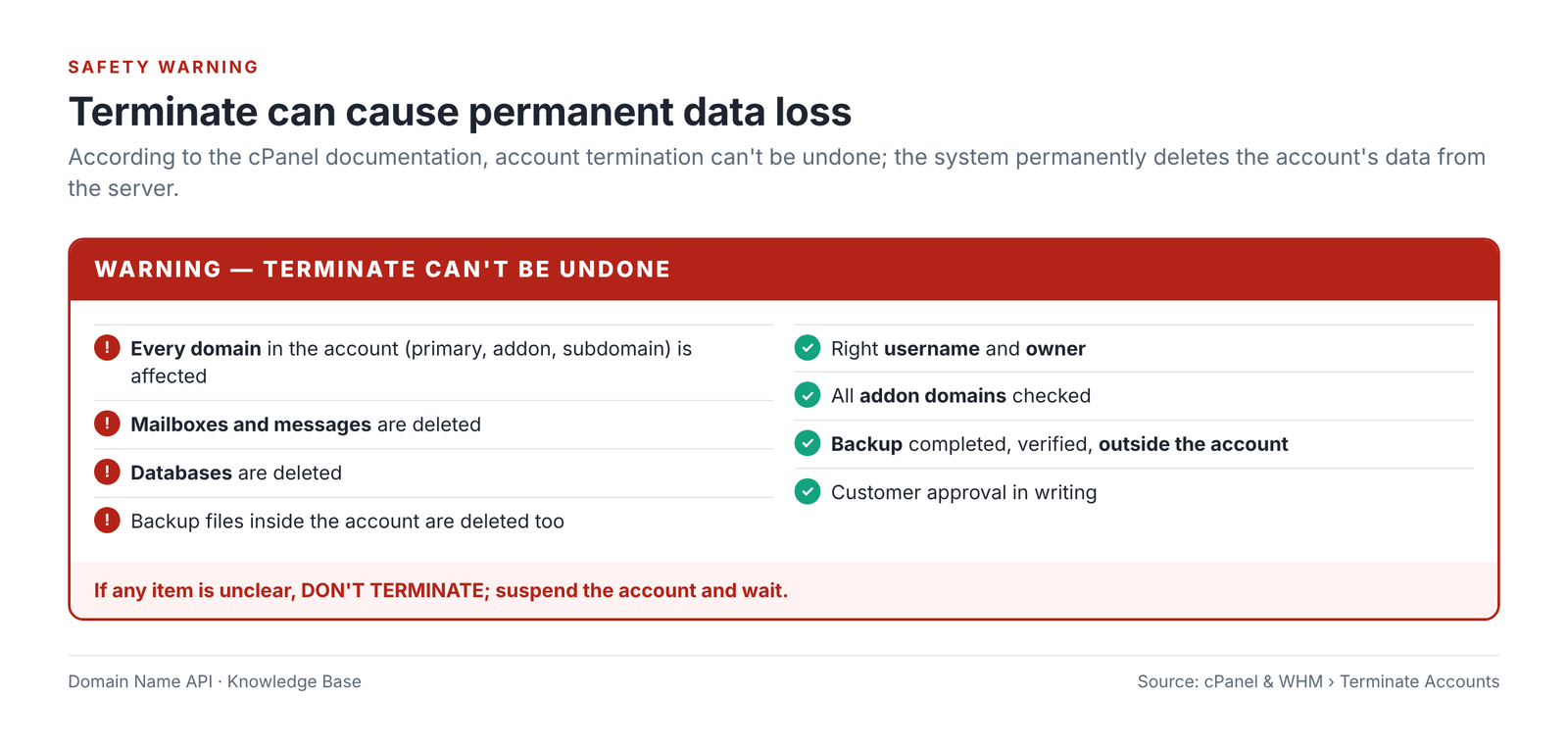
WARNING — TERMINATE CAN CAUSE PERMANENT DATA LOSS
Terminate deletes every domain in the account, its mailboxes, databases and any backup files stored inside the account. cPanel and WHM have no undo button.
What exactly does Terminate delete?
Terminate deletes the account's data on the server: the home directory, every domain in the account, email, databases and account-related settings. The domain registration, billing, backups stored outside the account and other accounts are outside its scope. Some rows depend on server configuration; we've flagged them.
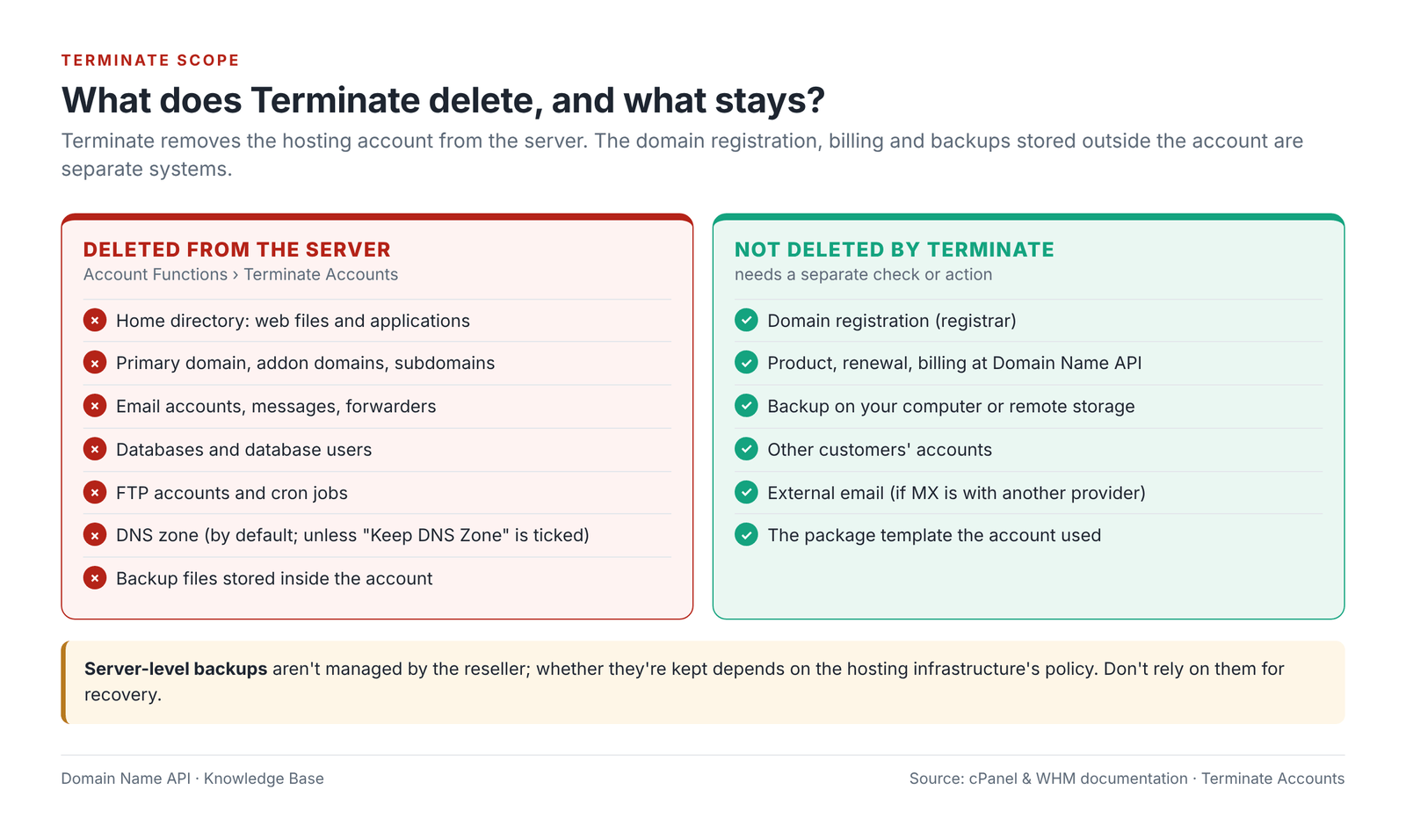
| Component | After Terminate | Note |
|---|---|---|
| Home directory | Deleted | All of the account's files |
| Website files | Deleted | Files of every domain |
| Primary domain hosting | Removed | – |
| Addon domains (additional/addon) | Removed | Part of the account |
| Subdomains | Removed | – |
| Email accounts and messages | Deleted | If MX points to another provider, email lives there and isn't affected |
| Forwarders and autoresponders | Deleted | – |
| Databases and database users | Deleted | You may not be able to recreate an account with the same username right away |
| FTP accounts | Deleted | – |
| Cron jobs | Deleted | – |
| DNS zone | Deleted by default | The "Keep DNS Zone" option may not appear on the reseller screen |
| SSL certificates | Removed with the account | A certificate bought elsewhere stays valid with its provider |
| Logs | Deleted | Download them first if needed |
| cPanel user | Removed | – |
| Package assignment | Gone, because the account is gone | The package template isn't deleted |
| Backup files inside the account | Deleted | Backups saved to the home directory go with the account |
| Server-level backups | Not deleted automatically by Terminate | Not managed by the reseller; retention depends on the hosting infrastructure |
| Backups outside the account (computer, remote storage) | Not affected | The only reliable source for recovery |
Does deleting a cPanel hosting account also delete the domain name?
No. Removing the hosting account from the WHM/cPanel server and deleting the domain name's registration at the registrar are separate actions. The domain registration is kept separately in Domain Name API domain management.
But the domain can be affected
If the domain's authoritative DNS is on this hosting infrastructure, Terminate also removes the account's DNS zone by default; the domain stops resolving and email delivery stops. If the domain will stay in use, move DNS to the new destination first, then delete the account.
Does deleting a hosting account in WHM stop renewal or billing?
Don't assume it does. WHM manages the technical hosting account; the product, order, renewal and billing are managed separately in the Domain Name API service panel and in your own customer billing system. Terminating a hosting account isn't the same as cancelling the commercial product.
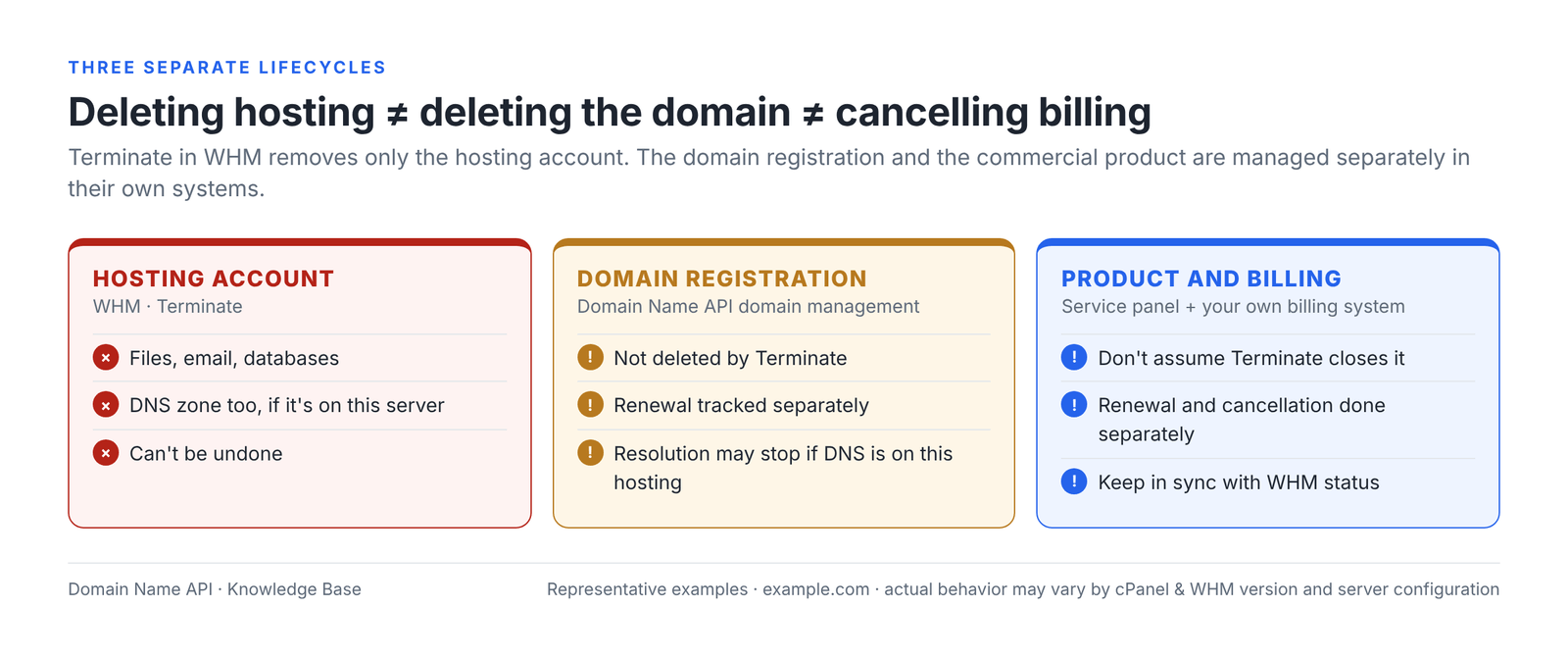
| System | What it manages | When ending a service |
|---|---|---|
| WHM | The technical hosting account | Terminate after the backup |
| Your own billing system | The invoices and renewals you issue to your customer | Close the customer's service and renewal |
| Domain Name API service panel | Your reseller product, renewal and billing | If your reseller plan continues, nothing may be needed; if the product is ending, renewal and cancellation are handled separately |
Does deleting a hosting package in WHM delete the customer's account?
No. A package is a resource and feature template; the account is the actual hosting account. According to the cPanel documentation, a package that an account uses can't be deleted. If you want to delete a package, first move the accounts on it to another package; deleting a package never deletes an account.
Safety check before Terminate
Before you click Terminate, tick every item on the list below. If even one critical item is unclear, don't terminate; suspend the account and wait.
- Right customer
- Right primary domain
- Right cPanel username
- Right account owner
- Other domains in the account checked
- Email accounts checked (where does MX point?)
- Databases checked
- DNS dependency checked
- External service dependencies checked (CDN, application integrations)
- Backup taken
- Backup completed
- Backup verified
- Backup stored outside the hosting account
- Customer request/approval available in writing
- Billing and renewal status checked
How do I take a full backup of a cPanel account before deleting it?
Before deleting, take a full backup (Full Backup) of the account and keep a copy outside the account. The most critical point: if you create the backup in the home directory from cPanel › Backup, it stays inside the account and is deleted along with it by Terminate. Don't delete the account until you've downloaded the backup to your computer.
- In the customer's cPanel, open Files › Backup (from WHM you can log in via the cP icon in List Accounts).
- Start a full backup with Download a Full Account Backup; choose the home directory or a remote FTP/SCP server as the destination.
- Wait for the backup to complete; you get a completion notice and the backup file appears in the list.
- Download the backup file (backup-…tar.gz) to your computer, or confirm it's on the remote server.
- Check that the downloaded file's size matches the account size and that it opens.
Detailed backup and restore steps: cPanel Backup and Restore.
Backup started ≠ completed ≠ restorable
- Is the backup complete?
- Does it belong to the right account?
- Is the date correct?
- Are the needed files included?
- Are the databases included?
- Is email included?
- Can you access the backup?
- Is the backup outside the account being deleted?
- Do you know how it will be restored?
- Is the file size reasonable, and does the file open?
Restore privileges
Restoring a full account backup (cpmove/Full Backup) as a new account in WHM requires root privileges and usually isn't available in reseller WHM. To restore a full backup of a deleted account, contact our support team. If the account still exists, you can restore home directory, database and email forwarder/filter backups separately from cPanel › Backup.
How do I terminate a cPanel account in WHM?
You delete the account in WHM from Account Functions › Terminate Accounts: select the account, start with Remove selected accounts and confirm with Yes, delete these accounts. Your access to this screen depends on your reseller privileges. Fill in the check card below before you start.
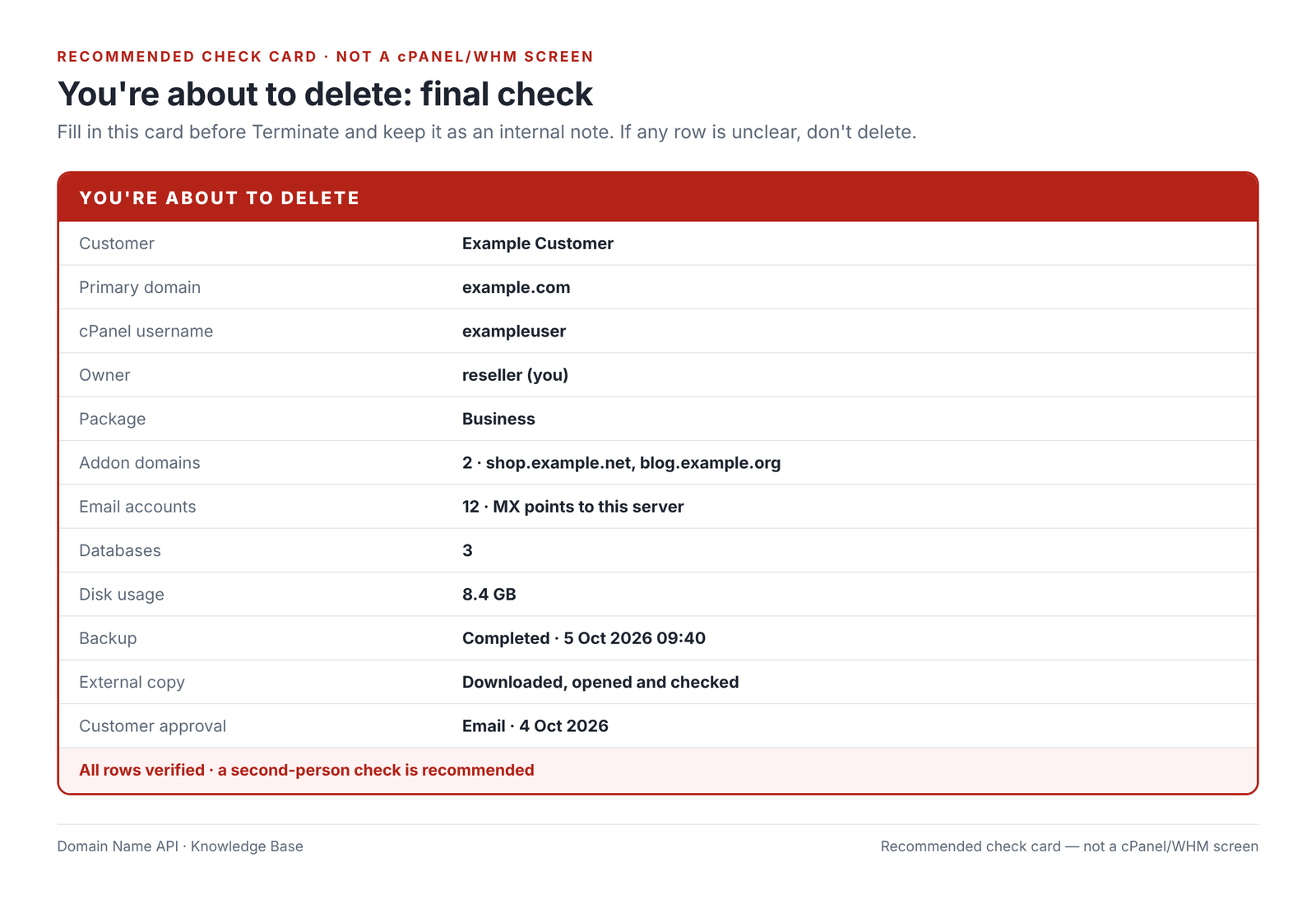
| Step | What I do | Watch out |
|---|---|---|
| 1 · Right account | Fill in the check card | If one row is unclear, stop |
| 2 · Username | Verify the username to delete on List Accounts | Go by username, not domain name |
| 3 · Primary and addon domains | Review every domain in the account | Make sure all of them should close |
| 4 · Owner | Confirm the account is yours | – |
| 5 · Backup | Confirm the backup is outside the account | A backup in the home directory is deleted too |
| 6 · Termination | On Terminate Accounts, select only this account and click Remove selected accounts | No other row selected; decide on Keep DNS Zone based on your needs |
| 7 · Confirmation | Read the username and domains in the confirmation window, then click Yes, delete these accounts | If in any doubt, Cancel |
| 8 · Post-delete | Run the post-deletion checks below | – |
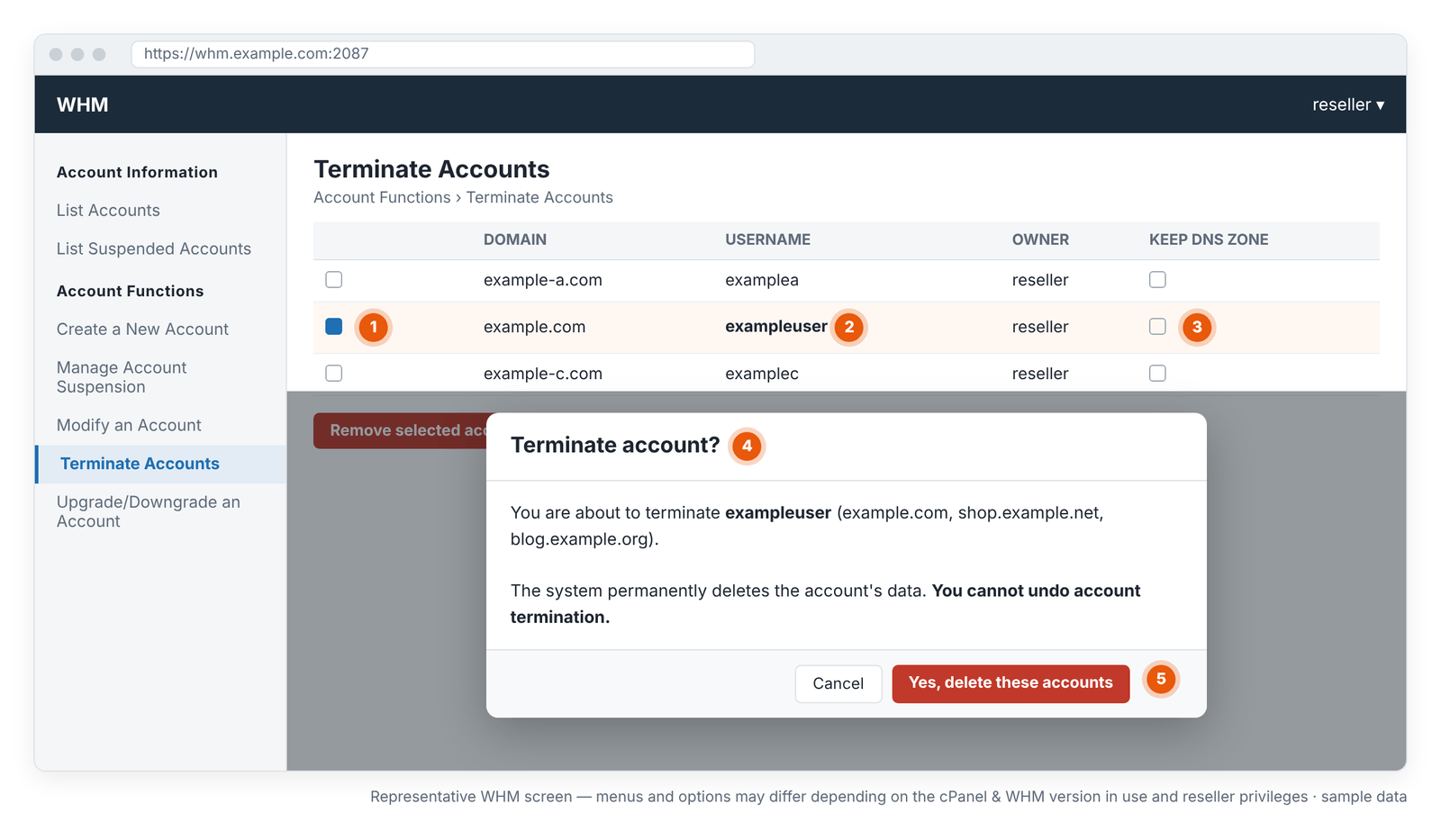
- 1 · Selected account: only the row to delete should be ticked.
- 2 · Username: check the username one last time.
- 3 · Keep DNS Zone: if unticked, the DNS zone is deleted (may not appear on your screen).
- 4 · Confirmation window: lists every domain in the account.
- 5 · Yes, delete these accounts: permanent deletion.
What should I check after Terminate?
Clicking Terminate isn't the end of the job. Check the domain, DNS, email and billing separately.
- Has the account been removed from List Accounts?
- Are other customers' accounts unaffected?
- Is the domain registration still in place at the registrar?
- If DNS needs a new destination, is it ready?
- Does external email (if MX is with another provider) work?
- Does the commercial product need to be closed separately?
- Does the renewal need to be cancelled separately?
- Has a retention period been set for the backup stored outside the account?
You may not be able to reuse the deleted account's username right away; the system can take time to remove the database users.
I deleted a cPanel hosting account by mistake. What should I do?
Whether a deleted cPanel account can be recovered depends on the available backups and the backup retention policy of the hosting infrastructure. Before you create a new account or do anything with the same username or domain, check the existing backups and contact the support team if needed.
- Don't create a new account with the same domain or username.
- Check whether you have a full backup of this account on your computer or in remote storage.
- If there's a backup, open a support ticket to restore it (restoring a full backup requires root privileges).
- If there's no backup, open a support ticket without delay: include the username, domains and the date/time of deletion.
If there's no backup you can access, recovery can't be guaranteed.
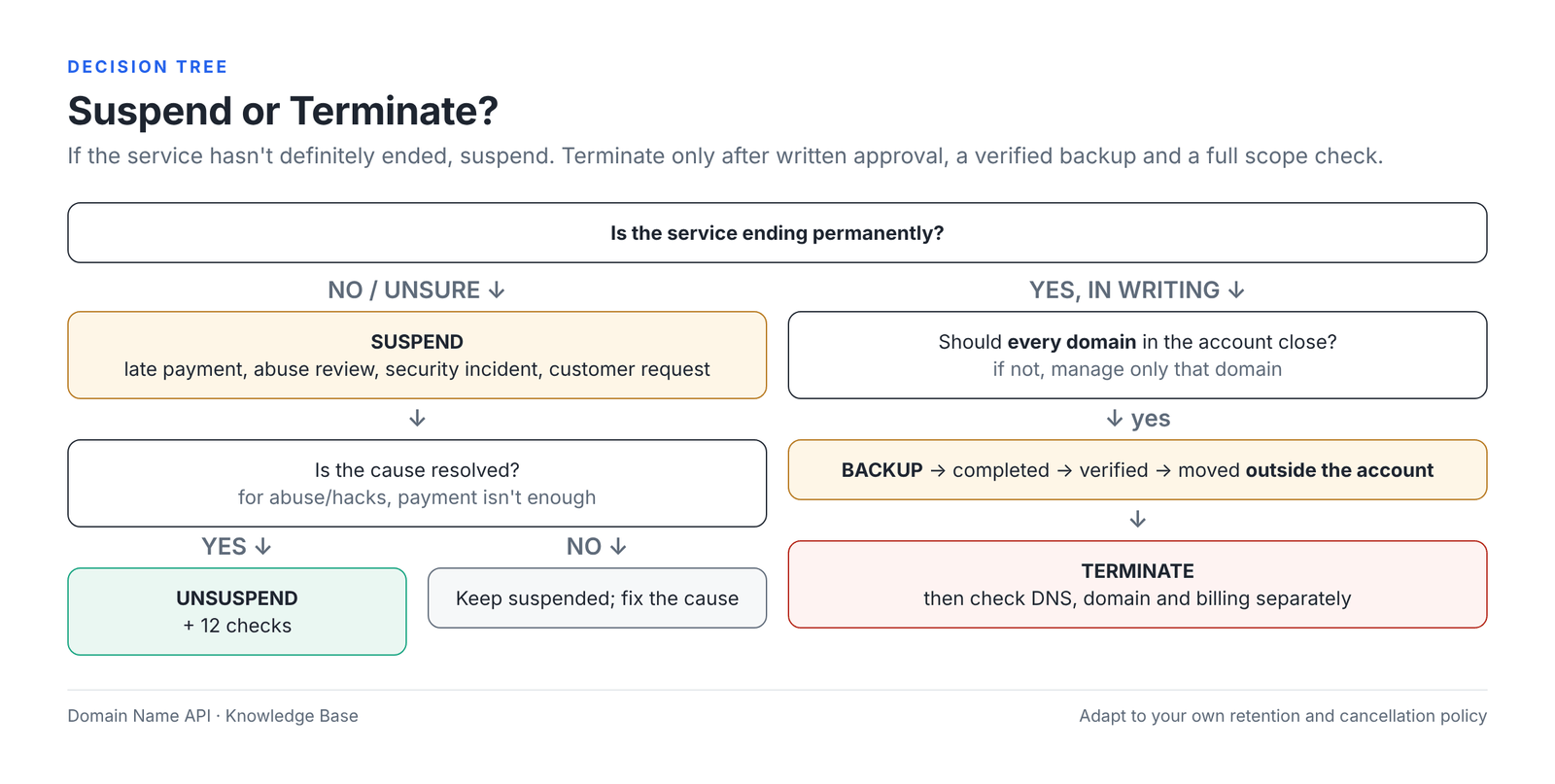
Suspend or Terminate?
If the service hasn't definitely ended, or that's unclear, suspend. Terminate only after written approval, a check of every domain in the account and a verified backup stored outside the account.
| Comparison | Difference |
|---|---|
| Suspend vs Unsuspend | Suspend stops the account; Unsuspend reopens the same account |
| Suspend vs Terminate | Suspend is temporary and deletes no data; Terminate is permanent and deletes data |
| Account vs Domain | An account can contain several domains; Suspend and Terminate affect the whole account |
| Account vs Package | A package is a template; deleting it doesn't delete the account, and a package in use can't be deleted |
| Deleting hosting vs deleting the domain | Terminate doesn't delete the domain registration; if DNS is on this server, resolution stops |
| Deleting hosting vs cancelling billing | Separate systems; check each one separately |
| Full Backup vs server backup | A Full Backup is one you take and can download; a server backup depends on the infrastructure's policy and isn't managed by the reseller |
Real-world scenarios
Scenario 1 — The customer hasn't paid
Symptom: The invoice is overdue.
Risk: Terminate causes data loss.
Right action: After notifying the customer, suspend the account with a reason.
Check: Status is Suspended; reason recorded.
Result: The service stops and the data is kept.
Scenario 2 — Payment received
Symptom: The customer has paid and expects the site back.
Risk: Without testing, SSL, DNS or cron issues go unnoticed.
Right action: Confirm payment was the only reason for the suspension, then unsuspend.
Check: The 12-point check.
Result: The site and email reopen, verified.
Scenario 3 — The customer is cancelling hosting entirely
Symptom: A written cancellation request has arrived.
Risk: Deleting without a backup is an irreversible loss.
Right action: Full Backup → completed → downloaded and verified → Terminate. Close billing separately.
Check: Check card filled in.
Result: The service closes; data can be provided from the backup if requested.
Scenario 4 — The customer keeps the domain but closes hosting
Symptom: The site has moved elsewhere; the domain stays with Domain Name API.
Risk: If DNS is on this server, the site and email become unreachable after deletion.
Right action: Point DNS to the new destination first, wait for propagation, then terminate.
Check: The domain resolves to the new server; MX is correct.
Result: Hosting is removed; the domain continues without interruption.
Scenario 5 — The account is suspended for spam
Symptom: The customer says they've paid and wants it reopened.
Risk: Reopening before the source is cleaned restarts the spam and leads to blacklisting.
Right action: Find the compromised mailbox or script, change passwords and clean up; then unsuspend.
Check: Outgoing mail and the queue are normal.
Result: The account reopens safely.
Scenario 6 — Unsuspended, but the site won't load
Symptom: Active in WHM, the site returns an error.
Risk: An unnecessary package upgrade.
Right action: Follow the diagnosis flow in order.
Check: Cache, DNS, SSL, logs.
Result: The real cause is found.
Scenario 7 — Active in WHM, but the site is down
Symptom: The account was never suspended, but the site won't load.
Risk: Mistaking an unrelated problem for a suspension.
Right action: Check DNS, domain expiry, SSL, the application and server status.
Check: Error message and logs.
Result: The actual cause is fixed.
Scenario 8 — Disk quota is full
Symptom: The site can't write files; email isn't arriving.
Risk: Trying to fix a resource problem with Suspend or Terminate.
Right action: Use cPanel › Disk Usage to find what's using the space; clean up or change the package.
Check: Usage is below the limit.
Result: The service continues without interruption.
Scenario 9 — About to terminate the wrong account
Symptom: Two similar domains sit side by side in the list.
Risk: The wrong customer's data is permanently deleted.
Right action: Fill in the check card with username, domain, owner and backup; read the confirmation window.
Check: Only one row is selected.
Result: The mistake is caught before deletion.
Scenario 10 — Cloudflare is in use
Symptom: The suspension page still shows after Unsuspend.
Risk: Mistaking the cache for the real status.
Right action: Purge the Cloudflare cache; test in a private window and directly against the server IP.
Check: The site loads directly.
Result: The old page disappears.
Scenario 11 — Email is on Microsoft 365 or Google Workspace
Symptom: The customer wants to close hosting; their email is external.
Risk: Worry or a wrong action without checking that MX is external.
Right action: Check where MX and DNS are. If MX is with an external provider, Terminate doesn't affect email; but if DNS is on this server, the MX record goes with the DNS zone.
Check: DNS was moved to an external provider first.
Result: Email continues without interruption.
Scenario 12 — One cPanel account has several domains
Symptom: The customer only wants to close example.com; the account also holds shop.example.net and blog.example.org.
Risk: Terminate deletes all three sites, all email and all databases.
Right action: Don't act at account level; back up that domain's data and manage only that domain under cPanel › Domains.
Check: The other two sites and their email still work.
Result: Only the intended site closes.
Most common mistakes
| Mistake | Risk | Right approach |
|---|---|---|
| Using Terminate for a temporary problem | Permanent data loss | Use Suspend |
| Selecting the wrong cPanel username | Another customer's data is deleted | Check username + domain + owner |
| Looking at the primary domain and forgetting addon domains | Other sites are deleted too | List every domain in the account |
| Terminating without a backup | No way back | Full Backup + verification |
| Assuming a started backup has completed | Incomplete backup | Check completion and the file |
| Leaving the backup inside the same account | The backup is deleted with the account | Move it to your computer or remote storage |
| Unsuspending before the spam/hack cause is fixed | Abuse starts again | Fix the cause first |
| Not testing the site after Unsuspend | The customer finds the problems | The 12-point check |
| Assuming deleting hosting also deletes the domain | Domain renewal or DNS gets forgotten | Manage the domain separately |
| Assuming deleting in WHM stops billing | Unneeded renewal or invoice | Close billing separately |
| Not checking for an external email provider | Needless worry or lost MX | Check where MX and DNS are |
| Confusing a package with an account | Wrong action | A package is a template; the account is the actual service |
| Suspending an account for a resource issue | Unnecessary downtime | Diagnose the resource issue |
| Mistaking Cloudflare's cache for the real status | Wrong diagnosis | Purge the cache and test directly |
Troubleshooting table
| Problem | Likely cause | Where to check | First action |
|---|---|---|---|
| Suspend isn't visible | Reseller privilege not assigned | WHM menu | Ask the support team about the privilege |
| Unsuspend isn't visible or doesn't work | Suspension locked by root | Manage Account Suspension | Open a support ticket |
| Terminate isn't visible | No deletion privilege | WHM menu | Ask the support team |
| Account missing from List Accounts | Search/filter, different owner, or deleted | List Accounts search | Search by username |
| Account already Suspended | Earlier action | Suspension reason | Read the reason |
| Unsuspend failed | Locked suspension or system error | Error message | Open a ticket with the error message |
| Unsuspend succeeded but the site won't load | DNS, SSL, application, cache | Diagnosis table | Follow the flow |
| Site still shows the suspension page | Cache, or account still suspended | List Accounts; private window | Clear the cache |
| Mail doesn't work | MX/DNS, mail settings | MX record; cPanel › Email Deliverability | Verify MX |
| FTP doesn't work | Account suspended or wrong credentials | Status; FTP Accounts | Check the status and credentials |
| cPanel login fails | Account suspended, or password | List Accounts | Check the status |
| Database error | Connection details, privileges | MySQL Databases | Verify the user and privileges |
| SSL error | Certificate expiry | SSL/TLS Status | Renew the certificate |
| DNS points to an old IP | Record or cache | DNS lookup | Fix the record; wait for the TTL |
| Cloudflare shows an old page | CDN cache | Cloudflare dashboard | Purge the cache |
| Account keeps getting suspended again | Automatic suspension (billing system, limit, abuse) | Suspension reason; billing records | Fix the cause |
| Disk quota full | Large files, email, backups | Disk Usage | Clean up or change the package |
| Resource limit issue | Load, bots, scripts | Resource Usage (if available) | Find the cause |
| Terminate failed | System error, an operation in progress | Error message | Open a ticket with the error message |
| Backup can't be created | Disk quota full, account suspended | Backup screen; quota | Free up space; contact support if needed |
| Insufficient reseller privileges | Privilege settings | WHM menu | Ask the support team |
| Account belongs to another reseller | Different owner | List Accounts › Owner | Don't act; contact support |
When should I open a support ticket?
Run your own checks first; they reveal the cause of most problems. Open a support ticket if the issue persists, the suspension is locked, your privileges aren't sufficient, or you've deleted something by mistake.
- Is it the right account?
- Is the username correct?
- Is the primary domain correct?
- What's the status?
- What's the suspension reason?
- Has the site been tested from outside?
- Is DNS correct?
- What's the backup status?
- What's the error message?
Include in the ticket: domain, cPanel username, action (Suspend / Unsuspend / Terminate), date and time, error message, screenshot and current status. Don't share passwords.
Frequently asked questions
How do I suspend a cPanel hosting account?
In WHM, go to Account Functions › Manage Account Suspension, select the account, enter a suspension reason and click Suspend. You can also suspend it from the account's row on List Accounts. Before you do, verify the username and any other domains in the account. Access to these screens depends on your reseller privileges.
What does Suspend mean in WHM?
Suspend stops a cPanel account temporarily without deleting it. Visitors see a suspension message instead of the sites; the user can't log in to cPanel, FTP and outgoing email stop, databases can't be accessed and cron jobs are stopped. Files and data stay on the server, and Unsuspend reopens the account.
Does Suspend delete the account?
No. Suspend is a temporary state and doesn't delete the account's files, email or databases. The action that deletes data is Terminate. Use Suspend for temporary situations such as a late payment, and don't use Terminate unless the service has definitely ended.
Are a suspended account's files deleted?
No. Files, mailboxes and databases stay on the server for the whole suspension. However, some directory permissions change while the account is suspended, so those directories may not be included in backups. For long suspensions, it's good practice to keep a current backup.
Does a suspended account receive email?
That depends on the setting chosen by the server administrator. cPanel has four options for incoming mail to suspended accounts: deliver normally, accept and discard, reject at the SMTP stage, or queue and retry for about four days. Email users can't download their mail during the suspension.
Can a suspended account send email?
No. According to the cPanel documentation, email users of a suspended account can't send mail, and their messages in the mail server queue fail. Mailing lists don't work either. Sending resumes once the account is reopened with Unsuspend, so tell the customer in advance if their email is on this server.
Can I connect to a suspended account over FTP?
No. While the account is suspended, FTP users can't log in to the FTP server and the account's processes are stopped. Files aren't deleted, and FTP access returns as soon as the account is reopened with Unsuspend in WHM, with the same FTP accounts as before.
Can I log in to cPanel on a suspended account?
No. The user of a suspended account can't log in to cPanel, and the account password can't be changed during the suspension either. cPanel login works again once the account is reopened with Unsuspend in WHM, and the account's data is the same as before the suspension.
How do I reopen a hosting account in WHM?
On Account Functions › Manage Account Suspension, select the account and click Unsuspend, or reopen it from the account's row on List Accounts. Before reopening, confirm the reason for the suspension has been resolved. If the server administrator locked the suspension, only root can unsuspend it; open a support ticket.
I unsuspended the account, so why won't the site load?
The most common causes are browser or Cloudflare caching, wrong DNS, an expired domain or SSL certificate, a PHP or application error, a database connection problem, a full disk quota, file permissions and .htaccess errors. First confirm in WHM that the account really is active, then check the cache and DNS.
What does Terminate mean in cPanel?
Terminate means permanently removing a cPanel account from the server. According to the cPanel documentation, the action can't be undone; the system deletes the account's data and, by default, its DNS zones. Terminate affects every domain, email account and database in the account.
What's the difference between Terminate and Suspend?
Suspend is temporary: the service stops but the data is kept, and Unsuspend reopens the same account. Terminate is permanent: the account's data is deleted and the action can't be undone; the only way back is a backup stored outside the account. Use Suspend alone for temporary situations.
Can a terminated cPanel account be restored?
Recovery depends on the available backups and the backup retention policy of the hosting infrastructure. If you have a full backup stored outside the account, it can be restored; because this requires root privileges, contact the support team. Without a backup, recovery can't be guaranteed.
Are emails deleted when a cPanel account is deleted?
If email is on this server, yes: all of the account's email accounts, messages, forwarders and autoresponders are deleted. If MX points to another provider, email is kept there and isn't affected; but if DNS is on this server, the MX record is deleted along with the DNS zone.
Are databases deleted when a cPanel account is deleted?
Yes. Terminate deletes the account's databases and database users. If you need a database, take a full backup before deleting, or export the database separately and store it outside the account so it survives the termination. A database export left inside the account's home directory is deleted along with it.
Does deleting a hosting account delete the domain?
No. Removing the hosting account from WHM doesn't delete the domain name's registration at the registrar. However, if the domain's DNS is on this hosting infrastructure, Terminate also removes the DNS zone by default; the domain stops resolving and email delivery stops.
Does deleting an account in WHM stop billing?
Don't assume it does. WHM manages the technical hosting account; the product, renewal and billing are managed separately in the Domain Name API service panel and in your own billing system. When ending a service, check the renewal and cancellation steps in each of these systems separately.
Does deleting a package delete the cPanel account?
No. A package is a template, not the account itself. According to the cPanel documentation, a package that an account uses can't be deleted. To delete a package, first move the accounts on it to another package; deleting a package never deletes an account.
What does Terminate affect if a cPanel account has multiple domains?
Because Terminate works at account level, it affects every domain in the account: the primary domain, addon domains, subdomains and aliases are deleted together with their files, email and databases. If only one site needs to close, don't delete the account; back up that domain's data and manage only that domain under cPanel › Domains.
Which backup should I take before deleting?
Take a full backup of the account (cPanel › Backup › Download a Full Account Backup), wait for it to complete, then download the file to your computer or confirm it's on a remote server. A backup created in the home directory stays inside the account, so Terminate deletes it too.
Can a reseller restore a full cPanel backup?
Restoring a full account backup (cpmove) in WHM requires root privileges and usually isn't available in reseller WHM; contact the support team for this. If the account still exists, you can restore home directory, database and email forwarder/filter backups separately from cPanel › Backup.
I terminated an account by mistake. What should I do?
Don't create a new account with the same username or domain. Check whether you have a full backup stored outside the account, and open a support ticket right away with the username, domains and the date/time of deletion. Recovery depends on the backups and the infrastructure's retention policy.
Why does the account keep getting suspended again?
Some automation may be suspending the account again: your own billing system on late payment, server-side limits or abuse checks. Read the suspension reason, check your billing records, and don't reopen the account until the cause is fixed, or it will simply be suspended again.
Where can I see the suspension reason?
In WHM, the suspension reason appears in the suspended account's row on List Accounts and on Manage Account Suspension when you select the account. Entering a reason is optional, but cPanel recommends always entering one so you and your team know later why the account was stopped.
How should I reopen an account suspended for spam?
Find the source first: a compromised mailbox, a malicious script or a hacked site. Change passwords, clean the site, and check the mail queue and outgoing mail. Only then unsuspend the account; don't reopen it just because a payment has been received.
Related guides
- Creating Your First Customer Hosting Account in cPanel
- How to Create a Hosting Package in cPanel/WHM
- cPanel Resource Usage and Package Limits
- Migrating a Website to cPanel
- cPanel Backup and Restore
- Setting Up Custom Nameservers in cPanel
Didn't suspending, unsuspending or deleting your cPanel account work as expected?
Open a ticket with our support team. Include the domain, cPanel username, action, date and time, status, error message and a screenshot. Don't share passwords.
Open a Support TicketSell hosting under your own brand
Explore cPanel Reseller Hosting packages to sell hosting under your own brand.
Explore cPanel Reseller Hosting