Automate Hosting Sales with WiseCP: Setting Up and Using the Domain Name API Reseller Hosting Module
The short answer
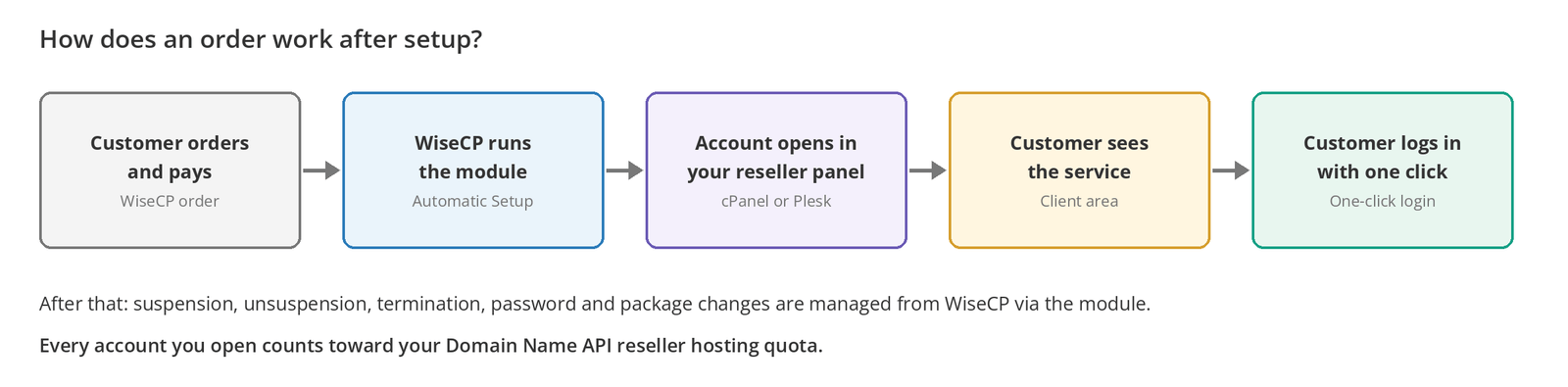
The Domain Name API Reseller Hosting WiseCP module (DNAHosting) connects your cPanel or Plesk reseller account to WiseCP. When a customer buys hosting in WiseCP, the account opens automatically in your reseller panel. Suspension, termination, password changes, and package changes are also managed from WiseCP.
Setup has three core steps: copy the DNAHosting folder into WiseCP, add a shared server with the details from your panel, and link your web hosting package to the module. The module detects the panel type on its own and pulls the package list live from the server.
The most common setup mistake
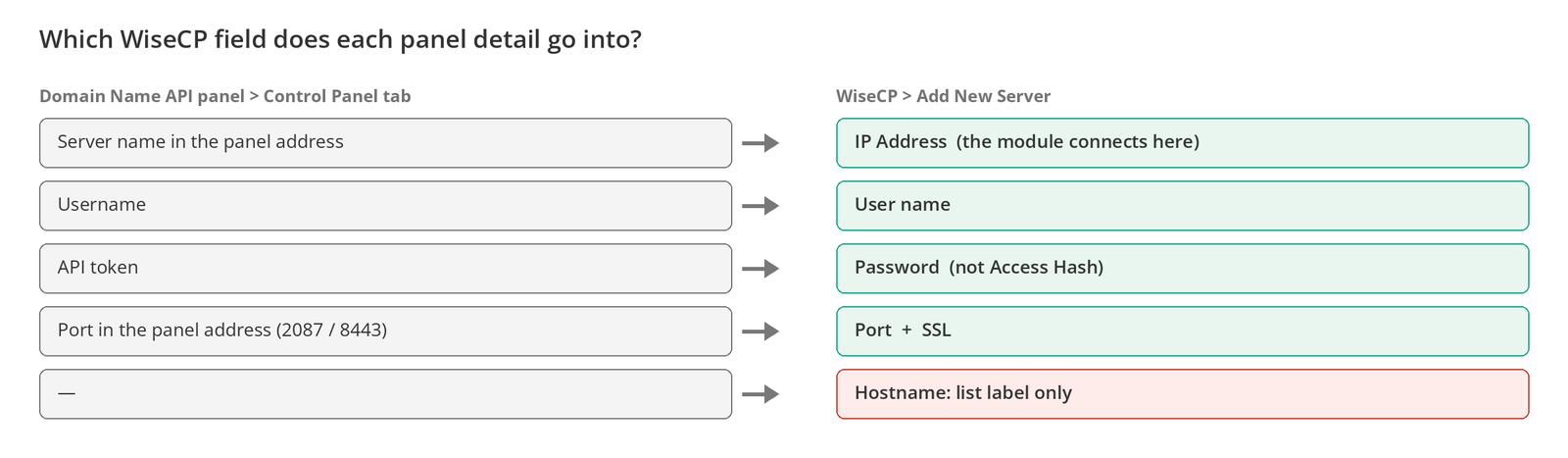
The Hostname field in WiseCP's server form is only a label. The module connects to the panel through the address in the IP Address field. The API token goes in the Password field; this module doesn't use the Access Hash field.
Who this guide is for: Domain Name API Reseller Hosting partners who want to automate hosting sales with WiseCP. Last updated: October 5, 2026 Sources: Official DNA Reseller Hosting WiseCP module documentation (GitHub) and WiseCP documentation
The Short Version: Get the Module Running in 6 Steps
- Get your server address, username, and API token from the Domain Name API panel.
- Download the module from GitHub and copy the
DNAHostingfolder intocoremio/modules/Servers/in WiseCP. - Add the server under Server Settings > Add new server and choose DNAHosting as the automation type.
- Confirm the connection and the detected panel with Test Connectivity.
- In your web hosting package's Module Settings tab, choose the server and pick the package from the list.
- Place a test order to confirm the account opens in your reseller panel.
Where should you start?
To start setup: Step 1: Get your connection details
Module already installed? Link the package: Step 6: Link your web hosting package to the module
Already using the WHMCS module? Differences from the WHMCS module
If something isn't working: Troubleshooting
About the interface
WiseCP menu names in this guide follow the English admin interface and the module documentation. Names can vary slightly by WiseCP version and interface language.
What Does the Module Do?
DNAHosting is a server module that lets you manage customer hosting accounts from WiseCP through the cPanel or Plesk reseller account you get from Domain Name API. The module works with your reseller account's permissions, not with root or admin access; every account it opens counts toward your quota.
| Feature | cPanel/WHM | Plesk |
|---|---|---|
| Connection test and automatic panel detection | Yes | Yes |
| Account creation | Yes | Yes |
| Suspend / unsuspend | Yes | Yes |
| Termination | Yes | Yes (ownership-verified) |
| Password change | Yes | Yes |
| Package / plan change | Yes | Yes |
| Disk and traffic usage sync | Yes | Yes |
| One-click login to the customer panel | Yes | Yes |
| One-click login for admins | Yes | Yes |
What the module doesn't do
Email account and forwarder management, selling reseller accounts, importing existing accounts into WiseCP, and an admin-side root panel login are out of scope. The module only holds reseller credentials, so there's no root panel for it to open.
Before You Start
| Requirement | |
|---|---|
| ☐ | An active Domain Name API Reseller Hosting service (its status in the panel must be active) |
| ☐ | A self-hosted WiseCP installation with admin access |
| ☐ | PHP 7.4 – 8.4 with these extensions: curl, simplexml |
| ☐ | Outbound access from the WiseCP server to the panel server on the panel's API port (cPanel 2087, Plesk 8443) |
| ☐ | At least one package (cPanel) or Service Plan (Plesk) in your reseller panel |
| ☐ | Access to your WiseCP files (FTP, SFTP, or a file manager) |
If you don't have a package yet, create one first: see How to Create a Hosting Package in WHM for cPanel or How to Create a Service Plan in Plesk for Plesk.
Step-by-Step Setup
Step 1: Get Your Connection Details
For WiseCP to connect to your reseller account, it needs the server address, your reseller username, and an API token. You receive these after your order, and you can view them at any time in the Domain Name API panel.
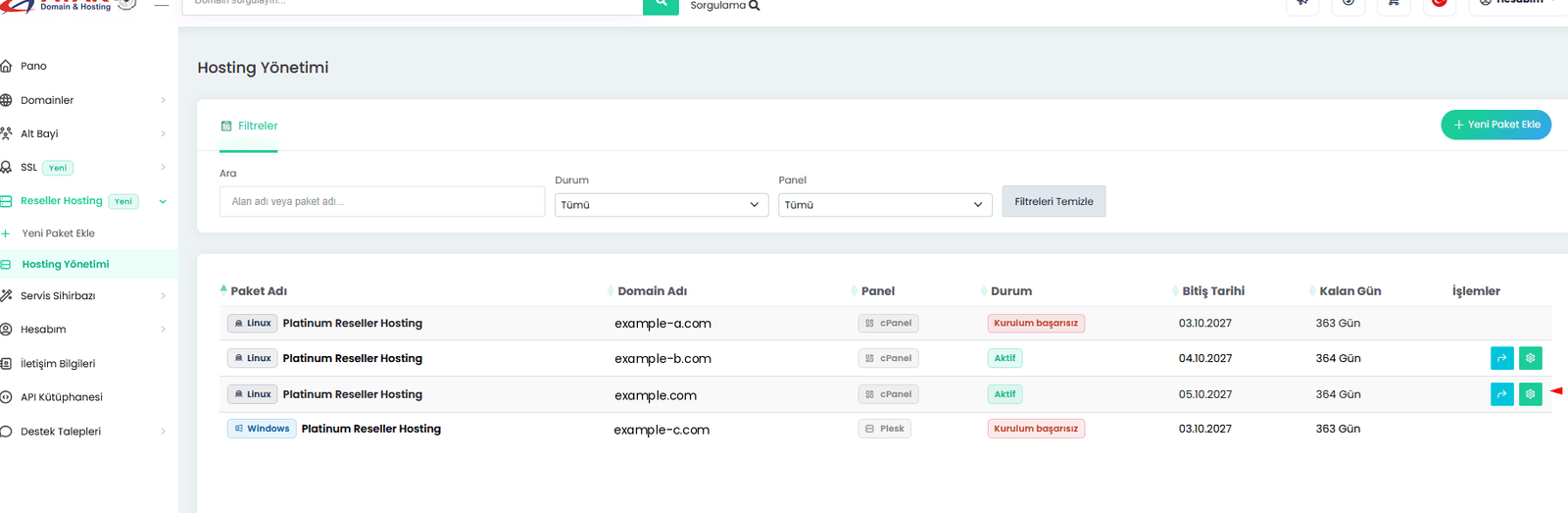
- Log in to the Domain Name API panel and open the Reseller Hosting section and its hosting list.
- Click the gear icon next to your active service.
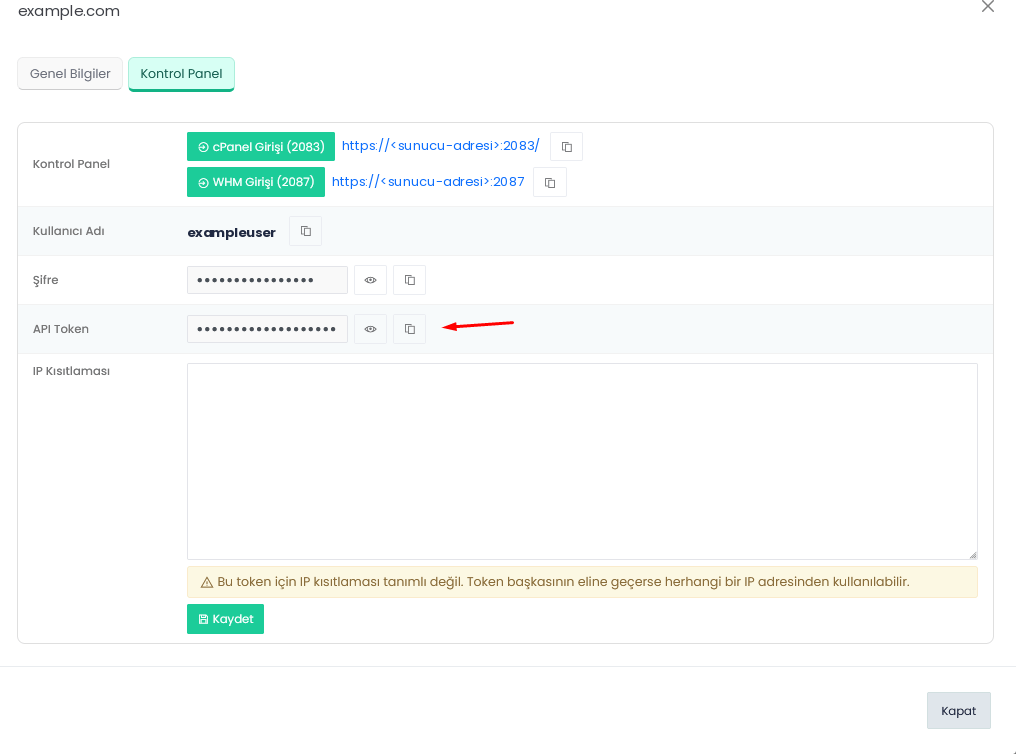
- Open the Control Panel tab. The panel address, username, password, and API token appear here.
Restrict the API token to your WiseCP server's IP address
If the IP restriction field in the Control Panel tab is empty, anyone who gets hold of the token can use it from any IP address. Enter your WiseCP server's outbound IP address (e.g., 192.0.2.10) in this field and save. Never share the token by email, in a support ticket, or in a screenshot.
Checkpoint
Expected result: The server address, username, and API token are stored securely.
Most common mistake: Copying the panel address with https:// and the port.
Next: Upload the module to WiseCP.
Step 2: Download the Module and Upload It to WiseCP
Download the module from GitHub and copy the DNAHosting folder from the package into the coremio/modules/Servers directory of your WiseCP installation. Module repository: domainreseller/reseller-hosting-wisecp. No database tables are created, no cron is needed, and there are no Composer dependencies.
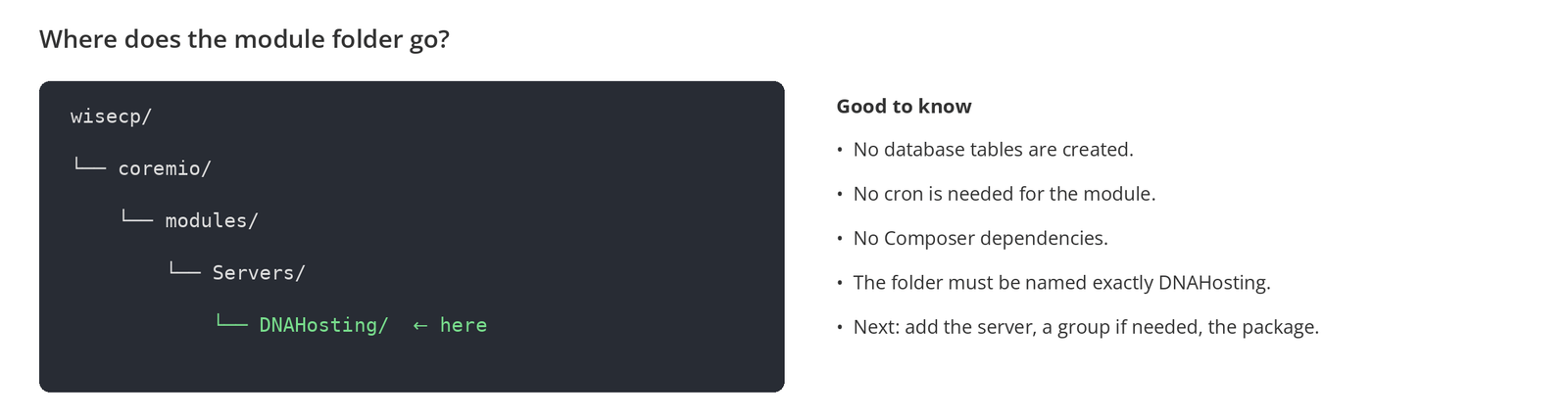
The folder name appears as is in the automation type list, so don't rename the folder.
Checkpoint
Expected result: The wisecp/coremio/modules/Servers/DNAHosting/ folder exists and contains the module files.
Most common mistake: Copying the folder one level too deep or renaming it. DNAHosting then doesn't appear in the automation type list.
Next: Add the server.
Step 3: Add the Shared Server
Go to Services > Hosting Management > Server Settings > Add new server, choose DNAHosting as the automation type, and enter the details from Step 1.
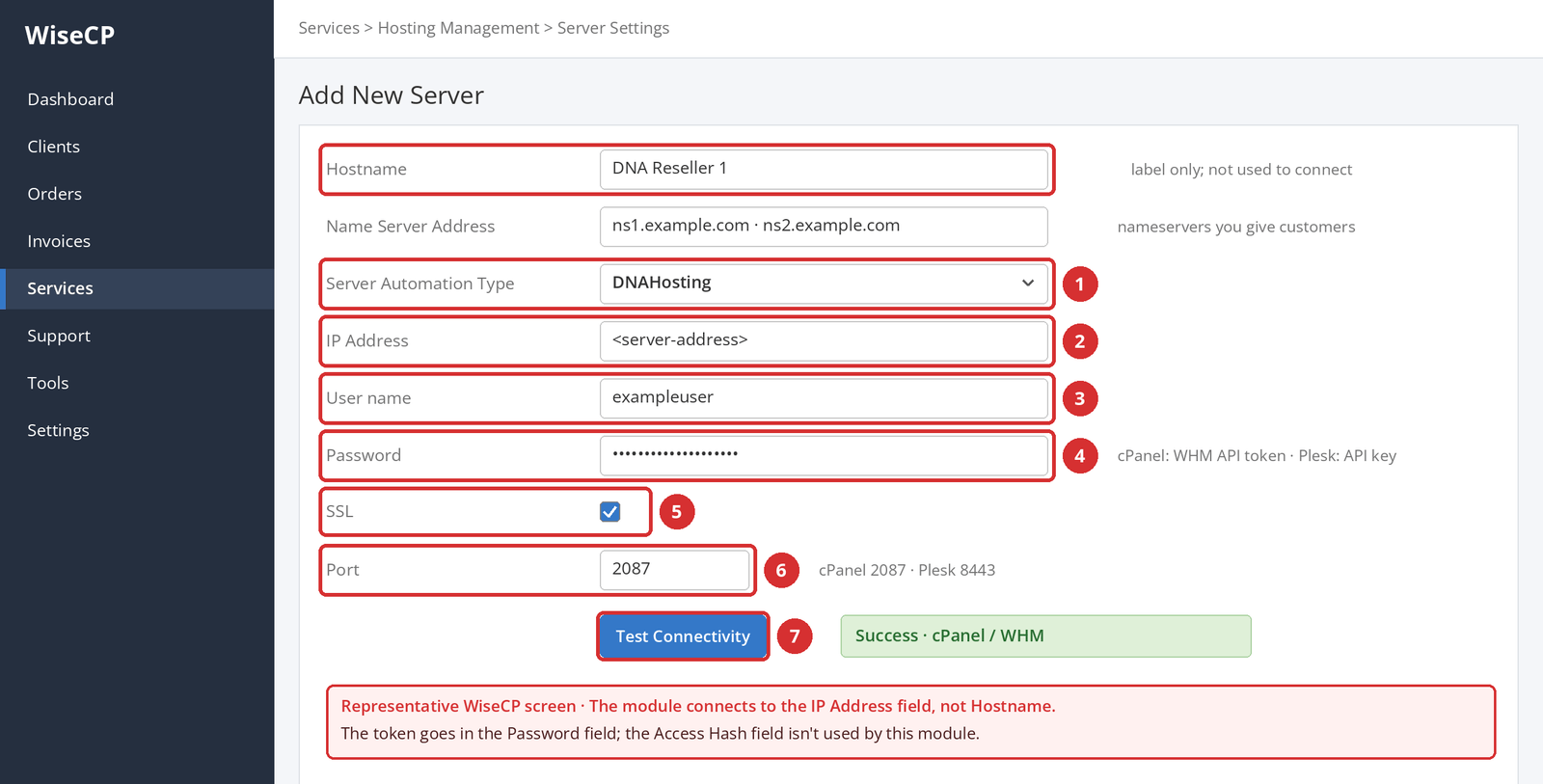
| Field | What to enter |
|---|---|
| Hostname | Just a label (e.g., DNA Reseller 1). Servers appear under this name in the list; the module doesn't use this field to connect. |
| Name Server Address | The nameservers you give customers (e.g., your private ns1/ns2). WiseCP won't save the server without them. |
| Server Automation Type | DNAHosting |
| IP Address | The panel server's real address. The module connects here. Enter the server address from the Control Panel tab without https:// or a port. |
| User name | Your reseller username. |
| Password | For cPanel, the WHM API token; for Plesk, the API key or the panel password. WiseCP stores this field encrypted. |
| SSL | Turn it on. |
| Port | 2087 for cPanel, 8443 for Plesk. |
For Plesk, you don't need to say which credential you entered
For Plesk, the module first tries the value in the Password field as an API key; if that doesn't work, it automatically falls back to the panel password (HTTP basic auth).
Step 4: Test the Connection
Click Test Connectivity before saving, or simply save; WiseCP runs the test itself and won't add the server unless the test succeeds. A green result confirms both the credentials and the detected panel. If something's wrong, you'll see a specific HTTP code or panel error.
You don't need to choose the panel type
On its first call, the module probes the server and remembers which panel answered. The port only decides which panel is tried first: 8443 and 8880 try Plesk first, any other value tries cPanel first. If the first guess doesn't answer, the other panel is tried; a wrong port slows detection down but doesn't break it.
Checkpoint
Expected result: The connection test is green and the detected panel is correct (cPanel / WHM or Plesk).
Most common mistake: Typing the address in Hostname and leaving IP Address empty; looking for the token in the Access Hash field.
Next: If you have several servers, create a group; otherwise link the package directly.
Step 5 (Optional): Create a Server Group
If you have more than one reseller server, you can create a group under Server Settings > Server Groups and link the package to the group instead of a single server. If you have only one server, skip this step.
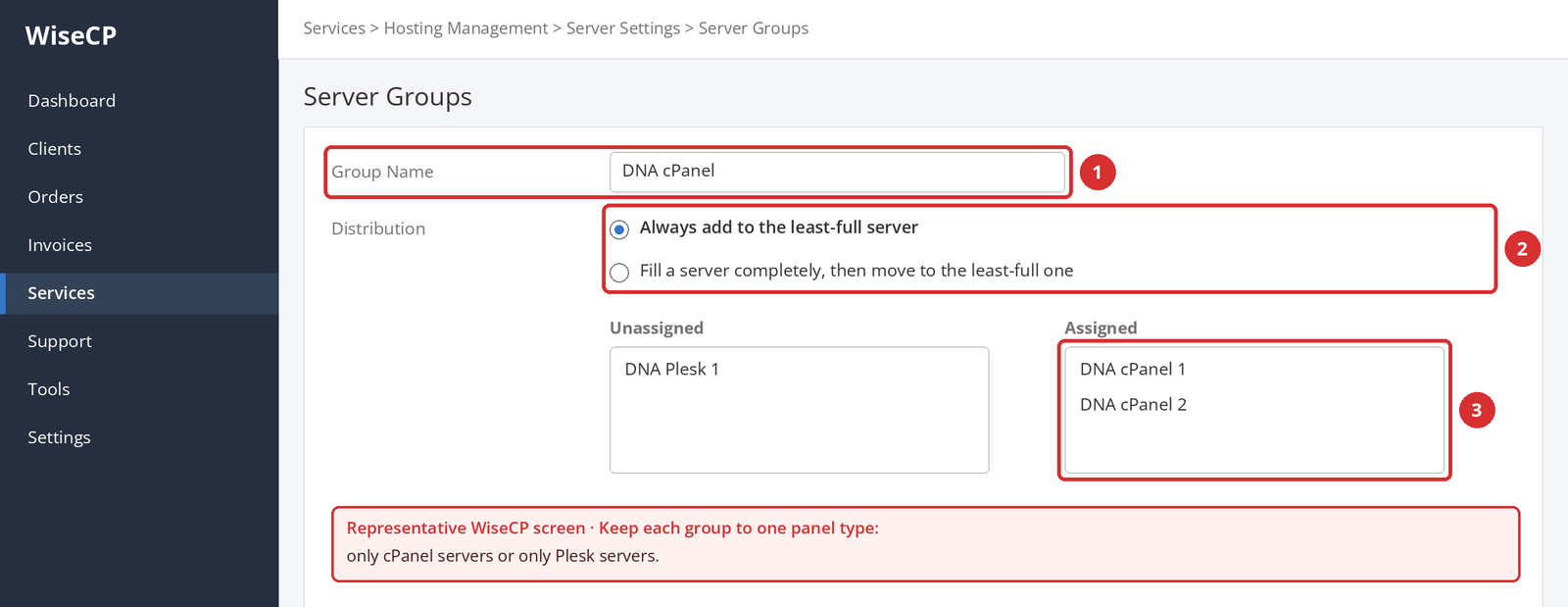
| Distribution type | What it does |
|---|---|
| Always add to the least-full server | Spreads new accounts evenly across servers. |
| Fill a server completely, then move to the least-full one | Fills servers one after another. |
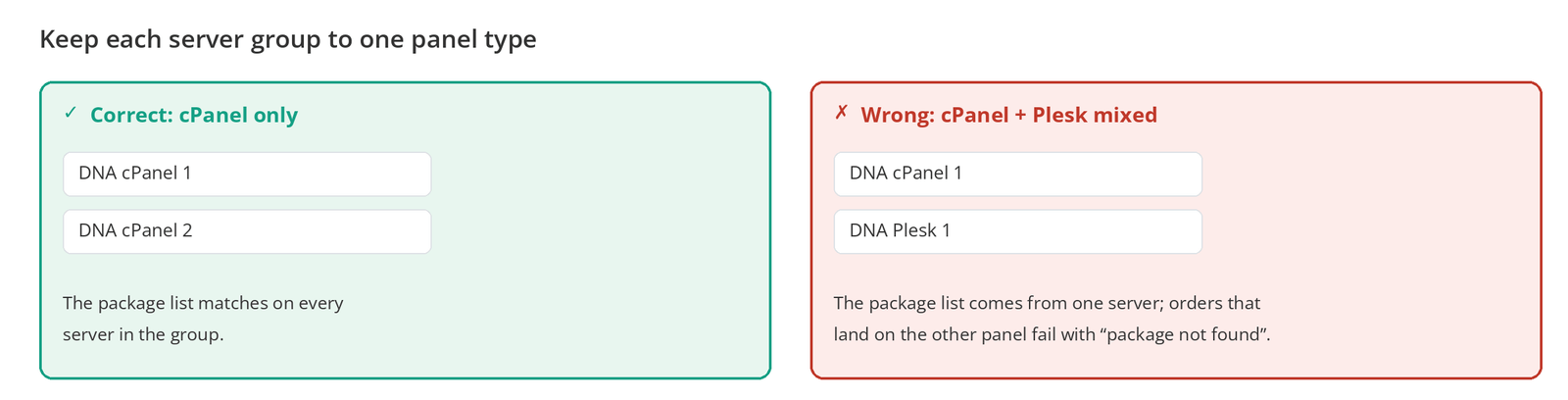
Keep each group to one panel type
The package list in the module settings comes from one selected server. If a group contains both cPanel and Plesk servers, the package you pick may not exist on the other panel, and orders that land on that server fail with package not found. Create separate groups for cPanel and Plesk.
Step 6: Link Your Web Hosting Package to the Module
Open the web hosting package under Hosting Management and go to its Module Settings tab. Under Server Selection, choose Single Server or Server Group and tick your DNAHosting server; the module then shows its own fields.
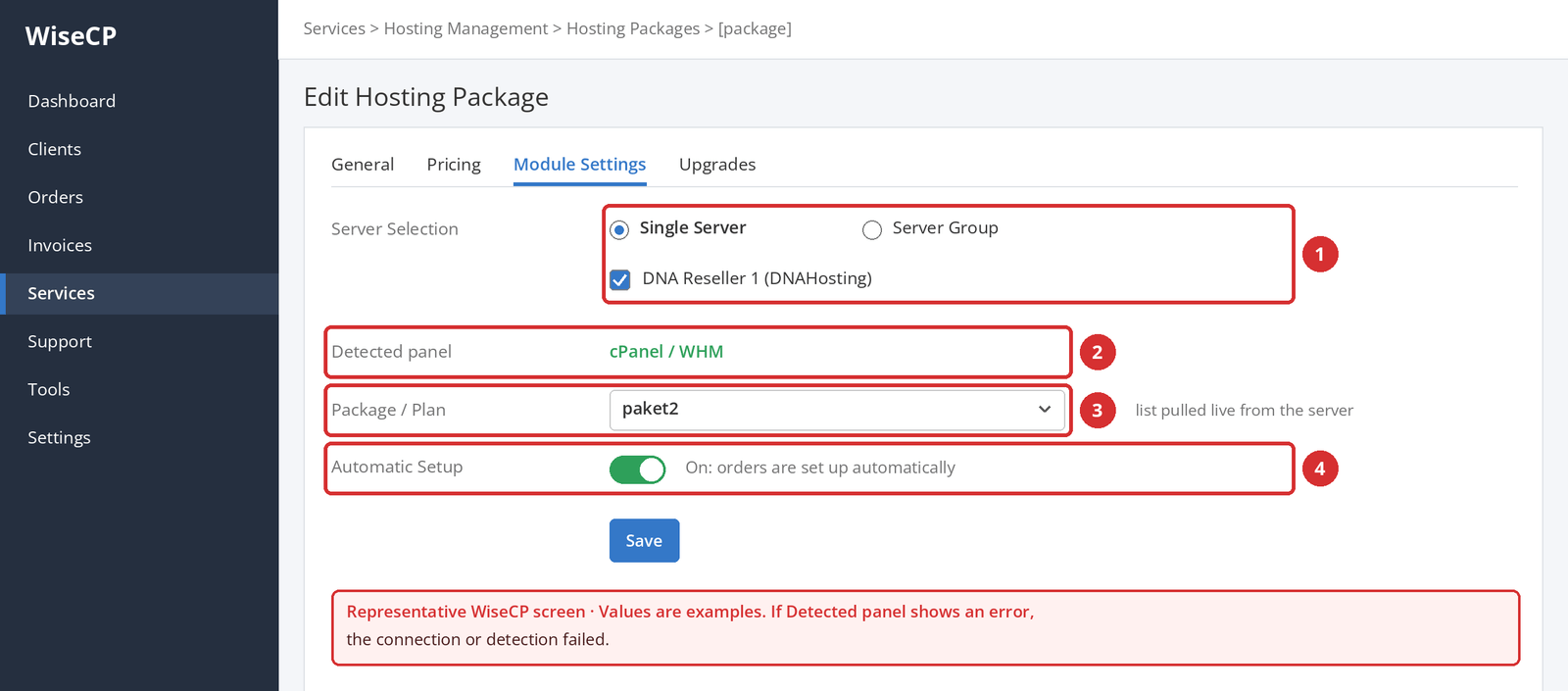
| Setting | Value |
|---|---|
| Detected panel | The panel actually running on that server (e.g., cPanel / WHM). If you see an error here, detection failed. |
| Package / Plan | Pick the package you'll sell from the list pulled live from the server. |
| Automatic Setup | On: orders are set up automatically. Off: an admin must approve each order before setup. |
You don't need to type the package name. For a package shown in cPanel as exampleuser_paket2, the module resolves the username_ prefix itself. In Plesk, the list contains every Service Plan defined on the server.
Checkpoint
Expected result: Module Settings shows the correct detected panel and a package is selected from the list.
Most common mistake: Seeing an error instead of the package list and saving anyway. Fix the connection first.
Next: Place a test order.
Step 7: Confirm with a Test Order
Before your first real customer, place an order for this package on behalf of a test customer and confirm end to end that the account opens.
| Check | |
|---|---|
| ☐ | The order was set up automatically (or with your approval if Automatic Setup is off). |
| ☐ | The account appears in your reseller panel (WHM or Plesk) with the correct package. |
| ☐ | The customer can open their hosting panel with one click from the WiseCP client area. |
| ☐ | There are no errors in the module logs. |
When testing is done, terminate the test service from WiseCP so the account is also deleted from your reseller panel and doesn't use your quota.
Using the Module Day to Day
Once setup is complete, account creation, suspension, and termination are fully controlled by WiseCP. When you perform these actions in WiseCP, the module applies them in your reseller panel. Automatic actions such as suspension and termination follow WiseCP's own automation settings.
| Action | Note |
|---|---|
| Account creation | After the order if Automatic Setup is on; with admin approval if it's off. |
| Suspend / unsuspend | The account is closed to access or reopened in the panel; no data is deleted. |
| Termination | The account is removed from your reseller panel. Can't be undone; take a backup first. |
| Password change | The panel password is updated too. Passwords are masked in the logs. |
| Package / plan change | The target package must exist in your reseller panel. |
| One-click login to the customer panel | The customer moves from the WiseCP client area to cPanel or Plesk. |
| One-click login for admins | You open the customer's panel from the WiseCP admin area (cPanel and Plesk). |
| Disk and traffic usage | The module syncs usage data to WiseCP. |
What to Know About Plesk and cPanel
| Topic | What happens |
|---|---|
| Plesk termination is ownership-verified | Every account the module opens is tagged with an internal ID that's checked before every action. That way, the module can never delete a subscription you created by hand in Plesk. |
| A live service's domain can't be changed in Plesk | Plesk finds a subscription by its domain, so changing the domain would break every later action; it's blocked. |
| The domain can be edited in cPanel | Even if you change the domain in WiseCP, the account keeps serving the old domain until you change it in the panel. |
| Duplicate domain protection | If the same domain is still linked to another active or suspended service on the same server, termination is refused. |
Differences from the WHMCS Module
Domain Name API's WHMCS and WiseCP modules do the same job, but their setup fields and some behaviors differ. If you use both platforms, keep these differences in mind.
| Topic | WHMCS module | WiseCP module |
|---|---|---|
| Folder and location | dnahosting > modules/servers | DNAHosting > coremio/modules/Servers |
| Connection address | Hostname field | IP Address field (Hostname is only a label) |
| API token | API Token / Access Hash field | Password field (Access Hash isn't used) |
| Package name | Typed manually; no prefix in cPanel | Picked from a live list |
| Panel type | Auto or set manually | Always detected automatically |
| Mixed cPanel + Plesk group | Supported | Not recommended; groups should be single-panel |
| Admin one-click login | cPanel only (Log in to Server) | cPanel and Plesk |
| PHP | 7.2 – 8.4 | 7.4 – 8.4 |
Troubleshooting
Every exchange between the module and the panel can be seen in WiseCP's module logs (under Tools > Logs; “Modül İşlem Kayıtları” in the Turkish interface), but only while module logging is turned on.
| Log | Where? | When is it written? | What's in it? |
|---|---|---|---|
| Module logs | Tools > Logs > module logs | Only while the switch at the top of the page is on | Every request sent to the panel and every response, tagged with the action name, such as createacct or webspace.add |
The switch that turns logging on is at the top of the same page. Turn it on before reproducing the problem and off when you're done. The server's API token or password, account passwords the module creates or changes, and one-click login session tokens are masked as *** before they're written.
| Symptom | Cause | Fix |
|---|---|---|
| DNAHosting isn't in the automation type list | The folder was copied to the wrong place, one level too deep, or under another name. | Check that the path is exactly coremio/modules/Servers/DNAHosting/. |
| The connection test fails | The address is in Hostname and IP Address is empty; wrong port; SSL isn't on. | Enter the address in IP Address and check the port (2087/8443) and SSL. |
| The server can't be saved | The connection test didn't succeed, or the nameserver field is empty. | Fix the connection first and fill in the nameservers. |
| HTTP 403, or cpanelresult in the error text | The reseller account behind the token lacks WHM-level permission for this action. | Regenerate the token in WHM with your own reseller account (Development > Manage API Tokens) and try again. If it continues, contact our support team, because reseller permissions are set on your account. |
| Plesk 11003 | The API key was generated for a different IP. | Generate a new key for the address WiseCP connects from, or enter the panel password in the Password field. |
| Plesk 1014 | Plesk rejected the request body for the XML-API version it uses. | Make sure you're running the latest module version; the module log shows the rejected element. |
| An error message instead of the package list | Panel detection or the package call failed. | The reason is written on the same line; fix the server connection first. |
| Order fails with “package not found” | The group contains both cPanel and Plesk servers. | Create separate groups for cPanel and Plesk. |
| Plesk termination was refused | The subscription wasn't opened by the module, or the same domain is linked to another active/suspended service. | Check that the service was actually opened by the module and that the domain isn't in another service. |
| The connection suddenly stopped working | The token was regenerated, the password changed, or the IP restriction doesn't include the WiseCP server's IP. | Update the Password field in the server settings and test the connection. |
Other HTTP errors come with a plain-text summary taken from the panel's response body. Look at that summary, not just the status code.
Updating the Module
To move to a new version, replace the coremio/modules/Servers/DNAHosting/ folder with the folder from the new version and test the connection again in the server settings. Version changes are listed in the CHANGELOG.md file in the repository.
Frequently Asked Questions
What is the Domain Name API Reseller Hosting WiseCP module?
DNAHosting is a server module that connects the cPanel or Plesk reseller account you get from Domain Name API to WiseCP. When customers buy hosting in WiseCP, the account opens automatically; suspension, termination, and password and package changes are also managed from WiseCP.
Where do I download the module?
Download it from Domain Name API's GitHub repository (domainreseller/reseller-hosting-wisecp). To use it, you need an active Domain Name API Reseller Hosting service and a self-hosted WiseCP installation.
Does the module work with both cPanel and Plesk?
Yes. One module supports both panels; you don't pick the panel type, because the module probes the server and detects it. However, don't mix cPanel and Plesk servers in one server group; create a separate group for each panel.
Which field does the server address go in?
The IP Address field. The Hostname field at the top of the form is only a label that sets how the server appears in the list; the module doesn't use it to connect.
Where do I enter the API token?
In the Password field. For cPanel, enter the WHM API token; for Plesk, enter the API key or the panel password. This module doesn't use the Access Hash field, and it doesn't appear in the form for DNAHosting servers.
How do I enter the package name?
You don't need to type it. In the package's Module Settings tab, the package list is pulled live from the server; pick the package you'll sell from the list. The module resolves cPanel's username_ prefix itself.
The connection test fails. What should I do?
Check that the address is in the IP Address field, that the port is 2087 for cPanel or 8443 for Plesk, and that SSL is turned on. Then make sure the token's IP restriction includes your WiseCP server's IP address.
I get an HTTP 403 error. What should I do?
This error means the reseller account behind the token lacks WHM-level permission for the action. First regenerate the token in WHM with your own reseller account. If the problem continues, contact our support team, because reseller permissions are set on your account.
Does the module need a cron?
No. The module creates no database tables, needs no cron, and has no Composer dependencies. Installing it is just a matter of copying the DNAHosting folder.
Does the module manage email accounts?
No. Email account and forwarder management, selling reseller accounts, importing existing accounts into WiseCP, and root panel login are out of scope. Customers manage their email in their own cPanel or Plesk panel.
Why is termination refused in Plesk?
Plesk termination is ownership-verified: the module only terminates subscriptions it opened itself. Termination is also refused if the same domain is still linked to another active or suspended service on the same server.
Can I change a service's domain in Plesk?
Not on a live service. Plesk finds a subscription by its domain, so a change would break later actions; it's blocked. In cPanel, the domain can be edited, but the account keeps serving the old domain until you change it in the panel.
Where can I follow what the module does?
In WiseCP's module logs under Tools > Logs. Entries are written only while the switch at the top of the page is on. Tokens, passwords, and session tokens are masked before they're written.
Where do the accounts I open count?
The module works with your reseller account's permissions. Every account opened from WiseCP counts toward your Domain Name API reseller hosting quota and appears in your reseller panel.
Next Steps
| Guide | When? |
|---|---|
| How to Create a Hosting Package in WHM / How to Create a Service Plan in Plesk | To prepare the package you'll sell in the panel. |
| How to Set Up Private Nameservers for Reseller Hosting | To give your customers nameservers under your own brand. |
| Automate Hosting Sales with WHMCS | If you use WHMCS. |
Having trouble setting up or using the module?
In your support ticket, include your WiseCP and PHP versions, the panel type (cPanel/Plesk), the full error message, and the relevant line from the module logs. Don't share your API token or password.
Open a Support TicketDon't have a reseller hosting service yet?
Sell hosting under your own brand with Domain Name API Reseller Hosting and automate it through WiseCP.
Explore Reseller Hosting