Plesk Reseller Hosting Resource Usage and Package Limits Guide
Quick answer
In Plesk Reseller Hosting, resources are managed at three levels: your reseller capacity (the total disk, traffic and count limits Domain Name API defines for you), the Service Plan (a template of resources, permissions and hosting settings for a customer) and the Subscription assigned to a customer (the real service and its real usage). When you hit a limit problem, first compare the subscription's usage with its limit, then work out whether the problem comes from the customer's limit or from your total reseller capacity. Consider an upgrade last.
Written by: Domain Name API Hosting Support Team · Technical review: Domain Name API Hosting / Systems Operations Team · Last updated: 5 October 2026 · Source: official Plesk Obsidian documentation
The screens are representative and use sample data; the real interface can look different depending on your Plesk version, operating system (Linux/Windows) and reseller permissions. Menu names are given as they appear in Plesk's English interface. Examples use example.com, exampleuser and illustrative plan names (Starter, Business, Pro); these plans aren't Domain Name API products.
Know your account first: which resources and limits apply to you?
When you log in to your reseller panel, you'll find the resources assigned to you under Home › My resources and permissions overview. This screen shows your total disk and traffic limits, the number of customers, domains, mailboxes and databases you can create, and your overselling setting. Do this two-minute check first so you read the rest of the guide correctly.
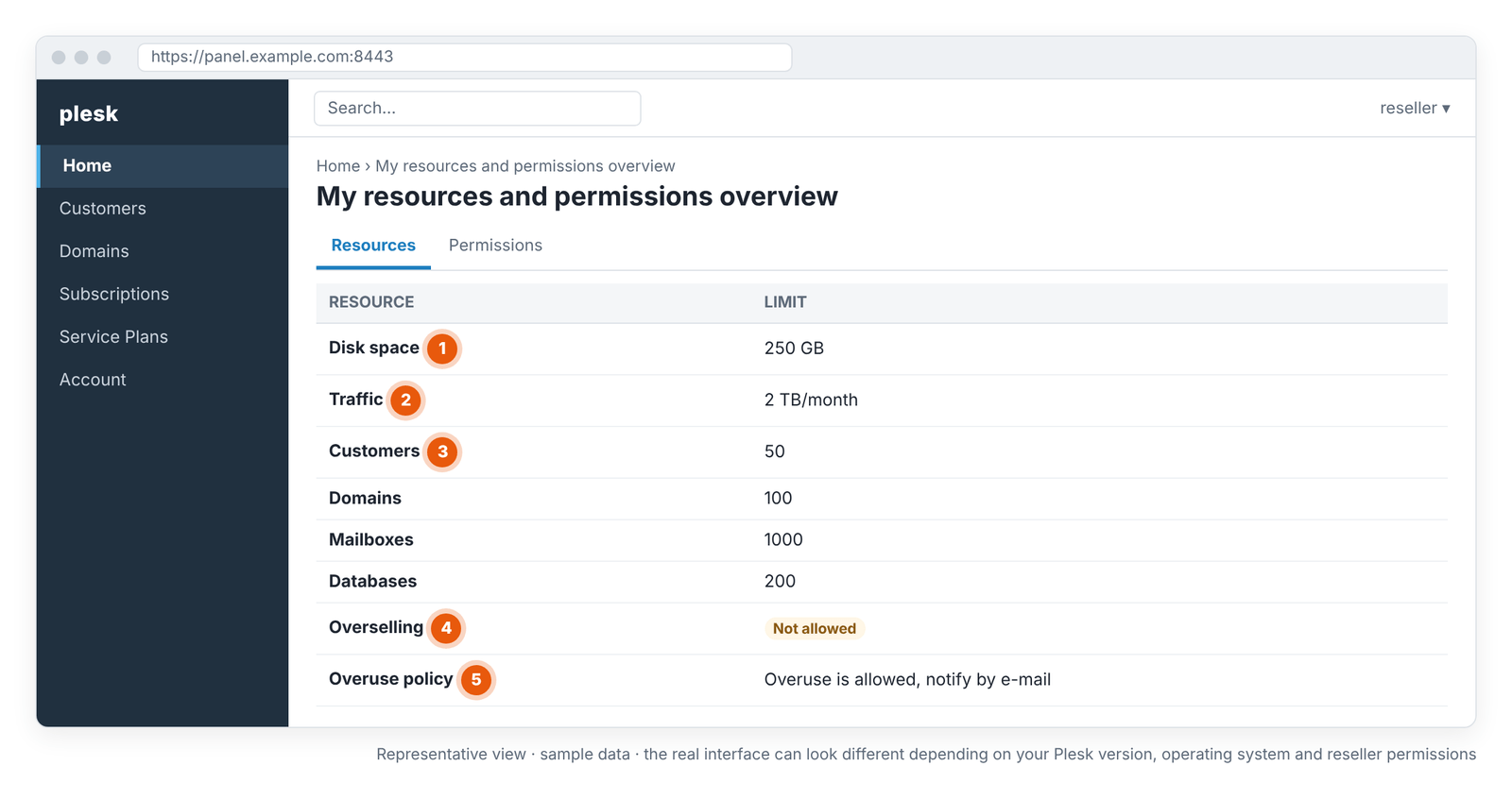
- 1 · Disk space: the total disk space assigned to your reseller account.
- 2 · Traffic: your total monthly traffic limit.
- 3 · Customers and other counts: how many customers, domains, mailboxes and databases you can create (if your plan defines them).
- 4 · Overselling: shows whether your capacity works on allocation (Not allowed) or on real usage (Allowed).
- 5 · Overuse policy: what happens if your reseller account's total usage exceeds your own limit.
- In the reseller panel, open Home › My resources and permissions overview.
- Note your Disk space and Traffic limits. This is the total capacity all your customers depend on.
- Check the Overselling line. If it says "Not allowed", the total of the limits you give subscriptions comes off your capacity; if it says "Allowed", real usage does.
- Open the Subscriptions list and compare each subscription's disk and traffic usage with its limit.
- Open a plan under Service Plans and look at which fields appear on the Resources tab. Fields differ between Linux and Windows Plesk; if you see CPU or RAM fields, the server has an extra mechanism that limits those resources.
If you can't see this screen or the overselling line in your panel, the information is in your service details; our support team can also tell you the values on your account.
The Plesk resource model: reseller, customer, Service Plan and Subscription
In Plesk, the reseller creates customers and Service Plans separately; when you assign a plan to a customer, a Subscription is created. Domains, websites, mailboxes and databases live inside that subscription. Most resource problems come from mixing these levels up.
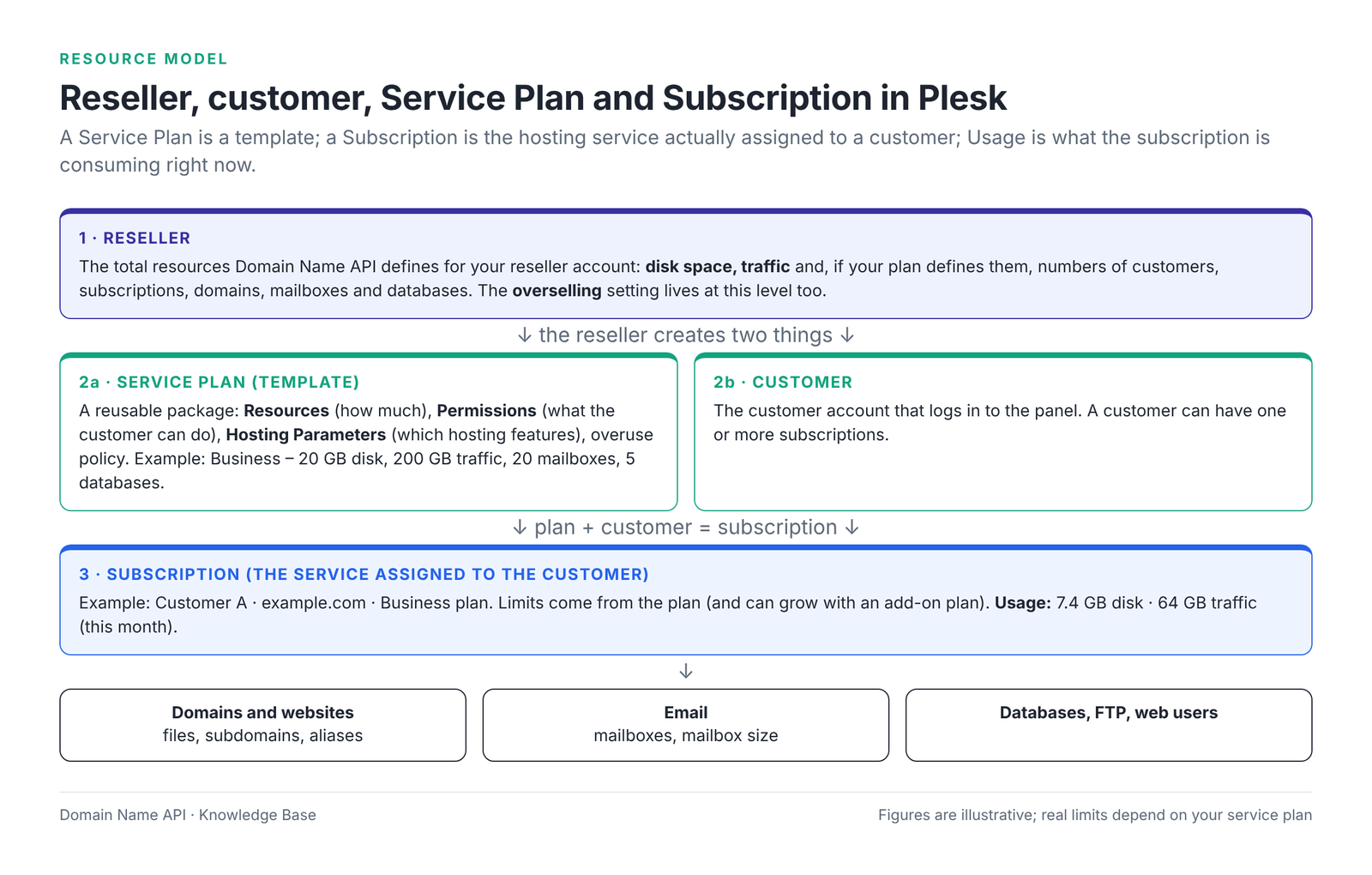
The sentence to remember: a Service Plan is a template; a Subscription is the hosting service actually assigned to a customer; Usage is what the subscription is consuming right now.
What is reseller capacity?
Reseller capacity is the total set of resources Domain Name API defines for your reseller account: disk space, monthly traffic and, if your plan defines them, the number of customers, domains, mailboxes and databases. Depending on the overselling setting, this limit applies either to the total of the limits you allocate to subscriptions or to real usage.
What is a customer?
A customer is the account that logs in to the Plesk panel with its own username. On its own it carries no resources; resources come through the subscriptions assigned to the customer. A customer can have more than one subscription.
What is a Service Plan?
A Service Plan is a reusable template of the hosting resources (Resources), permissions (Permissions) and hosting settings (Hosting Parameters) you give a customer. A plan consumes no resources on its own; assigning it to a customer creates a subscription.
What is a Subscription?
A Subscription is a Service Plan applied to a specific customer: domains, websites, email and databases sit inside it. Its limits come from the plan, from any add-on plans or from customization, and usage values are measured at subscription level.
What is an Add-on Plan?
An Add-on Plan is an extra package that adds resources or services to a subscription without changing its main plan (for example +10 GB disk). A subscription can have several add-ons, but the same add-on can be added only once. Whether you can use them depends on your reseller permissions.
A Service Plan and a Subscription are not the same thing
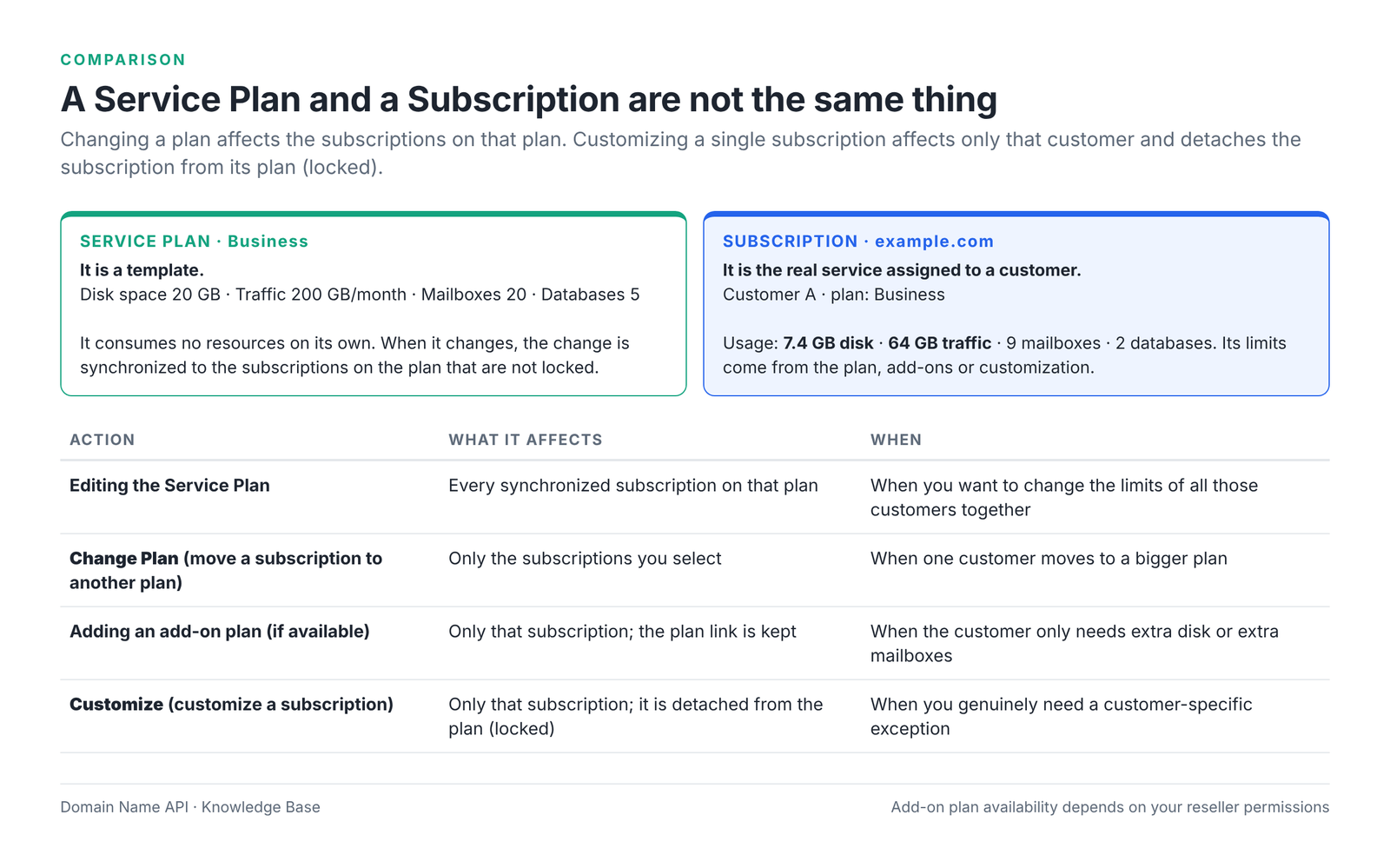
A Service Plan is a reusable template; a Subscription is a real instance of that template assigned to a specific customer and domain. That's why changing a Service Plan and changing one subscription's limit are not the same operation. A plan change applies to every synchronized subscription on that plan; a change made for one customer affects only that customer.
| Service Plan | Subscription | |
|---|---|---|
| What is it? | A template of resources, permissions and hosting settings | The real hosting service assigned to a customer |
| Does it consume resources? | No | Yes; usage is measured here |
| How many? | A few plans (e.g. Starter, Business, Pro) | One for each customer service |
| What happens when it changes? | All subscriptions on the plan that aren't locked are updated | Only that subscription changes; if changed with Customize, it is detached from the plan (locked) |
| Where? | Service Plans | Subscriptions |
What's the difference between Limit and Usage?
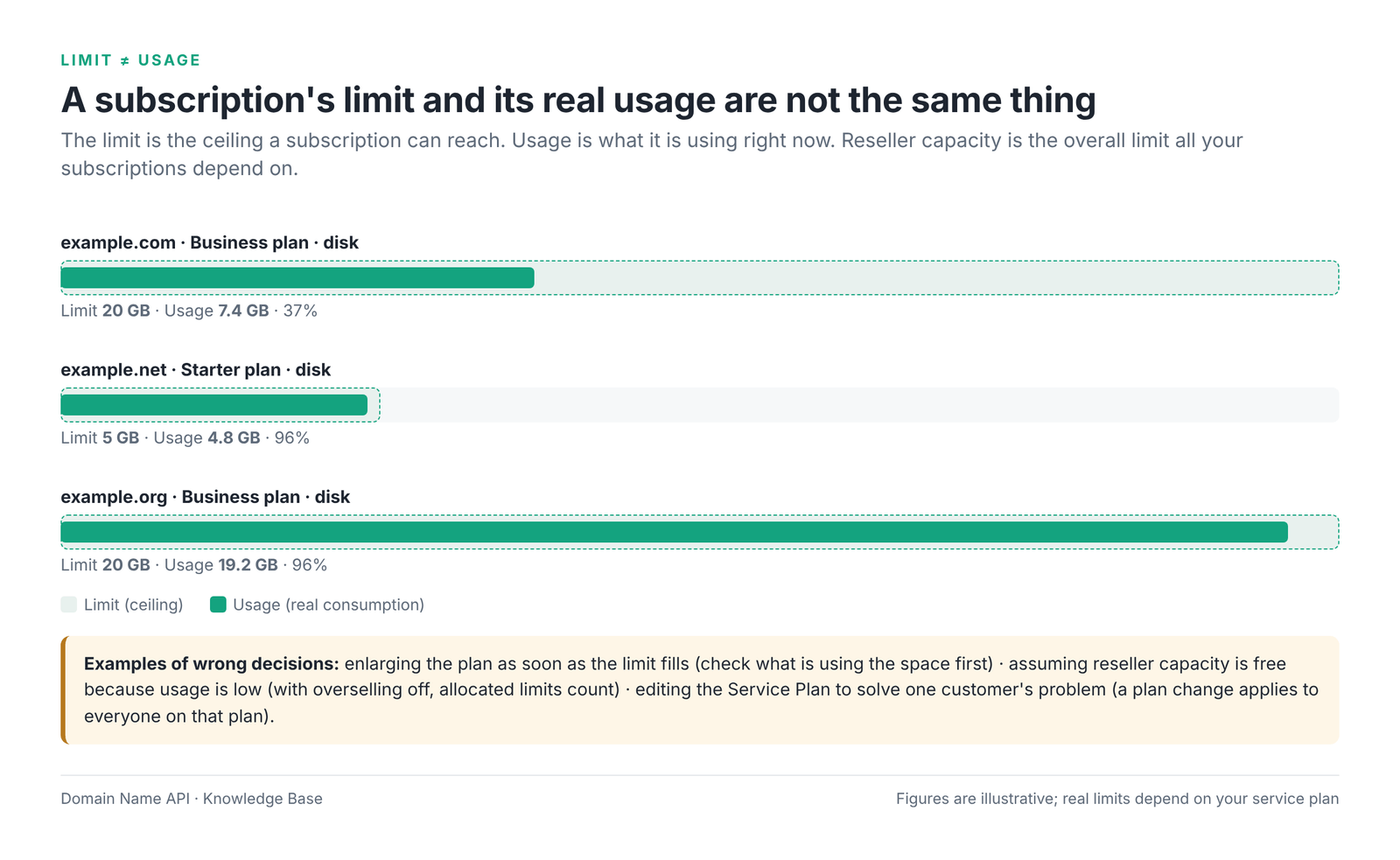
The limit is the ceiling a subscription can reach; usage is what it is using right now; reseller capacity is the overall limit all your subscriptions depend on. A customer on the Business plan might have a 20 GB limit but actually use 7.4 GB. Make capacity, upgrade and pricing decisions by looking at all three together.
| Term | Meaning | Where to see it | The mistake if you mix them up |
|---|---|---|---|
| Limit | The ceiling a subscription can reach | Service Plan › Resources; subscription details | Enlarging the plan as soon as the limit fills, without checking the space |
| Usage | What the subscription is using right now | Subscriptions list; subscription › Statistics | Assuming reseller capacity is free because usage is low |
| Reseller allocation | The total of the limits you've given subscriptions | Add up subscription limits | Being surprised you can't create a subscription when overselling is off |
| Reseller capacity | The total limit assigned to you | My resources and permissions overview | Upgrading the reseller plan for one customer's problem |
Which limit controls what?
In Plesk, each resource measures something different and has a different effect when it fills up. The table below shows where to look first when you hit a problem. Some fields exist only in Linux or only in Windows Plesk.
| Resource | What it limits | Where to see it | What happens when it fills up |
|---|---|---|---|
| Disk space | The total disk usage Plesk calculates (web content and, depending on server settings, mail, databases, logs, backups) | Subscriptions list; subscription › Statistics | Depends on the overuse policy: suspension, notification or overuse allowed |
| Hard disk quota (Linux) | Files owned by the subscription's system user | Service Plan › Hosting Parameters | No files can be written; uploads and updates fail |
| Traffic | Data transferred in a month | Subscriptions list; subscription › Statistics | Depends on the overuse policy: suspension, notification or overuse allowed |
| Domains | Number of domains the subscription can host | Service Plan › Resources | No new domain can be added |
| Subdomains / Domain aliases | Number of subdomains and aliases | Service Plan › Resources | No new ones can be added; existing ones keep working |
| Mailboxes | Number of mailboxes | Service Plan › Resources | No new mailbox can be created |
| Mailbox size | The space of a single mailbox | Service Plan › Resources; Mail tab | New mail can't be delivered to that mailbox |
| Mailing lists | Number of mailing lists | Service Plan › Resources | No new list can be created |
| Databases | Number of databases | Service Plan › Resources | No new database can be created |
| FTP accounts | Number of additional FTP accounts | Service Plan › Resources | No new FTP account can be created |
| Web users | Number of users hosting personal web pages | Service Plan › Resources | No new web user can be added |
| Java applications / ODBC connections | Number of Java applications and (on Windows) ODBC connections | Service Plan › Resources (depending on the product) | No new ones can be added |
| Customer / subscription count | How many customers and services the reseller can create | My resources and permissions overview | No new customer or subscription can be created |
Scheduled Tasks (cron) and PHP settings are permissions, not resources: whether a customer can use them is set on the Permissions tab. The next section explains the difference.
What's the difference between a Resource and a Permission in Plesk?
A resource answers "how much?"; a permission answers "what can the customer do?". Disk space and the number of mailboxes are resources; managing the DNS zone or creating scheduled tasks are permissions. Giving a customer more disk is a resource change; allowing a customer to use a Plesk feature is a permission change and doesn't change any resource limit.
| Concept | Question it answers | Example | Result |
|---|---|---|---|
| Resource | How much can be used? | Disk space 20 GB · Mailboxes 20 · Databases 5 | When the amount or count is reached, nothing new can be added or the overuse policy applies |
| Permission | Which feature can the customer use? | DNS zone management · Scheduled tasks management · PHP settings management | Without the permission the customer doesn't see or can't change that menu; resource amounts don't change |
| Hosting Parameter | Which hosting features are enabled? | Hard disk quota · PHP support · SSL/TLS support | Determines how the site runs |
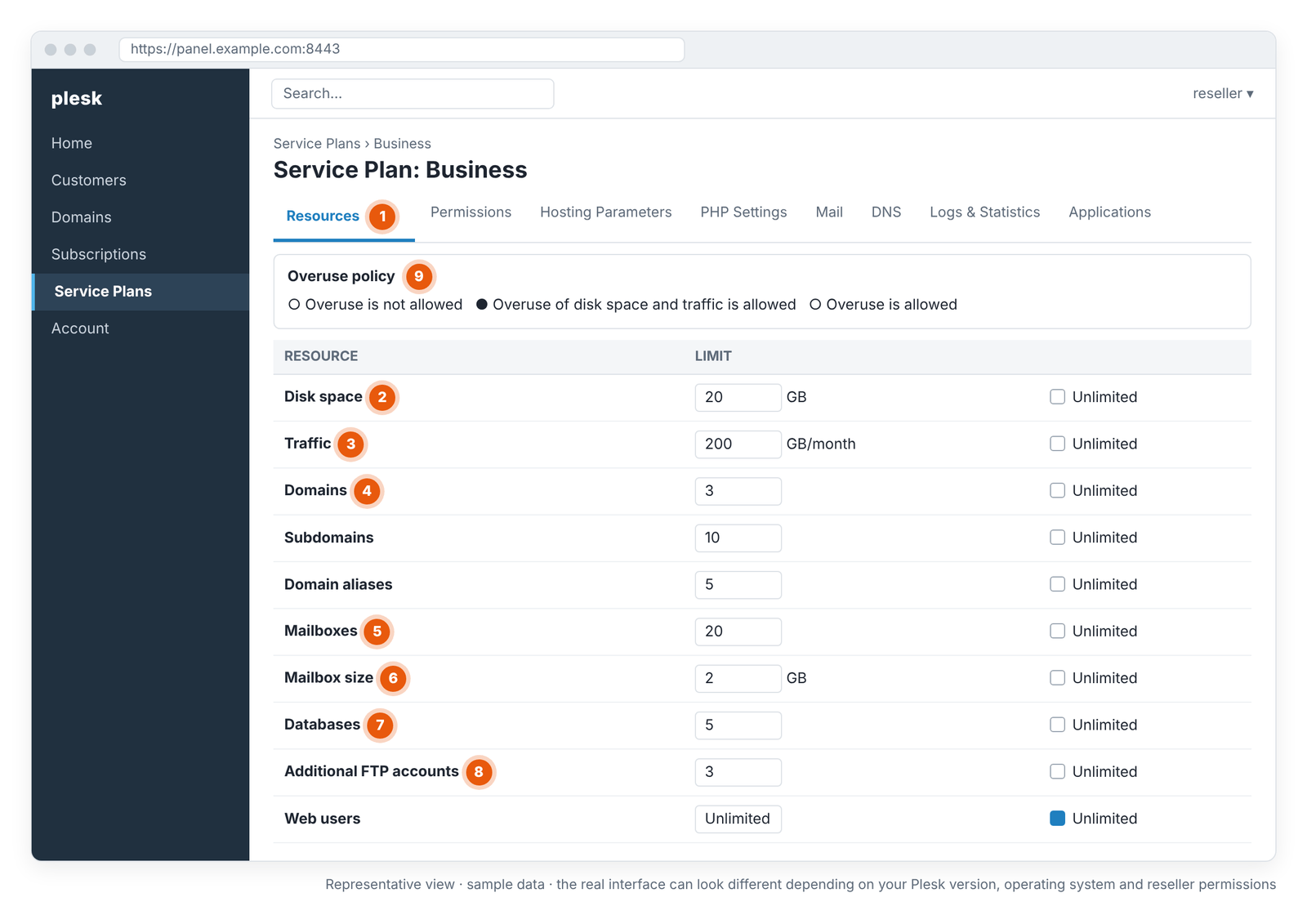
- 1 · Resources tab: the answer to "how much?".
- 2 · Disk space: the subscription's total disk limit.
- 3 · Traffic: the monthly traffic limit.
- 4 · Domains: the number of domains the subscription can host.
- 5 · Mailboxes: the number of mailboxes.
- 6 · Mailbox size: the space of a single mailbox.
- 7 · Databases: the number of databases.
- 8 · Additional FTP accounts: the number of additional FTP accounts.
- 9 · Overuse policy: what happens when a limit is exceeded (explained separately below).
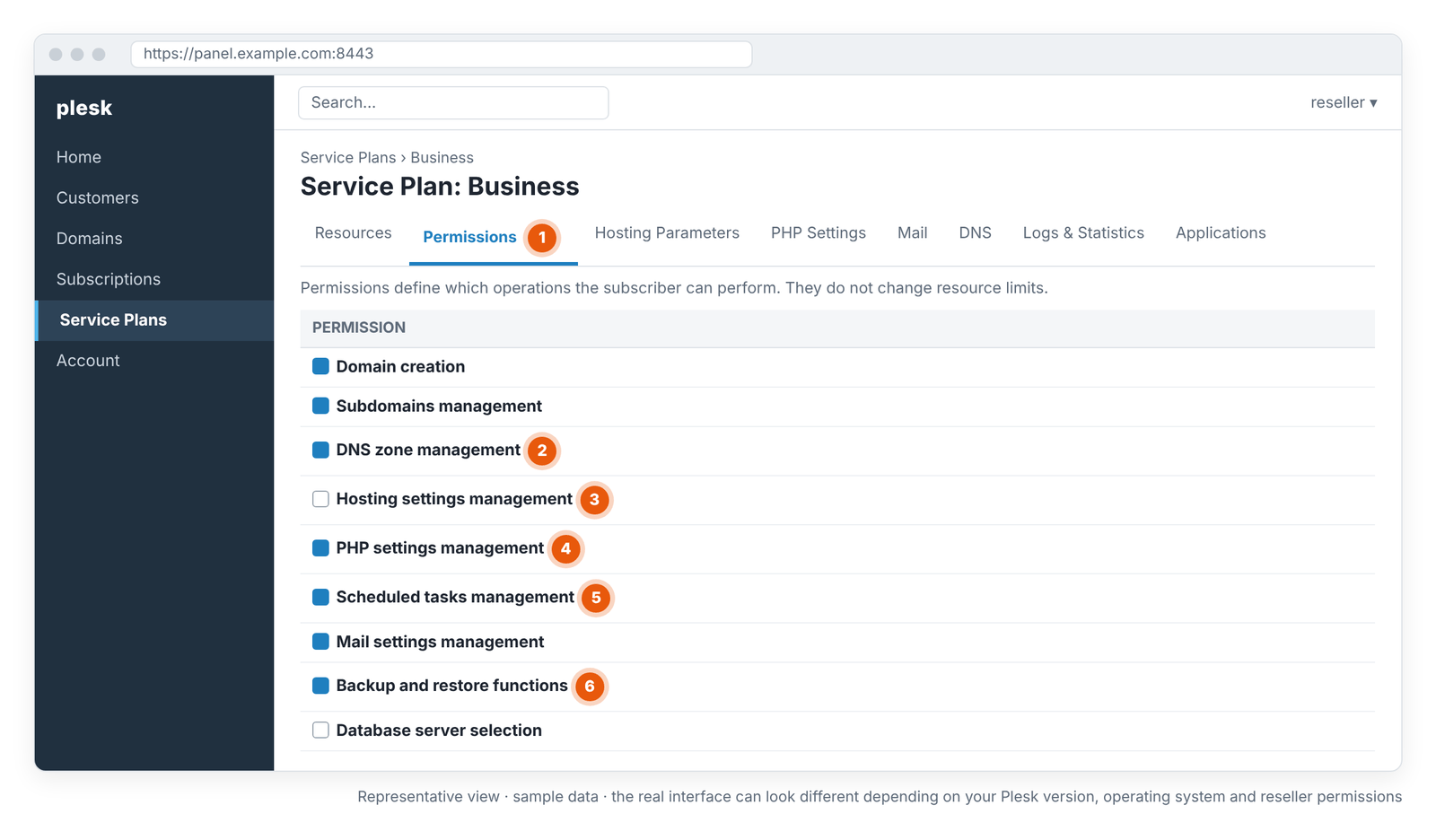
- 1 · Permissions tab: the answer to "what can the customer do?"; it doesn't change limits.
- 2 · DNS zone management: the customer can edit DNS records themselves.
- 3 · Hosting settings management: the customer can change hosting settings; most resellers keep it off.
- 4 · PHP settings management: the customer can change PHP settings. If this permission is on, the customer's changes are kept during plan synchronization.
- 5 · Scheduled tasks management: the customer can create scheduled tasks (cron).
- 6 · Backup and restore functions: the customer can back up and restore on their own.
In practice: if a customer says "my disk is full", look at the Resources tab; if they say "I can't see this menu", look at the Permissions tab.
How do Hosting Parameters differ from Resources and Permissions?
The Hosting Parameters tab sets which features websites are hosted with: on Linux, things like hard disk quota, SSL/TLS support, scripting support (PHP and others), web statistics and custom error documents. Resources define amounts, Permissions define what the customer may do, and Hosting Parameters define the technical features of the hosting. The options on this tab vary by Plesk version and operating system.
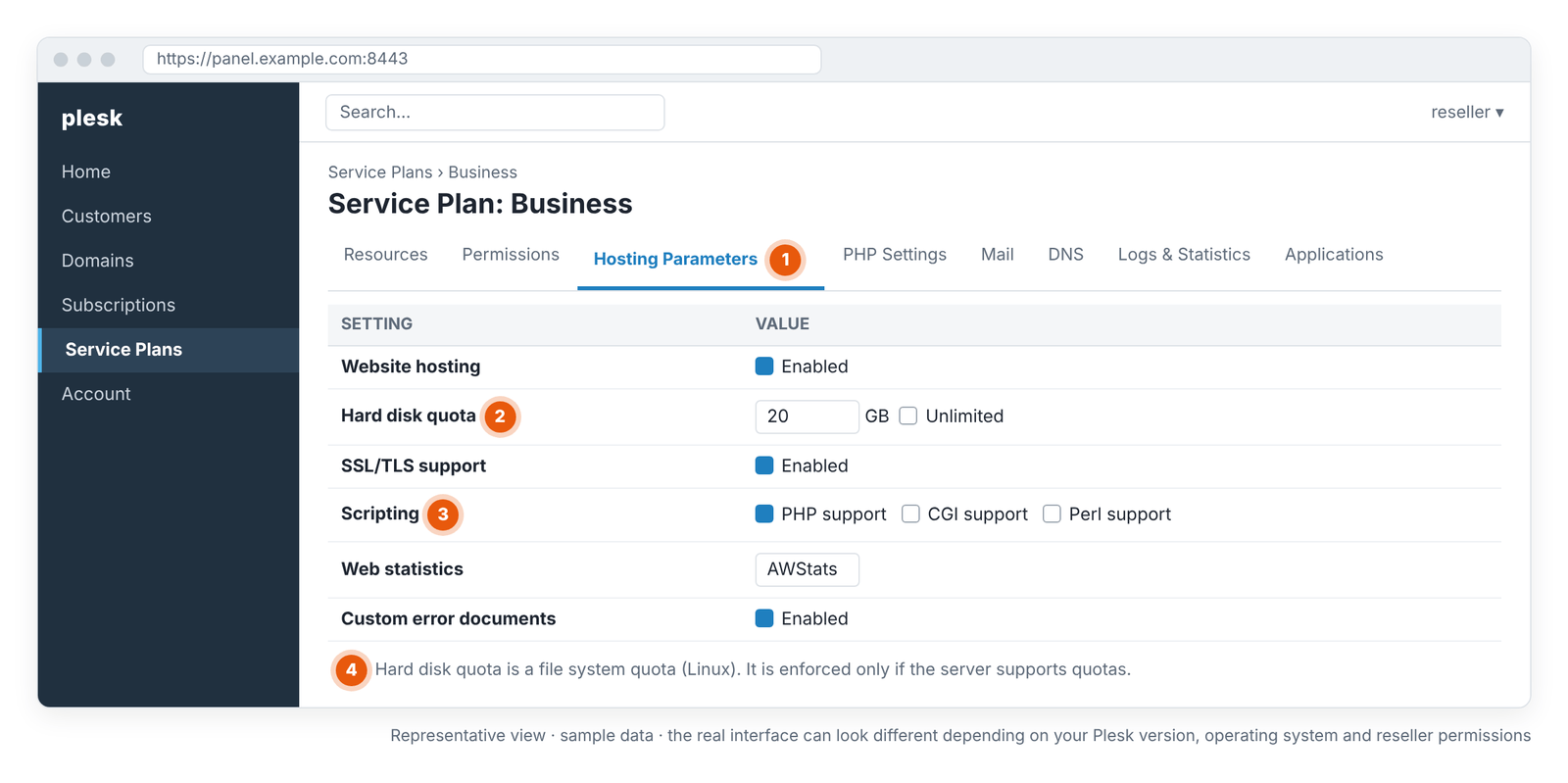
- 1 · Hosting Parameters tab: hosting features.
- 2 · Hard disk quota: a file system quota at operating system level (Linux). It's different from Disk space.
- 3 · Scripting: which scripting languages are supported.
- 4 · Note: the hard disk quota is enforced only if the server's file system supports quotas.
What's the difference between Disk space and Hard disk quota in Plesk?
In Plesk, "the disk is full" can mean two different things. Disk space (Resources tab) is the total usage Plesk calculates, and the overuse policy decides what happens when it's exceeded. Hard disk quota (Hosting Parameters tab, Linux) is a file system quota at operating system level; when it fills up, no files can be written. Upgrading the plan without knowing which one is full often doesn't fix the problem.
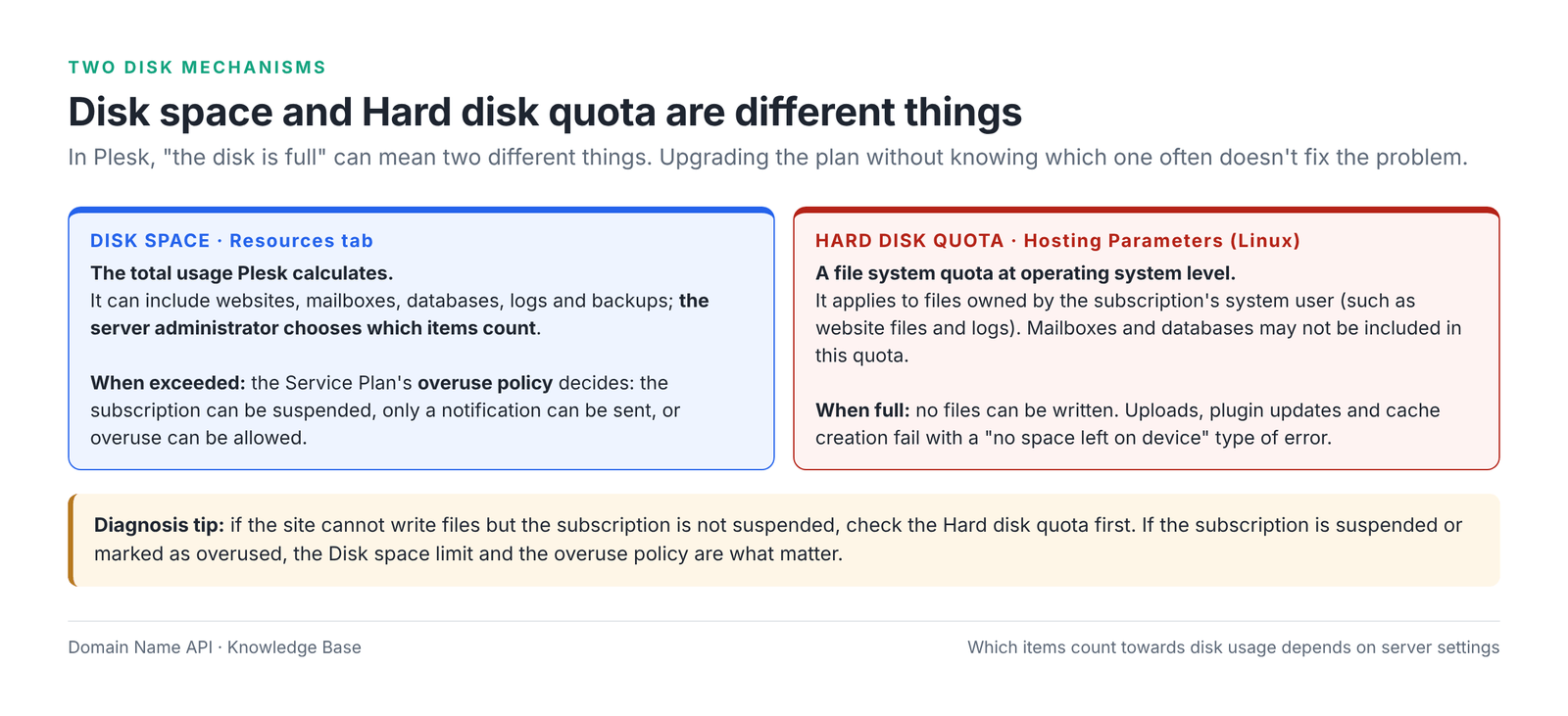
| Disk space | Hard disk quota | |
|---|---|---|
| Where is it set? | Service Plan › Resources | Service Plan › Hosting Parameters (Linux) |
| What is measured? | The total usage Plesk calculates | Files owned by the subscription's system user |
| What's included? | Websites; depending on server settings, mailboxes, databases, logs and backups | Files owned by the system user; mailboxes and databases may not be included |
| What happens when full? | Depending on the overuse policy: suspension, notification or overuse allowed | No files can be written; a "no space left on device" type of error |
| How do you notice? | An "overused" warning in the subscriptions list, suspension or a notification | Upload, update and cache write errors |
Do mail and databases count towards disk?
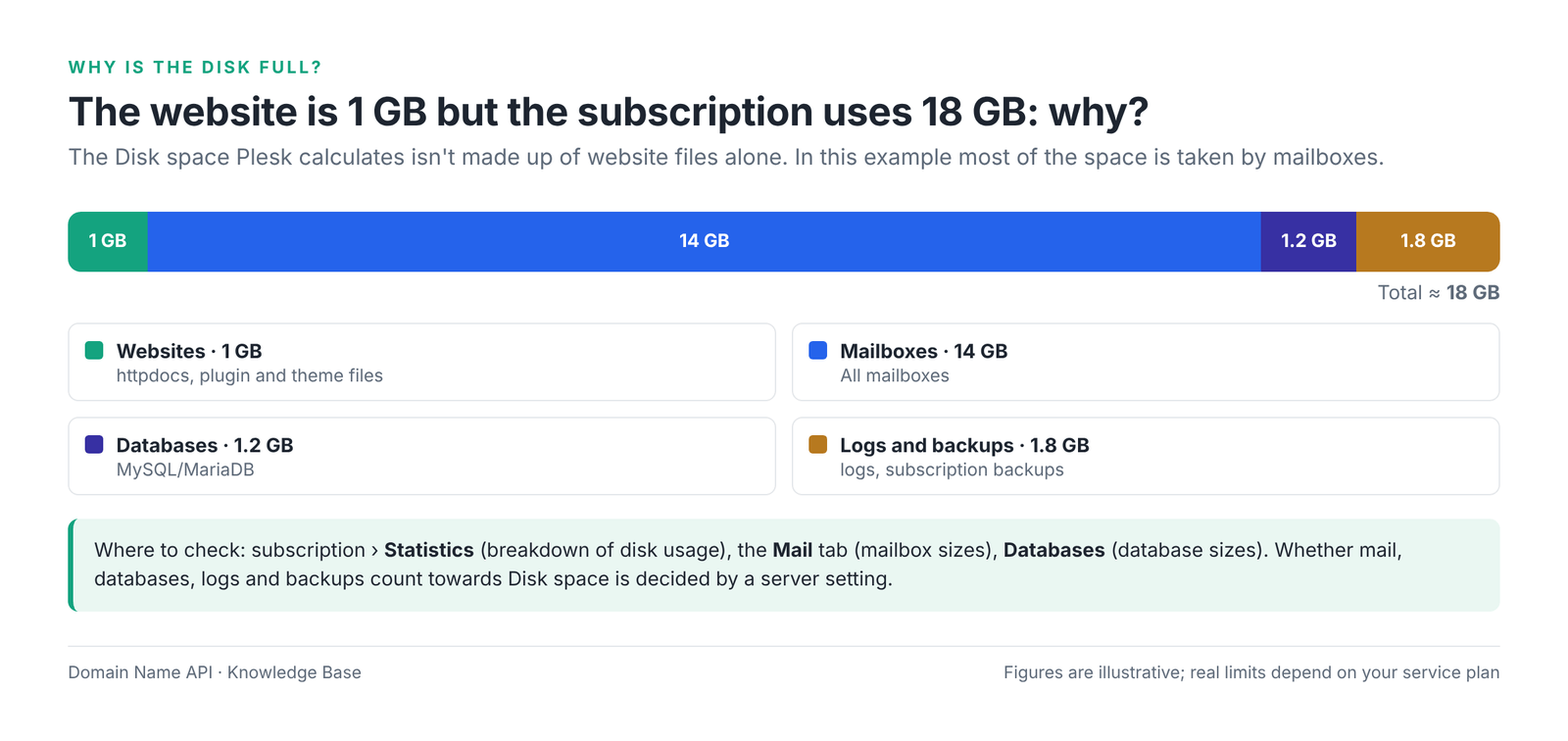
By default Plesk can include websites, mailboxes, databases, logs and backups in Disk space. However, the server administrator chooses which items count, and this setting isn't visible in the reseller panel. You can see how it works on your account from the breakdown on the subscription › Statistics screen, or ask our support team.
How does the total capacity of my Plesk reseller plan work?
How a 250 GB reseller plan gets used up depends on whether overselling is allowed on your reseller plan. If overselling isn't allowed, the limit is the total disk and traffic you allocate to subscriptions. If it is allowed, the limit is the total real usage of your subscriptions. This is Plesk's own definition: with overselling allowed, you're governed by actual resource usage rather than the initial allocation.
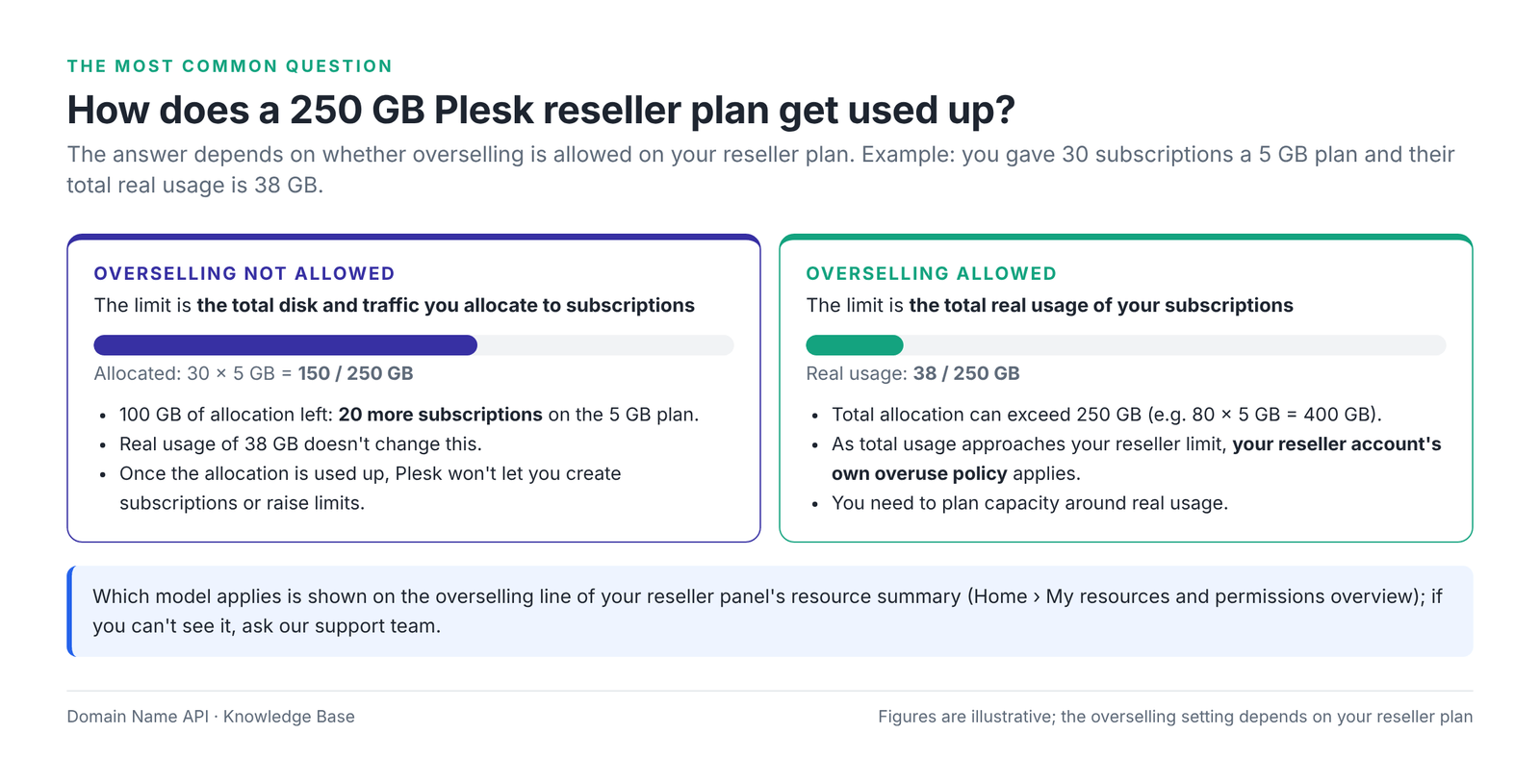
| Question | If overselling isn't allowed | If overselling is allowed |
|---|---|---|
| What does 250 GB mean? | The total disk limit you can hand out to subscriptions | The ceiling on your subscriptions' total real usage |
| How many GB can I hand out through Service Plans? | Up to 250 GB | More than 250 GB; the limit is real usage |
| A customer uses only 1 GB of a 5 GB plan? | 5 GB still comes off your capacity | Only 1 GB comes off your capacity |
| When allocation or usage reaches the limit? | You can't create subscriptions or raise limits; existing services keep running | Your reseller account's own overuse policy applies |
| Can I create plans with unlimited limits? | Usually not; the allocation can't be calculated | Depends on your reseller permissions |
| What's the risk? | Capacity looks used up before it's actually used | If customers fill their limits, total usage can exceed capacity |
What counts towards capacity: reseller capacity covers every subscription you own; if you created a subscription under your reseller account for your own site, it's included too. Whether mail, databases, logs and backups count towards a subscription's Disk space depends on the server setting described above.
Which applies to your account?
Your overselling setting appears on Home › My resources and permissions overview. If you can't see it, ask our support team. A practical sign: if Plesk stops you when you try to create a subscription with a plan larger than your remaining capacity, overselling isn't allowed.
What is overselling in Plesk?
Overselling means the reseller can allocate more resources to customers than it has been assigned; when allowed, the reseller limit applies to real usage rather than the initial allocation. It's a business model built on the assumption that customers won't use all of their limits at the same time. Overselling is a reseller plan setting; as a reseller you can't change it yourself.
Example: you have 250 GB of disk and overselling is allowed. You've given 80 customers a 5 GB plan; total allocation is 400 GB, but their total real usage is 120 GB. In this case 120 GB of your capacity counts as used. If customers start filling their limits, total usage approaches 250 GB and your reseller account's overuse policy applies. That's why, with overselling allowed, you need to track total usage regularly.
What is an overuse policy?
The overuse policy decides what happens when a subscription exceeds its own limit. In Plesk there are three options on the Service Plan › Resources tab, and you choose them as the reseller. What happens if your reseller account exceeds its own limit is a separate setting defined in your reseller plan.
| Option | What happens when a limit is exceeded? | Who is it for? |
|---|---|---|
| Overuse is not allowed | The subscription is suspended; the customer's sites and services stop | Cases where limits must be enforced strictly; the customer may face an unexpected outage |
| Overuse of disk space and traffic is allowed | Disk space and traffic can be exceeded; other resources (number of mailboxes, databases, etc.) cannot; an optional email notification is sent | A balanced option for most resellers: the customer has no outage and you get notified |
| Overuse is allowed | Overuse is allowed on every resource | A flexible service; tracking capacity is entirely up to you |
You can also set a warning threshold for disk and traffic. The notification email warns you as a customer approaches their limit, so you can talk to them before a suspension or a capacity problem.
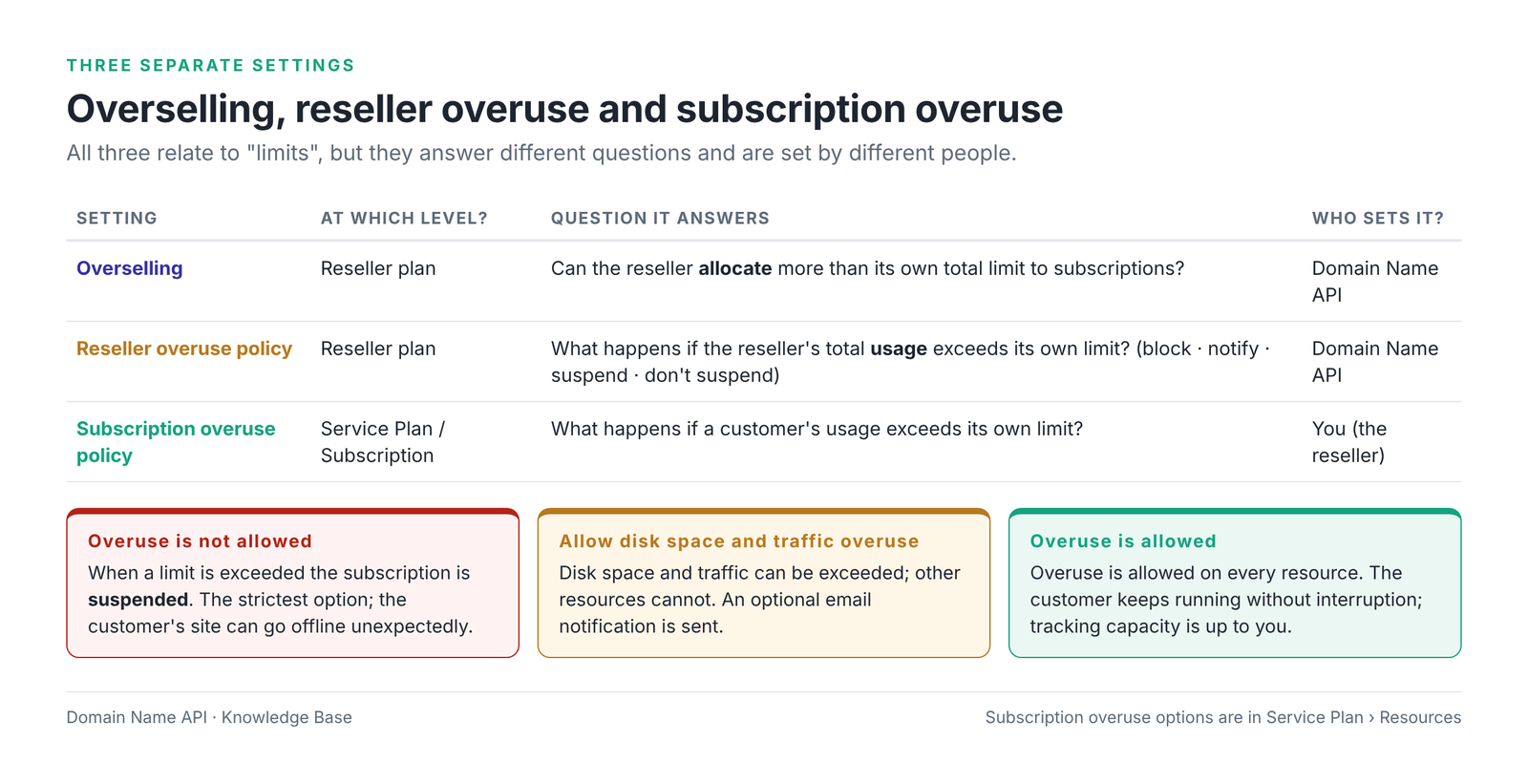
| Overselling | Overuse | |
|---|---|---|
| What is it about? | Allocation: can more than capacity be handed out? | Usage: what happens when a limit is exceeded? |
| At which level? | Reseller plan | Reseller plan (the reseller's own usage) and Service Plan (subscription usage) |
| Who sets it? | Domain Name API | Domain Name API at reseller level; you at subscription level |
| If mixed up? | "Overselling is on, so there's no limit" | A suspended subscription is mistaken for a capacity problem |
Where do I see subscription usage?
In the reseller panel you see every subscription's disk and traffic usage in the Subscriptions list, and the breakdown for a single subscription on its Statistics screen. Subscriptions close to their limit, locked or over their limit (overused) stand out in the list.
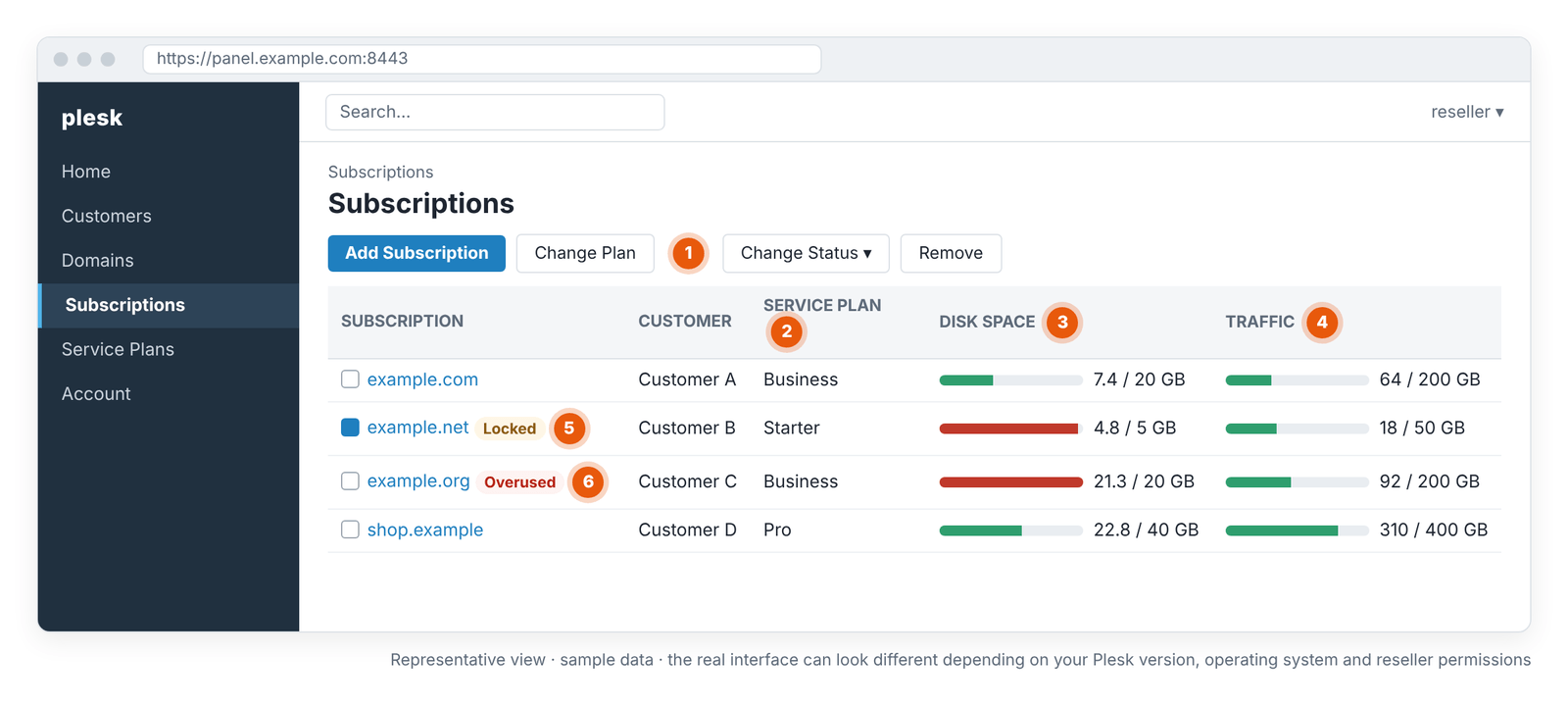
- 1 · Change Plan: moves the selected subscriptions to another plan.
- 2 · Service Plan: the plan the subscription is on.
- 3 · Disk space: usage / limit. A red bar marks one close to its limit.
- 4 · Traffic: this month's traffic usage / limit.
- 5 · Locked: a customized subscription that doesn't receive plan changes.
- 6 · Overused: a subscription over its limit; the result depends on the overuse policy.
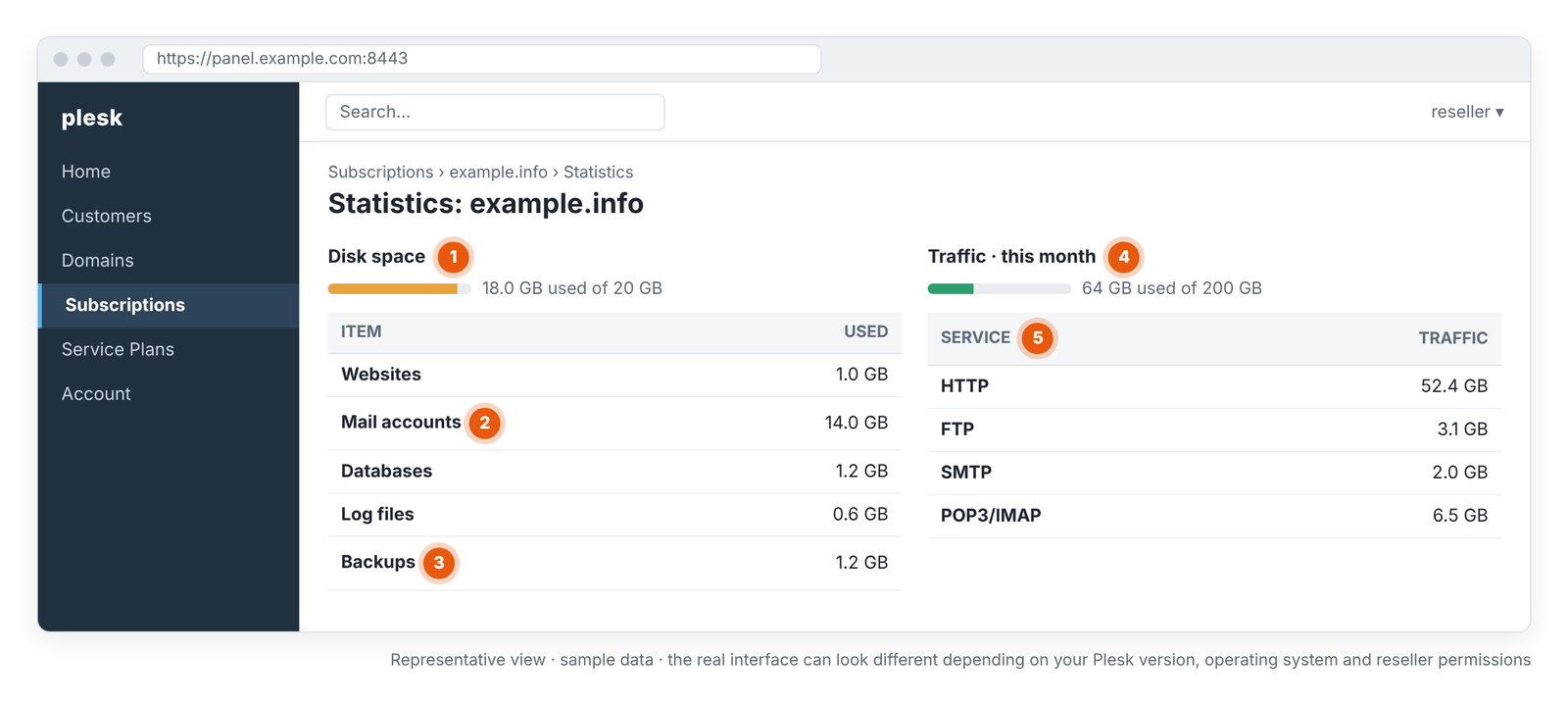
- 1 · Disk space: total usage and limit.
- 2 · Mail accounts: the space taken by mailboxes; most of it in this example.
- 3 · Backups: backups kept inside the subscription.
- 4 · Traffic: this month's total traffic and limit.
- 5 · Traffic by service: HTTP, FTP, SMTP and POP3/IMAP.
| Screen | What I see | What it diagnoses | Which value to watch |
|---|---|---|---|
| Home › My resources and permissions overview | Reseller limits, overselling, reseller overuse policy | Is reseller capacity full? | Disk space and Traffic limits; the overselling line |
| Subscriptions | Each subscription's plan, disk and traffic usage, Locked/Overused status | Which customer is close to its limit? | Usage/limit ratio; above 80%; Locked and Overused labels |
| Subscription › Statistics | Disk usage broken down by item; traffic by service | What is filling the disk? What is generating traffic? | Mail, backup and log items; HTTP traffic |
| Subscription › Mail | Mailboxes and their sizes | Which mailbox is large? | Mailbox size and the Mailbox size limit |
| Subscription › Databases | Databases and their sizes | Has a database grown? | The largest database |
Usage values aren't real-time; Plesk calculates statistics periodically. If the value doesn't change right after you delete a large file, wait for the next calculation.
How do you check disk usage in Plesk?
You see a subscription's disk usage item by item on Subscriptions › subscription › Statistics. Disk usage isn't made up of website files alone: mailboxes, databases, logs and backups kept inside the subscription are (depending on server settings) part of the total too. If the subscription's disk limit is full, check what is using the space before enlarging the package.
- Open the subscription from the Subscriptions list and go to Statistics.
- See which item the disk usage is concentrated in: websites, mailboxes, databases, logs or backups.
- If mail is high, find the large mailboxes on the subscription's Mail tab and plan archiving old mail with the customer.
- If backups are high, download old backups inside the subscription to your computer or external storage and delete them.
- If logs are high, check log rotation settings and growing error logs; fix the recurring application error.
- If usage is still above 80% of the limit after cleanup, consider moving to a bigger plan.
Email: the storage limit and the sending limit are not the same thing
Plesk has two separate groups of email limits. Capacity limits (number of mailboxes, Mailbox size and the mailboxes' share of Disk space) decide how much mail can be stored. Sending limits cap how many messages can be sent per hour. Having 10 GB free in your mailbox doesn't mean you can send unlimited email.
| Capacity limit | Sending limit | |
|---|---|---|
| What does it limit? | Amount of mail stored and number of mailboxes | Number of messages sent per hour |
| Where is it set? | Service Plan › Resources (Mailboxes, Mailbox size) | Service Plan › Mail tab and server settings (if configured) |
| What happens when reached? | New mail can't be delivered to that mailbox; the sender usually gets a bounce | New outgoing messages are rejected |
| Relation to Disk space | Mailboxes count towards Disk space depending on server settings | None |
A subscription's disk limit and Mailbox size are different. Mailbox size is the ceiling of a single mailbox; when one mailbox fills up, only that mailbox stops receiving mail. A subscription's Disk space is the total of all mailboxes, sites and (depending on settings) databases.
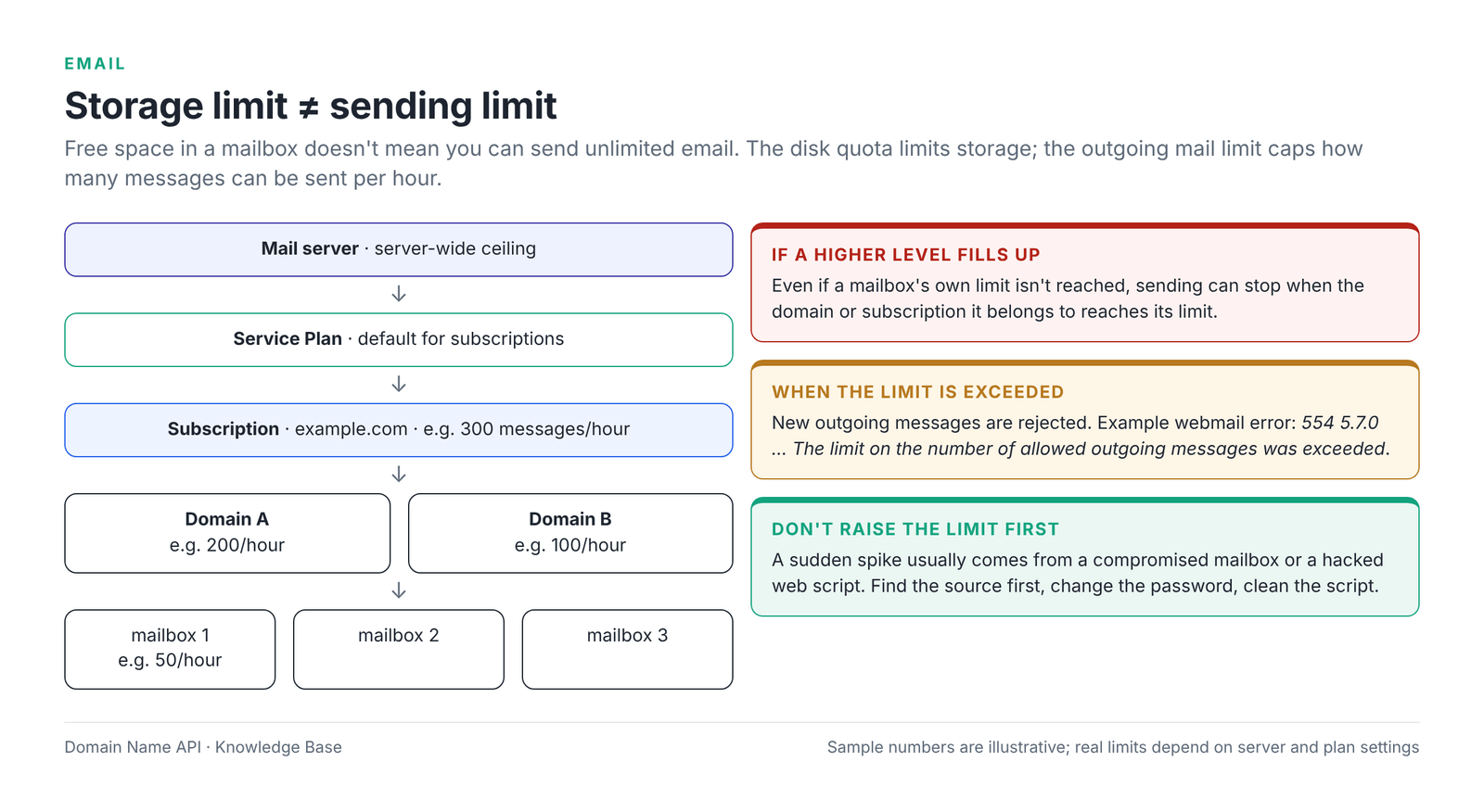
If outgoing mail limits are configured on the server, they work per hour and are hierarchical: the subscription limit caps the total sending of its domains, and the domain limit caps the total of its mailboxes. Even if a mailbox's own limit isn't reached, sending can stop when its domain or subscription limit is full. When a limit is exceeded, webmail can show an error such as "554 5.7.0 … The limit on the number of allowed outgoing messages was exceeded".
If you hit the sending limit, don't raise it straight away
A sudden spike in sending usually comes from a mailbox whose password has been stolen or from a script in a hacked web application. Find the source first, change the relevant password and scan the site for malware. If the sending is legitimate and the account is clean, contact our support team about raising the limit. For bulk email and newsletters, use a sending service built for that instead of hosting email. More: Plesk Outgoing Email Limits and Blacklist Protection.
How does database usage work in Plesk?
The Databases resource in a Service Plan limits the number of databases. Database size is included in the subscription's Disk space depending on server settings. On Linux Plesk there's usually only a count limit for MySQL/MariaDB; on Windows Plesk you may see separate quota fields for database size. Check which fields your plan has on the Service Plan › Resources tab.
- If a database has grown: the most common cause is log, session and temporary data tables (for example plugin log tables, old revisions). Clean up on the application side.
- If a new database can't be created: the Databases count is full; delete unused databases or upgrade the plan.
- Where do I see database size? On the subscription › Databases screen.
How does traffic usage work in Plesk?
Traffic isn't internet speed; it's the total amount of data transferred in a month. According to Plesk's official definition, the Traffic resource covers data transferred from the subscription's websites and FTP/Samba shares. The subscription's Statistics screen breaks traffic down by service, such as HTTP, FTP, SMTP and POP3/IMAP. The overuse policy decides what happens when the monthly limit is exceeded.
Don't map traffic one-to-one onto visitor numbers. There's no exact formula such as "100 GB = this many visitors". The same number of visitors produces very different traffic depending on:
- Page size and unoptimized images
- Downloadable files and large file transfers over FTP
- Bot and crawler traffic
- Caching and CDN use (a CDN moves part of the traffic off your server)
- Video, audio and other media served directly
| Disk space | Traffic | |
|---|---|---|
| What does it measure? | The size of stored data | Data transferred in a month |
| When does it reset? | It doesn't; it goes down when files are deleted | At the start of each month |
| When exceeded? | Overuse policy (and the hard disk quota on Linux) | Overuse policy |
Are there CPU and RAM limits in Plesk?
Standard Plesk Service Plans have no resource field for CPU or RAM; these limits apply only if the server has an extra resource-control mechanism. So there's no step such as "give the customer CPU/RAM through the Service Plan". You can tell which mechanism your account has from the fields that appear on the Service Plan screens.
| Mechanism | Platform | What it does | How to tell |
|---|---|---|---|
| Plesk Cgroups Manager | Linux | CPU, RAM and disk I/O limits per subscription | CPU/RAM/disk I/O fields appear on the Service Plan screens |
| CloudLinux LVE | Linux | Per-account CPU, memory, I/O and concurrent process limits | If CloudLinux is installed on the server |
| IIS application pool settings | Windows | Limits such as CPU usage for the application pool | Application pool settings appear in the Windows Service Plan |
| None | – | No per-account CPU/RAM limit | These fields don't appear on the plan screens |
Confirm with our support team before giving a customer any performance figures. If you don't see CPU or RAM fields, check the "Not every slow site is a resource problem" section below first when a site is slow.
Are resources the same on Linux and Windows Plesk?
The core model (reseller, Service Plan, Subscription, Disk space, Traffic, overuse) is the same on both platforms; technology-specific fields differ. Only the fields of the platform your product uses apply.
| Topic | Linux Plesk | Windows Plesk |
|---|---|---|
| Web server and scripting | Apache/nginx, PHP | IIS, ASP.NET (and PHP) |
| Database | MySQL/MariaDB | MS SQL and/or MySQL |
| Hard disk quota | File system quota under Hosting Parameters | A different mechanism; depends on the plan screen |
| CPU/RAM limit | Cgroups Manager or CloudLinux (if present) | IIS application pool settings (if present) |
| Extra resources | – | Fields such as ODBC connections and MS SQL database quotas may appear |
Note
This screen or resource can look different in Linux and Windows Plesk packages. Don't assume a field that isn't on your screen is a product feature.
How should you set Service Plan limits for your customers?
Set plan limits around each customer's site and email use. Giving everyone the biggest plan uses up your capacity for nothing (especially when overselling isn't allowed); giving everyone the smallest plan leads to frequent support requests and plan changes. The profiles below are illustrative; they aren't Domain Name API's official packages.
| Example profile | Who it's for | Disk | Monthly traffic | Domains / mailboxes / databases |
|---|---|---|---|---|
| Starter | Small company brochure site, little email | 2–5 GB | 20–50 GB | 1 / 5–10 / 1–2 |
| Business | WordPress, team email | 10–20 GB | 100–200 GB | 3–5 / 20–50 / 5 |
| Pro | Online shop or a busy application | 20–40 GB | 200 GB and up | 5–10 / 50+ / 10 |
| Design factor | What to watch |
|---|---|
| Disk | Web files + mail + databases + logs + backups in total; don't look at site size alone |
| A small site with team email can fill far more space with mail than with web files. Think about Mailbox size and the number of mailboxes together | |
| Traffic | Image weight, downloadable files and campaign periods |
| Database | WordPress and e-commerce plugins can need several databases or large tables |
| Domain count | Need for extra domains, subdomains and aliases |
| Growth headroom | Leave meaningful steps so a customer can move up a plan when they reach 70–80% of their limit |
| Customer type | Brochure sites, blogs, online shops and agency customers fit different plans |
| Overuse policy | So the customer doesn't face a sudden outage, allowing disk and traffic overuse with notifications is a balanced choice in most cases |
For the steps to create a plan, see How to Create a Service Plan in Plesk.
How many customers can I host on my Plesk reseller plan?
There's no single right number; customer count isn't a good measure of capacity. 100 small brochure sites and 100 WooCommerce sites don't use the same resources. If your reseller plan has a limit on customers, subscriptions or domains, that's the ceiling on how many services you can create even if your resources would stretch further.
Assess your capacity with these questions:
- Disk: what percentage of your reseller limit is your total allocation (if overselling isn't allowed) or total usage (if it is)?
- Traffic: what percentage of your limit have your subscriptions used this month, and where will it be at month end?
- Mail: which customers use email heavily, and how much space do their mailboxes take?
- Database: which applications use large databases?
- Application type: how many subscriptions are online shops, and how many are static or brochure sites?
- Count limits: how far are you from your customer, subscription and domain limits?
- Performance resources (if present): which subscriptions often hit CPU or RAM limits?
As a practical rule, it's a good habit to review capacity before new sales once total disk and traffic usage reaches about 80% of your reseller limit.
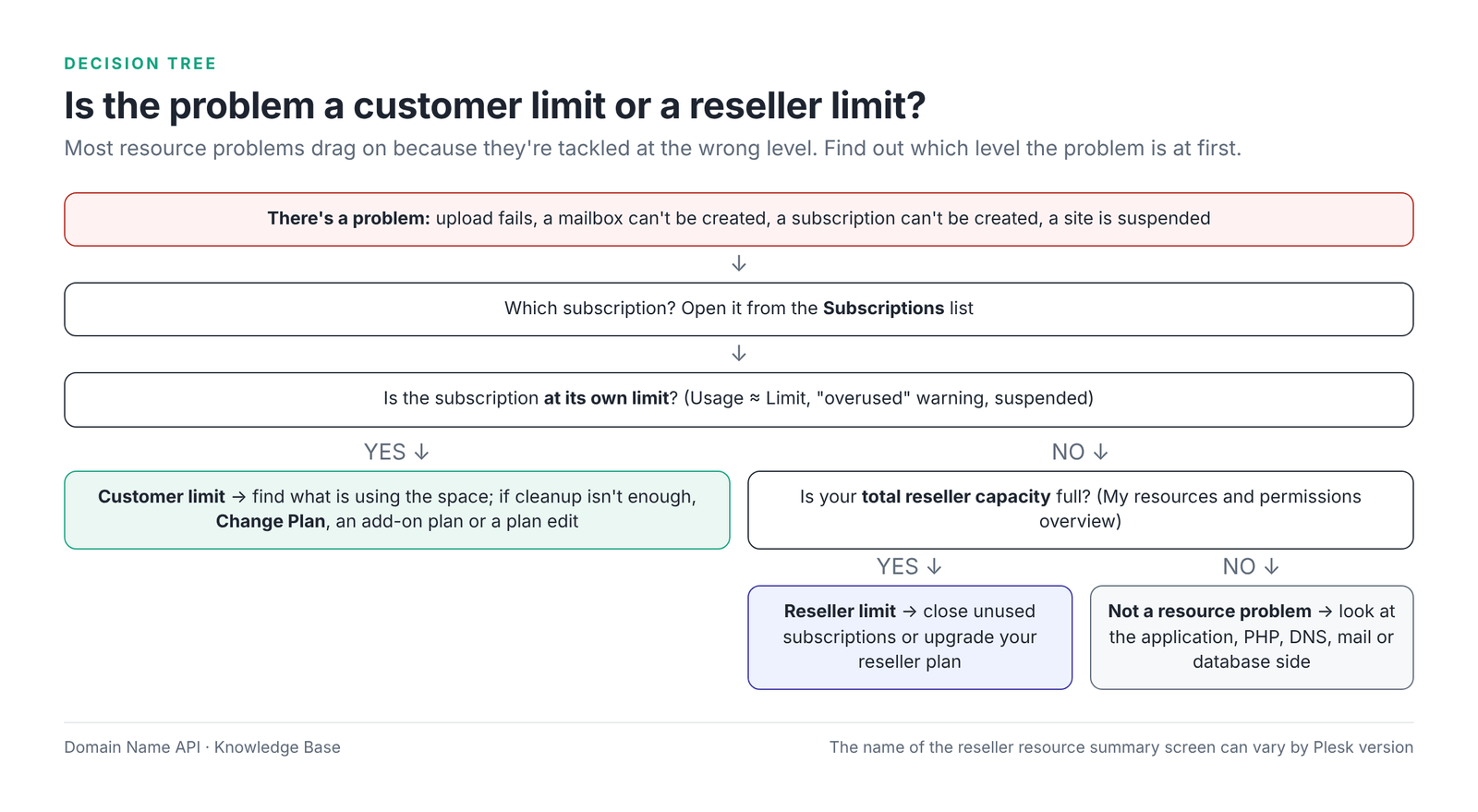
Is the problem a customer limit or a reseller limit?
Most resource problems drag on because they're tackled at the wrong level. First find the subscription with the problem and check whether it's at its own limit; if not, check your total reseller capacity; if that isn't full either, the problem is most likely not a resource problem.
How do you move a customer to a higher Service Plan?
The right way to give one customer more resources is usually to move their subscription to a bigger plan. Don't edit the Service Plan for this; every customer on that plan would be affected.
- In the reseller panel, open the Subscriptions list.
- Select the checkbox next to the subscription you want to upgrade.
- Click Change Plan.
- Choose the target plan. If needed, add or remove add-on plans on the same screen.
- Apply with OK.
- Check in the Subscriptions list that the subscription shows its new plan and new limits.
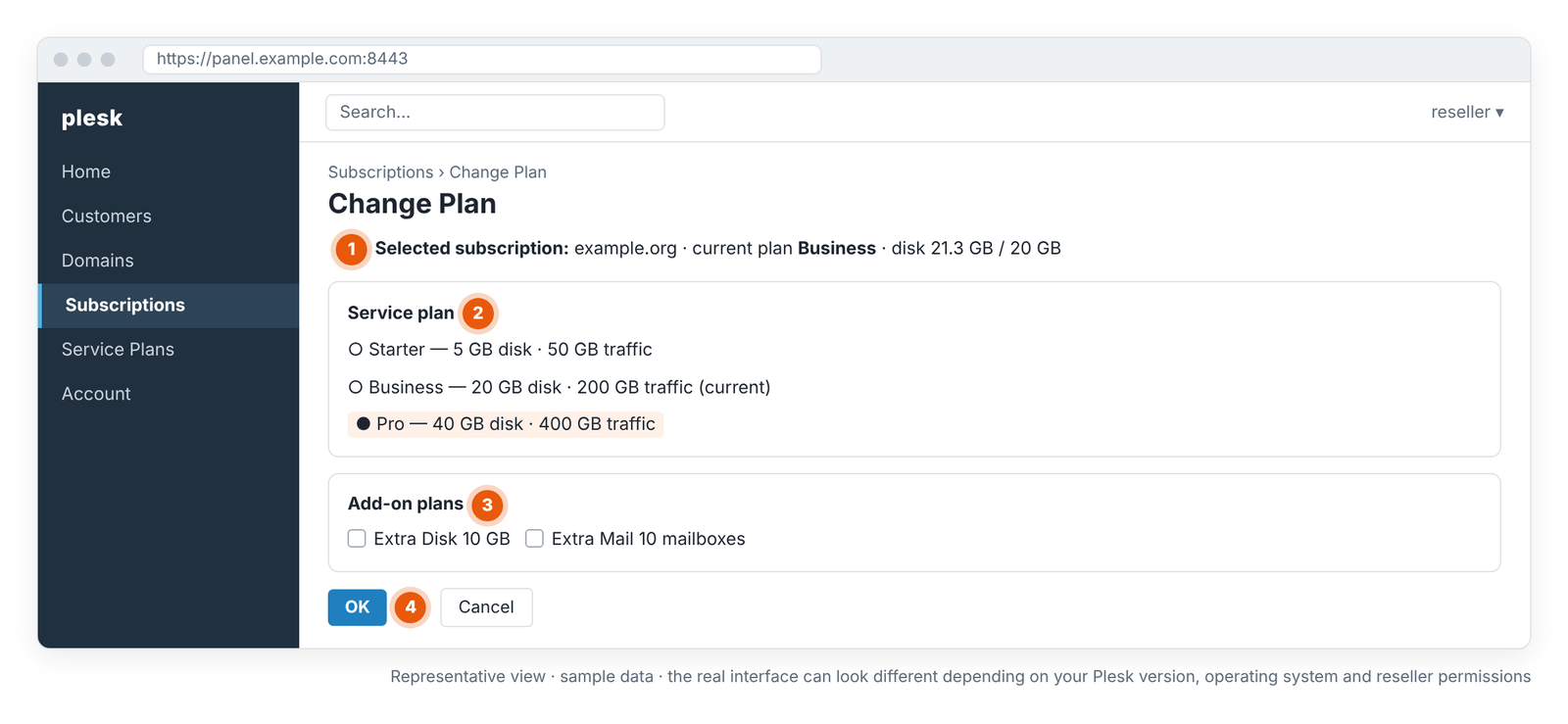
- 1 · Selected subscription: the subscription to move and its current plan.
- 2 · Service plan: the target plan and its limits.
- 3 · Add-on plans: to add resources without changing the main plan (if you have permission).
- 4 · OK: applies the change.
- If overselling isn't allowed: a bigger plan uses up your remaining allocation by the difference. If the remaining allocation isn't enough, the change can't be made.
- Locked subscription: check how the values you customized earlier with Customize look after the plan change; adjust them as described in the synchronization section below if needed.
- A one-off extra need: if the customer only needs extra disk or extra mailboxes, an add-on plan is a cleaner solution than changing the plan.
What happens to existing subscriptions when a Service Plan changes?
When you change a Service Plan's properties, Plesk applies the change automatically to every subscription on that plan; this is called synchronization. There are two exceptions: locked subscriptions that have been customized individually, and unsynced subscriptions that can't get something the plan promises on the server. Also, if the plan lets the customer change a setting (for example PHP settings), the value the customer set is kept during synchronization.
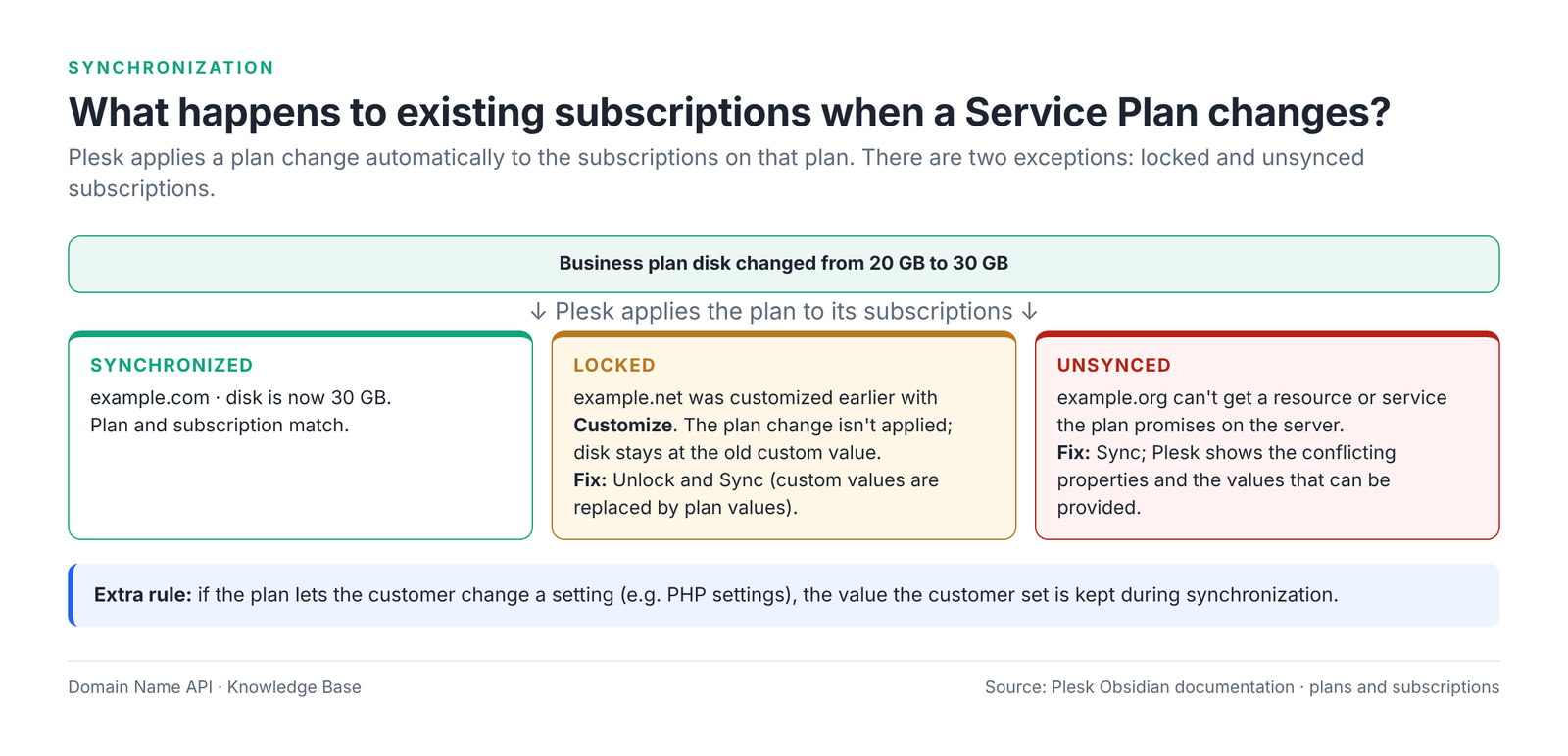
| Status | Why it happens | Is the plan change applied? | Fix |
|---|---|---|---|
| Synchronized | The subscription is linked to the plan and not customized | Yes, automatically | – |
| Locked | The subscription's resources or permissions were changed individually with Customize | No; custom values are kept | Unlock and Sync: the lock is removed and custom values are replaced by plan values |
| Unsynced | A resource or service the plan promises can't be provided on the server (e.g. scripting support the server doesn't have) | Partly; what can't be provided isn't applied | Sync: Plesk shows the conflicting properties and the values it can provide; you can confirm or cancel |
- If I change the Service Plan, do all customers change? Every subscription on the plan that isn't locked changes. To change one customer, use Change Plan or an add-on.
- What happens if I customized a subscription by hand? The subscription is locked and no longer receives plan changes. That's fine if it's a deliberate exception; if forgotten, it leads to the "I changed the plan but the customer didn't change" problem.
- How do I synchronize it with the plan again? Open the subscription from the Subscriptions list; use Unlock and Sync if it's locked, or Sync if it's unsynced. Unlock and Sync removes custom values, so note them first.
What is an Add-on Plan and when should you use it?
An Add-on Plan lets you add resources or services to a subscription without changing its main plan. For example, if a customer on the Business plan only needs extra mail space, you can cover it with an add-on such as Business + Extra Disk 10 GB. The subscription stays linked to its plan and isn't locked.
- Add-ons are created in the reseller panel under Service Plans, in the Add-on Plans section (if your reseller permissions allow it).
- A subscription can have several add-ons, but the same add-on can be added only once.
- If overselling isn't allowed, the extra resources an add-on provides also come off your allocation.
- If you don't see Add-on Plans in your panel, moving to a bigger plan with Change Plan is the right way.
Do I need to upgrade?
Not every limit problem needs an upgrade. Most disk problems come from large mailboxes, old backups and growing logs; traffic spikes mostly come from bot traffic or directly linked large files. An upgrade is the right decision when the same limit keeps filling up regularly after you've found and cleaned up the cause.
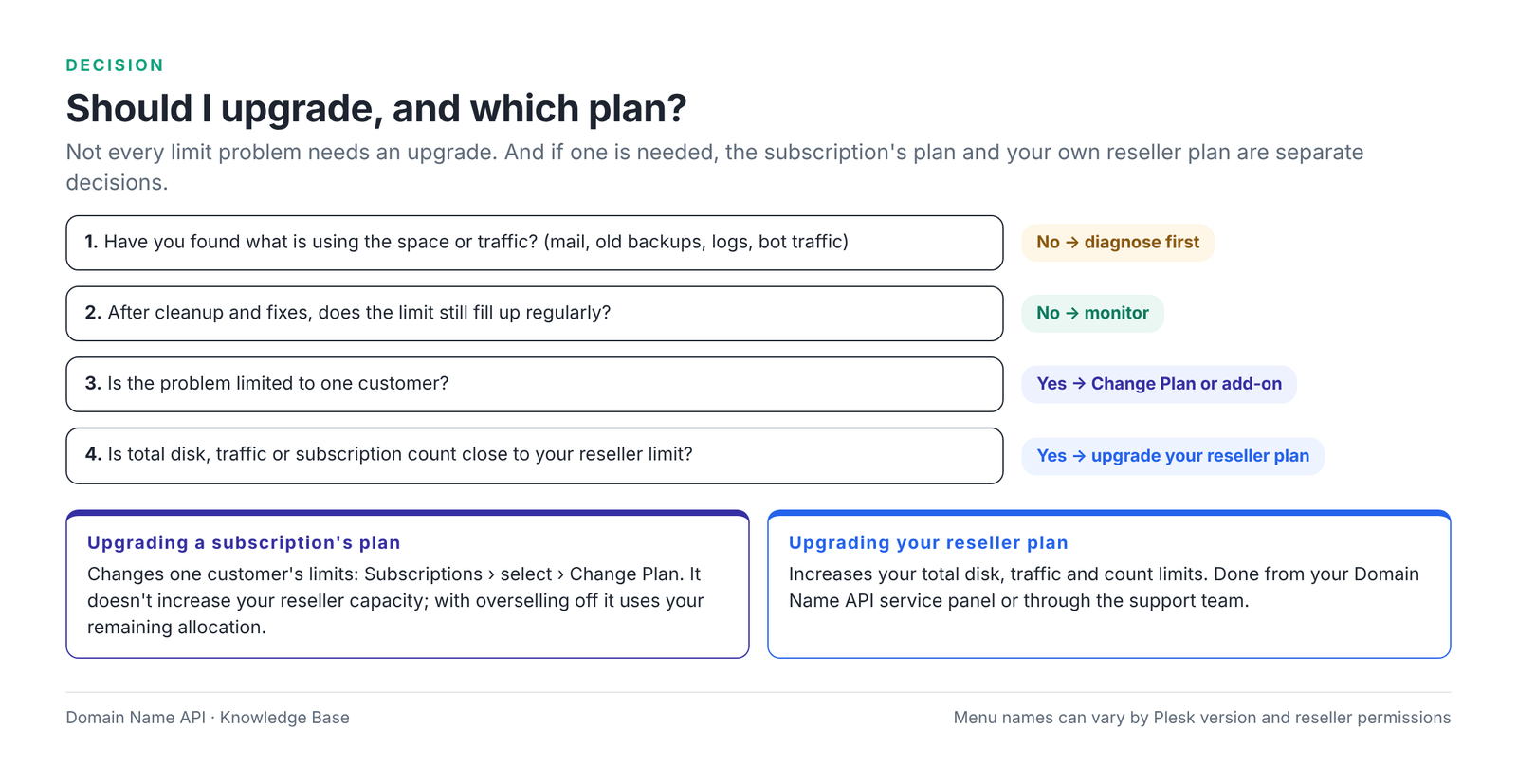
| Upgrading a subscription's plan | Upgrading your reseller plan | |
|---|---|---|
| What does it change? | One subscription's limits | Your total disk, traffic and count limits |
| Where is it done? | Subscriptions › Change Plan (or an add-on) | Your Domain Name API service panel or the support team |
| When? | One customer keeps hitting their own limit after cleanup | Total allocation or usage is close to your reseller limit, or you've reached a count limit |
| What doesn't it do? | It doesn't increase your reseller capacity | It doesn't enlarge any customer's limit by itself |
Not every slow site is a resource problem
If a site is slow but no limit is full, upgrading the package won't fix it. The cause of slowness is often the application itself. Check these possibilities first:
| Possible cause | How to recognize it | First action |
|---|---|---|
| Application, plugin or theme | It speeds up when a particular plugin is disabled | Replace the plugin or simplify its settings |
| Database | Some pages are slow, others fast | Look at slow queries and large tables |
| External API or service | The page slows while waiting for an outside service | Shorten the timeout, cache the result |
| DNS | The first connection is slow, then fast | Check DNS records and the provider |
| Network | Slow only from certain regions | Consider a CDN; share a network test with support |
| PHP version and settings | Old PHP version, low memory setting | Move to a supported current PHP version |
| IIS (Windows) | The application pool restarts often | Check application logs and pool settings |
| No caching | Every request goes to PHP and the database | Use page and object caching |
| Bot traffic | Many requests from the same IP or user agent in the logs | Bot blocking, robots.txt, WAF/CDN rules |
| Malware | Unknown files, unexpected outgoing email | Scan, clean up, change passwords |
Real-world scenarios
Scenario 1 — A subscription's disk is 95% full
Symptom: The customer can't upload files or sees a limit warning in the panel.
Diagnosis: Disk usage in the Subscriptions list is 19 / 20 GB. Statistics shows large mailboxes and backups.
Where to check: Subscriptions list; subscription › Statistics; Mail tab.
Right action: Download and delete old backups, plan archiving large mailboxes with the customer, check growing logs. If files can't be written, check the Hard disk quota too.
Is an upgrade needed? If it's still above 80% after cleanup, move the subscription up a plan with Change Plan.
Scenario 2 — The website is small but the disk is full
Symptom: The website is 1 GB, the subscription uses 18 GB.
Diagnosis: Statistics shows mailboxes at 14 GB.
Where to check: Subscription › Statistics; subscription › Mail.
Right action: Find the largest mailboxes; talk to the customer about archiving or deleting old mail. Review the Mailbox size limit if needed.
Is an upgrade needed? If mail usage is lasting, move to a plan with a larger disk limit or an extra disk add-on.
Scenario 3 — Approaching the traffic limit
Symptom: Mid-month traffic is at 180 / 200 GB.
Diagnosis: Statistics shows high HTTP traffic; logs show thousands of requests from the same user agent and directly linked large files.
Where to check: Subscription › Statistics; site access logs.
Right action: Block bot traffic, move large files to a CDN or external storage, optimize images. Check whether your overuse policy suspends the subscription.
Is an upgrade needed? Yes, if the growth comes from real visitors and is lasting.
Scenario 4 — No subscription is at its limit, but reseller capacity is full
Symptom: A capacity error when creating a new subscription; no existing customer is at their limit.
Diagnosis: Overselling isn't allowed; the total of allocated limits has reached the reseller disk, while real usage is low.
Where to check: My resources and permissions overview; total of limits in the Subscriptions list.
Right action: Close unused subscriptions, move subscriptions with oversized limits to a suitable plan.
Is an upgrade needed? If you need room for new sales, upgrade your reseller plan.
Scenario 5 — The Service Plan changed but the customer's limits didn't
Symptom: Business plan disk was raised from 20 GB to 30 GB; one customer still sees 20 GB.
Diagnosis: The subscription is Locked in the list: it was customized earlier with Customize.
Where to check: Subscriptions list; subscription details.
Right action: Note the custom values and apply Unlock and Sync. If the subscription is unsynced, review the conflicting properties with Sync.
Is an upgrade needed? No. It's a synchronization problem.
Scenario 6 — A new subscription can't be created
Symptom: An error during Add Subscription.
Diagnosis: The reseller's customer/subscription/domain count limit has been reached or (if overselling isn't allowed) the remaining disk/traffic allocation isn't enough for the selected plan.
Where to check: My resources and permissions overview; the error message Plesk shows.
Right action: Check which resource the error message names; try a smaller plan or close unused subscriptions.
Is an upgrade needed? If the count or capacity is genuinely full, upgrade your reseller plan.
Scenario 7 — A customer needs more resources
Symptom: The customer wants extra mailboxes and extra disk.
Diagnosis: The need is specific to one customer; other customers on the plan shouldn't be affected.
Where to check: Subscriptions list; Service Plans; reseller resource summary.
Right action: Add an add-on plan if available; otherwise move them up a plan with Change Plan. Don't edit the Service Plan; if it's a one-off exception use Customize and know the subscription will be locked.
Is an upgrade needed? The subscription's plan, yes; the reseller plan only if your capacity isn't enough either.
Plesk resource and limit problems: troubleshooting table
| Problem | Likely cause | Where to check | First action |
|---|---|---|---|
| Disk limit full | Mail, backups, logs or web files | Subscriptions; subscription › Statistics | Find the item, clean up; Change Plan if needed |
| Files can't be written, subscription active | Hard disk quota full (Linux) | Service Plan › Hosting Parameters; Statistics | Free up space or review the hard disk quota |
| Mailbox full | Mailbox size limit | Subscription › Mail | Delete/archive old mail or raise Mailbox size |
| Traffic limit reached | Bot traffic, large files, a campaign | Subscription › Statistics; access logs | Block bots, move large files to a CDN |
| Database has grown | Log, session and temporary data tables | Subscription › Databases | Clean unneeded tables |
| Backups taking up space | Backups piling up inside the subscription | Subscription › Statistics (Backups) | Download and delete; keep backups outside the subscription |
| Logs have grown | A recurring application error, log rotation | Statistics; Logs | Fix the error; check log rotation settings |
| Can't add a new domain | Domains limit reached | Service Plan › Resources | Delete an unused one or upgrade the plan |
| Can't create a new mailbox | Mailboxes limit reached | Service Plan › Resources; Mail | Close unused mailboxes or add-on/Change Plan |
| Can't create a new database | Databases limit reached | Service Plan › Resources; Databases | Delete an unused one or upgrade the plan |
| Can't create a new subscription | Reseller count limit or remaining allocation | My resources and permissions overview; error message | Try a smaller plan; free allocation or upgrade the reseller plan |
| Service Plan isn't applied | Subscription locked or unsynced | Subscriptions list | Unlock and Sync or Sync |
| Plan changed but subscription didn't | Subscription locked by Customize | Subscriptions list (Locked) | Note custom values, then Unlock and Sync |
| Subscription locked | Customized with Customize | Subscription details | Unlock and Sync unless it's a deliberate exception |
| Subscription overused | Disk or traffic limit exceeded; overuse allowed | Subscriptions list; Statistics | Reduce usage or upgrade the plan; set notification thresholds |
| Subscription suspended | Overuse is not allowed and the limit was exceeded | Subscriptions (status); Statistics | Reduce usage and reactivate; review the overuse policy |
| Reseller capacity full | Allocation (no overselling) or usage (with overselling) | My resources and permissions overview | Rebalance allocation or upgrade the reseller plan |
| Customer limit full | The subscription's plan isn't enough | Subscriptions | Clean up; then Change Plan or add-on |
| Outgoing email can't be sent | Hourly sending limit (mailbox, domain or subscription) | Webmail error message; support | Find the source; check for a compromised account |
| Website slow but no limit hit | Application, PHP, database, DNS, bots | Site logs; PHP settings | See "Not every slow site is a resource problem" |
| An expected menu isn't visible in Plesk | Permission off or no reseller privilege | Service Plan › Permissions; reseller permissions overview | Turn the permission on; if you lack the privilege, talk to support |
Common mistakes
| Mistake | Why it's wrong | The right approach |
|---|---|---|
| Editing a Service Plan for one customer | Every synchronized customer on the plan changes | Use Change Plan or an add-on |
| Using Customize as a habit | The subscription is locked and stops receiving plan updates | Use it for exceptions and keep a list |
| Mixing up Disk space and Hard disk quota | One is a Plesk calculation, the other a file system quota | Find out which one is full first |
| Mixing up overselling and overuse | One is about allocation, the other about exceeding usage | Check the two settings separately |
| Mixing up Limit and Usage | The limit is a ceiling, usage is the current state | Look at both together |
| Mixing up Resource and Permission | Granting a permission adds no resources | Resources for "how much", Permissions for "what can they do" |
| Looking only at web files when the disk is full | Mail, backups and logs take up a lot of space | Look at the Statistics breakdown |
| Mapping traffic to visitor numbers | Page size, bots and files decide it | Find the cause with Statistics and logs |
| Upgrading for every slowdown | The cause is often in the application | Diagnose first |
| Looking for CPU/RAM in the Service Plan | Standard plans don't have these fields | Confirm the server's mechanism with support |
| Raising the limit straight away after hitting the sending limit | A compromised account may be sending spam | Find and clean the source first |
| Upgrading the reseller plan for one customer's problem | The customer's limit doesn't change | Work out which level the problem is at |
When should I open a support ticket?
Do your own checks first; they reveal the cause of most resource problems. If the problem continues, or you hit a limit your permissions don't let you change, open a support ticket. Check in this order:
- Subscription: find the subscription with the problem
- Usage: look at disk and traffic usage
- Limits: compare with the limits in Service Plan › Resources
- Statistics: review the disk breakdown and traffic by service
- Mail: large mailboxes and sending errors
- Database: database sizes
- Traffic: spikes caused by bots or large files
- Service Plan: locked/unsynced status and the overuse policy
- Reseller capacity: My resources and permissions overview
Include in the ticket: the domain, subscription name, customer, Service Plan, a description of the problem, its date and time, a screenshot, the relevant usage and limit values, the full error message and the latest change made (plugin, plan change, Customize, new cron).
Frequently asked questions
Where can I see resource usage in Plesk?
In the reseller panel, every subscription's disk and traffic usage appears in the Subscriptions list. For a detailed breakdown of one subscription, open it and go to the Statistics screen. As a reseller you see your own total limits on Home › My resources and permissions overview.
Where can I see disk usage in Plesk?
You see a subscription's disk usage in the Subscriptions list and its breakdown by item (websites, mailboxes, databases, logs, backups) on subscription › Statistics. Individual mailbox and database sizes are on the Mail and Databases screens.
What is a Service Plan?
A Service Plan is a reusable template of the hosting resources, permissions and hosting settings you give a customer. A plan consumes no resources on its own. Assigning it to a customer creates a subscription, and when the plan changes, the subscriptions on it are updated automatically.
What is a Subscription?
A Subscription is the real hosting service created when a Service Plan is applied to a specific customer. Domains, websites, mailboxes and databases sit inside it. Its limits come from the plan and any add-ons, and usage values are also measured at subscription level.
What's the difference between a Service Plan and a Subscription?
A Service Plan is a template; a Subscription is that template assigned to a customer. Changing the plan affects every synchronized subscription on it; changing one subscription affects only that customer. Usage is measured at subscription level, not plan level.
What's the difference between a Resource and a Permission?
A resource decides how much of something can be used: disk space, traffic, the number of mailboxes or databases. A permission decides which feature the customer can use: DNS management, scheduled tasks or PHP settings. Granting a permission doesn't change any resource amount.
How do I change a subscription's limit?
The cleanest way is to move the subscription to a bigger plan with Subscriptions › Change Plan, or add an add-on plan if available. You can also change the subscription individually with Customize, but that locks it and stops it receiving plan changes.
Do customers change when I change a Service Plan?
Yes. Plesk applies the plan change automatically to every subscription on the plan that isn't locked. Subscriptions customized with Customize (locked) don't change. For settings the customer is allowed to change (e.g. PHP settings), the customer's value is kept.
Why isn't a subscription synchronized with its plan?
There are two possible reasons. If the subscription was customized with Customize, it's locked and doesn't receive plan changes; the fix is Unlock and Sync. If a resource or service the plan promises can't be provided on the server, the subscription is unsynced; the fix is Sync, and Plesk shows the conflicting properties.
What is a locked subscription?
A locked subscription is one whose resources or permissions were changed with Customize, independently of its Service Plan. To avoid overwriting the custom values, Plesk doesn't apply plan changes to it. Unlock and Sync removes the lock and aligns the values with the plan; this deletes the custom values.
What is overselling in Plesk?
Overselling lets a reseller allocate more disk and traffic to subscriptions than it has been assigned. When allowed, the reseller limit applies to real usage rather than the initial allocation. It's a reseller plan setting the reseller can't change; its status appears on My resources and permissions overview.
What is overuse?
Overuse is when a subscription exceeds its own limit, and the Service Plan's overuse policy decides what happens. There are three options: overuse isn't allowed and the subscription is suspended, only disk and traffic overuse is allowed, or overuse is allowed on every resource. An optional email notification can be set.
What's the difference between overselling and overuse?
Overselling is about allocation: can the reseller hand out more than its capacity? Overuse is about usage: what happens when a limit is exceeded? Overselling is set only in the reseller plan; overuse is set both in the reseller plan (the reseller's own usage) and in the Service Plan (subscription usage).
What is traffic in Plesk?
Traffic is the total amount of data transferred from a subscription in a month; it isn't internet speed. The Statistics screen breaks it down by service, such as HTTP, FTP, SMTP and POP3/IMAP. The overuse policy decides what happens when the monthly limit is exceeded; traffic resets at the start of each month.
Is traffic the same as bandwidth?
In hosting, "bandwidth" is often used to mean monthly data transfer, and in that sense it's the same as Plesk's Traffic. Bandwidth in the sense of connection speed is a different concept. The Plesk limit isn't a speed; it's the total data transferred in a month.
Does mail count towards the disk quota?
By default Plesk can include mailboxes in a subscription's Disk space, but the server administrator decides which items count. Each mailbox also has its own Mailbox size limit. If the website is small but the disk is full, mailboxes are the first place to look.
Do databases count towards disk usage?
Whether databases count towards Disk space depends on server settings; the Statistics screen shows databases as a separate item. The Databases resource in the Service Plan limits the number of databases. On Windows Plesk there may be separate quota fields for database size.
Do backups count towards the disk quota?
Backup files kept inside the subscription can count towards Disk space depending on server settings, and they appear as a separate item on the Statistics screen. Downloading old backups to your computer or external storage and deleting them from the subscription frees space quickly.
How many customers can I host?
There's no single right number. If your reseller plan has a customer or subscription count limit, that's the ceiling; beyond that, disk, traffic, mail use and your customers' application types decide. 100 brochure sites and 100 online shops don't use the same resources. Review capacity when total usage reaches 80%.
Why can't I create a new subscription?
The most common reasons are reaching the customer, subscription or domain count limit on your reseller plan, or, if overselling isn't allowed, the selected plan not fitting your remaining disk or traffic allocation. The error message Plesk shows names the resource that isn't enough; try a smaller plan or free up allocation.
How do I upgrade a customer's package?
In the reseller panel, open the Subscriptions list, select the subscription, click Change Plan, choose the target plan and apply with OK. If the customer only needs extra disk or extra mailboxes, adding an add-on plan may be enough. Then check the new limits in the list.
When should I upgrade my reseller plan?
Upgrade your reseller plan when your total disk or traffic usage (or your total allocation if overselling isn't allowed) approaches your reseller limit, or when you reach the customer or subscription count limit. One customer's limit problem doesn't need a reseller plan upgrade; changing that customer's plan is enough.
Where can I see CPU/RAM limits?
Standard Plesk Service Plans have no CPU or RAM fields. On Linux, Plesk Cgroups Manager or CloudLinux, and on Windows, IIS application pool settings, can apply these limits if present, and the related fields then appear on the plan screens. If they don't appear, confirm your account's situation with our support team.
Should I upgrade if the site is slow?
No, find the cause first. If no limit is full, slowness usually comes from the application, the database, external services, the PHP version, bot traffic or missing caching. Consider an upgrade only if the same limit keeps filling up regularly after these are fixed.
Are the mail disk quota and the sending limit the same thing?
No. The disk quota and Mailbox size limit how much mail can be stored; the outgoing mail limit caps how many messages can be sent per hour. Free space in a mailbox doesn't mean the sending limit hasn't been reached; once it's exceeded, new outgoing messages are rejected.
How do I know I've reached the email sending limit?
You get an error when sending, such as "limit on the number of allowed outgoing messages was exceeded"; in webmail it can appear with the code 554 5.7.0. The limit may have been reached at mailbox, domain or subscription level. If there's a sudden spike, check first whether the account has been compromised.
Related guides
- How to Create a Service Plan in Plesk
- How to Add Your First Customer in Plesk
- How to Restore a Backup in Plesk
- How to Migrate a Website to Plesk
Do your subscriptions keep running into resource or limit problems?
Open a ticket with our support team. Include the domain, subscription, customer, Service Plan, usage and limit values, date and time and a screenshot.
Open a Support TicketSell hosting under your own brand
Explore Plesk Reseller Hosting packages to sell hosting under your own brand.
Explore Plesk Reseller Hosting