Automate Hosting Sales with WHMCS: Setting Up and Using the Domain Name API Reseller Hosting Module
The short answer
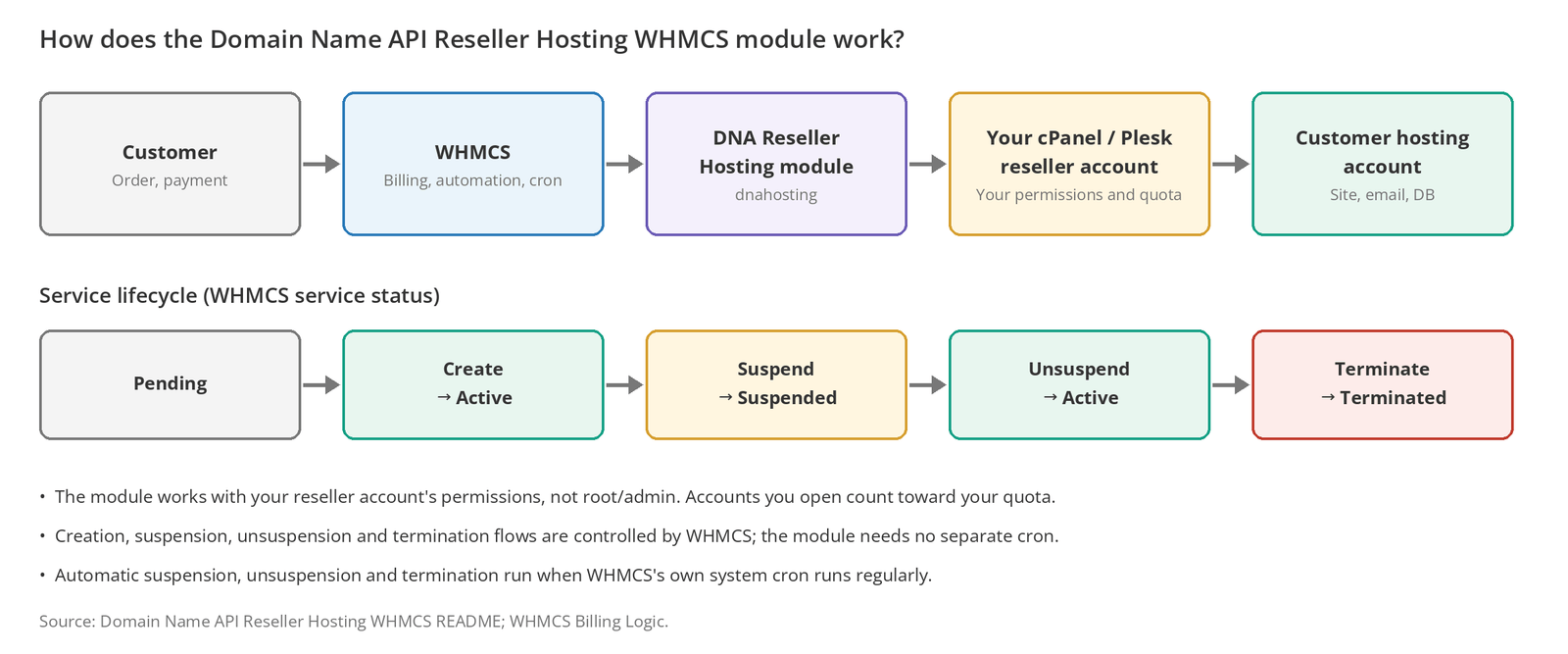
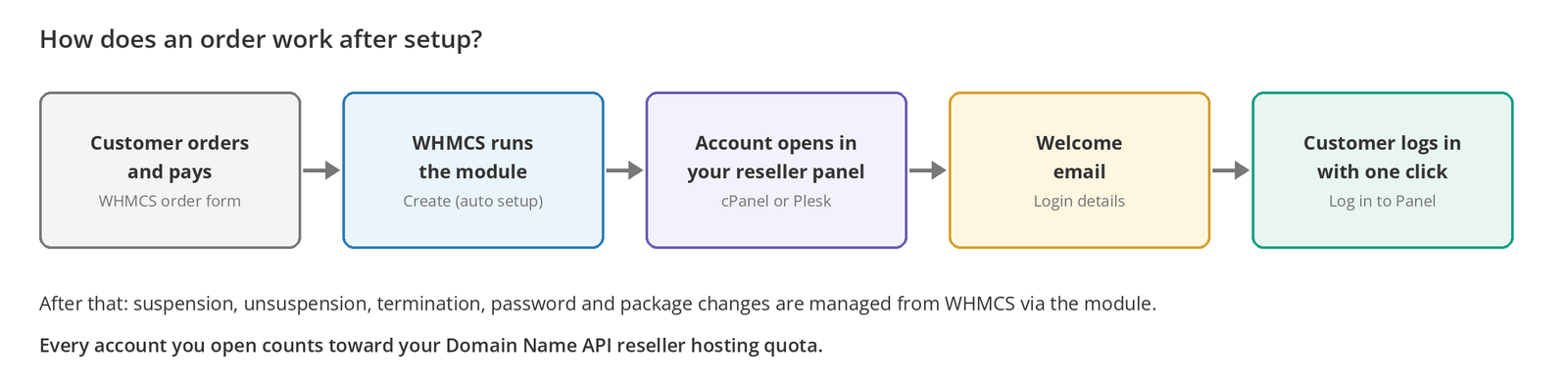
The Domain Name API Reseller Hosting WHMCS module (DNA Reseller Hosting) connects your cPanel or Plesk reseller account to WHMCS. When a customer buys hosting in WHMCS, the account opens automatically in your reseller panel. Suspension, unsuspension, termination, password changes, and package changes are also managed from WHMCS.
Setup takes four steps: copy the dnahosting folder into WHMCS, add the server with the details from your panel, create a server group, and link your product to the module. One module works with both cPanel and Plesk and detects the panel type on its own.
Who this guide is for: Domain Name API Reseller Hosting partners who want to automate hosting sales with WHMCS. Last updated: October 5, 2026 Sources: Official DNA Reseller Hosting module documentation (GitHub) and WHMCS documentation
The Short Version: Get the Module Running in 7 Steps
- Get your server address, username, password, and API token from the Domain Name API panel.
- Download the module from GitHub and copy the
dnahostingfolder intomodules/servers/in WHMCS. - In WHMCS, add the server under Servers > Add New Server and choose DNA Reseller Hosting as the module.
- Confirm the connection with Test Connection and save the server.
- Create a server group and add the server to it.
- In your hosting product's Module Settings tab, choose the module, the group, and the package name.
- Place a test order to confirm the account opens in your reseller panel.
Where should you start?
To start setup: Step 1: Get your connection details
Module already installed? Link your product: Step 6: Link your product to the module
Setup done? Day-to-day use: Using the module day to day
If something isn't working: Troubleshooting
What Does the Module Do?
DNA Reseller Hosting is a server (provisioning) module that lets you manage customer hosting accounts from WHMCS through the cPanel or Plesk reseller account you get from Domain Name API. The module works with your reseller account's permissions, not with root or admin access; every account you open counts toward your reseller quota.
| Feature | cPanel/WHM | Plesk |
|---|---|---|
| Account creation | Yes | Yes |
| Suspend / unsuspend | Yes | Yes |
| Termination | Yes | Yes |
| Password change | Yes | Yes |
| Package / plan change | Yes | Yes |
| One-click login to the customer panel | Yes | Yes |
| Disk and traffic usage sync | Yes | Yes |
| Server admin login (Log in to Server) | Yes | No |
| Per-product disk / traffic override | Yes | Set by the plan |
| Dedicated IP | Yes | Set by the plan |
Before You Start
| Requirement | |
|---|---|
| ☐ | An active Domain Name API Reseller Hosting service (its status in the panel must be active) |
| ☐ | WHMCS 7.8 or later |
| ☐ | PHP 7.2 – 8.4 with these extensions: curl, json, libxml, simplexml, mbstring |
| ☐ | cPanel/WHM 11.68+ or Plesk (XML-API protocol 1.6.3.0+); Domain Name API reseller accounts meet this requirement |
| ☐ | At least one package (cPanel) or Service Plan (Plesk) in your reseller panel |
| ☐ | Access to your WHMCS files (FTP, SFTP, or a file manager) |
If you don't have a package yet, create one first: see How to Create a Hosting Package in WHM for cPanel or How to Create a Service Plan in Plesk for Plesk.
Step-by-Step Setup
Step 1: Get Your Connection Details
For WHMCS to connect to your reseller account, it needs the server address, your reseller username, your password, and an API token. You receive these after your order, and you can view them at any time in the Domain Name API panel.
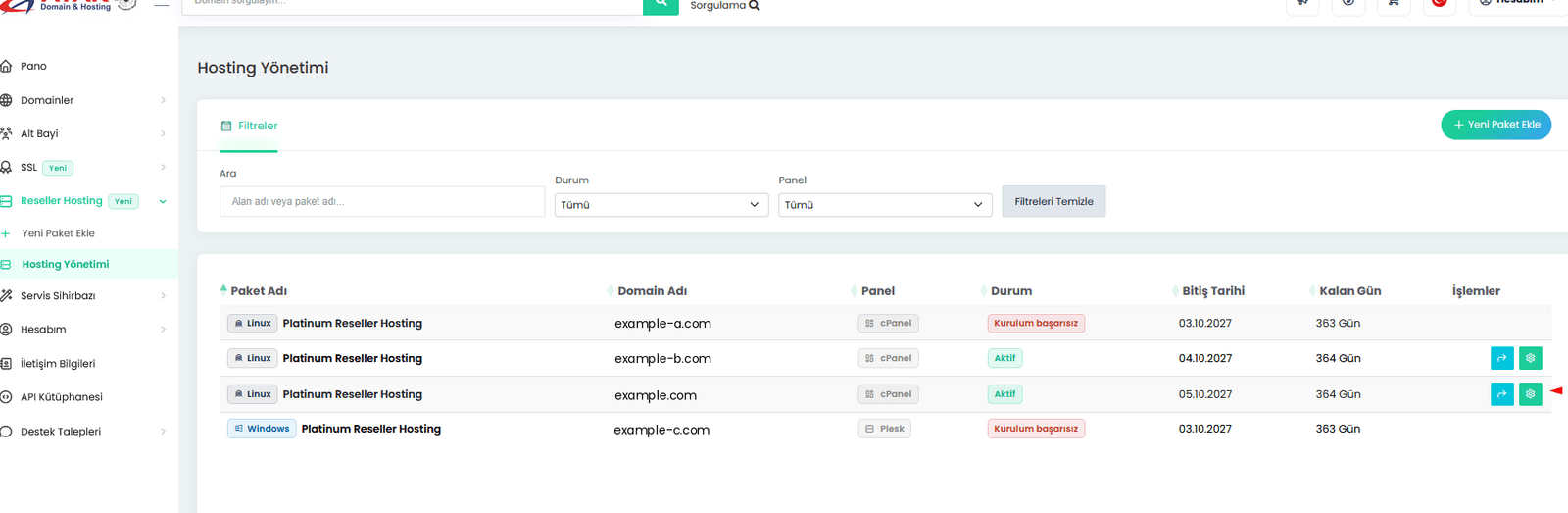
- Log in to the Domain Name API panel and open the Reseller Hosting section and its hosting list.
- Click the gear icon next to your active reseller hosting service.
- Open the Control Panel tab. The panel addresses, username, password, and API token appear here; copy them with the copy icons.
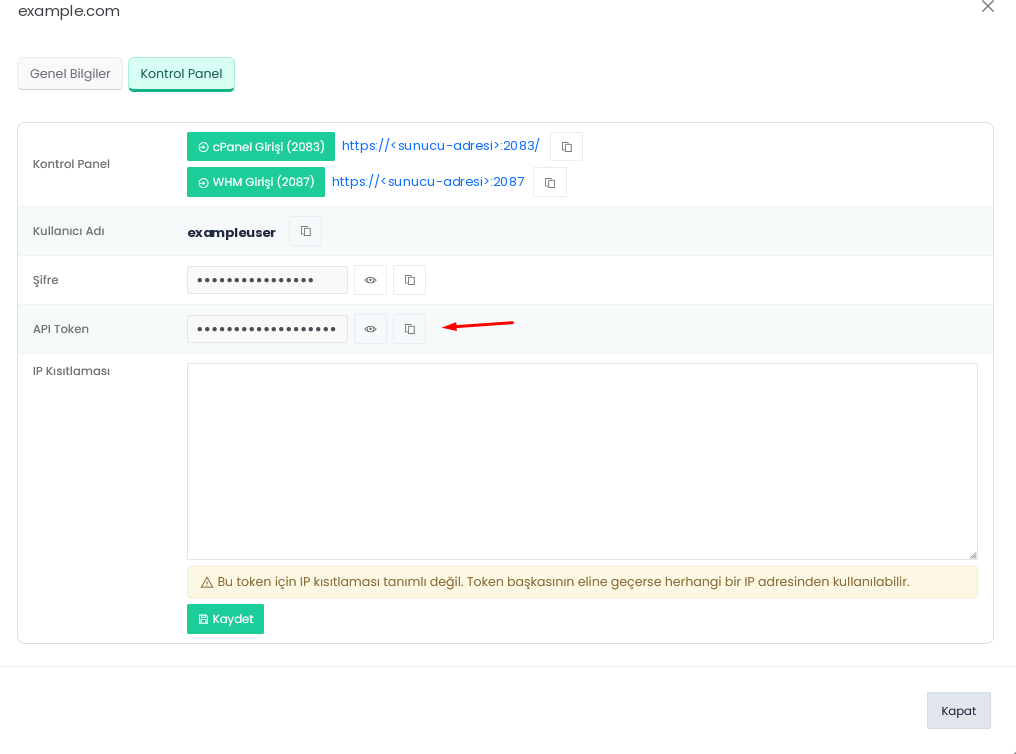
| What you see in the panel | Where it goes in WHMCS |
|---|---|
The server name in the panel address (e.g., <server-address> in https://<server-address>:2087) | Hostname (without https:// or a port) |
| Username | Username |
| Password | Password |
| API token (a WHM API token for cPanel, an API key for Plesk) | API Token / Access Hash |
Restrict the API token to your WHMCS server's IP address
If the IP restriction field in the Control Panel tab is empty, anyone who gets hold of the token can use it from any IP address. Enter your WHMCS server's outbound IP address (e.g., 192.0.2.10) in this field and save. Never share the token by email, in a support ticket, or in a screenshot.
If the service status shows a failed setup
Don't connect a reseller service to WHMCS unless its status is active. If your service shows a failed setup status, contact our support team.
Checkpoint
Expected result: You have the four details (server address, username, password, API token) stored securely.
Most common mistake: Copying the panel address with https:// and the port and pasting it into WHMCS as is.
Next: Upload the module to WHMCS.
Step 2: Download the Module and Upload It to WHMCS
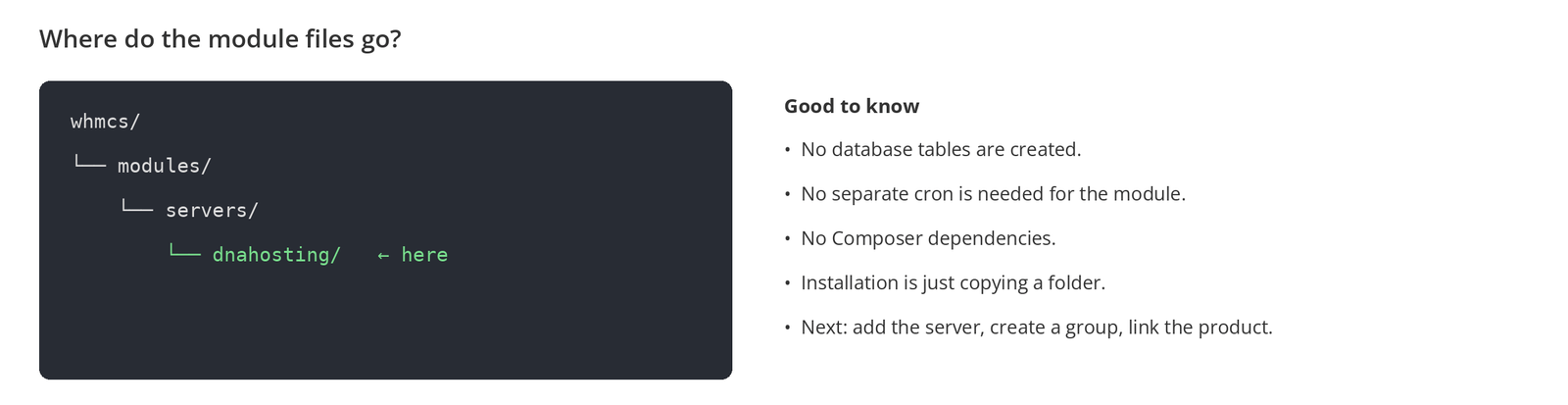
Download the module from GitHub and copy the dnahosting folder from the package into the modules/servers directory of your WHMCS installation. Module repository: domainreseller/reseller-hosting-whmcs. No database tables are created, no cron setup is needed, and there are no Composer dependencies.
Checkpoint
Expected result: The whmcs/modules/servers/dnahosting/ folder exists and contains the module files.
Most common mistake: Copying the folder one level too deep (servers/dnahosting/dnahosting/). The module then doesn't appear in WHMCS.
Next: Add the server.
Step 3: Add the Server to WHMCS
Go to Configuration > System Settings > Servers > Add New Server, choose DNA Reseller Hosting as the module, and enter the details from Step 1.
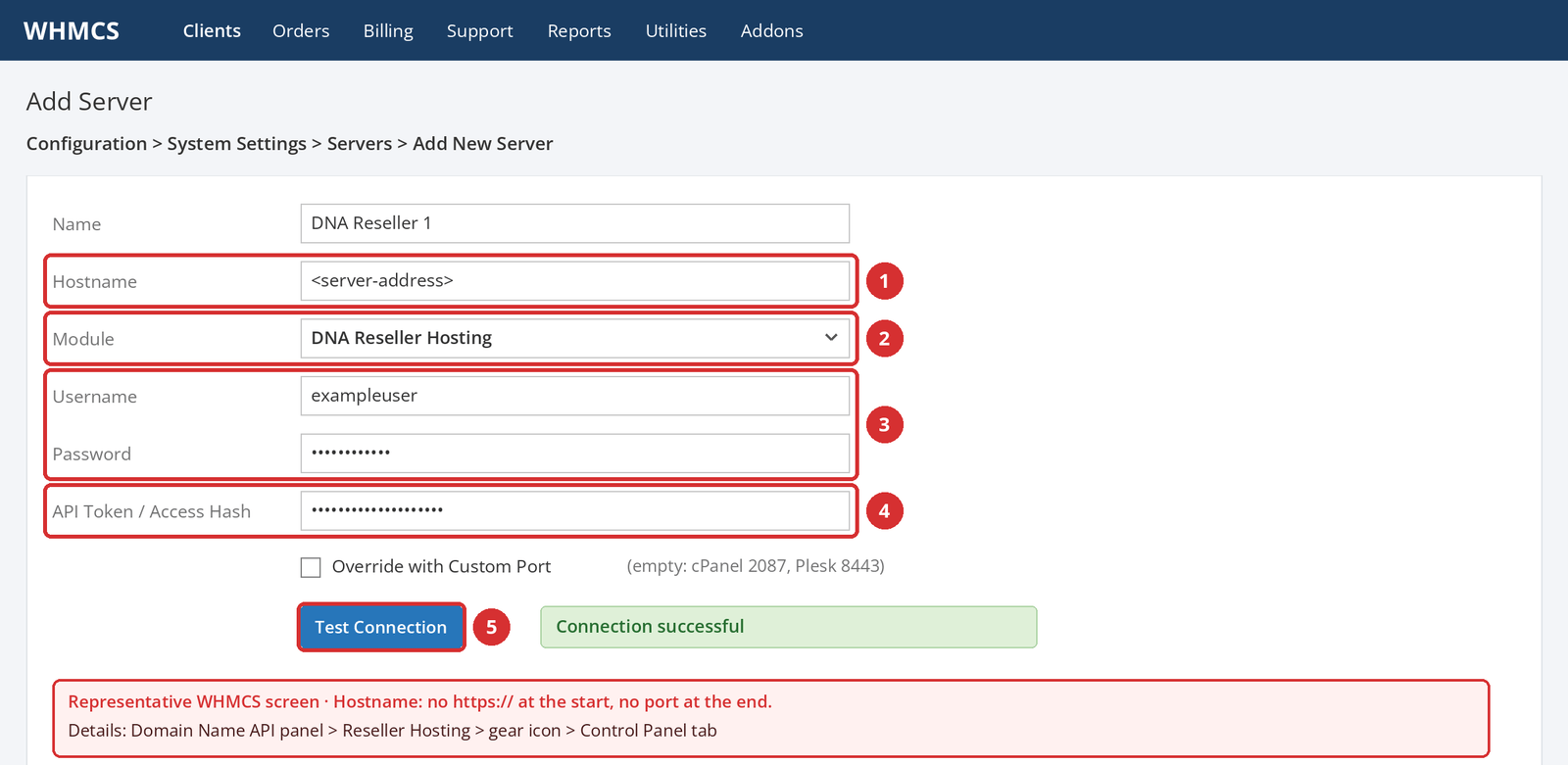
| Field | What to enter |
|---|---|
| Name | A descriptive name for your own use (e.g., DNA Reseller 1). |
| Hostname or IP Address | The server address, with no https:// at the start and no port at the end. |
| Module | DNA Reseller Hosting |
| Username | Your reseller username. |
| Password | Your reseller password. Not required if you use a token, but enter it anyway. |
| API Token / Access Hash | A WHM API token for cPanel, an API key for Plesk. |
Step 4: Test the Connection
Click Go to Advanced Mode > Test Connection. If the details are correct, you'll see a success message; then save the server.
If the connection fails, check the port first
cPanel uses port 2087 and Plesk uses 8443. If you leave the port field empty, the module picks the right port for the panel. If you use a different port, select Override with Custom Port and enter it.
Checkpoint
Expected result: Test Connection succeeds and the server is saved.
Most common mistake: Adding https:// or a port to the hostname, or generating the token in the cPanel interface (it must be generated in WHM).
Next: Create a server group.
Step 5: Create a Server Group
Use Servers > Create New Group to create a group and add the server to it, or add the server to an existing group. In WHMCS, products connect to a group, not directly to a server.
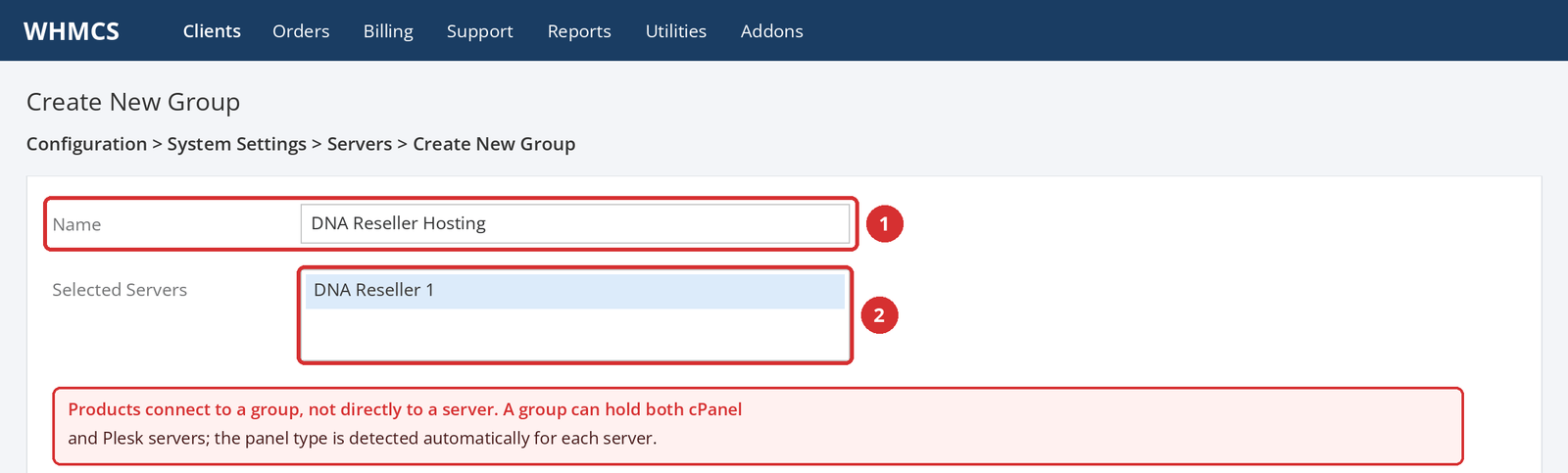
You can add both cPanel and Plesk servers to the same group; the module detects the panel type for each server automatically.
Step 6: Link Your Product to the Module
Create a new hosting product or edit an existing one under Configuration > System Settings > Products/Services, then choose the module, the group, and the package name in the Module Settings tab.
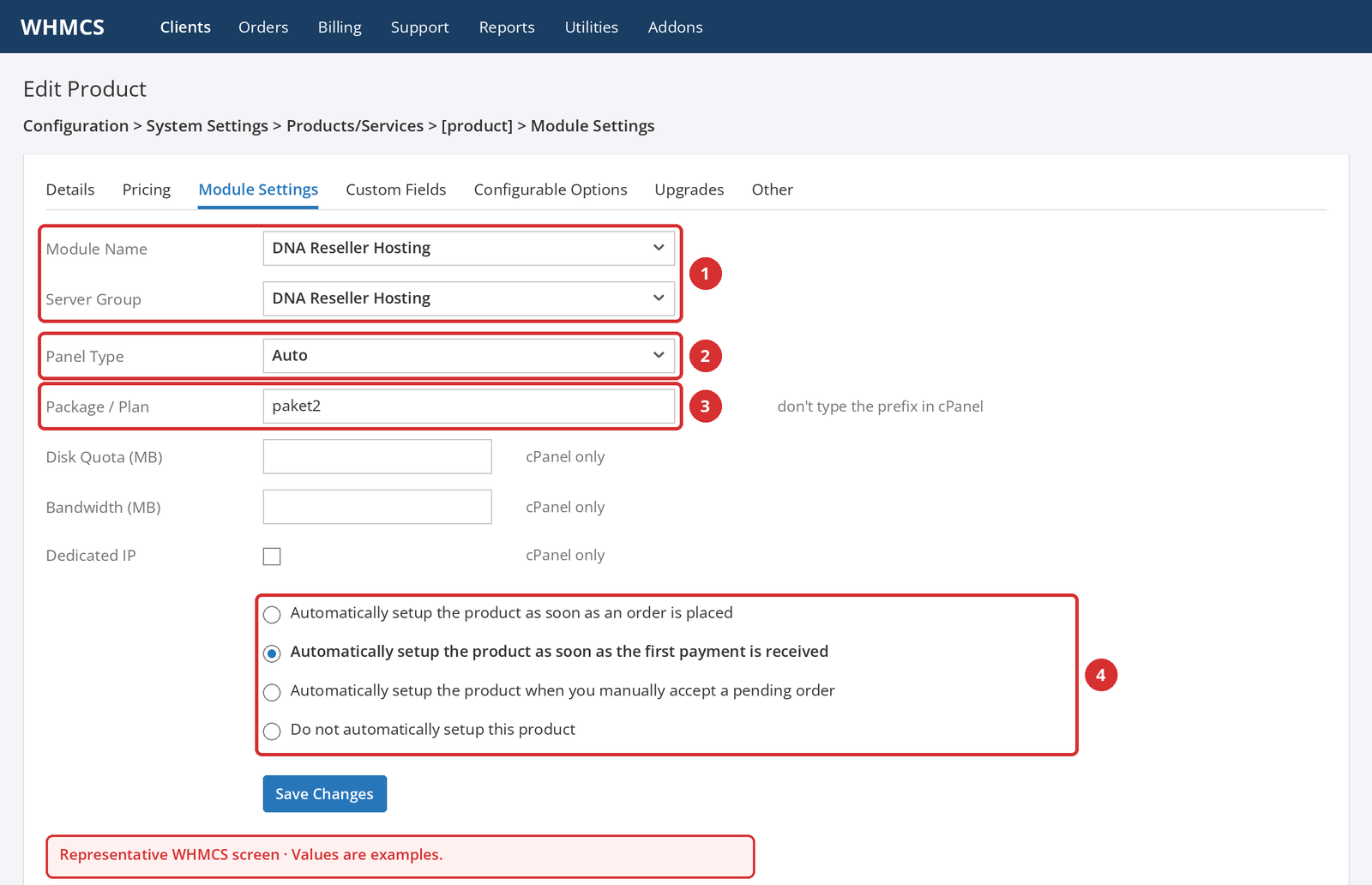
| Setting | Value | Note |
|---|---|---|
| Module Name | DNA Reseller Hosting | |
| Server Group | The group you created | |
| Panel Type | Auto | If you know your server type, you can choose cPanel or Plesk directly. |
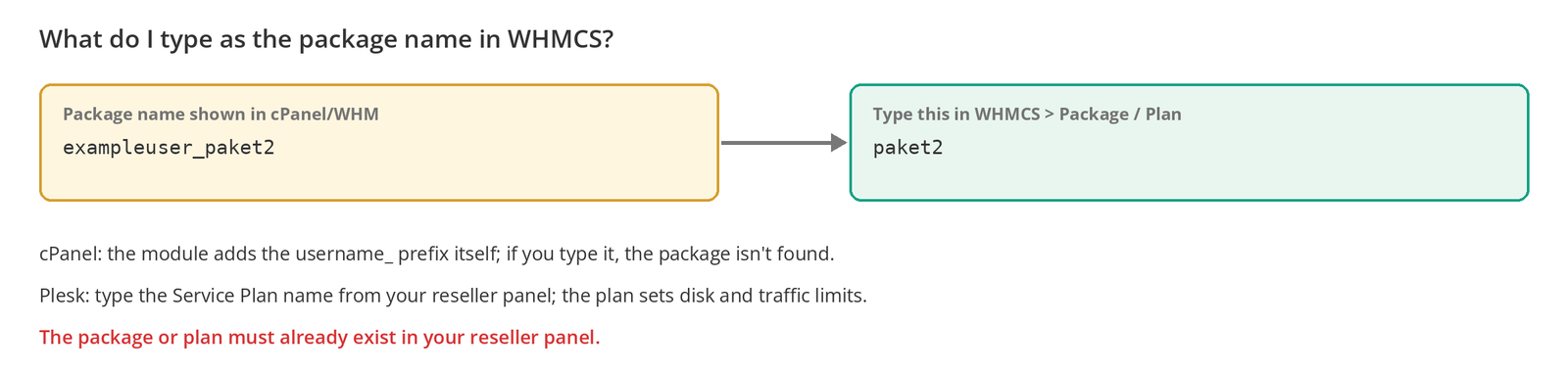
| Package / Plan | The package or plan name in your reseller panel | In cPanel, don't type the prefix (see below). |
| Disk Quota / Bandwidth (MB) | Optional | Applied only in cPanel. |
| Dedicated IP | Optional | Valid only in cPanel. |
In the same tab, choose when the product is set up automatically. For most resellers, Automatically setup the product as soon as the first payment is received is the right choice: the account opens when payment arrives. If you want to approve orders manually, use when you manually accept a pending order.
Checkpoint
Expected result: The product is saved, with DNA Reseller Hosting and the correct package name selected in Module Settings.
Most common mistake: Typing the cPanel package with its prefix (exampleuser_paket2). The module adds the prefix itself.
Next: Place a test order.
Step 7: Confirm with a Test Order
Before your first real customer, place an order for this product on behalf of a test customer and confirm end to end that the account opens.
| Check | |
|---|---|
| ☐ | After the order, the service became Active in WHMCS (or was created manually with Module Commands > Create). |
| ☐ | The account appears in your reseller panel (WHM or Plesk) with the correct package. |
| ☐ | The welcome email reached the customer. |
| ☐ | The Log in to Panel button in the client area takes the customer to their own panel. |
| ☐ | There's no error with the dnahosting: prefix in the Activity Log. |
When testing is done, remove the test service in WHMCS with Terminate. That also deletes the account from your reseller panel so it doesn't use your quota. If you only use Delete, the account stays in the panel.
Using the Module Day to Day
Once setup is complete, account creation, suspension, unsuspension, and termination are fully controlled by WHMCS. When you perform these actions in WHMCS, the module applies them in your reseller panel.
| What do you want to do? | Where in WHMCS? | Note |
|---|---|---|
| Create an account manually | Clients > [customer] > Products/Services > Module Commands > Create | If automatic setup didn't run. |
| Suspend / unsuspend an account | Module Commands > Suspend / Unsuspend | For late payment, use Suspend, not Terminate. |
| Close an account completely | Module Commands > Terminate | Can't be undone; take a backup first. |
| Change the customer's password | Module Commands > Change Password | The panel password is updated too. |
| Upgrade / downgrade a package | Module Commands > Change Package, or an upgrade from the client area | The target package must exist in your reseller panel. |
| Log in to the customer's panel | Client area: Log in to Panel | Works with cPanel and Plesk. |
| Log in to server administration | Servers list: Log in to Server | cPanel servers only. |
| See disk and traffic usage | Service page | The module passes usage data to WHMCS. |
Automatic suspension and termination
Automatically suspending unpaid services, unsuspending them after payment, and terminating long-unpaid services is handled by WHMCS's Automation Settings and system cron, not by the module. When WHMCS triggers these actions, the module carries them out in the panel. For the settings, see the Automation Settings page in the WHMCS documentation.
Differences Between cPanel and Plesk
| Topic | cPanel | Plesk |
|---|---|---|
| Disk and traffic limits | Set by the package; can be overridden with Disk Quota / Bandwidth in the product settings. | Set by the Service Plan. The product fields are ignored even if filled in, and a note is written to the module log. |
| Dedicated IP | Can be assigned through the product settings. | Set by the plan. |
| One-click customer panel login | Log in to Panel | Log in to Panel |
| Server admin login | Log in to Server works. | Not available; Plesk doesn't support redirect-based login. |
| Package name | Without the prefix (paket2). | The Service Plan name. |
Troubleshooting
When a module action fails, the first place to look is the Activity Log. The module records every failed action there with the dnahosting: prefix, the service number, and the domain.
| Log | Where? | When is it written? | What's in it? |
|---|---|---|---|
| Activity Log | Utilities > Logs > Activity Log | Always | Every failed action, with the dnahosting: prefix |
| Module Log | Utilities > Logs > Module Log | Only while Module Debug Mode is on | Every request sent to the panel and its response |
Module Debug Mode: Setup > General Settings > Other > Module Debug Mode. Turn it on just before reproducing the problem and turn it off when you're done. Lines with the note: prefix aren't requests; they're the module's own explanations. API tokens and customer passwords are never written to the logs in plain text.
| Symptom | Cause | Fix |
|---|---|---|
| The module doesn't appear in the Module list | The folder was copied to the wrong place or one level too deep. | Check that the path is exactly modules/servers/dnahosting/. |
| Could not determine whether this server runs cPanel or Plesk | Neither panel responded. | Check the port and token, or set Panel Type explicitly in the product settings. |
| WHM refused this login | The user isn't a reseller, or the token was generated in the cPanel interface. | Generate the token in WHM; use the details from the Control Panel tab. |
| Server returned HTTP 3xx (redirect) | Wrong port, or the panel redirects to a login page. | Use 2087 for cPanel and 8443 for Plesk; don't add https:// or a port to the hostname. |
| Plesk 11003 | The API key was generated for a different IP. | Regenerate the key for the WHMCS server's IP. |
| Plesk 1010 | The IP was restricted after repeated failed attempts. | Wait a few minutes. |
| Plesk 2204 | The panel accepted the request but failed while configuring its web server. | This is a server-side issue; contact our support team. |
| Account creation failed, package not found | The package name was typed with its prefix, or the package doesn't exist in the panel. | Type it without the prefix; check that the package exists in your reseller panel. |
| The connection suddenly stopped working | The token was regenerated, the password changed, or the IP restriction doesn't include the WHMCS IP. | Update the server settings and run Test Connection. |
| New accounts can't be created | Your reseller account's resource or account limit may be reached. | Check usage in your panel; upgrade your plan if needed. |
About caching
The module caches which panel each server runs and the XML-API protocol version for seven days. Test Connection always clears this cache, and it's refreshed automatically when the server's address, port, username, or token changes. No credentials are stored in the cache.
Updating the Module
To move to a new version, replace the modules/servers/dnahosting/ folder with the folder from the new version and confirm the connection with Test Connection. Because the module stores product settings by position, new settings are only ever added to the end of the list, so your existing product settings are kept. Version changes are listed in the CHANGELOG.md file in the repository.
Frequently Asked Questions
What is the Domain Name API Reseller Hosting WHMCS module?
DNA Reseller Hosting is a server module that connects the cPanel or Plesk reseller account you get from Domain Name API to WHMCS. When customers buy hosting in WHMCS, the account opens automatically; suspension, unsuspension, termination, and password and package changes are also managed from WHMCS.
Where do I download the module?
Download it from Domain Name API's GitHub repository (domainreseller/reseller-hosting-whmcs). To use it, you need an active Domain Name API Reseller Hosting service and your own WHMCS license.
Does the module work with both cPanel and Plesk?
Yes. One module supports both panels and detects the panel type for each server automatically. The same product can be linked to a group containing both cPanel and Plesk servers. Disk/traffic overrides and Dedicated IP apply only in cPanel.
Where do I find the details to enter in WHMCS?
In the Domain Name API panel, open the Reseller Hosting section, click the gear icon next to your service, and open the Control Panel tab. The server address, username, password, and API token are shown there.
What should I enter in the Hostname field?
Enter only the server address: no https:// at the start and no port at the end. For example, if the panel shows https://<server-address>:2087, enter only the <server-address> part in WHMCS.
Test Connection fails. What should I do?
Check the port field first: cPanel uses 2087 and Plesk uses 8443; leave it empty and the module picks the right port. Then check that the hostname has no https:// or port, that the token was generated in WHM, and that the token's IP restriction includes your WHMCS server's IP.
What do I enter in the Package / Plan field?
Enter the package or plan name from your reseller panel. In cPanel, leave out the prefix: for a package shown as exampleuser_paket2, type only paket2. In Plesk, use the Service Plan name.
Do I need to set up a cron for the module?
The module itself needs no separate cron. However, automatic suspension, unsuspension after payment, and automatic termination depend on WHMCS's own system cron, so make sure the WHMCS cron runs regularly.
Where do the accounts I open count?
The module works with your reseller account's permissions. Every account opened from WHMCS counts toward your Domain Name API reseller hosting quota and appears in your reseller panel.
How does my customer log in to their panel?
The customer logs in to their cPanel or Plesk panel with one click using the Log in to Panel button in the WHMCS client area. The Log in to Server button in the servers list works only on cPanel servers.
Can I change disk and traffic limits for Plesk from WHMCS?
No. In Plesk, the Service Plan sets the limits. The Disk Quota and Bandwidth product fields are ignored even if filled in, and a note is written to the module log. To change a limit, edit the plan in Plesk.
Where should I look when an action fails?
First check the line with the dnahosting: prefix in Utilities > Logs > Activity Log. If you need more detail, turn on Module Debug Mode briefly and review the request sent to the panel and its response in the Module Log.
Is my API token safe?
The module never writes the token or customer passwords to the logs in plain text and stores no credentials in its cache. For extra security, restrict the token to your WHMCS server's IP address in the Control Panel tab.
Will I lose my product settings when I update the module?
No. The module stores product settings by position and only ever adds new settings to the end of the list. Just replace the folder with the new version and run Test Connection.
Next Steps
| Guide | When? |
|---|---|
| How to Create a Hosting Package in WHM / How to Create a Service Plan in Plesk | To prepare the package you'll sell in the panel. |
| How to Set Up Private Nameservers for Reseller Hosting | To give your customers nameservers under your own brand. |
Having trouble setting up or using the module?
In your support ticket, include your WHMCS and PHP versions, the panel type (cPanel/Plesk), the full error message, and the dnahosting: line from the Activity Log. Don't share your API token or password.
Open a Support TicketDon't have a reseller hosting service yet?
Sell hosting under your own brand with Domain Name API Reseller Hosting and automate it through WHMCS.
Explore Reseller Hosting