Set Up Your Private Nameservers: How to Create ns1/ns2 for Plesk Reseller Hosting
The short answer
To use private nameservers such as ns1.yourbrand.com and ns2.yourbrand.com with Plesk Reseller Hosting, you first register these names as host records with their IP addresses wherever your domain is registered. The nameservers then need to be defined on the Plesk server.
If you use Domain Name API, create the host records in your reseller panel and open a support ticket for the Plesk-side configuration. Once it's done, you can point your customers' domains to these nameservers.
Important: our support team handles the Plesk side
With Domain Name API Plesk Reseller Hosting, the Plesk (server-side) part of the private nameserver setup isn't done from your reseller panel. Create the host records for ns1 and ns2 in the panel, then open a support ticket; our team completes the server-side configuration. You don't need to look for this setting in Plesk.
Who this guide is for: Resellers on Plesk Reseller Hosting who want to offer hosting under their own brand. Last updated: October 4, 2026 Sources: Domain Name API product workflow and official Plesk Obsidian documentation
The Short Version: Set Up Private Nameservers in 5 Steps
- Decide which domain your nameservers will use (e.g.,
yourbrand.com). - Get the IP addresses for ns1 and ns2 from your service details or our support team.
- Create two host records, for ns1 and ns2, in the Domain Name API panel.
- Open a support ticket for the Plesk server configuration.
- Once you're told it's complete, test the setup and start using the new nameservers on customer domains.
Hands-on time: The panel steps take a few minutes. The server configuration by our support team and DNS updates take additional time.
Where should you start?
To create the host records: Step 1: Open Your Domain
Not sure which IP to enter? Which IP Addresses Should I Use?
To see what to write in your ticket: Step 5: Open a Support Ticket
To test the setup: Step 6: Test the Setup
If your nameservers aren't working: If Your Private Nameservers Aren't Working
Who Does What?
Setting up private nameservers on Plesk Reseller Hosting involves three tasks: you create the host records, our support team configures the Plesk server, and you point customer domains to your nameservers. They need to happen in that order.
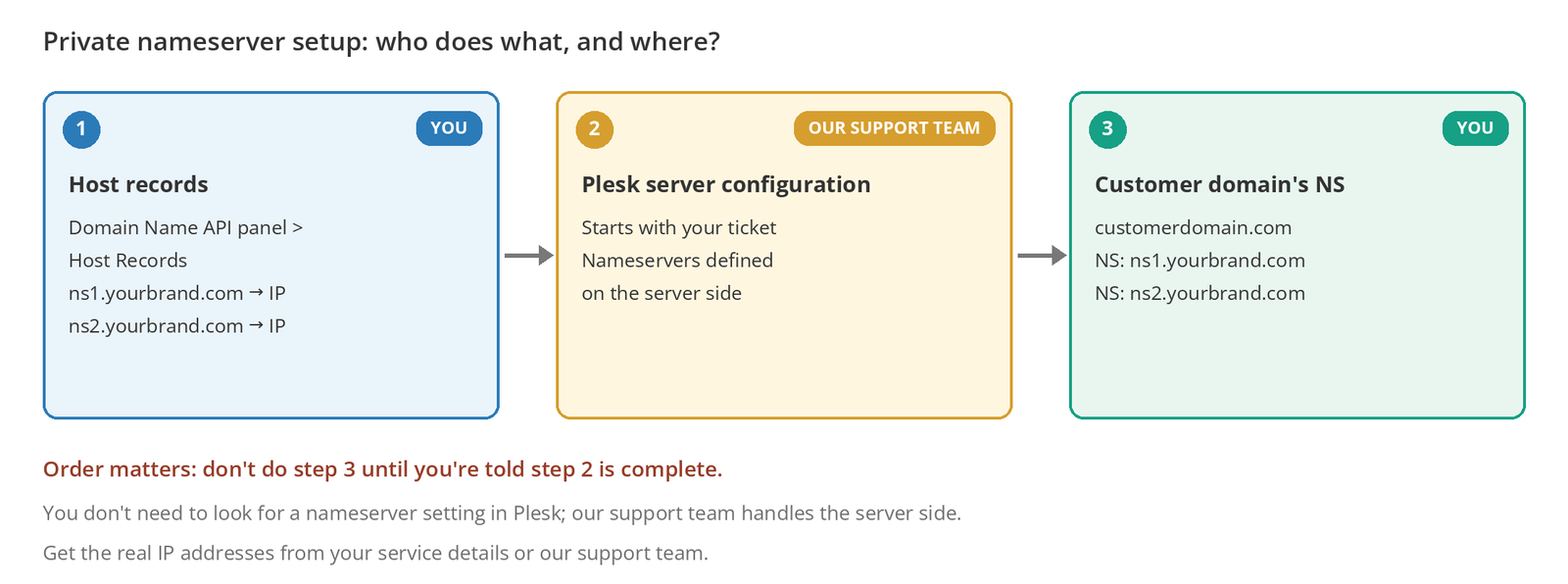
| Task | Who | Where | What it does |
|---|---|---|---|
| 1. Host record (child nameserver / glue) | You | Domain Name API panel > Host Records | Registers ns1.yourbrand.com and ns2.yourbrand.com with their IP addresses at the registry. |
| 2. Plesk server configuration | Our support team | Plesk / DNS server | Defines your nameservers on the server side. |
| 3. Customer domain nameserver change | You (or your customer) | Where the customer's domain is registered | Points the customer's domain to your nameservers. |
What Is a Private Nameserver?
A private nameserver lets your customers see your own domain, rather than your infrastructure provider's nameserver names, in their domain settings. Your brand appears at the nameserver level.
For example, your customer's customerdomain.com uses ns1.yourbrand.com and ns2.yourbrand.com. The DNS infrastructure behind them is the same; only the names your customer sees change. Other technical details, such as the server hostname, reverse DNS (rDNS), IP addresses, and email headers, can still reveal information about the underlying infrastructure.
Are Host Records, Plesk Configuration, and Nameserver Changes the Same Thing?
No. A host record introduces the nameserver name to the registry, the Plesk configuration lets the server answer with those nameservers, and a nameserver change points a customer's domain to them. None of them replaces the others.
In short
The host record says “this name lives at this IP”; the Plesk configuration prepares the server; the nameserver change connects a customer's domain to you. You need all three.
Before You Start
| Requirement | |
|---|---|
| ☐ | An active Domain Name API Plesk Reseller Hosting plan |
| ☐ | A domain you control, to use for your nameservers |
| ☐ | The IP addresses to use for ns1 and ns2 |
| ☐ | Access to your Domain Name API reseller panel |
| ☐ | An account that can open support tickets |
Is your domain registered elsewhere?
You create the host records in the panel of the company where your domain is registered. Our support team still handles the Plesk side. See What If My Domain Is Registered Somewhere Else?
Which Domain Should I Use?
Choose a domain you own, plan to keep for the long term, and that represents your brand. For example, with myhostingbrand.com, your nameservers would be ns1.myhostingbrand.com and ns2.myhostingbrand.com.
Changing your nameserver domain later can mean updating the nameserver settings of every customer domain that uses it, one by one. That's why domains bought for a campaign or a short-term project are a poor choice.
Which IP Addresses Should I Use?
Use the nameserver IP addresses Domain Name API has assigned to your Plesk Reseller Hosting service. If you can't find them in your service details, confirm them with our support team; don't guess.
| Don't | Why |
|---|---|
| Ping the Plesk panel address and use the IP that comes back | The panel and the DNS service may run on different addresses. |
| Use an IP you happened to see in a DNS lookup | That address may not provide nameserver service. |
| Use the example IPs in this article | 192.0.2.x addresses are reserved for documentation (RFC 5737) and don't work on the internet. |
| Copy an IP another reseller uses | Your service may be set up differently. |
Step-by-Step Setup
Step 1: Open Your Domain
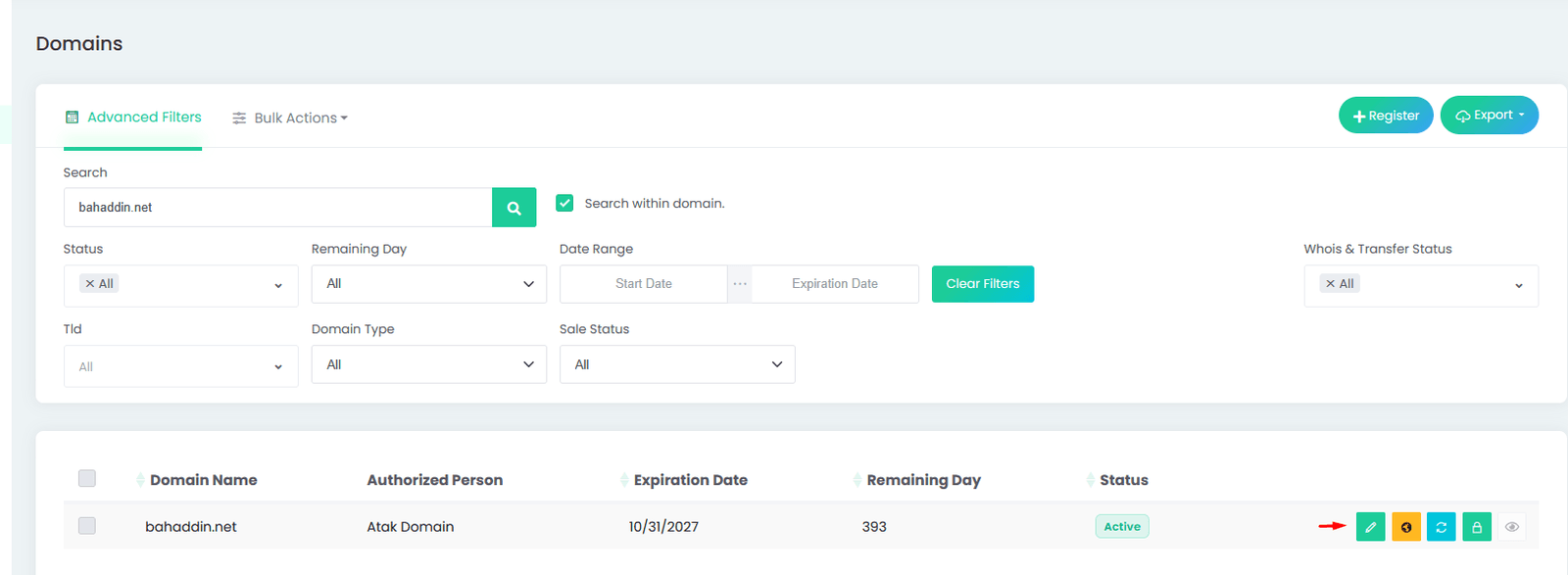
- In your Domain Name API reseller panel, open Domains.
- Type the domain you'll use for your nameservers into Search and click the search button.
- Make sure the domain's status is Active.
- Click the green pencil (edit) icon on the right side of the row.
Step 2: Go to the Host Records Tab
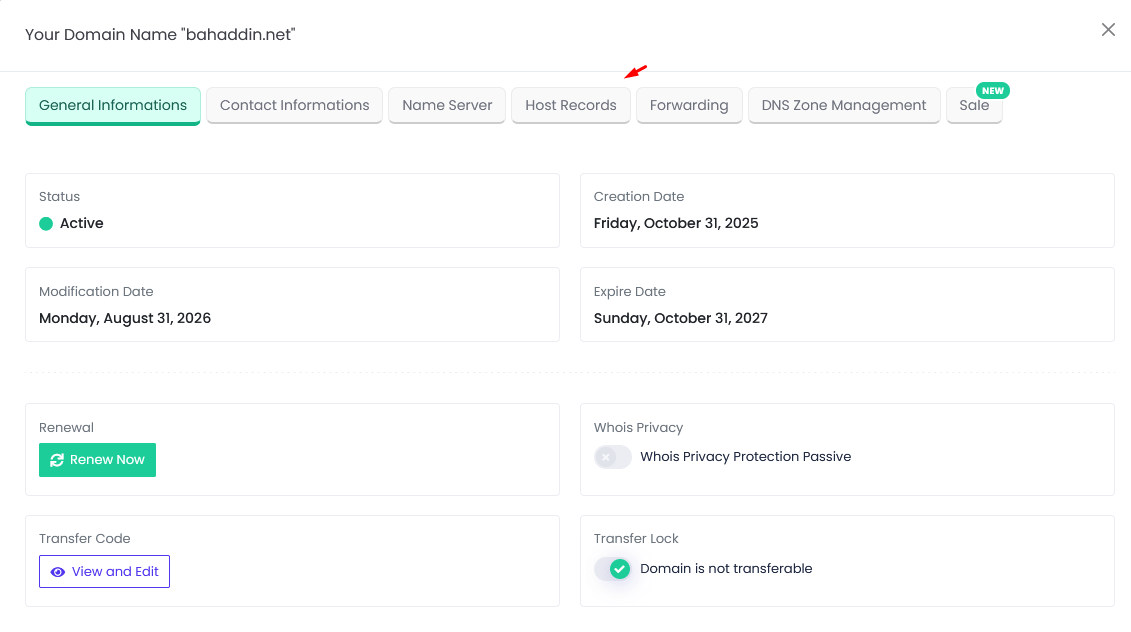
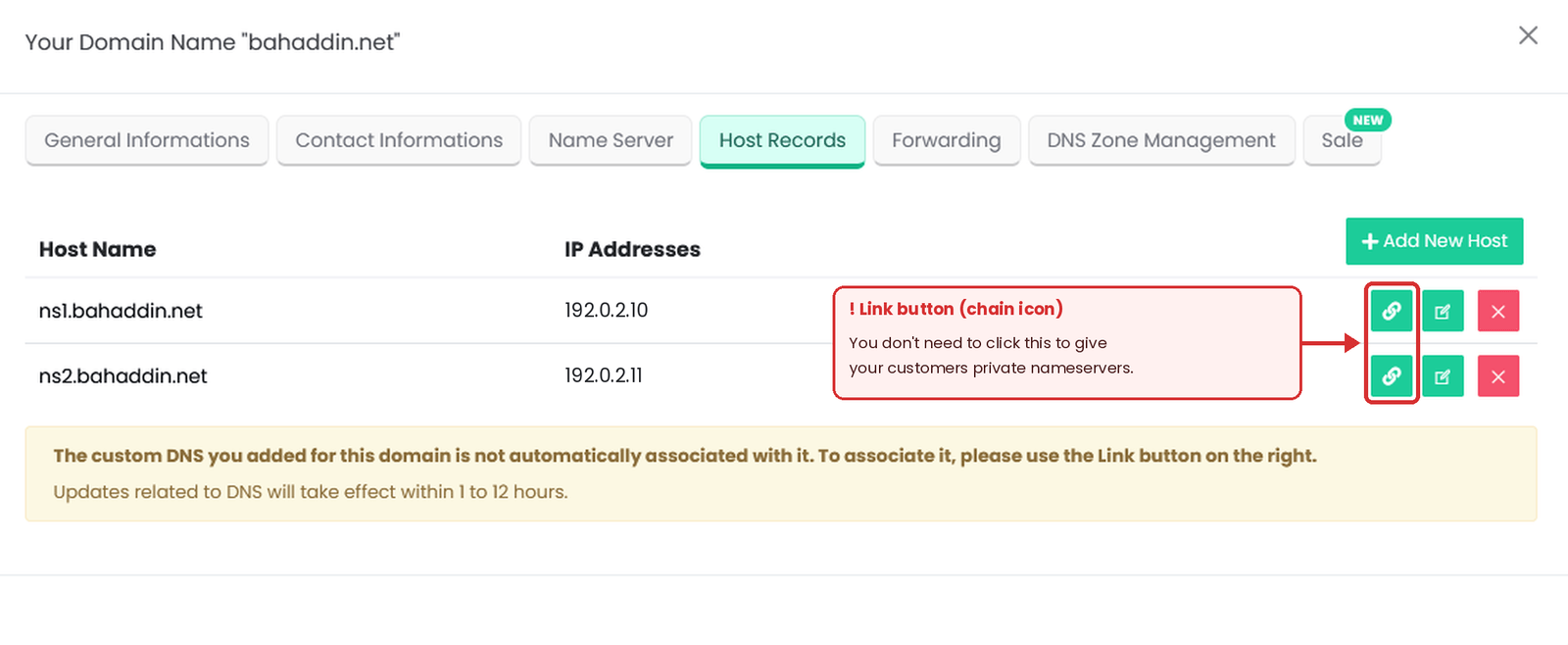
The domain window opens on General Informations. Click the Host Records tab. If you haven't added any records yet, the list will be empty.
Step 3: Create the ns1 Record
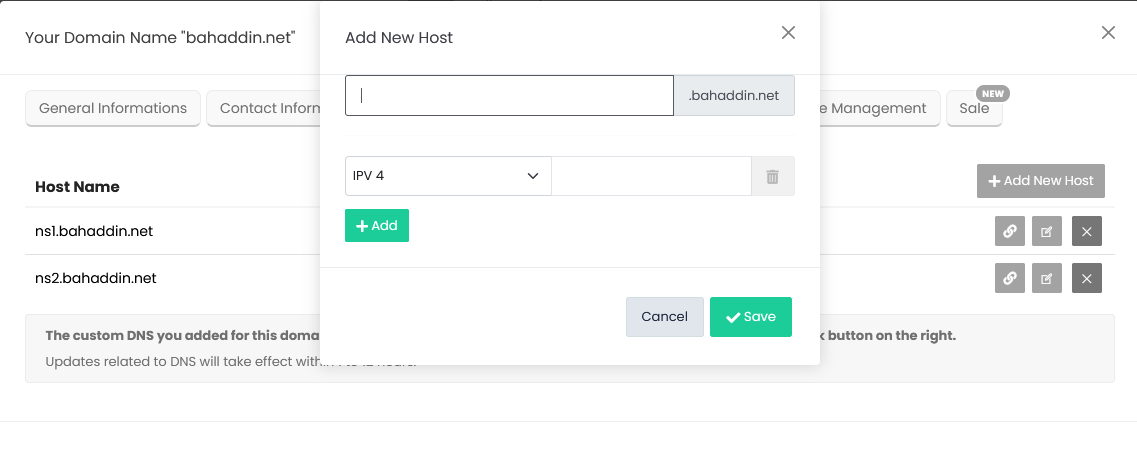
- Click Add New Host.
- In the first field, type only
ns1. The panel adds your domain (for example,.yourbrand.com) automatically. - Leave the type set to IPV 4 and enter the IPv4 address assigned to ns1.
- If you were also given an IPv6 address, click Add to open a new row and enter it there. If not, skip this.
- Click Save.
Checkpoint
Expected result: ns1.yourbrand.com in the Host Records list, with the IP address you entered.
Most common mistake: Typing the full name (ns1.yourbrand.com) into the form. Because the panel adds the domain for you, you'd end up with ns1.yourbrand.com.yourbrand.com.
Next: Repeat for ns2.
Step 4: Create the ns2 Record
Click Add New Host again, enter ns2 with the IP address assigned to ns2, and save. Both records should now appear in the list.
In general DNS practice, ns1 and ns2 on different IP addresses are preferred for redundancy. But if your service provides both names with the same IP address, that isn't a mistake; use the values you were given exactly.
| Before you open a ticket | |
|---|---|
| ☐ | The ns1 record is created. |
| ☐ | The ns2 record is created. |
| ☐ | The IP addresses match your service details or what our support team gave you. |
| ☐ | The domain isn't repeated in the record names. |
You don't need the Link button at this stage
The panel notes that the records you add aren't automatically associated with the domain and that you can use the Link button (chain icon) to do so. Linking is about switching your own domain (yourbrand.com) to these nameservers too.
You don't need to link your own domain to give customers ns1/ns2.yourbrand.com. If you move your own domain to the new nameservers before its DNS zone is ready, your website, email, and existing DNS records can be affected. If you want to move it as well, talk to our support team first.
Step 5: Open a Support Ticket
With Domain Name API Plesk Reseller Hosting, your private nameservers are defined on the Plesk side at the server level. Once you've created the host records, opening a support ticket is all you need to do; you don't have to change any server settings in Plesk.
This comes down to how Plesk works: in Plesk, every new domain's DNS zone is built from a server-wide DNS template, which is managed at the server administrator level. Under your hosting plan's permission and operating model, our team makes this configuration for you.
You can use this template for your ticket:
Subject: Plesk Reseller Hosting - Private Nameserver Setup Request
Hello,
I'd like to use the following private nameservers for my
Plesk Reseller Hosting service:
ns1.yourbrand.com
ns2.yourbrand.com
I've created the host records in the Domain Name API panel.
Please complete the nameserver configuration on the Plesk/server side.
Service / reseller account: [your service details]
Thank you.
Don't include passwords or API keys
Don't share your Plesk password, customer passwords, or API keys in a support ticket. Your nameserver names and service details are all we need to process the request.
Checkpoint
Expected result: Your ticket is open. You'll be notified through the ticket when the configuration is complete.
Most common mistake: Moving customer domains to the new nameservers before support has finished. Customer sites may become unreachable.
Next: Once you're told it's complete, test the setup.
Step 6: Test the Setup
After you're told the configuration is complete, open Command Prompt on Windows, or Terminal on macOS and Linux, and run these two lookups:
# 1) Does your nameserver resolve to the right IP?
nslookup ns1.yourbrand.com
# 2) Does the domain you pointed for testing show your nameservers?
nslookup -type=NS customerdomain.com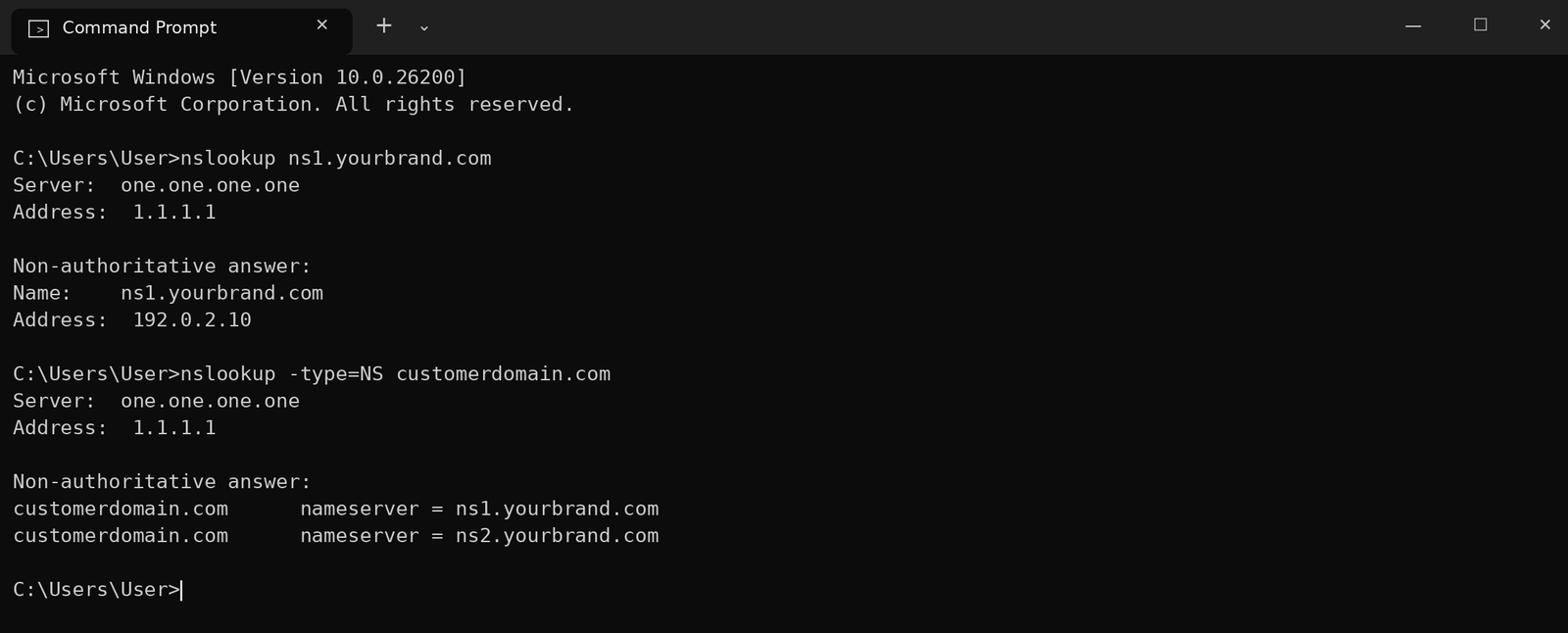
“Non-authoritative answer” isn't an error
It means the answer came from an intermediate DNS resolver (1.1.1.1 in this example) rather than directly from the domain's own nameserver. What matters is that the IP address and nameserver names match yours.
Before moving your first customer, we recommend pointing a test domain you control to the new nameservers and running the second lookup with it.
Step 7: Point Customer Domains to Your Nameservers
Host records are created only once, on the domain your nameservers belong to (yourbrand.com). You don't create host records on customer domains; you only change their nameservers.
Nameserver 1 : ns1.yourbrand.com
Nameserver 2 : ns2.yourbrand.com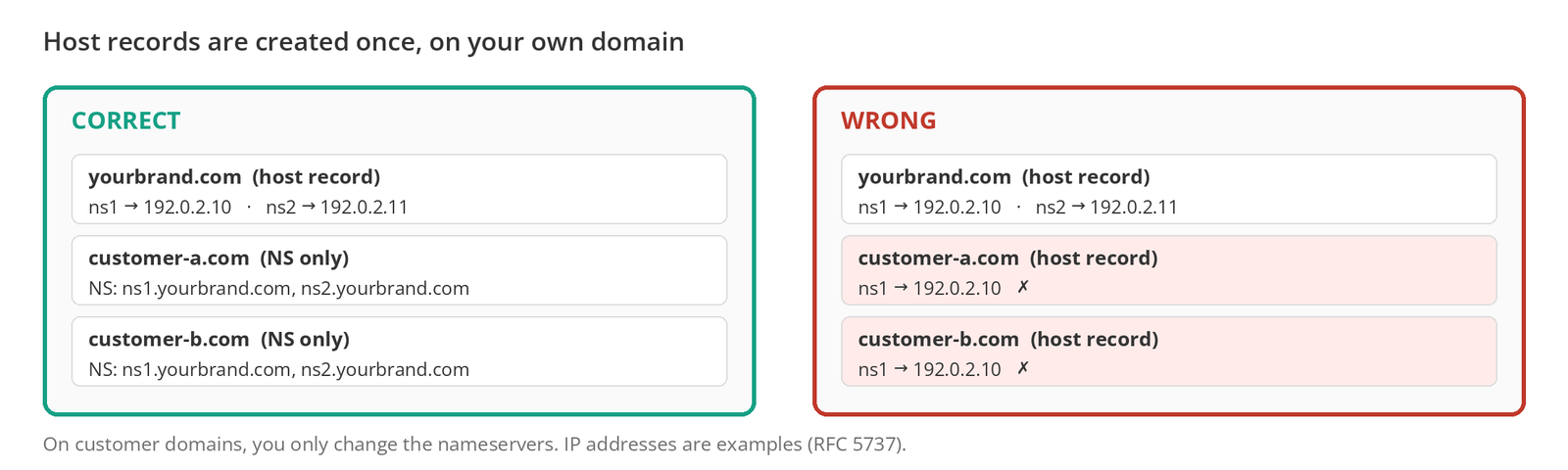
- If the customer's domain is with Domain Name API, use the Name Server tab in the domain window.
- If it's with another company, make the change in that company's panel.
- The customer's hosting (Plesk subscription) must already exist for this domain; otherwise your nameservers can't answer for it.
All set? If your tests passed, your nameservers are ready to use. The sections below cover technical details and troubleshooting.
More Details
What Is a Glue Record?
A glue record publishes a nameserver's IP address in the parent zone (for example, at the .com registry). When a nameserver sits under its own domain, it lets DNS resolvers reach that nameserver.
For example, if yourbrand.com uses ns1.yourbrand.com as its nameserver, finding that nameserver's IP would mean asking yourbrand.com itself, which is a loop. The glue record breaks the loop by publishing the IP in the parent zone. In the Domain Name API panel, you create these on the Host Records tab. Registrars may call the same thing Child Nameservers, Register Nameserver, Host Records, Glue Records, or Private Nameservers.
Is an A Record the Same as a Glue Record?
No. An A record lives in a domain's own DNS zone; a glue (host) record is kept at the registry through your registrar. In this setup, the records in the relevant DNS zone and the host records must point to the same IP addresses.
| Record | Where it lives | What it does |
|---|---|---|
| A record | In the domain's DNS zone | Maps a name to an IPv4 address. |
| Host / glue record | At the registry, via your registrar | Defines the nameserver name and IP address for domain delegation. |
What If My Domain Is Registered Somewhere Else?
You create the host records in the panel of the company where your nameserver domain is registered. The support ticket for the Plesk configuration still goes to Domain Name API.
- Open your domain in your registrar's panel.
- Look for a section called Child Nameservers, Register Nameserver, Host Records, Glue Records, or Private Nameservers.
- Enter
ns1orns1.yourbrand.com(depending on what the form expects), add the IP address, and save; do the same for ns2. - If you can't find the section, ask your registrar's support team to “create child nameservers / host records.”
- Then open a support ticket using the template in Step 5: Open a Support Ticket.
How Long Until DNS Changes Show Up?
There's no fixed time. The Domain Name API panel quotes 1–12 hours for host record updates, and on some networks changes can take longer to appear.
DNS changes are made on the nameservers that are authoritative for the domain. Resolvers run by internet providers and public DNS services may keep older answers cached for the record's TTL. As that time runs out, the new answers appear. So it's normal to see different results on different networks for a while after a change.
Advanced Checks (for System Administrators)
These lookups help you pinpoint which layer a problem is in. They use the dig tool on macOS and Linux.
| Command | What it checks |
|---|---|
dig +short A ns1.yourbrand.com | Whether ns1 resolves to the right IP (host record and DNS zone). |
dig +short A ns2.yourbrand.com | The same check for ns2. |
dig +short NS customerdomain.com | Whether the customer's domain is pointed to your nameservers. |
dig @ns1.yourbrand.com customerdomain.com A | Whether your nameserver answers authoritatively for the domain; the flags line should include aa. |
dig +trace customerdomain.com | The full delegation chain, starting from the root servers. |
If the authoritative query returns REFUSED or an empty answer, the domain's DNS zone may not be on the server, or the server-side configuration may not be finished yet.
Does DNSSEC Affect a Private Nameserver Change?
Yes, it can. If DNSSEC is enabled on a domain, the DS record at the registrar must match the new authoritative DNS setup. If an old DS record is left behind, the domain won't resolve (SERVFAIL) on networks that validate DNSSEC.
Don't turn DNSSEC off on your own. You can check for a DS record with dig DS customerdomain.com +short. If there is one and you're not sure how to proceed, talk to our support team before changing nameservers.
If Your Private Nameservers Aren't Working
Troubleshooting
| Problem | Likely cause | What to do |
|---|---|---|
| ns1 doesn't resolve | The host record may be missing, have the wrong IP, or not have taken effect yet. | Check the Host Records list and the IP; allow 1–12 hours. |
| ns2 doesn't resolve | The second host record may not have been created. | Complete Step 4. |
| The host record exists but the nameserver doesn't answer | The Plesk server configuration may not be finished. | Check the status of your support ticket. |
| I can't find the nameserver setting in Plesk | With this service, our support team handles the server-side configuration. | You don't need to look in Plesk; open a support ticket. |
| ns1 resolves but the customer's site won't load | The customer domain's NS may not have changed, the Plesk subscription may not exist, or no content has been uploaded. | Check the NS setting, the subscription, and the authoritative lookup. |
| SERVFAIL error | There may be a problem with delegation, DNSSEC, or the authoritative DNS server. | Check the DS record and the authoritative lookup; contact support if needed. |
| The old hosting keeps loading | Resolver caching, wrong NS, or old DNS records. | Confirm the NS setting, wait for the TTL, and try from another network. |
| The website works but email doesn't | MX, SPF/TXT, or email setup needs to be checked separately. | Check the domain's MX and TXT records. |
| I can't add a host in the panel | There may be a restriction specific to the extension (TLD) or the registry. | Contact our support team. |
| I can't change the NS on a customer domain | The registry may not accept a nameserver name that isn't registered yet. | Confirm that your host records were created and have taken effect. |
Common Mistakes
| Mistake | Why it's a problem | What to do instead |
|---|---|---|
| Typing ns1.yourbrand.com in the host field | The panel adds the domain, so the name ends up wrong. | Type only ns1 / ns2. |
| Using the example IP as a real one | 192.0.2.x doesn't work on the internet. | Use the IP assigned to you. |
| Guessing the IP by pinging the panel address | DNS may run on a different address. | Get the IP from your service details or support. |
| Creating only ns1 | The second nameserver is missing. | Create ns2 as well. |
| Assuming Plesk is ready once host records exist | The server-side configuration hasn't been done yet. | Open a support ticket. |
| Looking for a server setting in Plesk | This isn't done from the reseller account. | Open a support ticket. |
| Moving customer domains before support has finished | Customer sites may become unreachable. | Wait for confirmation and test first. |
| Thinking the Link button is required | Your own domain gets moved unnecessarily. | Don't click Link for this setup. |
| Moving your own domain before its DNS zone is ready | Your website and email can be affected. | Talk to our support team first. |
| Creating host records on every customer domain | It's unnecessary and causes confusion. | Only change the NS on customer domains. |
| Treating an A record as a glue record | The registry-level definition may be missing. | Create the host records in the panel. |
| Mistaking DNS caching for a server error | A working setup gets changed unnecessarily. | Run an authoritative lookup and wait for the TTL. |
| Not checking DNSSEC | The domain may return SERVFAIL. | Check the DS record before changing NS. |
| Including passwords or API keys in the ticket | It's a security risk. | Only include nameserver names and service details. |
Before You Use Them With Customers
| Check | |
|---|---|
| ☐ | ns1 and ns2 host records were created with the correct IP addresses. |
| ☐ | The support ticket for the Plesk server configuration is complete. |
| ☐ | ns1 and ns2 resolve to the correct IPs. |
| ☐ | The authoritative DNS test passed (aa flag). |
| ☐ | A test domain works with the new nameservers and its website loads. |
| ☐ | If email is used, MX and TXT records were checked. |
| ☐ | If DNSSEC is enabled, the DS record was verified. |
Next Step
Your private nameservers are ready. Next, create your first hosting plan and set up your first customer's Plesk subscription. Related guides: How to Create a Hosting Plan in Plesk, How to Add Your First Customer in Plesk, How to Change Nameservers, and How to Manage DNS Records.
Frequently Asked Questions
How do I create private nameservers for Plesk?
With Domain Name API Plesk Reseller Hosting, first create host records for ns1 and ns2 on the Host Records tab of your reseller panel, using the IP addresses assigned to you. Then open a support ticket for the Plesk server configuration. Once it's complete, test the setup and point your customers' domains to these nameservers.
What is a private nameserver?
A private nameserver lets your customers see your own domain, rather than your infrastructure provider's nameserver names, in their domain settings. For example, customer domains use ns1.yourbrand.com and ns2.yourbrand.com, while the DNS infrastructure behind them stays the same.
What is a child nameserver?
A child nameserver is a nameserver you create under your own domain and register with the registry along with its IP address, such as ns1.yourbrand.com under yourbrand.com. In the Domain Name API panel, you create these on the Host Records tab.
What is a glue record?
A glue record publishes a nameserver's IP address in the parent zone, for example at the .com registry. When a nameserver sits under its own domain, it lets DNS resolvers reach that nameserver without getting stuck in a loop.
Is a glue record the same as an A record?
No. An A record lives in a domain's own DNS zone and maps a name to an IP address. A glue (host) record is kept at the registry and defines the nameserver's IP address for domain delegation. In this setup, both must point to the same IP.
Which IP should I use for ns1 and ns2?
Use the nameserver IP addresses Domain Name API has assigned to your Plesk Reseller Hosting service. If you can't find them in your service details, confirm them with our support team. Don't guess by pinging the panel address or by using example IPs.
Can ns1 and ns2 use the same IP?
If your service provides both names with the same IP address, that isn't a mistake; use the values you were given. In general DNS practice, different IP addresses are preferred for redundancy, but which setup is used depends on the service's infrastructure.
Why can't I set the nameservers in Plesk myself?
In Plesk, new domains' DNS zones are built from a server-wide DNS template, which is managed at the server administrator level. Under Domain Name API Plesk Reseller Hosting's permission and operating model, our support team makes this configuration, so you don't need to change anything in Plesk.
What should I do after creating the host records?
Open a support ticket for the Plesk server configuration. Including your nameserver names and service details is enough. Once you're told it's complete, test with nslookup, then point customer domains to the new nameservers.
Do I need to click the Link button?
Not to give your customers private nameservers. Linking is about switching your own domain's nameservers to these records as well. If you do it before the DNS zone is ready, your website and email can be affected; if you want to move your own domain, talk to our support team first.
My domain is registered with another registrar. What should I do?
Create the host records in that registrar's panel; the section may be called Child Nameservers, Host Records, or Glue Records. The support ticket for the Plesk configuration still goes to Domain Name API.
Do I need to create host records for every customer domain?
No. Host records are created only once, on the domain your nameservers belong to (yourbrand.com). On customer domains, you only change the nameservers to ns1.yourbrand.com and ns2.yourbrand.com.
How long does a nameserver change take to show up?
There's no fixed time. The Domain Name API panel quotes 1–12 hours for host record updates. Because DNS resolvers can keep older answers cached for the TTL, changes may appear later on some networks.
What should I check if my private nameservers aren't working?
Check, in order: do the ns1 and ns2 host records exist with the right IPs, is your support ticket complete, does ns1 resolve to the right IP, has the customer domain's NS changed, and does the nameserver answer authoritatively. If DNSSEC is enabled, check the DS record too.
Does DNSSEC affect a private nameserver change?
Yes. If a domain has DNSSEC enabled and its DS record doesn't match the new authoritative DNS setup, the domain returns SERVFAIL on networks that validate DNSSEC. Don't turn DNSSEC off on your own; if there's a DS record, talk to our support team before changing nameservers.
What do private nameservers give a white-label hosting business?
Your customers see your nameserver names, not your infrastructure provider's, in their domain settings, which lets you offer the service under your own brand. And if your infrastructure changes later, you can usually update the IPs in your host records instead of every customer's NS settings.
Already using Domain Name API Plesk Reseller Hosting and stuck?
If you don't know your nameserver IP addresses, can't add a host record, or your tests don't return the expected results, open a support ticket. Including your nameserver names and the output of your test commands helps us resolve it faster.
Open a Support TicketLooking for white-label reseller hosting?
Offer hosting under your own brand, with your own nameservers.
Explore Reseller Hosting