Create Your First Hosting Package: How to Create a Service Plan in Plesk
The short answer
With Plesk Reseller Hosting, you create the hosting packages you sell in Service Plans. On the Add a Plan screen, you name the plan, set limits for disk space, traffic, domains, email, and databases, choose what customers can manage and which hosting features they get, and save.
In Plesk, a “hosting package” is officially called a Service Plan. A plan doesn't open a hosting account on its own; it sets the limits and features of a service once it's applied to a customer's Subscription.
Creating a Service Plan doesn't create a customer account
A plan is a template. Your customer's website, email, and databases are set up when you create a subscription that uses the plan.
Who this guide is for: Resellers on Plesk Reseller Hosting who are setting up the first hosting package they'll sell. Last updated: October 4, 2026 Sources: Plesk Obsidian Reseller's Guide and the Domain Name API product workflow
The Short Version: Create Your First Hosting Plan in 7 Steps
- Log in to Plesk with your reseller account.
- Open Service Plans and make sure you're on the Hosting Plans tab.
- Click Add a Plan.
- Enter a plan name (e.g.,
STARTER). - Set the resource limits on the Resources tab.
- Check the Permissions and Hosting Parameters tabs.
- Click OK to save, then test the plan on a test subscription.
Hands-on time: A few minutes if you've already decided on your limits. Most of the time goes into deciding which values to use.
Where should you start?
To create the plan now: Step 1: Open Service Plans
Not sure which values to choose? Which Values Should I Choose?
To apply the plan to a customer: Apply the Plan to Your First Customer
Planning to change the plan later? What Happens If I Change the Plan Later?
If something isn't working: Troubleshooting
About the interface
Menu names in this guide are in English. If you use Plesk in another language, they appear translated. The options you see can vary with your service's operating system (Linux or Windows), the Plesk version, your reseller permissions, and the server configuration.
How Hosting Is Structured in Plesk: Plans, Customers, Subscriptions
In Plesk, a Service Plan is a reusable template that defines the hosting resources and permissions you offer. A Subscription is the active hosting service created from that plan for a specific customer and domain. A Customer is the record that subscriptions belong to.
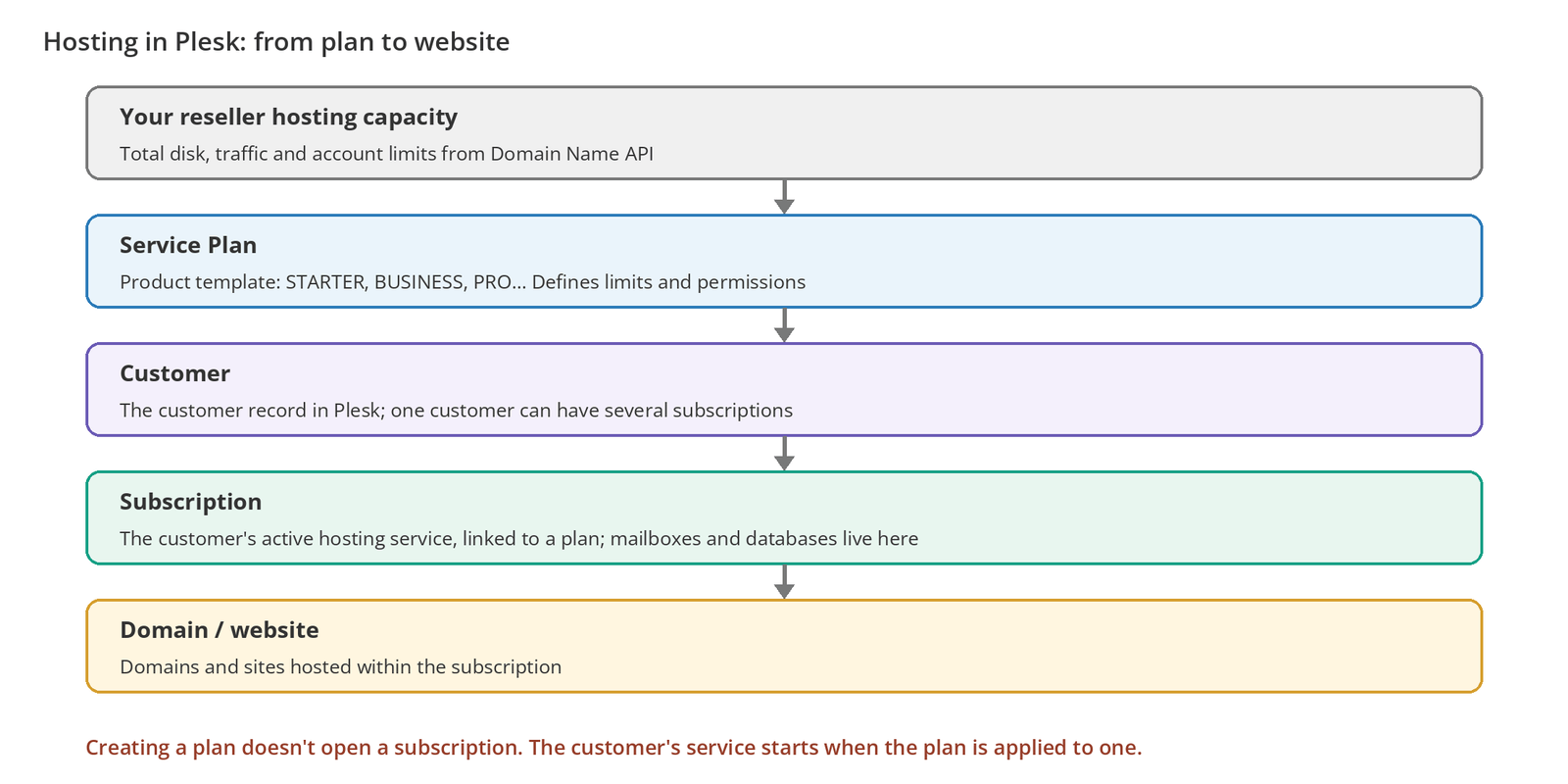
Is a Service Plan the Same as a Subscription?
No. A Service Plan is the template that defines resources and permissions; a Subscription is a copy of that template created for a specific customer. That's why creating a plan doesn't, on its own, open a hosting account for a customer.
| Service Plan | Subscription | |
|---|---|---|
| What it is | A product template (STARTER, BUSINESS…). | The customer's active hosting service. |
| Disk space | Sets the limit. | Uses the limit. |
| Limits the number and size of mailboxes. | Mailboxes are created here. | |
| Databases | Limits the number of databases. | Databases are created here. |
| Use | Used across many subscriptions. | Belongs to one customer. |
Before You Start
| Requirement | |
|---|---|
| ☐ | An active Domain Name API Plesk Reseller Hosting plan |
| ☐ | Your Plesk reseller login details (in your activation email) |
| ☐ | Your package lineup (how many packages, for which customers) |
| ☐ | Your reseller account's total disk, traffic, and account limits |
| ☐ | The disk, email, and database limits you plan for each package |
Your packages are capped by your reseller account's capacity. For example, if your reseller account includes 75 GB of disk and you give each customer 5 GB, you can host about 15 full-capacity subscriptions on disk alone.
Plesk doesn't check everything a plan promises
When you create a plan, Plesk doesn't check whether the services or resources it offers are actually available on the system or in your reseller account. If a plan includes something your account can't provide, you'll run into problems when you create the subscription or during syncing. If your reseller account doesn't allow overselling, you can't create subscriptions that would exceed your total disk and traffic capacity.
Step by Step: Create Your First Plan
Step 1: Open Service Plans
- Log in to Plesk with your reseller username and password, using the address in your activation email (usually
https://<your-plesk-server-address>:8443). - Click Service Plans in the left menu.
- Make sure you're on the Hosting Plans tab. The Add-on Plans tab is for extra resource packs.
- Click Add a Plan.
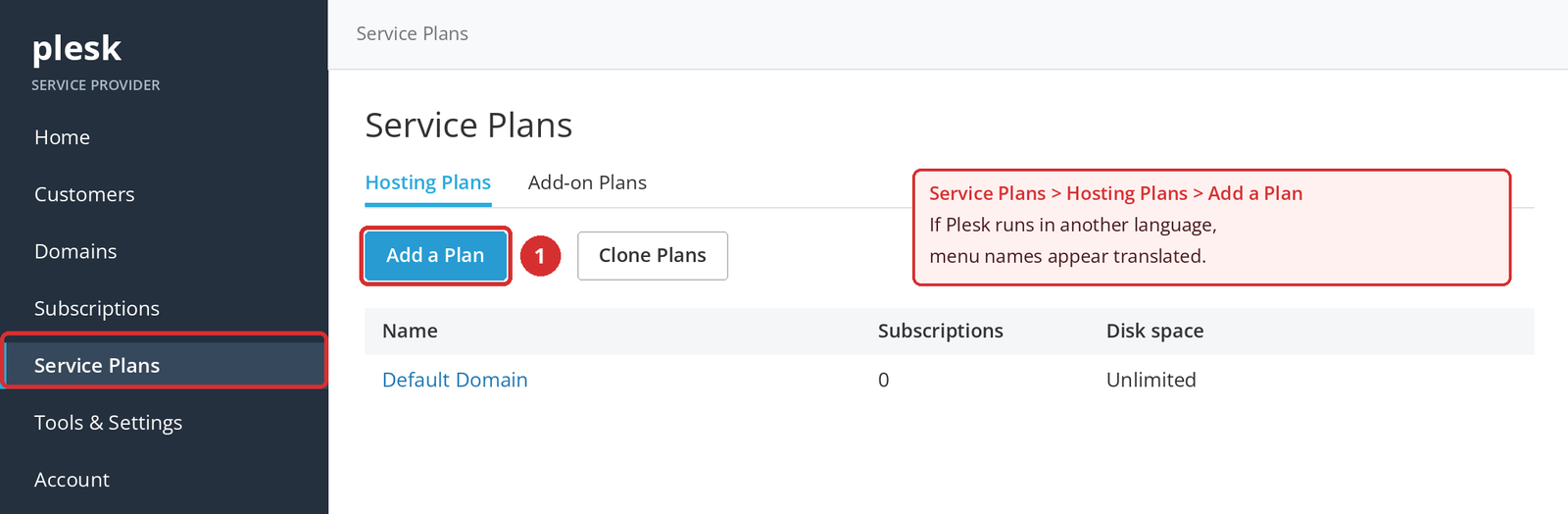
If you already have a similar plan, you can copy it with Clone Plans and edit the copy. That saves time when you set up your second and third packages, such as BUSINESS and PRO.
Step 2: Choose a Plan Name
Enter a clear, lasting name in Service plan name: for example, STARTER, BUSINESS, PRO, or WEB-5GB, WEB-20GB. Names like test123, package1, or newplan get confusing as your lineup grows.
You can rename a plan in Plesk later. But if a system such as WHMCS or WiseCP matches the plan by name, renaming it can break that link. Choosing a lasting name from the start is the safest option.
Step 3: Set the Resource Limits (Resources)
The Resources tab sets how much each subscription on this plan can use. Every field has a unit menu (MB/GB) and an Unlimited checkbox. For your first plan, focus on the core fields shown in the screenshots below.
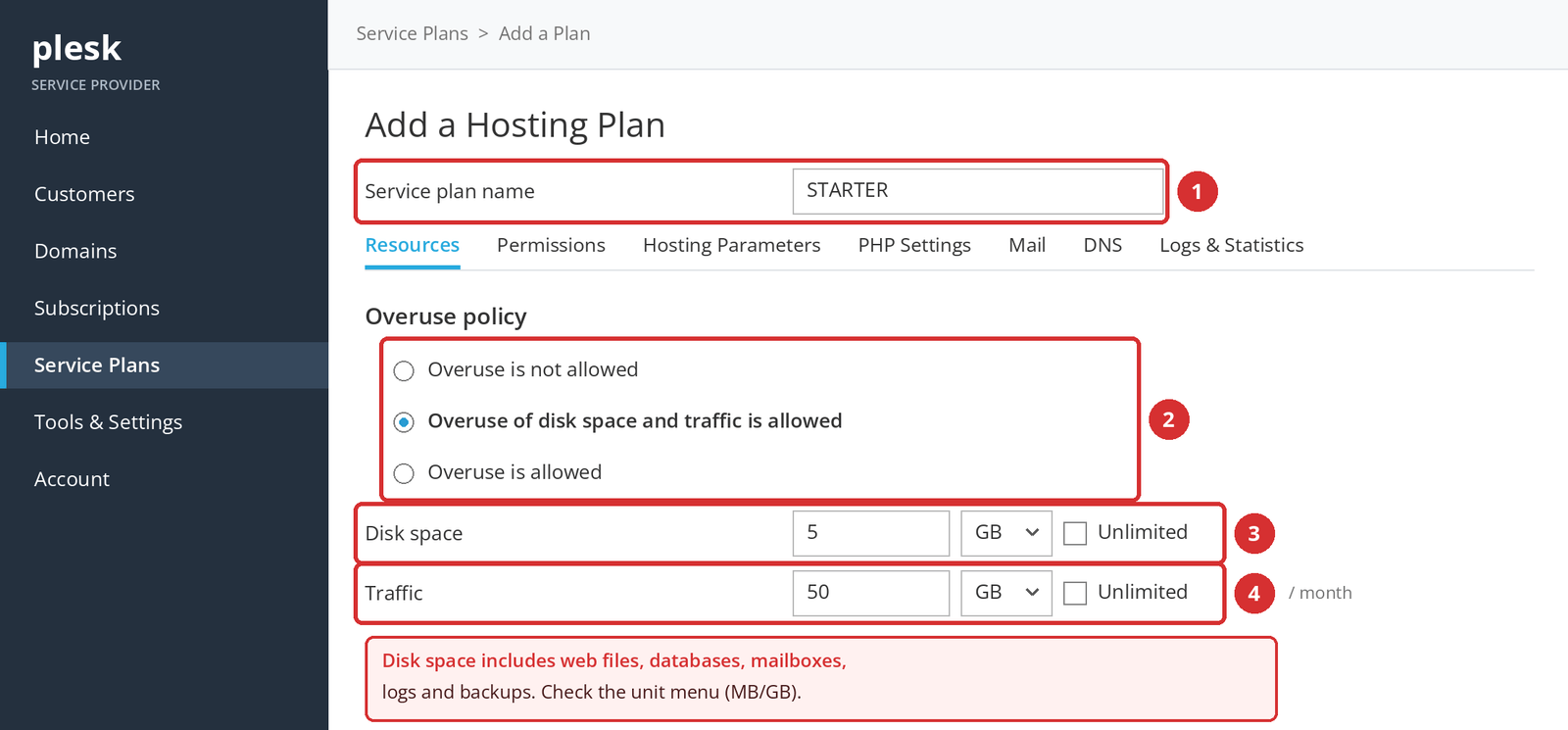
Overuse policy
The overuse policy decides what happens when a subscription reaches its disk or traffic limit. The wrong choice can get a customer's site suspended unexpectedly.
| Option | When the limit is exceeded | When it fits |
|---|---|---|
| Overuse is not allowed | The subscription is suspended. | When you want limits enforced strictly. You'll need a process to warn customers in advance. |
| Overuse of disk space and traffic is allowed | The subscription keeps working; you can get an email notification. | When you don't want a customer's site to go down over disk or traffic. You'll need to monitor usage. |
| Overuse is allowed | Overuse is allowed for all resource types. | Only if you track your capacity closely. |
Warning
The overuse policy doesn't apply to the mailbox size limit, so allocate enough space for mailboxes even if overuse is allowed. Your own reseller account also has an overuse policy; if your customers' total usage exceeds your reseller limit, that policy can affect your whole account.
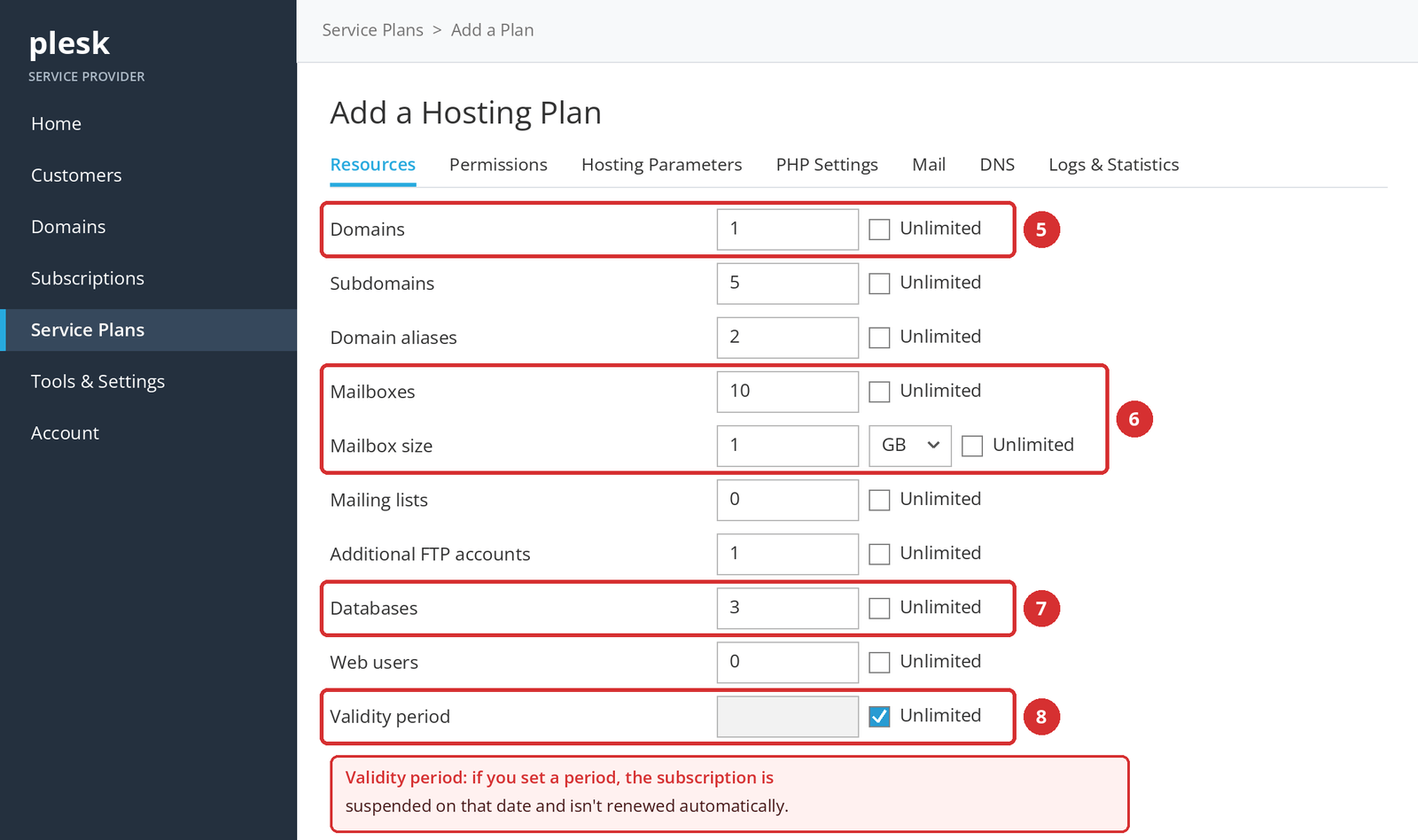
Leave the validity period set to Unlimited
Validity period sets how long a subscription lasts. If you enter a period, the subscription is suspended on that date and isn't renewed automatically. If you manage renewals in a billing system, leave this field set to Unlimited.
Checkpoint
Expected result: Every resource field has a value or Unlimited selected, and the unit menus (GB/MB) are correct.
Most common mistake: Entering values without checking the unit menu (5 MB instead of 5 GB), or setting a validity period.
Next: Move on to the Permissions tab.
Step 4: Set Permissions
Resources set how much a customer can use; Permissions set what they can manage on their own. Disk space is a resource limit; being able to manage the DNS zone is a permission.
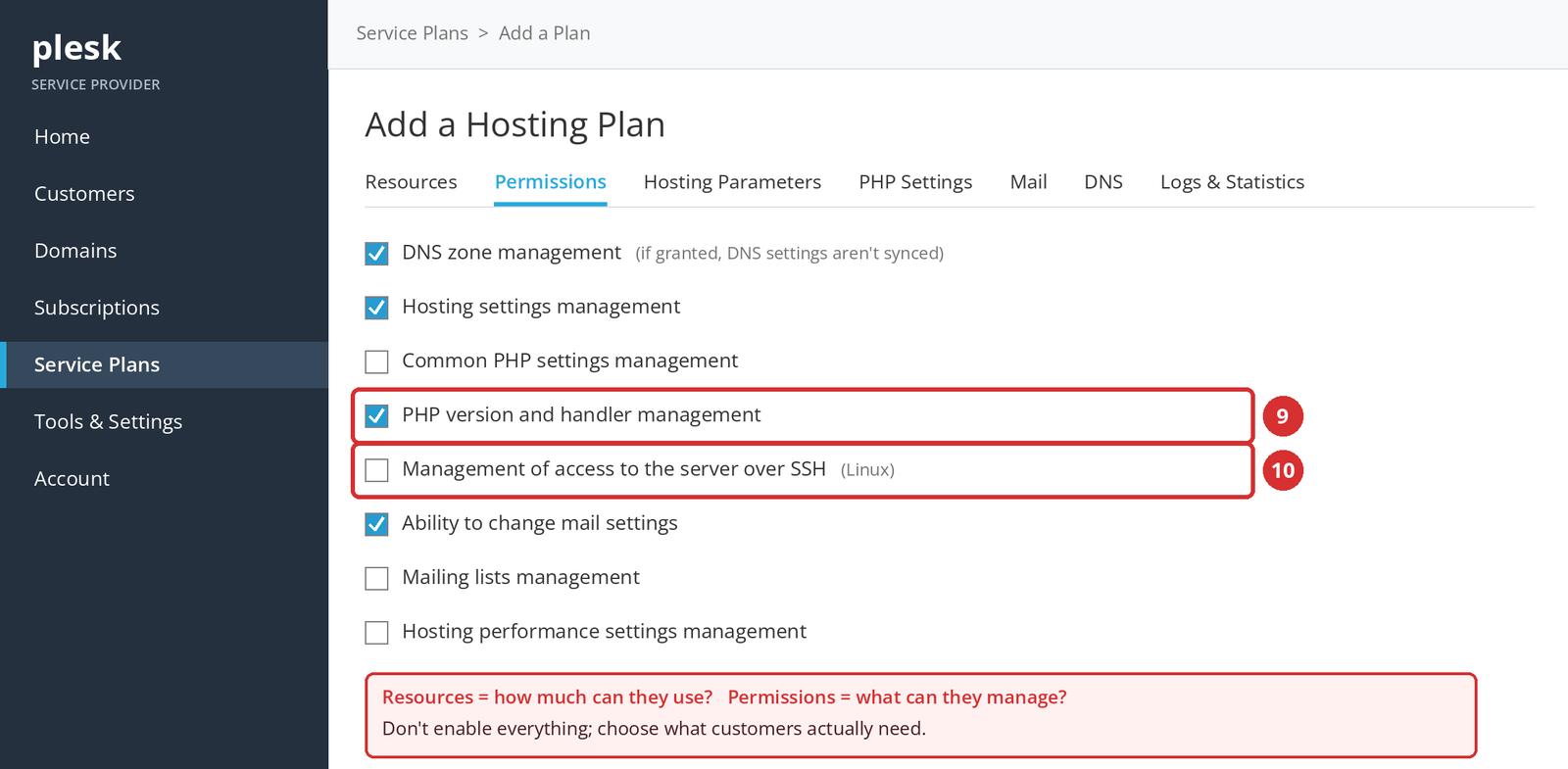
| Permission | What it allows | Approach for a first plan |
|---|---|---|
| DNS zone management | Manage the DNS records of the customer's domains. | Enable it if customers will edit their own DNS records. While it's on, the plan's DNS settings aren't synced. |
| Hosting settings management | Change hosting settings such as scripting language support, custom error pages, and SSL/TLS. | Usually needed if customers manage their own sites. While it's on, the related hosting settings aren't synced. |
| PHP version and handler management | Choose the PHP version and handler for each site. | Useful for customers who host different applications. |
| Common PHP settings management | Change common PHP settings. | Keep it off unless there's a real need. While it's on, these settings aren't synced. |
| Management of access to the server over SSH (Linux) | Command-line access to the server. | Keep it off for security; enable it only in a separate plan for customers who truly need it and whom you trust. |
When one of these permissions is granted, the customer can change that setting themselves, so the setting isn't synced when the plan is updated. This is one of the most common reasons plan changes don't reach every subscription the same way.
Step 5: Check Hosting Parameters and PHP
The Hosting Parameters tab sets the features of the hosting service included with the plan (such as SSL/TLS, PHP, CGI, and web statistics). The PHP Settings tab holds the default PHP configuration.
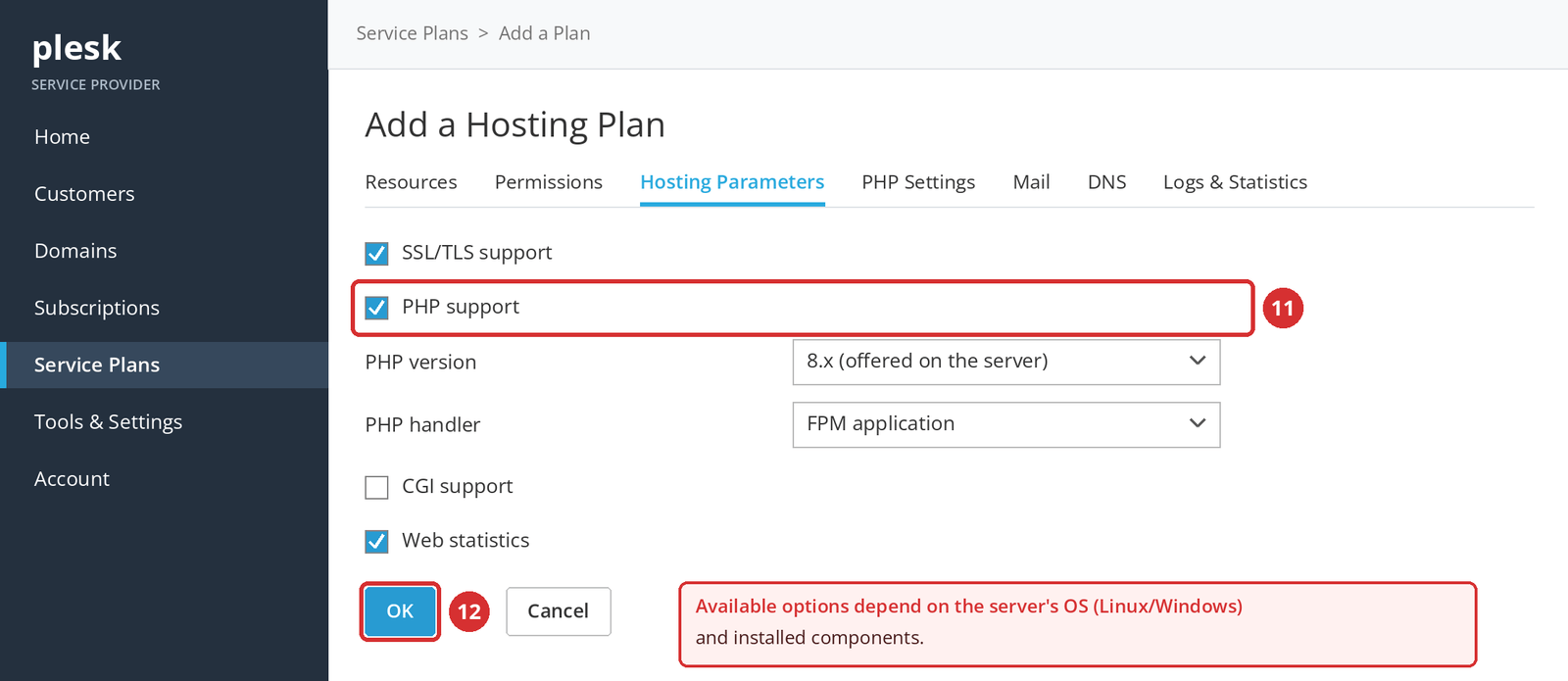
- SSL/TLS support: Keep it on so customer sites can use HTTPS.
- PHP support, version, and handler: Rather than “pick the newest version,” choose a current, secure version offered on the server that your customers' applications support. Check which versions apps like WordPress support.
- Other options (CGI, Perl, Python, ASP.NET, etc.): Enable only what's actually installed on the server and needed by your customers. Plesk may let you add a component that isn't installed; if so, the subscription can't be synced.
An option appearing in Plesk doesn't mean your service offers it. Some options are managed by the server administrator and may not be changeable from your reseller account.
Step 6: Save the Plan
Click OK at the bottom of the page.
Checkpoint
Expected result: The plan appears in the Service Plans > Hosting Plans list.
Most common mistake: Assuming the customer's hosting account was created along with the plan. No subscription exists yet.
Next: Test the plan on a test subscription, then apply it to your first customer.
Apply the Plan to Your First Customer
A plan comes into use when you choose it while creating a customer subscription. First create the customer record, then go to Subscriptions > Add Subscription, enter the domain, username, and password, and pick your plan from the Service plan menu.
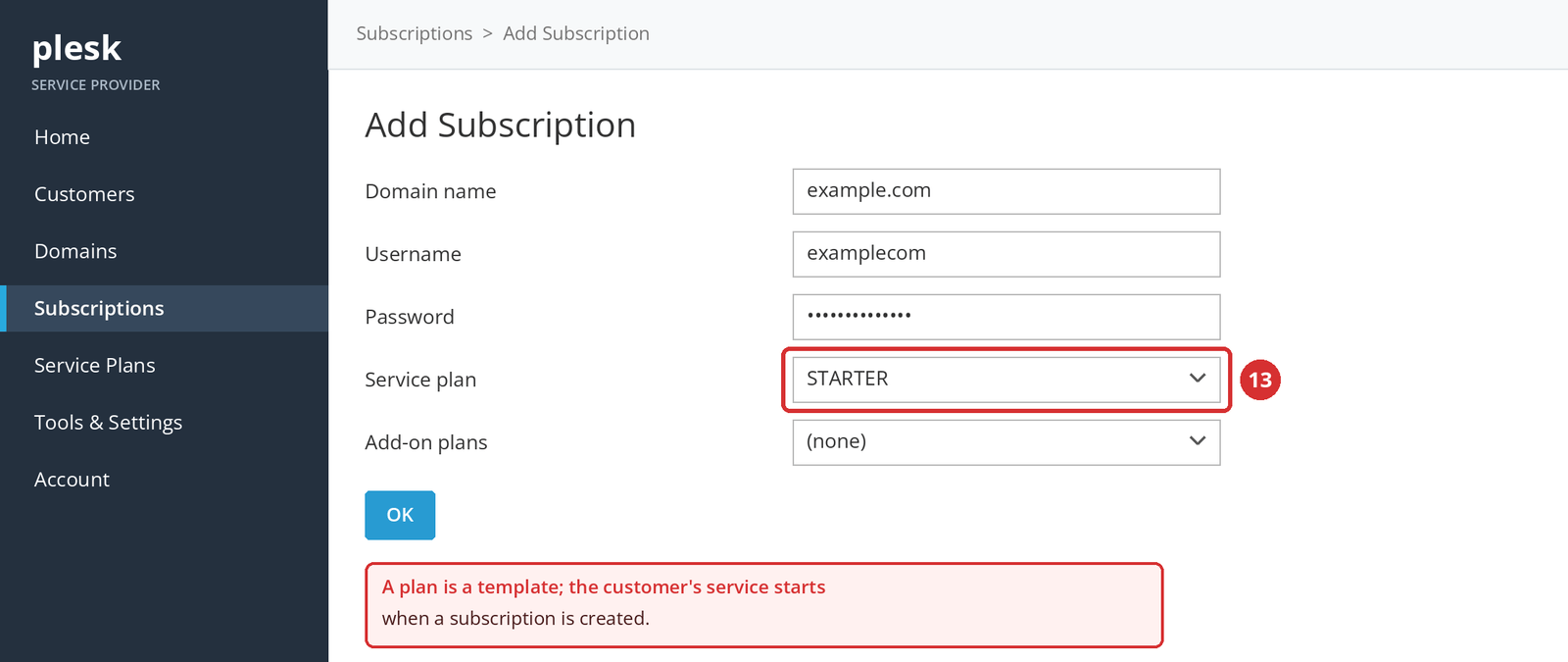
The full steps for creating customers and subscriptions are in a separate guide: How to Add Your First Customer and Subscription in Plesk.
Plan ready? If you've saved the plan, the basic setup is done. The sections below help you choose values deliberately and manage the plan later.
Which Values Should I Choose?
Before you decide
Start by deciding who you'll sell this package to. A single small site, a business running several sites, and an email-heavy team need very different resources. The examples below show that difference.
| Package | Who it suits | What sets it apart |
|---|---|---|
| STARTER | One small site; a few email accounts | Low disk, one domain, limited mailboxes |
| BUSINESS | Several sites or more content | More disk, domains, and email |
| PRO | Heavy use; many sites, databases, and mailboxes | The highest limits |
What Value Should I Enter for Disk Space?
In Plesk, the disk space limit covers website files, databases, applications, mailboxes, log files, and backup files together. For a 10 GB package, enter 10 in Disk space and choose GB from the unit menu.
Don't size disk space on website files alone. An email-heavy customer can fill far more space with mailboxes than with site files.
How Should I Set the Traffic Limit?
In Plesk, traffic is the amount of data that can be transferred from the subscription's websites and FTP shares in a month. The right value isn't derived from disk space; it depends on visitor numbers, page size, downloads, and media.
For a new package, set a sensible starting value, watch your customers' real usage, and update the plan as needed.
Domain and Subdomain Limits
The Domains limit is the total number of domain names a subscription can host. It includes websites, domains that forward to sites on other servers, and domains with no hosting set up yet. If you're selling a single site, set Domains to 1.
| Field | What it limits |
|---|---|
| Domains | The total number of domain names (sites) in the subscription. |
| Subdomains | The number of subdomains (e.g., blog.example.com). |
| Domain aliases | The number of extra domains that show the same site (e.g., example.net opening example.com). |
Plesk doesn't use cPanel's addon domain concept; extra sites are limited directly by Domains.
How Should I Set Email Limits?
Mailboxes sets how many mailboxes can be created; Mailbox size sets the most space each mailbox can use. Space used by mailboxes counts against the subscription's total disk space.
| Setting | What it limits | Example |
|---|---|---|
| Mailboxes | Number of mailboxes | 10 mailboxes |
| Mailbox size | Size of a single mailbox | Up to 1 GB each |
| Total mailboxes quota (Windows) | Total space for all mailboxes | 5 GB in total |
| Mailing lists | Number of mailing lists | 0 if not needed |
For example, 10 mailboxes × 1 GB means up to 10 GB of email in theory. If the disk space is 5 GB, the subscription's total disk limit fills up before the mailboxes do. Plan the two values together.
How Should I Set Database Limits?
Database limits look different depending on the database services offered on your server and its operating system. Linux Plesk has a single Databases field; Windows Plesk has separate count and quota fields for MySQL and MS SQL.
| Platform | Fields you may see |
|---|---|
| Linux Plesk | Databases (total number of databases) |
| Windows Plesk | MySQL databases, MS SQL databases; total MySQL and MS SQL quotas; MS SQL data and log file sizes |
MSSQL isn't available in every Plesk service
Microsoft SQL Server fields only appear in a Windows Plesk environment, and only if MSSQL is offered on the server. Linux Plesk services don't have an MSSQL limit. If you're not sure which databases your service offers, ask our support team.
Applications like WordPress use a database; allow one database for each additional application you want to include in the package.
Other Resources
| Field | What it limits | For a first plan |
|---|---|---|
| Additional FTP accounts | Extra FTP accounts (not counting the main account created with the subscription). | 1–2 is enough. |
| Web users | Personal web pages under sites (e.g., example.com/~user). Mostly used by educational institutions. | 0 if not needed. |
| Java applications | The number of Java applications that can be hosted. | 0 if not supported. |
| ODBC connections (Windows) | The number of ODBC connections available. | 0 if not needed. |
What Does Unlimited Mean?
Unlimited means no limit is enforced for that field at the plan level. It doesn't mean your reseller account or the server has unlimited physical capacity.
- High usage by a customer with no plan limit can use up your reseller capacity and affect your other customers.
- Clear limits make it obvious what a customer has bought and when it's time to upgrade.
- For some fields, such as validity period, Unlimited is the right and safe choice.
Example Package Design
These values are examples
The values below only show how packages can differ; they aren't official package or capacity recommendations from Domain Name API. Set your real limits based on your reseller capacity, target customers, and business model.
| Field | STARTER | BUSINESS | PRO |
|---|---|---|---|
| Disk space | 5 GB | 15 GB | 30 GB |
| Traffic (monthly) | 50 GB | 150 GB | 300 GB |
| Domains | 1 | 5 | 15 |
| Subdomains | 5 | 20 | 50 |
| Domain aliases | 2 | 5 | 10 |
| Mailboxes | 10 | 50 | 150 |
| Mailbox size | 1 GB | 2 GB | 5 GB |
| Databases (Linux) | 3 | 15 | 50 |
| Additional FTP accounts | 1 | 5 | 10 |
| Validity period | Unlimited | Unlimited | Unlimited |
Make sure the differences between packages mean something to the customer. Three packages with clear differences are easier to sell and manage than five that look almost the same.
Is the Package Price Set in Plesk?
No. A Plesk Service Plan defines the technical resources and permissions of a hosting service; the price you charge customers is managed in a separate billing layer.
You manage pricing, invoicing, and renewals in WHMCS, WiseCP, or another system. These systems usually map each hosting product to a plan in Plesk; see the relevant integration guide for details.
Managing the Plan Later
What Happens If I Change the Plan Later?
Changes you make to a Service Plan in Plesk are applied automatically to all subscriptions on that plan that are in the synced state. Locked subscriptions aren't affected by those changes.
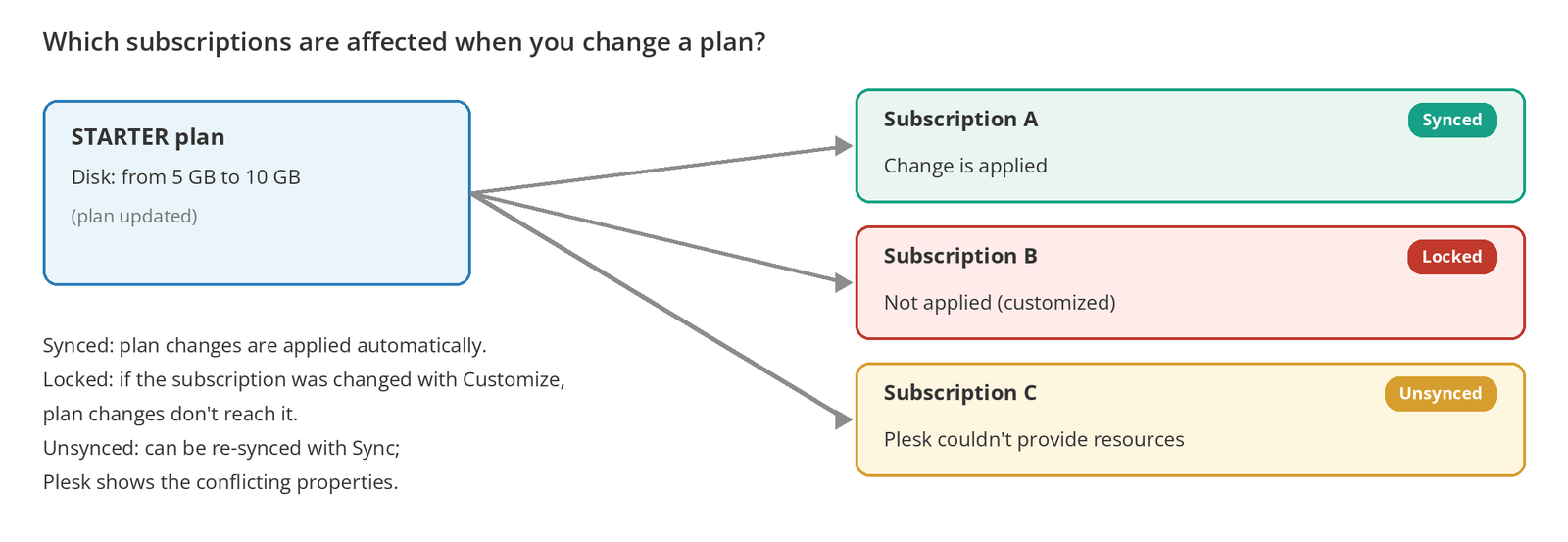
| Subscription state | What it means | Plan change |
|---|---|---|
| Synced | The subscription matches the plan. New subscriptions start in this state. | Applied automatically. |
| Locked | Settings were changed on the subscription with Customize, without changing the plan. | Not applied. |
| Unsynced | Plesk couldn't provide a resource or service defined by the plan. | Retried with Sync on the subscription page; Plesk shows the conflicting properties. |
Before you lower a limit
Lowering a limit affects every synced subscription on that plan at once. Customers whose usage is above the new limit may be suspended or receive an overuse notification, depending on the plan's overuse policy. Check your customers' usage first.
Settings that customers are allowed to change themselves (such as the DNS zone or PHP settings) are ignored during syncing.
Plan or Add-on Plan?
An Add-on Plan is an extra resource or service pack you can add to a service plan; for example, an extra 1 GB of disk space. The main plan is the foundation of the subscription; an add-on lets you meet a customer's extra needs without changing their main package.
Add-on plans are managed on the Service Plans > Add-on Plans tab. You don't need one for your first package; consider them when you start selling extras.
Test Before You Go Live
Before your first real customer, create a test customer and a test subscription that uses this plan. Then open the customer's Plesk panel and check:
| Check | |
|---|---|
| ☐ | The subscription shows as synced with the plan. |
| ☐ | Disk, domain, mailbox, and database limits are correct. |
| ☐ | The features the customer needs (email, databases, PHP version, SSL/TLS) are available. |
| ☐ | The customer can't access permissions you didn't grant (such as SSH). |
| ☐ | The validity period is Unlimited, so the subscription won't be suspended on a set date. |
When you've finished testing, delete the test subscription and customer so they don't take up room in your reseller capacity.
Troubleshooting
| Problem | Likely cause | What to do |
|---|---|---|
| Service Plans or Add a Plan isn't visible | You may not be in the Service Provider view, or your account's permissions may be limited. | Check that the left menu is in the Service Provider view; if the problem continues, contact our support team. |
| A resource field I need isn't shown | The field depends on the OS (Linux/Windows), Plesk version, or services installed on the server. | Ask our support team whether your service offers that resource. |
| There's no MSSQL option | MSSQL only appears on Windows Plesk servers that offer it. | On Linux Plesk, this is expected. |
| The PHP version I want isn't listed | That version isn't installed on the server. | Choose an offered version that's compatible with your application; ask our support team if you need another. |
| The plan exists but there's no customer | A plan is a template; the subscription is created separately. | Create a customer and a subscription and choose the plan. |
| The plan doesn't appear on Add Subscription | It may have been created on the Add-on Plans tab, or not saved. | Check the Hosting Plans list. |
| The subscription is Unsynced | Plesk couldn't provide a resource or service defined by the plan. | Open the subscription and click Sync; fix the conflicting properties Plesk shows in the plan. |
| A plan change didn't reach the customer | The subscription is locked (changed with Customize), or the customer has permission for that setting. | Check the subscription's state and the plan's permissions. |
| The new limit is below current usage | The limit was lowered. | Depending on the overuse policy, the subscription may be suspended; review the limit or let the customer know. |
| A mailbox, database, or domain can't be created | The relevant limit in the plan has been reached. | Update the plan, move the customer to a higher package, or add an add-on. |
| A subscription was suspended on a set date | A validity period was set; subscriptions aren't renewed automatically. | Reactivate the subscription and set the plan's validity period to Unlimited. |
| A new subscription can't be created | Your reseller account may have reached its total resource or account limit. | Check your usage; to upgrade your plan, talk to our support team. |
| A customer can't see a feature | The related permission or hosting parameter is off in the plan. | Check the Permissions and Hosting Parameters tabs. |
Common Mistakes
| Mistake | Why it's a problem | What to do instead |
|---|---|---|
| Treating a Service Plan as a subscription | No customer service has been opened. | Create a subscription after the plan. |
| Ignoring your reseller capacity | New subscriptions can't be created, or capacity runs out. | Design packages around your total capacity. |
| Making every field Unlimited | Resource boundaries become unclear. | Set measured, clear limits. |
| Confusing mailbox count with mailbox size | Customers get smaller mailboxes than expected. | Plan the two separately. |
| Confusing database count with database size | The database quota fills up unexpectedly. | On Windows, set count and quota separately. |
| Assuming every Plesk service has MSSQL | You promise a feature you can't deliver. | Confirm the platform and the service. |
| Mixing up Linux and Windows features | The plan can't be synced. | Prepare the plan for your platform. |
| Granting unnecessary permissions | Security risk and sync problems. | Grant only what's needed. |
| Not checking PHP compatibility | The customer's application may not run. | Choose a version the application supports. |
| Setting a validity period | Subscriptions are suspended on that date. | Leave it set to Unlimited. |
| Giving the plan to customers without testing | Customers find the mistakes first. | Test with a test subscription first. |
| Lowering limits without knowing the impact | Customers may be suspended. | Check usage first. |
| Assuming an Administrator's Guide feature is available to resellers | You look for settings your account doesn't have. | Rely on the Reseller's Guide and our support team. |
Frequently Asked Questions
What is a Plesk Service Plan?
A Plesk Service Plan is a reusable template that defines the hosting resources (disk, traffic, domains, email, databases) and permissions you offer. Each hosting package you sell corresponds to a Service Plan.
How do I create a hosting package in Plesk?
Go to Service Plans > Hosting Plans > Add a Plan, name the plan, set limits on the Resources tab, check the Permissions and Hosting Parameters tabs, and click OK. Then test the plan on a test subscription.
What's the difference between a Service Plan and a Subscription?
A Service Plan is the template that defines resources and permissions. A Subscription is the active hosting service created from that plan for a specific customer and domain. Email accounts and databases are created inside the subscription.
Does creating a Service Plan open a hosting account?
No. A plan is only a template. The customer's hosting service starts when you create a customer record and a subscription that uses the plan.
Can one Service Plan be used for several customers?
Yes. The same plan can be used in many customers' subscriptions, within your reseller capacity. Synced subscriptions on the plan receive plan changes automatically.
How do I set the disk limit in Plesk?
Enter the value in Disk space on the Resources tab and choose GB or MB from the unit menu. The limit covers website files, databases, applications, mailboxes, logs, and backups together.
How do I set the traffic limit in Plesk?
Traffic limits the data that can be transferred from the subscription's sites and FTP shares in a month. It isn't derived from disk space; set it based on visitor numbers, page size, and media use, and update it based on real usage.
How do I set the email account limit in Plesk?
Mailboxes sets the number of mailboxes, and Mailbox size sets the maximum size of each. Because mailbox space counts against the subscription's total disk, plan both values together with disk space.
Are mailbox count and mailbox size the same thing?
No. Mailboxes sets how many mailboxes can be created; Mailbox size sets how large a single mailbox can be. For example, 10 mailboxes × 1 GB means up to 10 GB of email in theory.
How do I set the database limit in Plesk?
On Linux Plesk, Databases sets the total number of databases. On Windows Plesk, there are separate count and quota fields for MySQL and MS SQL. Allow one database for each additional application.
Why can't I see MSSQL in Plesk?
MSSQL fields only appear in a Windows Plesk environment, and only if Microsoft SQL Server is offered on the server. Linux Plesk services don't have an MSSQL limit. You can ask our support team which databases your service offers.
Are Linux Plesk and Windows Plesk service plans the same?
The basic structure is the same, but some fields are platform-specific. For example, MSSQL, ODBC, and the total mailboxes quota are on Windows; the SSH access permission is on Linux. Prepare the plan for your service's platform.
What does Unlimited mean in Plesk?
Unlimited means no plan-level limit is enforced for that field; it doesn't mean your reseller account or the server has unlimited capacity. High usage by a customer with no limit can affect your other customers.
What's the difference between Permissions and Resources?
Resources set how much a customer can use (disk, mailboxes, databases). Permissions set what they can manage on their own (the DNS zone, PHP version, SSH access).
If I change a Service Plan, are customers affected?
Yes. Plan changes are applied automatically to all synced subscriptions on the plan. Subscriptions customized with Customize (locked) aren't affected. Check customers' current usage before lowering limits.
Why isn't a subscription in sync with its Service Plan?
If the subscription was changed with Customize, it's locked and doesn't receive plan changes. If Plesk can't provide a resource or service the plan defines, the subscription is marked Unsynced; you can retry with Sync on the subscription page.
What is an Add-on Plan?
An Add-on Plan is an extra resource or service pack you can add to a service plan, such as extra disk space. It lets you meet a customer's extra needs without changing their main package, and it's managed on Service Plans > Add-on Plans.
Is the hosting package price set in Plesk?
No. A Service Plan only defines technical resources and permissions. Pricing, invoicing, and renewals are managed in WHMCS, WiseCP, or another billing system.
Next Step
Your hosting plan is ready. Next, create your first customer and apply this plan to their subscription: How to Add Your First Customer and Subscription in Plesk. If you haven't yet, set up your private nameservers too: How to Set Up Private Nameservers for Plesk Reseller Hosting.
Already using Domain Name API Plesk Reseller Hosting and stuck?
If you can't see an option while creating a Service Plan, or a subscription won't sync, open a support ticket. Including the plan name and any error message you see helps us resolve it faster.
Open a Support TicketWant to sell hosting under your own brand?
Build your own hosting packages with Plesk and offer the service under your brand.
Explore Reseller Hosting