How to Restore a Backup in Plesk: Step-by-Step with Backup Manager
Quick answer
To restore a backup in Plesk, open Websites & Domains › Backup Manager, click the backup from the date you want to go back to, choose what to restore and click Restore. In most cases it's safer to restore only the part that broke rather than the whole subscription: with Selected objects you can pick one file, the site files, a single database or email on its own.
Take a fresh backup of the current state before you restore
Restoring an older backup can overwrite data that was created or changed after the backup date. The fresh backup is the only point you can return to if the restore goes wrong.
Who this guide is for: resellers on Domain Name API Plesk Reseller Hosting and the customers they manage in Plesk. If your site broke after an update, you deleted a file by mistake, your database is damaged or you want your email back, you're in the right place.
Last updated: 5 October 2026 · Source: official Plesk Obsidian documentation · Technical review: Domain Name API Hosting Team
Examples use example.com as the domain. Menu names are those in Plesk's English interface.
What do you want to restore?
The right restore scope is the narrowest one that fixes the problem. The wider the scope, the greater the risk of overwriting good data created after the backup. Find your situation below and follow only the matching section.
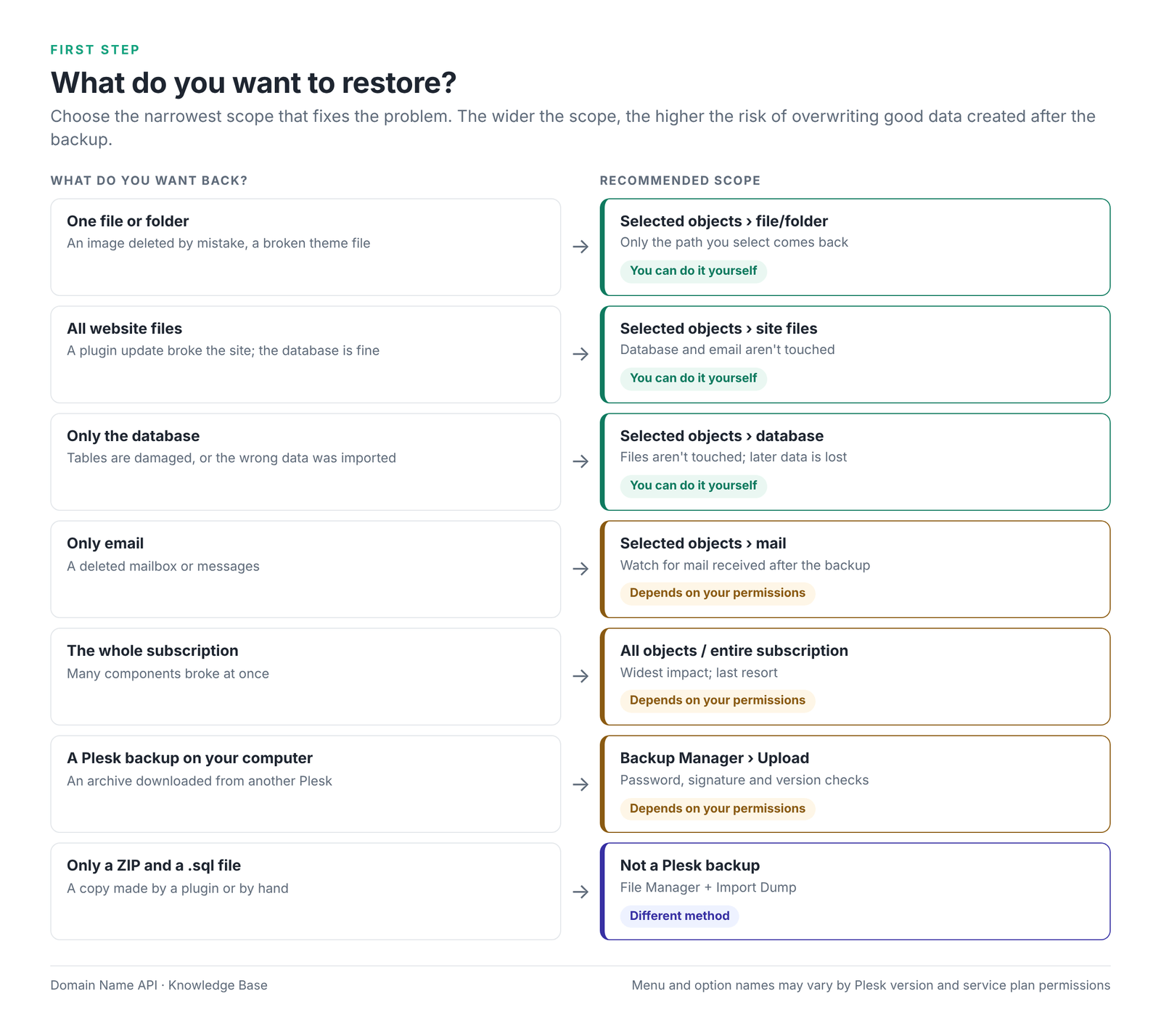
| Your situation | Recommended scope | Section |
|---|---|---|
| One file or folder was deleted by mistake | Selected objects › that file or folder | Restoring only website files |
| A WordPress plugin or theme update broke the site; the database is fine | Selected objects › site files | Restoring only website files |
| The database is damaged or the wrong data was imported | Selected objects › database | Restoring a database |
| You only need email data | Selected objects › mail (if shown) | Restoring email |
| The whole hosting subscription is badly broken | All objects or the entire subscription | Restoring the whole backup |
| You have a backup downloaded from another Plesk | Backup Manager › Upload | A Plesk backup on your computer |
| You only have a ZIP and a .sql file | Not a Plesk backup; File Manager + Import Dump | ZIP and SQL files |
| You're moving from another hosting company | Not this guide | How to Migrate a Website to Plesk Reseller Hosting |
Quick start
- Take a fresh backup. Back up the current state in Backup Manager first.
- Open the right subscription. As a reseller, switch to the right customer and subscription first.
- Open Backup Manager. Websites & Domains › Backup Manager.
- Click the backup with the right date. Pick the backup from just before the problem started.
- Choose the scope. Where possible, use Selected objects to pick only the part that broke.
- Click Restore and wait for the result. Then check the site, the database and email.
Understanding backup types
In Plesk, the backup type describes when and how much was backed up; what you restore is a separate choice you make at restore time. You can restore a single database from a full backup. That's why a "full backup" and "restoring the whole account" aren't the same thing.
What is Plesk Backup Manager?
Plesk Backup Manager is the Plesk tool for listing a subscription's or reseller account's backups, creating new backups, uploading backup files and restoring them within your permissions. At customer and subscription level, it opens from Websites & Domains › Backup Manager.
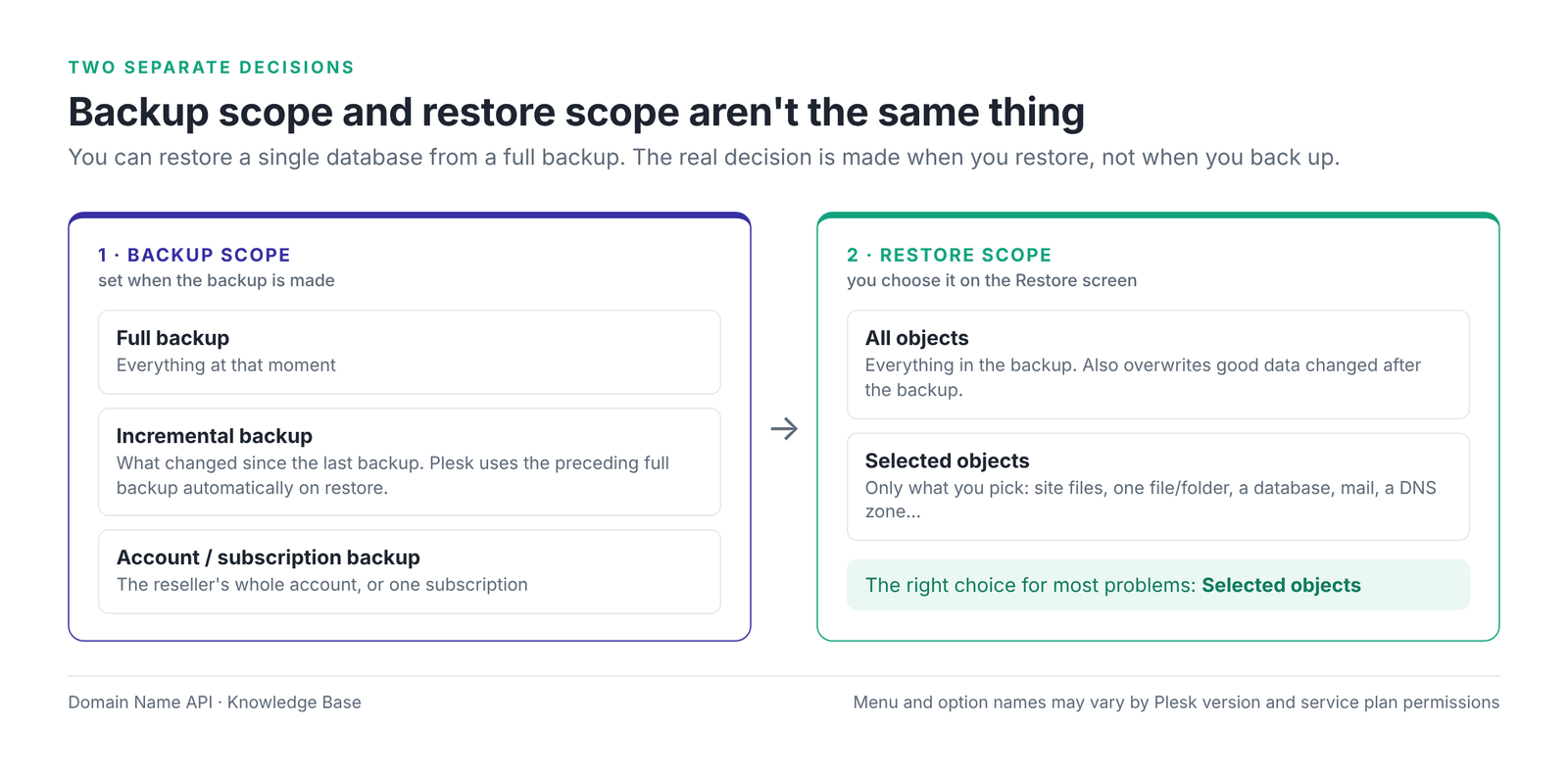
| Backup type | Contents | When it's used | Effect on restore |
|---|---|---|---|
| Full backup | Everything at the moment of the backup | The base point for returning to a given date | You can still restore only part of it |
| Incremental backup | Data changed since the last backup | Saves space and time in scheduled backups | When you restore an incremental backup, Plesk automatically uses the preceding full backup and any incremental backups in between; you don't need to do anything extra |
| Subscription backup | One subscription's sites, databases, mail and settings | Bringing back one customer's service | Affects only that subscription |
| Account backup (reseller level) | The reseller account and all the subscriptions it manages | A bulk backup as a reseller | You can still pick one subscription or object when restoring |
| Selected data (files only, mail only and so on) | The data types chosen when backing up | Backing up specific data more often | Data that isn't in the backup can't be restored; check the backup's contents first |
Backup types and option names can look different depending on your Plesk version. Which backups appear in the list depends on your service plan's backup permissions and where the backups are kept (server repository or remote storage).
Check these before you restore
A restore returns the data you select to its state in the backup and overwrites the current data. The checks below stop good or new data from being deleted by accident.
- Am I in the right customer and subscription?
- Did I pick the right domain?
- Is the backup date right? Is it the backup from just before the problem started?
- Does the backup actually contain the data I want to restore? (Its contents show when you click it.)
- Have I taken a fresh backup of the current site?
- Is there enough free disk quota?
- Has new data been created in the live database since the backup date?
- Is the site an online shop, membership, booking or CRM system?
- If email is being restored, have new messages arrived since the backup date?
- Will a short service interruption during the restore affect the customer?
Critical warning for online shops, membership and booking sites
When you restore an older database, it goes back to the moment the backup was taken. Orders, sign-ups, bookings, form entries and content changes made after the backup date can be lost.
On a site like this, back up the current database first, put the site into maintenance mode for a short time if you can, and plan how you'll recover transactions made after the backup date.
How to restore a backup with Plesk Backup Manager
Restoring a backup in Plesk takes eight steps. The first four are preparation and change no data; your data only changes when you click Restore.
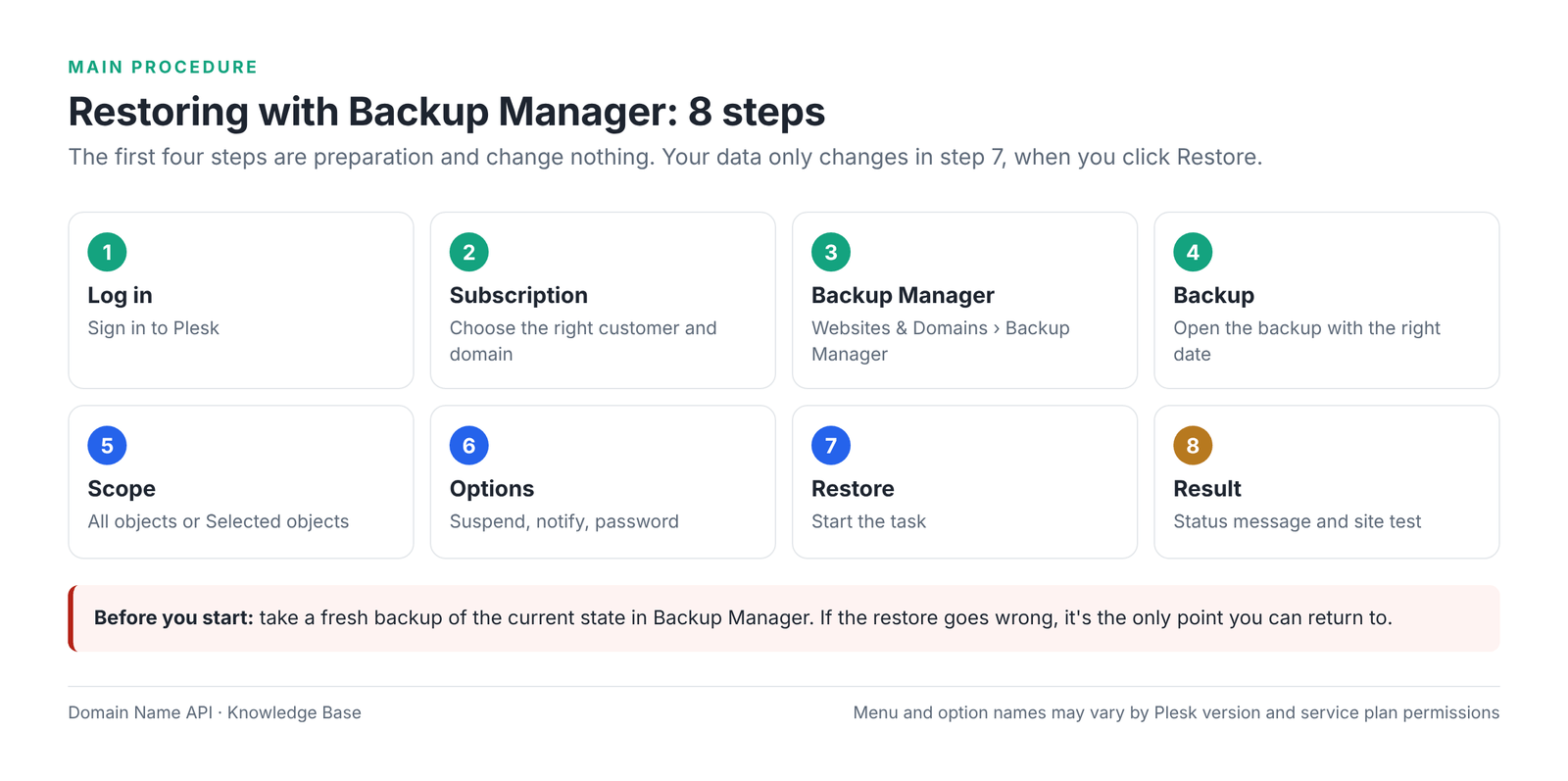
Step 1 — Log in to Plesk
What to do: Sign in to Plesk with your reseller or customer user. Your login address and details are in your service information.
Why: Backup Manager only shows backups for subscriptions you're authorized to manage.
Expected result: You see the Plesk home screen.
Step 2 — Choose the right customer and subscription
What to do: As a reseller, open the customer from Customers and switch to the subscription you'll restore under Subscriptions. On customer accounts with several subscriptions, choose the right domain in the subscription selector at the top.
Why: Restoring to the wrong subscription can write another backup over a healthy site.
Expected result: The right domain shows at the top of the screen.
Watch out: The reseller account's own backups are under the Account menu; customer subscriptions' backups are inside each subscription.
Step 3 — Open Backup Manager
What to do: Go to Websites & Domains › Backup Manager. In some Plesk versions you can also reach the same screen from Account › Back Up Websites.
Why: Backups and restore options are managed from this screen.
Expected result: A screen listing backups by creation date opens.
Watch out: If Backup Manager isn't shown, backup permissions may be turned off in your service plan. See the matching row in the troubleshooting table.
Step 4 — Back up the current state, then choose the backup to restore
What to do: Click Back Up to back up the current state and wait for it to finish. Then click the name of the backup from the date you want to go back to.
Why: The fresh backup is your way back if the restore goes wrong. The right date is the one just before the problem started.
Expected result: The backup's detail and restore screen opens and shows its contents.
Watch out: If there are several backups on the same day, check the time too. If you choose an incremental backup, Plesk uses the full backup it needs by itself.
Step 5 — Choose the restore scope
What to do: To restore the whole subscription, choose All objects. To restore part of it, choose Selected objects and pick the files, database, mailbox or other objects from the list.
Why: The scope decides which data goes back to its state in the backup. Only the objects you select change.
Expected result: The objects you chose are ticked.
Watch out: If you're unsure, start with Selected objects rather than All objects. The object types shown can vary with your Plesk version and permissions.
Step 6 — Set the restore options
What to do: If it's offered, consider Suspend … until the restoration task is completed. If the backup is password-protected, enter the password. Tick the email option if you want a notification when it's done.
Why: Suspending stops visitors and the application from writing new data while the restore runs, so you don't end up with half-written data.
Expected result: The options are set.
Watch out: With suspension on, the site is unavailable during the restore. Don't start it at peak times.
Step 7 — Start the restore
What to do: Click Restore. If Plesk finds a conflict (for example, an object with the same name already exists), it may show a screen asking how to proceed; the default behavior is to replace the existing object with the one in the backup.
Why: Your data changes at this step.
Expected result: The restore task starts and its progress shows in Backup Manager.
Watch out: Refreshing the page doesn't stop the task, but don't start the same backup a second time.
Step 8 — Check the result
What to do: When the task finishes, read the message. If there are warnings or errors, open the details. Then work through the list in "What to check after a restore".
Why: A completed message doesn't prove the site works; warnings can mean some objects weren't restored.
Expected result: A success message and the data from the date you expected.
Watch out: Keep the full text of any warning; you'll need it if you open a support ticket.
How to restore only website files in Plesk
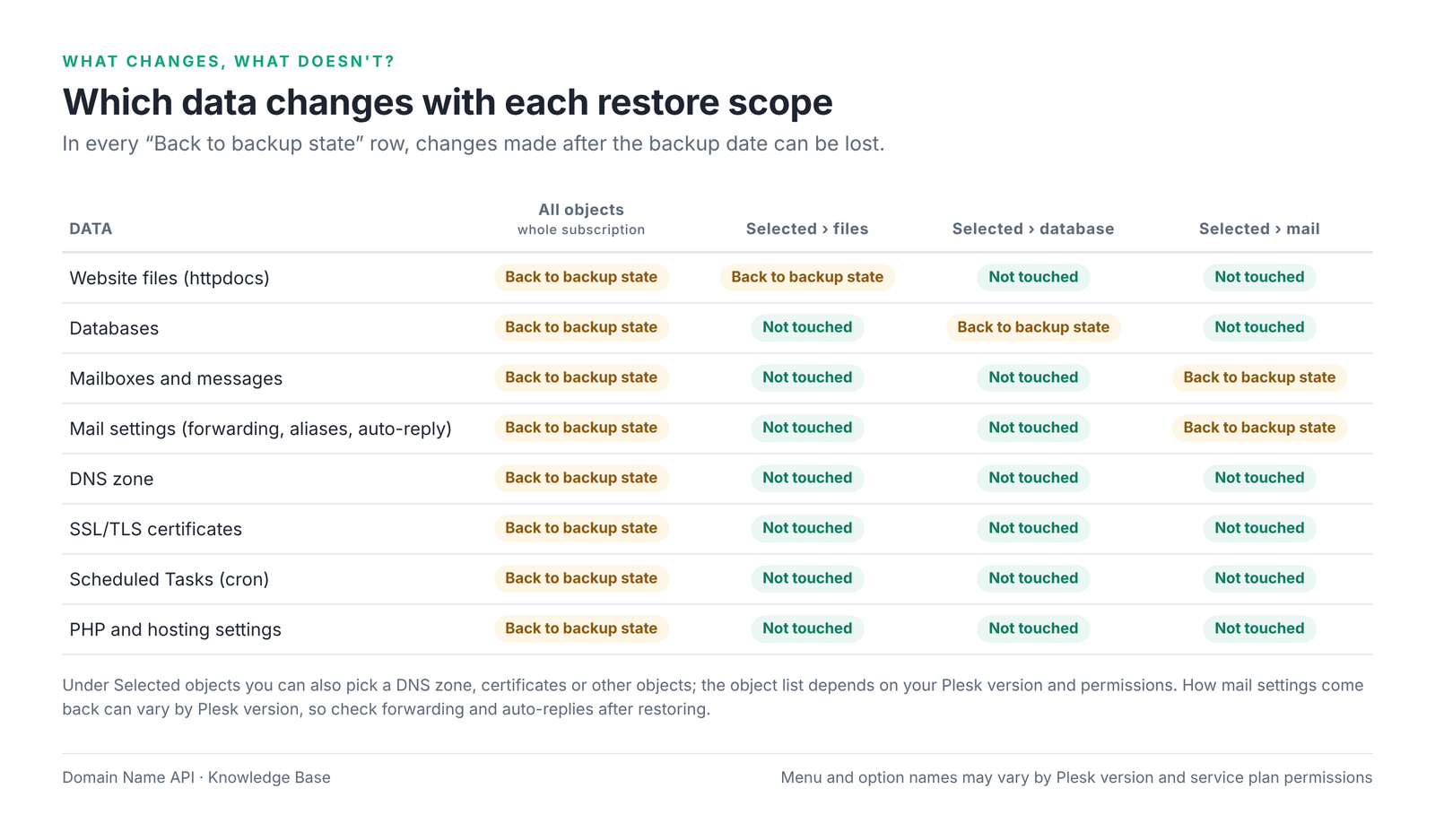
You don't have to restore the whole subscription. In Backup Manager, open the backup and under Selected objects pick only the site files, or a specific file or folder. The database and email aren't touched.
Example
After a WordPress plugin update the site shows a white screen, but orders and posts are fine. The problem is in the files, so restoring only the site files, or even only the httpdocs/wp-content/plugins/ folder, is enough. Restoring the database would needlessly delete the orders placed since the update.
- Document root and httpdocs: the main domain's files live in
httpdocsby default. Additional domains and subdomains can use their own document roots; you can see the document root in Websites & Domains › Hosting Settings. - Choosing files and folders: under Selected objects, pick only the path you need from the file tree. Single-file selection can vary by Plesk version; if you don't see it, you may need to pick the parent folder.
- Overwriting: files in the path you choose are replaced with the backup version. Depending on the Plesk version, files added to that path after the backup may stay; check the folder after restoring.
- Permissions: on Linux, folders usually need 755 and files 644 after the restore. You can check them in File Manager.
- .htaccess on Linux, web.config on Windows: redirects and PHP settings live in these files. An older
.htaccessorweb.configcoming back can undo redirects or HTTPS settings you added later.
Step check
What you should see: The files you expect inside httpdocs in File Manager, and the site loading without errors.
Most common mistake here: Restoring the whole subscription or the database for a file problem.
Next step: If the site still shows an error, go to the database section.
How to restore a database backup in Plesk
To restore only the database, open the backup in Backup Manager, select that database under Selected objects and click Restore. On Linux Plesk this is usually MySQL or MariaDB; on Windows Plesk it's MySQL or Microsoft SQL Server (MSSQL).
On a live site, an older database can delete new transactions
Restoring an older database on a live online shop, booking or membership site deletes the orders, records and content created after the backup date. Before restoring, download the current database separately with Databases › Export Dump.
- Pick the right database: a subscription can have several. Confirm the one the site uses in its config file (in WordPress,
DB_NAMEinwp-config.php). - Overwriting: the selected database's contents go back to the backup state; other databases in the same subscription don't change.
- User and password: Plesk backups include database users. If the site can't connect after the restore, check in Databases that the user is assigned to the database and the password matches the config file.
- Application connection: when you restore within the same subscription, the database name usually stays the same. If you restored to a different subscription or under a different name, update config files such as
wp-config.phpor.env. - Charset and collation: if accented or non-Latin characters look garbled, the database and the application's character sets may not match. This usually comes from manual imports, not from the backup itself.
- Windows and MSSQL: backing up and restoring MSSQL databases depends on the server's MSSQL backup configuration. If an MSSQL database doesn't appear under Selected objects, open a support ticket.
Step check
What you should see: The site loading and the content from the backup date showing in the admin area.
Most common mistake here: Restoring the database when the database wasn't the problem, and deleting new orders.
Next step: Test the application login and forms.
How to restore an email backup in Plesk
To restore email data, open the backup in Backup Manager, select the mail object (mailbox or mail account) under Selected objects and click Restore. Whether this option appears depends on your Plesk version and account permissions.
| Email component | What it means | Restore note |
|---|---|---|
| Mailbox account | An address such as info@example.com and its password | Restored with the mail object |
| Mailbox messages | Mail in the inbox and other folders | Messages in the backup come back; watch for mail received after it |
| Mail settings | Account settings such as quota and spam filter | Settings tied to the mail account come back with it depending on the Plesk version; check afterwards |
| Aliases | Extra addresses delivering to the same mailbox | Check together with the account |
| Forwarding | Passing mail on to another address | Check together with the account |
| Auto-reply | An automatic answer to incoming mail | Make sure an old auto-reply hasn't been switched back on |
Email received after the backup
Restoring an older mailbox can affect mail received after the backup date. Before restoring, download important new messages to an email client or back up the mailbox's current state. If you only want one message back, talk to support before restoring the whole mailbox.
If the domain's email is hosted on an external service such as Microsoft 365 or Google Workspace, the messages aren't in the Plesk backup. In that case, recover email with that service's own tools.
Step check
What you should see: Mailboxes shown in Mail and a test email going out and coming back.
Most common mistake here: Restoring the whole subscription just for a few emails.
Next step: Check forwarding and auto-replies.
When do you need to restore the whole Plesk backup?
Restoring the whole subscription is only the right choice when the problem affects many components at once. If the problem is in a single file or database, restoring the whole account can cause unnecessary data loss. All objects also returns good files, databases, email and settings changed after the backup date to their backup state.
When restoring the whole subscription can make sense:
- Site files, database and settings broke together (for example, returning to a clean date after malware).
- Many components changed at once and you don't know which one caused the problem.
- Rolling back completely after a failed migration or a major change.
- The subscription was deleted or is completely unusable.
Permission limit
Reseller and customer accounts can only restore backups of subscriptions they're authorized to manage. You can't restore the server administrator's backups or server-wide restores from a reseller account.
If you need a deleted subscription back, or the whole-subscription restore option doesn't appear in your account, contact our support team.
How to restore a Plesk backup from your computer
You can upload a Plesk backup you downloaded earlier, or one taken from another Plesk server, to the server repository with Upload in Backup Manager, then restore it with the usual steps. This option depends on your service plan's backup permissions.
- In Backup Manager, click Upload and choose the backup file on your computer.
- If a password was set when the backup was downloaded, enter it. Without the password, the backup can't be restored.
- When the upload finishes, the backup appears in the list. Continue from step 4 of the main procedure.
- File size and time: large backups take a long time to upload through the browser; if the connection drops, the upload starts again.
- Disk space: the uploaded backup can use space in the server repository and your subscription quota, and the restore needs free space on top of that.
- Version compatibility: according to Plesk's documentation, only backups created in Plesk Onyx 17.0 or later can be restored at customer and subscription level.
- Signature check: Plesk may show a signature warning for backups created on another server or changed afterwards. If the option to proceed despite the warning doesn't appear in your account, open a support ticket.
I have a ZIP and a .sql file. Can I restore them from Backup Manager?
No. An ordinary ZIP archive and a .sql file aren't a Plesk backup, and Backup Manager doesn't recognize them. A Plesk backup is an archive in Plesk's own format that also includes the subscription's structure. You restore ZIP and .sql files by hand:
- Upload the ZIP with File Manager to the right document root (usually
httpdocs) and extract it. - Create a new database and user in Databases.
- Import the .sql file with Import Dump next to the database.
- Update the database details in the application's config file (
wp-config.php,.env).
For detailed steps, see How to Migrate a Website to Plesk Reseller Hosting.
What to check after a restore
A restore completed message doesn't mean the website works fully. Work through the list below in order.
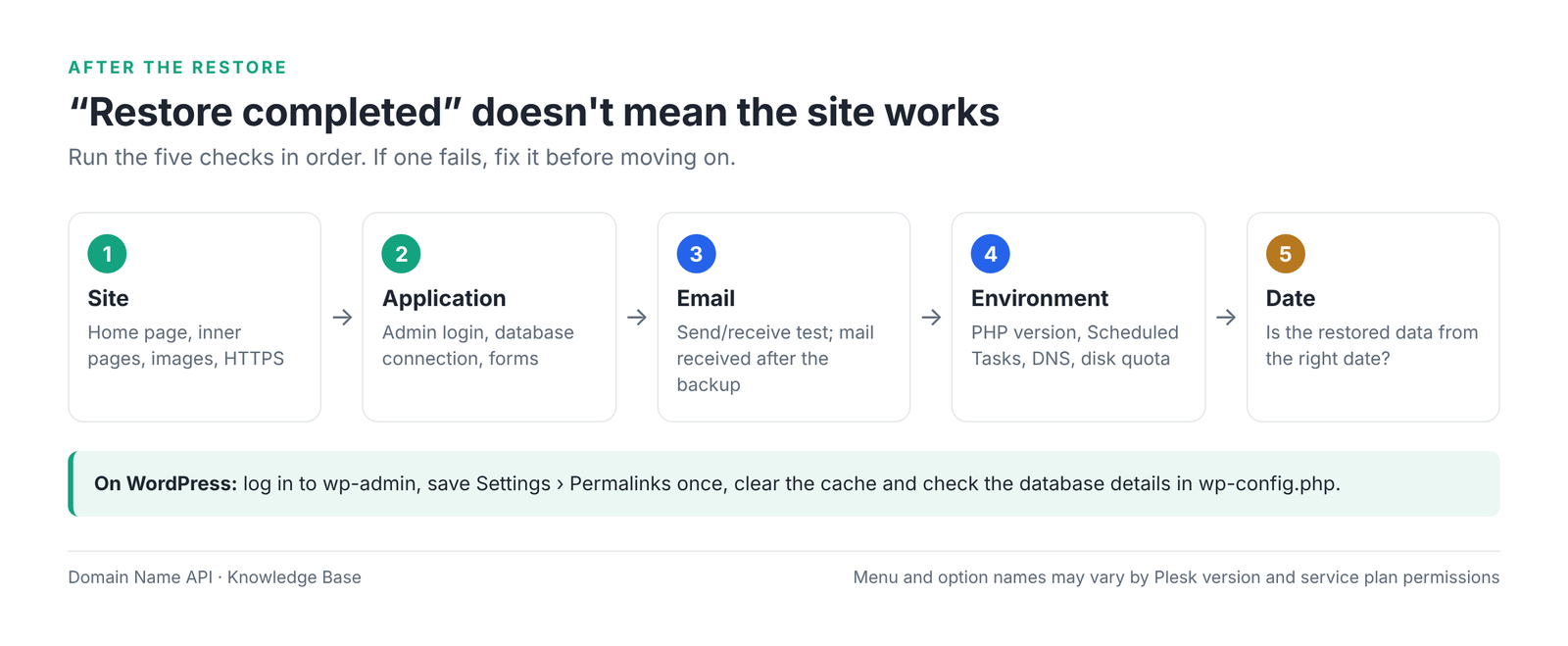
- The home page loads
- Inner pages load
- You can log in to the admin area
- Images load
- The database connection works
- Forms work
- SSL/HTTPS works
- Sending and receiving email works
- Scheduled Tasks run
- The PHP version suits the application
- DNS records haven't changed
- The disk quota isn't exceeded
- The restored data is from the right date
On WordPress: try logging in to wp-admin, save Settings › Permalinks once, clear the caching plugin and any CDN cache, check plugin and theme versions, and confirm the database details in wp-config.php.
Which restore method should I choose?
Choose the narrowest scope that fixes the problem. The table below shows the recommended scope for common situations.
| Your problem | Recommended restore scope |
|---|---|
| One file was deleted by mistake | Selected objects › file or folder |
| WordPress files broke, the database is fine | Selected objects › site files |
| The database is damaged | Selected objects › database |
| You only need email data | Selected objects › mail (if shown) |
| The whole hosting account is badly broken | All objects or the entire subscription |
| I'm moving from another hosting company | Not this guide; How to Migrate a Website to Plesk Reseller Hosting |
| I only have a ZIP and a .sql file | Manual restore: File Manager + Import Dump |
Plesk backup restore problems and fixes
Most problems come from permissions, disk space, the wrong scope, or environment settings that changed with the restore. Try the fix you can do yourself first.
| Problem | Possible cause | What to do |
|---|---|---|
| Backup Manager isn't shown | Backup permission is off in the service plan | As a reseller, turn on backup permissions under Permissions in the customer's Service Plan. If it's missing in your own account, open a support ticket. |
| The backup isn't in the list | It's in another storage (remote) or another subscription | Check you're in the right subscription; look at the remote storage tab if there is one. The backup may never have been made. |
| No restore option | Damaged backup file, or your permission only allows backing up | Check the backup's details; for a permission issue, contact your reseller or support. |
| The backup won't upload | Not a Plesk backup, too large, or the connection dropped | Make sure it's a backup Plesk created; try again on a more stable connection. |
| Not enough disk quota | Backup plus restored data exceed the quota | Delete unneeded files and old backups; as a reseller, raise the Service Plan or subscription quota. |
| The restore takes very long | Many files, a large database or large mailboxes | Don't cancel it or start it twice. If there's no progress for hours, open a ticket with the task details. |
| Restore failed | Conflict, disk space, damaged archive or permissions | Read the full error; check disk space; try again with a narrower scope (Selected objects). |
| Backup corrupted | Incomplete upload or modified archive | Upload it again or use a backup from another date. |
| Wrong backup password | A different password was set when downloading | Find the right password; an encrypted backup can't be opened without it. |
| Files came back but the site won't load | Database mismatch, different PHP version or cache | Consider restoring the database from the same date too; check the PHP version and error logs. |
| 403 Forbidden | Permissions, missing index file or an .htaccess/web.config rule | Check permissions and the index file in File Manager; remove the blocking rule. |
| 404 Not Found | Files in the wrong document root or missing permalink rules | Check the document root in Hosting Settings; in WordPress, save Permalinks. |
| 500 Internal Server Error | PHP version or plugin incompatibility, faulty .htaccess | Read the error in Websites & Domains › Logs; set the PHP version the application needs. |
| Database connection error | User or password doesn't match, or the database wasn't restored | Check the user and password in Databases; update the config file. |
| MySQL/MSSQL restore failed | Database size, version difference or MSSQL backup configuration | For MySQL, retry with a narrower scope; for MSSQL, open a ticket with the task details. |
| Email didn't come back | The mail object wasn't selected, or email is on an external service | Check you selected the mail object under Selected objects; if MX points to an external service, the messages aren't in the Plesk backup. |
| SSL error | An old certificate came back, or the certificate expired | Assign a valid certificate in Websites & Domains › SSL/TLS Certificates or renew with Let's Encrypt. |
| PHP version mismatch | The restore returned hosting settings to their backup state | Choose the right version in Websites & Domains › PHP Settings. |
| Permission error | File ownership or permissions changed | Fix permissions in File Manager; for ownership problems, open a ticket. |
web.config / .htaccess problem | An old rules file came back | Back up the file and remove the problem rule; if needed, rename the file temporarily to test. |
| Subscription suspended | Suspension was ticked and the task hasn't finished or stopped halfway | Wait for the task to finish. If it's done but still suspended, as a reseller click Activate on the subscription; if you can't, open a ticket. |
| DNS problem after the restore | The DNS zone went back to its backup state | Check the records in DNS Settings; add back any records created after the backup. |
| Reseller permission isn't enough | The task needs server administrator access | Open a ticket with the backup name, date and the subscription to restore. |
| Backup from another Plesk version | Older than Plesk Onyx 17.0, or a signature mismatch | Use a newer backup; otherwise open a support ticket. |
The most common mistakes when restoring in Plesk
| Mistake | Why it's risky | What to do instead |
|---|---|---|
| Not backing up the current state first | There's nothing to go back to if it goes wrong | Take a fresh backup with Back Up first |
| Choosing the backup from the wrong date | You go back further than needed | Pick the backup from just before the problem started |
| Restoring to the wrong subscription | A healthy site gets overwritten | Check the domain shown at the top |
| Restoring the whole subscription for a file problem | The database and email go back too | Selected objects › site files |
| Rolling a live database back to an old date | New orders and records are deleted | Export Dump first; restore only if needed |
| Not checking the effect on email | Mail received after the backup can be affected | Save new messages before selecting the mail object |
| Not checking disk quota | The restore stops halfway | Check the quota first |
| Treating a ZIP file as a Plesk backup | Backup Manager doesn't recognize it | File Manager + Import Dump |
| Not testing after the restore | The customer finds the problems | Work through the check list |
| Assuming Linux and Windows Plesk behave the same | .htaccess and web.config, MySQL and MSSQL work differently | Check according to your server type |
| Taking administrator documentation as reseller permissions | You look for options that aren't on your screen | Follow the options on your reseller or customer screen |
Frequently asked questions
How do I restore a backup in Plesk?
Open Websites & Domains › Backup Manager, click the backup from the date you want to return to, choose the scope with All objects or Selected objects and click Restore. Take a fresh backup of the current state first and, where possible, restore only the part that broke rather than the whole subscription.
Where is Backup Manager in Plesk?
At customer and subscription level, Backup Manager is under Websites & Domains › Backup Manager. In some versions it also opens from the Account menu. If you can't see it, backup permission may be off in your service plan; as a reseller, check the customer's Service Plan permissions.
Can I restore only files in Plesk?
Yes. Open the backup in Backup Manager and under Selected objects pick only the site files, or a specific file or folder. The database and email don't change. Single-file selection can look different depending on the Plesk version; if you can't see it, select the parent folder.
How do I restore a database in Plesk?
Open the backup in Backup Manager, select only that database under Selected objects and click Restore. Download the current database with Databases › Export Dump first. An older database deletes orders and records created after the backup date.
Can I restore email in Plesk?
Yes, if the mail object appears under Selected objects in your account, you can restore mailboxes and their messages. Mail received after the backup can be affected, so save important new messages first. If email is on an external service such as Microsoft 365, the messages aren't in the Plesk backup.
What's the difference between a full and an incremental backup?
A full backup contains all the data at the moment it was taken. An incremental backup contains only what changed since the last backup and takes less space. When you restore an incremental backup, Plesk automatically uses the preceding full backup and the incremental backups in between.
Will restoring an old backup delete new data?
The data in the scope you choose goes back to its backup state, so changes made after the backup date can be lost. If you restore only files, the database doesn't change; if you restore only the database, the files don't change. Taking a fresh backup before you start keeps this risk under control.
Does the site go offline during a restore?
If the restore options include suspending the subscription until the task finishes and you tick it, the site is unavailable during that time. Suspension keeps the data consistent by stopping new writes during the restore. If you don't tick it, the site stays up, but data written during the restore may be inconsistent.
Can I upload a Plesk backup from my computer?
Yes, if your service plan's backup permissions allow it. Upload the backup file Plesk created with the Upload button in Backup Manager, enter its password if there is one, and restore it with the usual steps once it appears in the list. Backups older than Plesk Onyx 17.0 can't be restored at customer level.
Can I restore a ZIP file with Plesk Backup Manager?
No. Backup Manager only recognizes backups in Plesk's own format. Upload the ZIP archive to the document root with File Manager and extract it, import the .sql file with Databases › Import Dump, and update the database details in the application's config file.
Why does the restore fail?
The most common reasons are not enough disk quota, a damaged or partly uploaded backup, a wrong password, conflicting objects and permission limits. Read the full error message, check disk space and try again with a narrower scope. If the cause is permissions, open a support ticket with the task details.
Why can't I see Backup Manager?
Whether Backup Manager appears depends on the backup permissions in the service plan. As a reseller, you can turn on backup permissions under Permissions in the customer's Service Plan. If it's missing in your own reseller account, contact Domain Name API support.
Can I restore a Plesk backup on another server?
A Plesk backup can be uploaded and restored on another Plesk server with Upload, but version compatibility, the backup password and the signature check apply. Backups created on a different server may show a signature warning. If you're changing hosting companies, following the migration guide is safer.
How long does a restore take?
It depends on the backup size, the number of files and emails, the database size and server load. A small site restores in a few minutes; large mailboxes and databases take longer. Don't start the same backup a second time while the task is running.
Why won't my site load after a restore?
Usually the files and database came from different dates, the PHP version changed, an old .htaccess or web.config came back, or a cache is showing old content. Read the error in Websites & Domains › Logs and check PHP Settings.
Why does SSL show an error after a restore?
The restore may have returned certificate settings to their backup state; the certificate in the backup may have expired or the wrong one may be assigned. Assign a valid certificate in SSL/TLS Certificates or issue a new one with Let's Encrypt.
Summary
- First decide what you want back and choose the narrowest scope that fixes it.
- Take a fresh backup of the current state before restoring.
- Websites & Domains › Backup Manager › backup › Selected objects or All objects › Restore.
- Think about new orders and records before rolling a live database back.
- ZIP and .sql files aren't a Plesk backup; restore them by hand with File Manager and Import Dump.
- After the completed message, check the site, database, email, SSL, PHP and DNS.
Related guides
- How to Migrate a Website to Plesk Reseller Hosting
- How to Create a Service Plan in Plesk
- How to Create Your First Customer and Subscription in Plesk
- How to Manage SSL in Plesk
- How to Create Private Nameservers in Plesk
Having trouble restoring your backup?
If you use Domain Name API Plesk Reseller Hosting, you can open a ticket with our support team. Include the domain, the backup date, the scope you chose, the full error message and a screenshot if you can.
Open a Support TicketPlesk Reseller Hosting under your own brand
Offer Plesk hosting to your customers under your brand and manage subscriptions, service plans and backups from one panel.
Explore Plesk Reseller Hosting