How to Restore a Backup in cPanel
How you restore a backup in cPanel depends on the type of backup you have. Home Directory, MySQL database, Email Forwarders and Email Filters backups can each be restored separately, by you, from cPanel's Backup or Backup Wizard tool. A Full Account Backup (cpmove) can't be restored from the cPanel interface: it needs server administrator access in WHM, so on Domain Name API Reseller Hosting it's done by the support team.
Written by: Domain Name API Hosting Support Team · Reviewed by: Technical Operations / Hosting Team · Last updated: 5 October 2026
Identify your backup type first
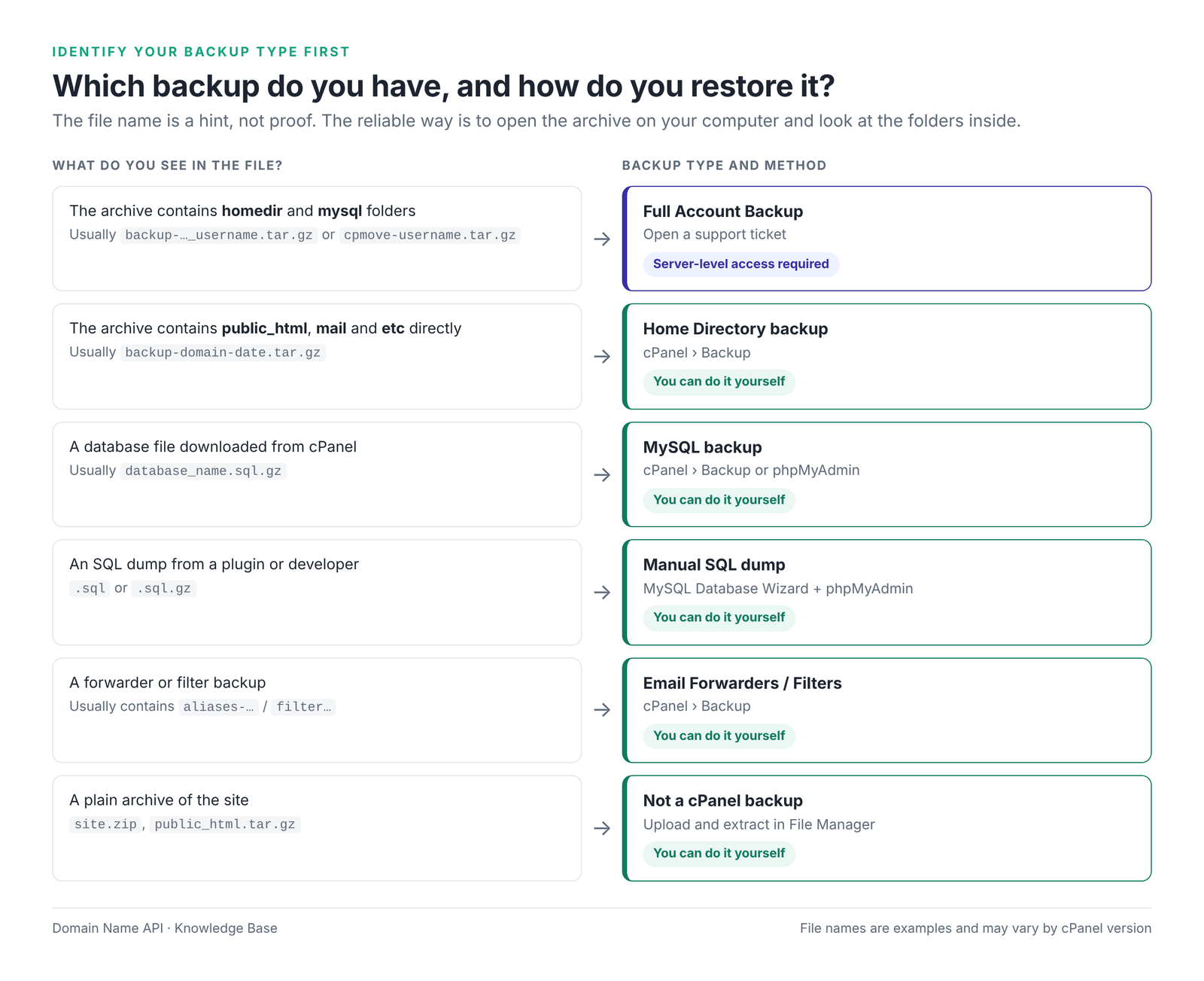
Uploading the wrong file to the wrong screen is the most common cause of restore problems. Use the decision tree below to find your file's type, then follow only the matching section.
Full backup (archive with homedir and mysql folders) → support ticket · Home Directory → cPanel › Backup · MySQL backup or .sql dump → cPanel › Backup or phpMyAdmin · Forwarders / Filters → cPanel › Backup · Plain archive such as site.zip → File Manager.
This guide covers restoring a backup you already have to a cPanel account. If you're moving a site from another hosting company, follow How to Migrate a Website to cPanel Reseller Hosting instead; it also covers DNS, testing and closing the old account.
Examples use example.com as the domain, olduser as the old cPanel username and newuser as the new one. These are placeholder values; use your own domain and username.
Quick start: a safe restore in 5 steps
Whatever the backup type, a safe restore follows the same five steps. A restore can overwrite existing files or a database, so the first job is to protect what's there now.
- Identify the backup type. Open the archive on your computer and look at the folders inside (Figure 1).
- Back up the current account. Download a backup of today's files and databases from cPanel › Files › Backup.
- Check disk space and the target account. Make sure you're in the right cPanel account and there's enough free space to extract the backup.
- Restore only the part you need. Home Directory for files, MySQL for a database, Forwarders for forwarding rules, Filters for filter rules.
- Verify the result. Work through the checklist: site, admin area, database connection, email, PHP version, Cron Jobs and SSL.
Which type of backup do you have?
cPanel produces two main kinds of backup: a Full Account Backup that contains the whole account, and Partial Backups that each contain one part of it. There are four partial backups: Home Directory, MySQL database, Email Forwarders and Email Filters. You'll also often see archives and SQL dumps made by plugins or developers. Each one is restored differently.
| Backup type | What's in it? | What isn't? | Who restores it, and where? | When is it the right choice? |
|---|---|---|---|---|
| A) Full Account Backup / cpmove | Files, email, databases, forwarders, filters, Cron Jobs, DNS zone, domain definitions and account settings | Depends on how the backup was made; external services aren't included | Not possible in cPanel. Needs server administrator access in WHM → support ticket | Rebuilding the whole account under the same username |
| B) Home Directory | Files in the home directory: public_html, addon domain folders, hidden files, email for your domains | Databases, forwarders, account-level filters, Cron Jobs, domain definitions, DNS | You · cPanel › Files › Backup or Backup Wizard | Site files and email are damaged or deleted |
| C) MySQL Database Backup | The contents of one database (tables and data) | Files, email; the database user and privileges | You · cPanel › Files › Backup or Backup Wizard | Rolling only the database back to an earlier point |
| D) Email Forwarders | Forwarding rules set up for the domain | Mailboxes and messages | You · cPanel › Files › Backup or Backup Wizard | Forwarders were deleted or need rebuilding on a new account |
| E) Email Filters | Account-level email filters | Email; per-mailbox user filters | You · cPanel › Files › Backup or Backup Wizard | Filter rules were lost |
| F) Manual web archive (.zip, .tar.gz) | A compressed copy of a folder | Nothing cPanel-specific; usually no database | You · cPanel › File Manager › Upload and Extract | A plugin or developer archived only the files |
| G) Manual SQL dump (.sql, .sql.gz) | An export of one database | Database user, privileges, files | You · MySQL Database Wizard + phpMyAdmin › Import | The database was exported with another tool, or the username changed |
File names are a hint, but they vary with the cPanel version and the tool that made the backup. A full backup and a Home Directory backup can both start with backup- and end in .tar.gz. The reliable way to tell them apart is to look inside: a full backup contains folders such as homedir and mysql, while a Home Directory backup shows folders like public_html, mail and etc directly.
What's the difference between a full and a partial backup?
A full account backup and a partial backup aren't restored the same way. A Full Account Backup is designed to rebuild a cPanel account with all its settings, and it can only be restored from WHM. Partial backups each carry one part of the account and are restored separately by the cPanel user.
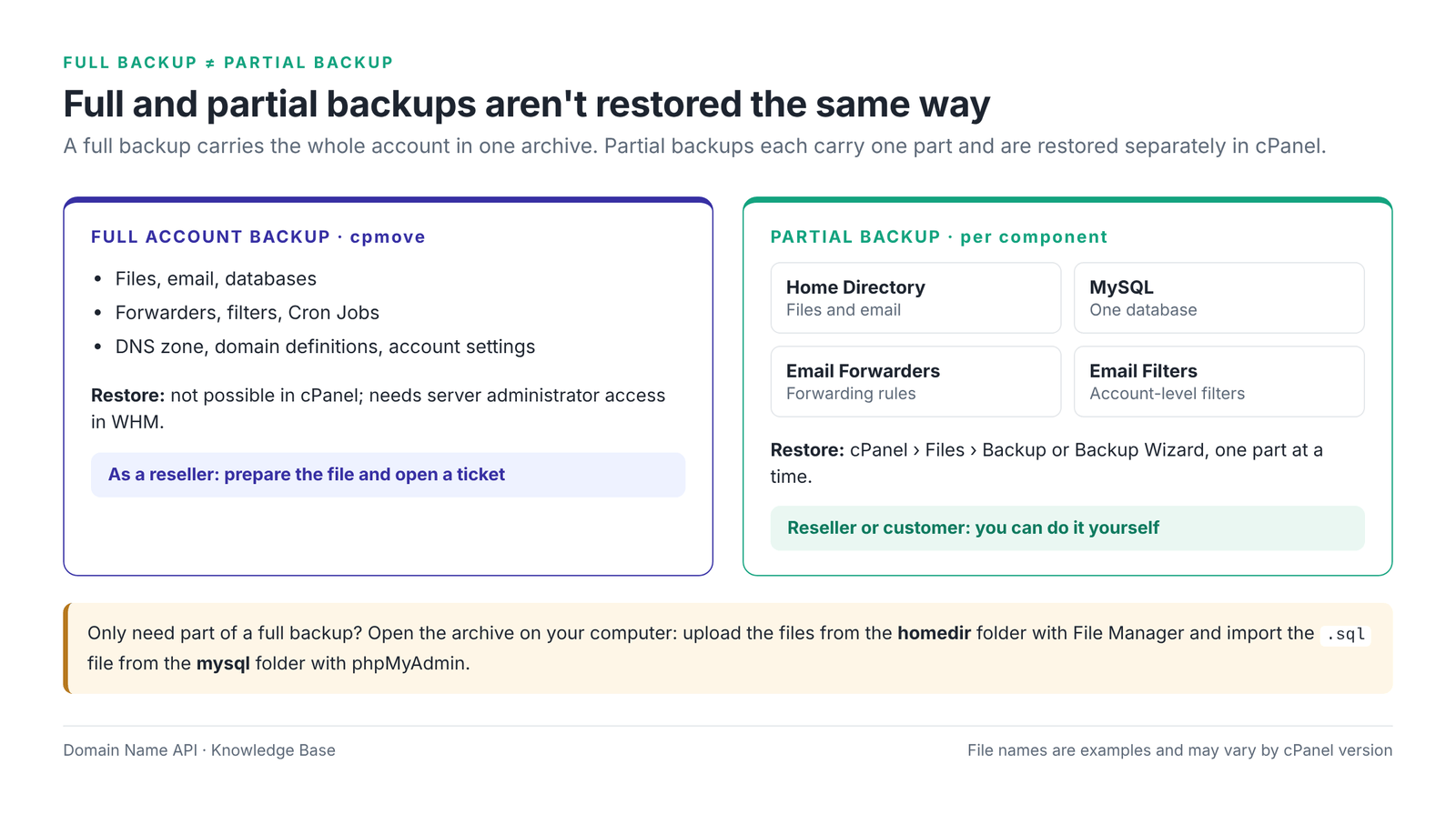
| Feature | Full Account Backup | Partial Backup |
|---|---|---|
| Scope | The whole account | One part of the account |
| Where it's restored | WHM (server administrator) | cPanel › Files › Backup or Backup Wizard |
| Can a reseller or customer do it? | No; open a support ticket | Yes |
| Cron Jobs, domain definitions, DNS | Restored | Not restored; set up separately |
| Username and database prefix | Restored under the username in the backup | The target account's username applies |
If you have a Full Account Backup
Don't try to upload a Full Account Backup through cPanel's Restore options. According to cPanel's own documentation, a full backup can't be restored automatically in cPanel; that function only exists in WHM.
The WHM screen that restores full backups (Transfer or Restore a cPanel Account in current versions, Restore a Full Backup/cpmove File in older ones) needs server administrator access and doesn't appear in standard reseller WHM. If you can't see it, nothing is wrong with your account.
What to do: follow the support ticket steps in How do I restore a Full Account Backup (cpmove)? below.
Before you restore: safety check
Back up the current account before you restore anything. A restore writes the backup's files and databases into the account and can overwrite files with the same name and the same database. If you start without protecting what's there now, you'll have nothing to go back to if the restore goes wrong.
A restore can't always be undone
If you want to keep your current data, take a fresh backup first. It takes a few minutes, and it's the only reliable way to undo a wrong file, a wrong date or a wrong account.
- Have you backed up the current account? From cPanel › Files › Backup, download at least the Home Directory and the databases involved.
- Does the backup belong to the right domain and account? Check the files in
public_htmlor the database name inside the archive. - Is the backup date right? Check the date in the file name or the modified dates of the files in the archive. That's the point you'll return to.
- Is there enough free disk quota? The archive is uploaded first, then extracted, so the archive and its extracted contents can take up space at the same time. If the quota is too small, enlarge the package in WHM as the reseller.
- Is it a problem if existing files are overwritten? If files were changed or added after the backup date, copy them somewhere first.
- Have you backed up the current database? A database restore overwrites its tables.
- Does the site generate data all the time? If it's an online shop, membership, booking or CRM site, read the data loss warning below.
- Are you in the right cPanel account? If you switched from WHM › List Accounts, check the username and main domain shown in cPanel.
Data loss risk on live sites that keep generating data
When you restore an old database backup, the database goes back to the moment the backup was taken. Orders, sign-ups, comments, form entries, bookings and other records created after that date can be lost.
On a live site that keeps generating data, assess the data loss impact before restoring an old database backup over the current one. A safer route is to restore the backup into a new, empty database and bring back only the tables or records you need by comparing the two.
If a restore can't be avoided, put the site into maintenance mode for a short time, download a final backup of the current database, then restore.
How do I restore a Home Directory backup?
A Home Directory backup is uploaded in cPanel › Files › Backup, under Restore a Home Directory Backup. It brings back the files in your home directory: public_html, addon domain folders, hidden files and email for your domains. It doesn't bring back databases, email forwarders, account-level filters or Cron Jobs.
What is a Home Directory backup?
A Home Directory backup is a compressed copy of the files you own in the cPanel account's home directory (/home/username). According to cPanel's documentation, it includes your public_html files and the email for the domains in your account. Restoring a Home Directory backup isn't the same as restoring the whole cPanel account.
Step by step
- Log in to cPanel. As a reseller, you can switch to a customer's cPanel from WHM › List Accounts using the cP icon next to the account.
- Open Files › Backup. You can do the same from Files › Backup Wizard › Restore › Home Directory.
- Under Partial Backups, find Restore a Home Directory Backup.
- Click Choose File and select the Home Directory backup on your computer (usually a
.tar.gzfile). - Click Upload. How long it takes depends on the file size and your connection; don't close the browser tab.
- When it finishes, you'll see a message confirming the restore. Then open
public_htmlin File Manager and check the files.
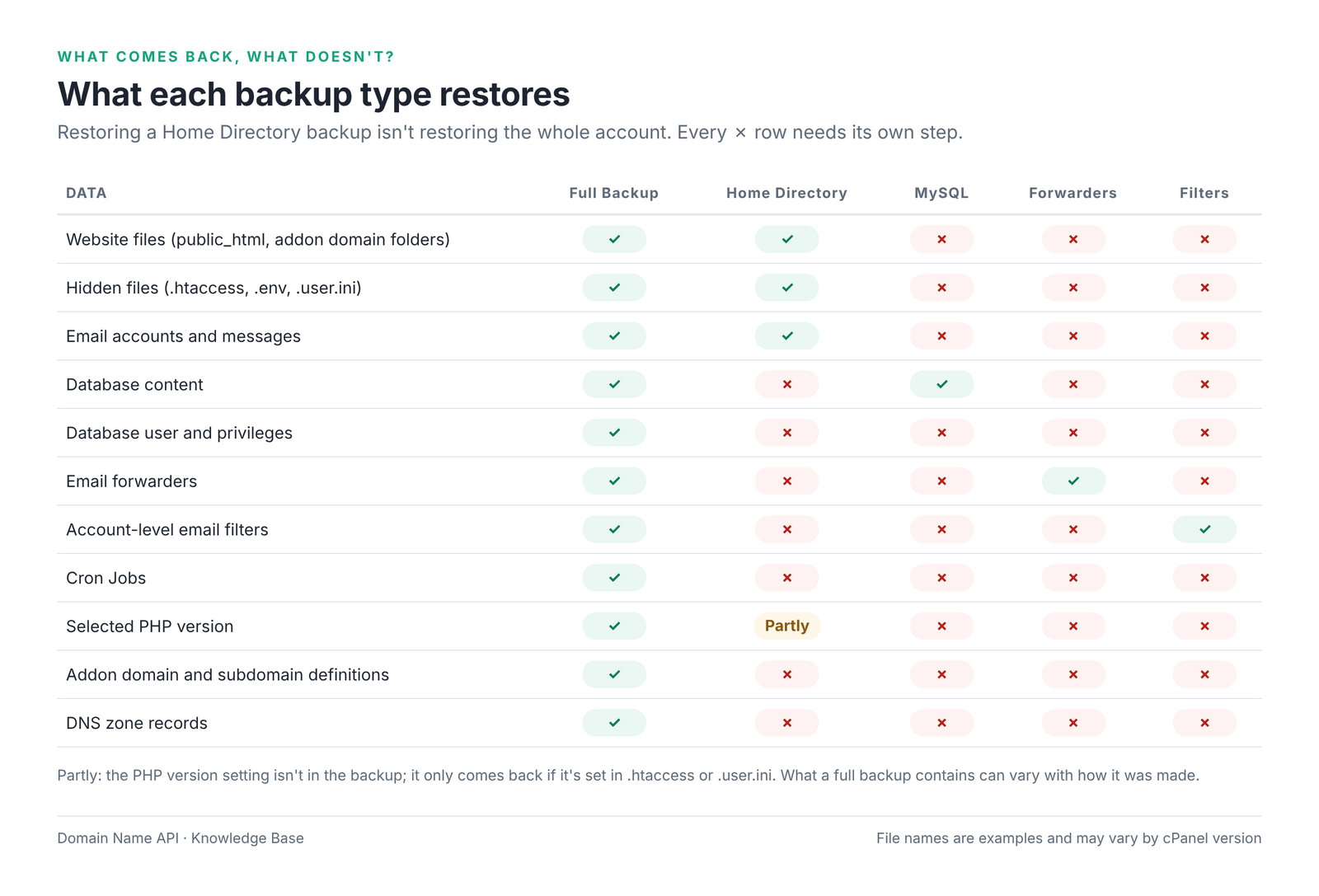
| Home Directory restore | Does it come back? |
|---|---|
Files in public_html and addon domain folders | Yes |
Hidden files (.htaccess, .env, .user.ini) | Yes |
Email for your domains (the mail folder) | Yes; after the restore, check that the accounts appear in Email Accounts |
| Databases | No → MySQL section |
| Email Forwarders and account-level Email Filters | No → Email section |
| Cron Jobs | No → recreate them in cPanel › Advanced › Cron Jobs |
| Addon domain and subdomain definitions | No; the folders come back but the domain definitions don't → cPanel › Domains |
| Selected PHP version | No; only settings defined in .htaccess or .user.ini come back with the files |
What happens to existing files?
The restore writes the backup's files to the home directory and overwrites files with the same name. Files that aren't in the backup, because they were added later, are expected to stay where they are. For example, if you restore WordPress from an old backup, the folder of a plugin installed after the backup date may still be there.
Step check
What you should see: In File Manager, the site's files in public_html, an index.php or index.html, and hidden files (with Settings › Show Hidden Files turned on).
Most common mistake here: Assuming the Home Directory backup brought the database back too. If the site shows "Error establishing a database connection", restore the database separately.
Next step: If the site uses a database, go to the MySQL section.
How do I restore a MySQL database backup?
If you have a MySQL backup downloaded from cPanel and the target account has the same username, use cPanel › Files › Backup › Restore a MySQL Database Backup. If you have a .sql dump made with another tool, or the username has changed, create the database with MySQL Database Wizard and import it with phpMyAdmin › Import.
What is the database prefix, and why does it matter?
cPanel adds the account username to the start of every database and database user name. The wp database in the olduser account is really called olduser_wp. Restored to the newuser account, it needs to be newuser_wp. When the prefix changes, the database name and username in the site's config file change too.
Scenario A: a MySQL backup from cPanel, same username
- First download a backup of the current database from cPanel › Files › Backup › Download a MySQL Database Backup.
- On the same screen, under Restore a MySQL Database Backup, click Choose File and select the backup (usually
database_name.sql.gz). - Click Upload and wait for the result message.
- In cPanel › Databases › MySQL Databases, check that the database is listed and assigned to a user.
This brings back the database contents; it doesn't always bring back the database user and password. If the site can't connect, check under MySQL Databases › Privileged Users that the user is assigned to the database with ALL PRIVILEGES. If the database prefix in the backup differs from the target account's prefix, use Scenario B; it gives more predictable results.
Scenario B: only a .sql or .sql.gz dump, or a different username
- Open cPanel › Databases › MySQL Database Wizard and create the database. cPanel adds the prefix automatically, for example
newuser_wp. - In the wizard's second step, create a database user with a strong password, for example
newuser_wpuser. - In the third step, give the user ALL PRIVILEGES and save with Make Changes.
- Open cPanel › Databases › phpMyAdmin, select the new database on the left and go to the Import tab.
- Choose the dump and click Import. The screen shows the maximum file size; if your dump is bigger, compress it as
.sql.gz. - Update the database name, username and password in the site's config file. On cPanel, the database host is usually
localhost.
| Application | Config file | Fields to check |
|---|---|---|
| WordPress | wp-config.php | DB_NAME, DB_USER, DB_PASSWORD, DB_HOST |
| Laravel and similar | .env | DB_DATABASE, DB_USERNAME, DB_PASSWORD, DB_HOST |
| OpenCart | config.php and admin/config.php | DB_DATABASE, DB_USERNAME, DB_PASSWORD, file paths |
| Custom software | The config file your developer uses | Connection details and absolute paths such as /home/olduser/ |
// wp-config.php – example: old and new values
define( 'DB_NAME', 'newuser_wp' );      // old: olduser_wp
define( 'DB_USER', 'newuser_wpuser' );  // old: olduser_wpuser
define( 'DB_PASSWORD', 'new-password' );
define( 'DB_HOST', 'localhost' );
Step check
What you should see: In phpMyAdmin, the same number of tables as in the backup, and the new database details in the config file.
Most common mistake here: Importing the database but forgetting to give the user privileges, or leaving the old prefix in the config file.
Next step: If the site uses email, go to the email section; if not, go to the verification checklist.
How do I restore an email backup?
Restoring email depends on what you want back. Messages in mailboxes come back with a Home Directory backup. Forwarding rules come back with an Email Forwarders backup and filter rules with an Email Filters backup, each restored separately.
| Term | What it means | Which backup restores it? |
|---|---|---|
| Email Account | A mailbox such as info@example.com and its password | Home Directory backup or Full Account Backup |
| Email Messages | The mail in the inbox, sent folder and other folders | Home Directory backup or Full Account Backup |
| Email Forwarders | A rule that passes mail for one address on to another | Email Forwarders backup or Full Account Backup |
| Email Filters | An account-level rule that deletes, moves or forwards incoming mail | Email Filters backup or Full Account Backup |
- Restoring a forwarder backup doesn't bring back mailbox messages. It only brings back the forwarding rules.
- Restoring a filter backup doesn't bring back email. It only brings back the filter rules.
- An Email Filters backup only contains account-level filters. User filters set up for a single mailbox aren't included.
Restoring Forwarders and Filters backups
- Open cPanel › Files › Backup.
- For a forwarder backup, find Restore Email Forwarders; for a filter backup, find Restore Email Filters.
- Click Choose File, select the file and click Upload.
- Check that the rules are listed in cPanel › Email › Forwarders and Email Filters.
If you only want one mailbox or one message back
Restoring a Home Directory backup for a few emails also overwrites the site's files. Don't edit the mail folder by hand to recover a single mailbox; open a support ticket with your backup, your domain and the mailbox address.
Step check
What you should see: Email accounts listed in Email Accounts, forwarders listed in Forwarders, and a test email going out and coming back.
Most common mistake here: Restoring a forwarder backup and expecting the messages to come back too.
Next step: Go to the verification checklist.
How do I restore a Full Account Backup (cpmove)?
Short answer: as a reseller or a customer, you can't restore a Full Account Backup from cPanel. A full account restore needs server administrator access in WHM. On Domain Name API Reseller Hosting, you prepare the backup file and open a support ticket; the support team does the restore.
What is a Full Account Backup?
A Full Account Backup is a single archive that holds a cPanel account's files, email, databases, email forwarders and filters, Cron Jobs, DNS zone, domain definitions and account settings. It's used to rebuild an account as a whole on another server. In cPanel it's created with Download a Full Account Backup; on the WHM side it's created in the same format, known as cpmove.
| Question | Answer |
|---|---|
| Can a cPanel user restore it? | No. According to cPanel's documentation, a full backup can't be restored automatically in cPanel; the function only exists in WHM. |
| Can a reseller WHM user restore it? | Not with standard reseller privileges. The restore screen belongs to the server administrator. |
| What access is needed? | Server administrator (root) access. |
| What should a Domain Name API reseller do? | Prepare the backup and open a support ticket (see below). |
Preparing your support ticket
- Keep the backup file on your computer and note its size. The support team will tell you in reply to the ticket how to send the file.
- State the domain to restore and the target cPanel username.
- If an account with the same username already exists, say so clearly and state whether it should be overwritten. Download a backup of that account first.
- Check that the target package's disk quota is large enough for the extracted backup.
- After the restore, work through the verification checklist below.
Only need part of a full backup?
If you don't need the whole backup, for example only the site files or one database, open the archive on your computer. cPanel's documentation suggests this route too. Compress the site files from the homedir folder and upload them with File Manager, and import the .sql file from the mysql folder with phpMyAdmin using Scenario B. You can't safely bring back email, Cron Jobs or DNS this way; open a ticket for those.
Step check
What you should see: A ticket that clearly states the domain, username, file size and whether to overwrite.
Most common mistake here: Uploading a full backup to cPanel's Home Directory restore. The archive's folder structure can then be extracted into the home directory, and the site won't work.
Next step: When the restore is done, work through the verification checklist.
How do I restore a manual web archive (.zip)?
An archive such as site.zip isn't a cPanel backup; you upload and extract it with File Manager. Open the target folder in cPanel › Files › File Manager (usually public_html for the main domain), use Upload to add the archive, right-click it, choose Extract, and delete the archive when you're done. If the archive contains a subfolder, the files end up in a folder like public_html/site/; move them up one level.
Large backups and disk quota
If a large backup won't upload, the cause is usually disk quota, the browser upload limit or a dropped connection. Start with the Disk Usage figure on the cPanel home page: both the archive and its extracted contents need to fit. As the reseller, you can raise the account's quota temporarily in WHM › Packages › Edit a Package or Modify an Account.
- Large database dump: compress it as
.sql.gz. If it's still over the phpMyAdmin Import limit, open a support ticket. - Very large Home Directory backup: a browser upload may stop halfway. First consider restoring only the part you need, such as the site files. If the upload still fails, open a ticket and include the file size.
- How long a restore takes: it depends on the file size and server load. Small backups finish in a few minutes; backups of several GB take longer. Don't close the tab until it's finished, even if the screen looks unresponsive.
I've restored the backup. What should I check now?
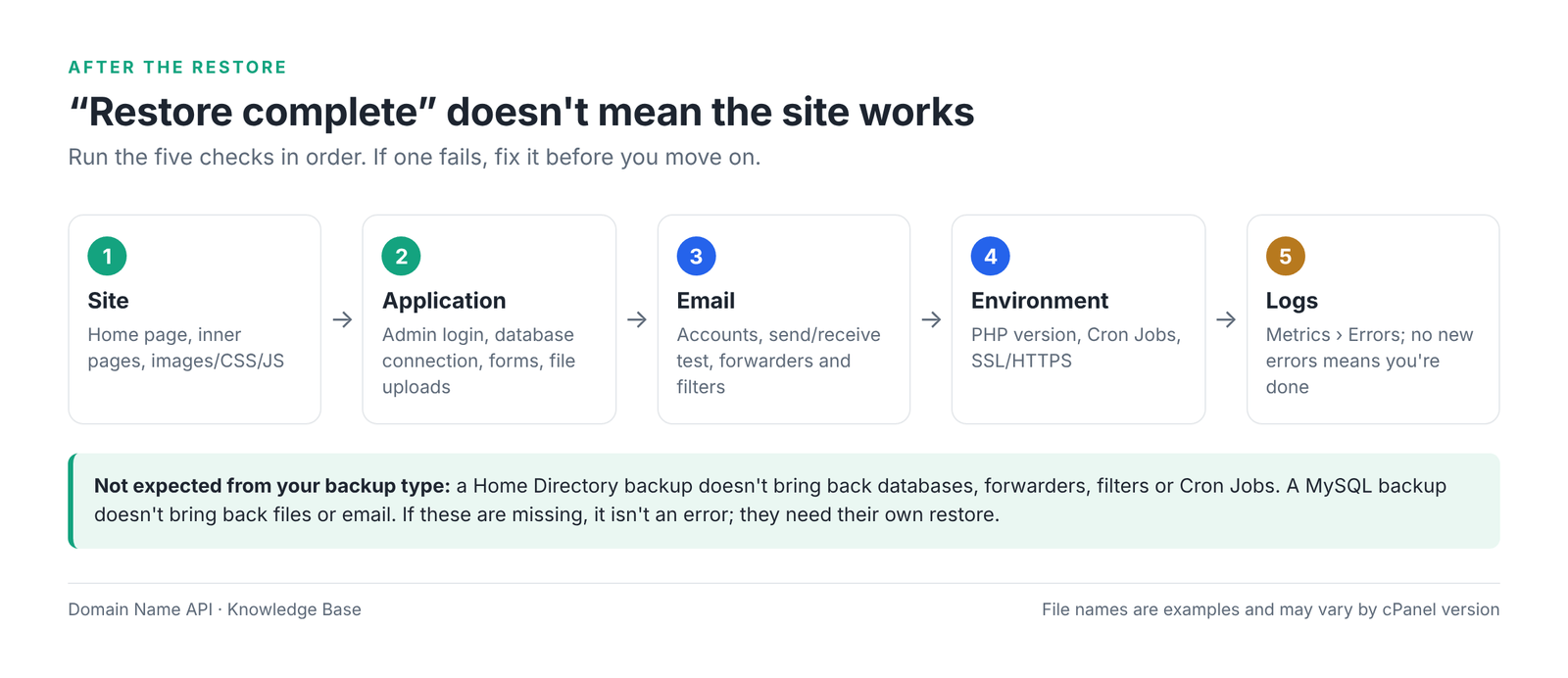
A "restore complete" message doesn't mean the site works. Run the checks below in order. If something your backup type doesn't include is missing, that isn't an error; it needs its own restore.
| Check | How to test it | Not restored by |
|---|---|---|
| ☐ Home page and inner pages load | Open a few pages in a private window | MySQL, Forwarders, Filters |
| ☐ Images, CSS and JavaScript load | The page layout isn't broken | MySQL, Forwarders, Filters |
| ☐ You can log in to the admin area | For example /wp-admin | Home Directory on its own (needs the database) |
| ☐ The database connection works | No connection error | Home Directory, Forwarders, Filters |
| ☐ Forms and file uploads work | Send a test form, upload an image | – |
| ☐ Email accounts are correct | cPanel › Email Accounts | MySQL, Forwarders, Filters |
| ☐ Incoming and outgoing email work | Send/receive test with an outside address | – |
| ☐ Forwarders and Filters are correct | Email › Forwarders, Email Filters | Home Directory, MySQL |
| ☐ Cron Jobs exist (if needed) | Advanced › Cron Jobs; is the username in the paths right? | All partial backups |
| ☐ PHP version is correct | Software › MultiPHP Manager or Select PHP Version | All partial backups |
| ☐ SSL/HTTPS works | Security › SSL/TLS Status; use Run AutoSSL if needed | – |
| ☐ Error logs are clean | Metrics › Errors | – |
Troubleshooting
Most problems come from the wrong backup type, a missing database, a database name with a changed prefix, or the PHP version. Try the fix you can do yourself first; open a support ticket when you don't have the access you need.
| Problem | Likely cause | Fix |
|---|---|---|
| The backup file won't upload | Wrong section chosen or incompatible file type | Confirm the backup type with Figure 1; for example, don't upload a Home Directory backup to the MySQL section. |
| The file is too large and the upload stops | Browser upload limit or a dropped connection | Restore only the part you need; compress the database as .sql.gz. If it still fails, open a ticket with the file size. |
| Disk quota exceeded | The archive plus its extracted contents exceed the quota | Delete unneeded files and old backups; as the reseller, raise the package or account quota in WHM. |
| The restore option isn't shown | The Backup feature is turned off in the account's feature list | As the reseller, check in WHM › Feature Manager that the backup feature is enabled in the account's feature list. |
| No restore button for a full backup | Full backups can't be restored in cPanel | This is expected. Open a ticket, or extract only the part you need and restore it with the partial method. |
| Restore finished but the site won't load | Missing database, different PHP version or files in the wrong folder | Find the matching error in this table; read the log in Metrics › Errors. |
| 403 Forbidden | No index file, wrong permissions or a blocking .htaccess rule | Check for an index file in public_html; set folders to 755 and files to 644. |
| 404 Not Found | Files extracted into a subfolder or permalink rules missing | Move the files to the right folder; in WordPress, save Settings › Permalinks once. |
| 500 Internal Server Error | Incompatible PHP version, missing PHP extension or a faulty .htaccess line | Set the PHP version used when the backup was taken; read the error in Metrics › Errors. |
| The cPanel default page appears | Files went to the wrong document root | Check the document root in cPanel › Domains and move the files there. |
| "Error establishing a database connection" | Database missing, user not assigned or old prefix in the config file | In MySQL Databases, check the database, the user and ALL PRIVILEGES; update the config file to the newuser_ prefix. |
| Database import stops halfway | phpMyAdmin limit or a timeout | Compress the dump; if it still fails, open a ticket with the file size. |
| Files came back but the database didn't | A Home Directory backup doesn't include databases | Restore the database separately in the MySQL section. |
| The database came back but the site can't connect | User and password weren't restored, or the prefix changed | Recreate the user and grant privileges; update the config file. |
| Email accounts don't appear | Only a MySQL or Forwarders backup was restored, or the account list hasn't refreshed | Confirm the Home Directory backup was restored; if they still don't appear, open a ticket. |
| Old emails didn't come back | Forwarder and filter backups don't contain messages | Messages come back with the Home Directory backup; if you only need email, open a ticket. |
| A forwarder doesn't work | Wrong destination address, or the forwarder wasn't restored | Check Email › Forwarders; restore the backup again or add it by hand. |
| PHP version mismatch | Partial backups don't carry the PHP version setting | Choose the right version in MultiPHP Manager or Select PHP Version and enable the extensions you need. |
| .htaccess problem | PHP handler or redirect lines specific to the old server | Temporarily rename .htaccess and retest; remove the problem line. |
| File permissions are wrong | The archive was made on another system | In File Manager › Permissions, set folders to 755 and files to 644; don't use 777. |
| Cron Jobs don't run | Not included in partial backups, or the paths contain the old username | Recreate the jobs in Advanced › Cron Jobs and change the paths to /home/newuser/. |
| SSL error | The certificate hasn't been issued yet, or the domain doesn't point to this server | Run Run AutoSSL in Security › SSL/TLS Status; check the domain points to this server. |
Common mistakes
- Thinking a Full Account Backup and a Home Directory backup are the same thing.
- Not backing up the current account before restoring.
- Restoring to the wrong cPanel account.
- Not checking the backup date and going back further than intended.
- Uploading a large backup without checking disk space.
- Restoring only the website files and forgetting the database.
- Restoring the database without checking the user and ALL PRIVILEGES.
- Treating a forwarder restore as a mailbox restore.
- Not checking the PHP version after the restore.
- Assuming Cron Jobs come back with a partial backup.
- Restoring an old database straight over a live online shop and deleting the orders placed since the backup.
Frequently asked questions
How do I restore a backup in cPanel?
First identify the backup type. You can restore Home Directory, MySQL, Email Forwarders and Email Filters backups yourself: open cPanel › Files › Backup, choose the file in the matching Restore section and click Upload. A Full Account Backup can't be restored from cPanel; on Domain Name API Reseller Hosting you open a support ticket for it. Back up the current account before you restore.
Can I restore a full backup from cPanel?
No. According to cPanel's documentation, a full account backup can't be restored automatically from the cPanel interface; the function only exists in WHM and needs server administrator access. As a reseller, prepare the backup file and open a support ticket. If you only need the files or one database, extract that part from the archive and restore it with the partial method.
How do I restore a cpmove file?
A cpmove file is a full account backup and is restored in WHM with server administrator access. On Domain Name API Reseller Hosting, open a support ticket with the domain, the target cPanel username, the file size and whether an existing account with the same name should be overwritten. Download a backup of the target account before the restore.
What does a Home Directory backup restore?
A Home Directory backup restores the files in the cPanel account's home directory: public_html, addon domain folders, hidden files such as .htaccess, and the email for your domains. It doesn't restore databases, email forwarders, account-level filters, Cron Jobs, domain definitions or the selected PHP version; you set those up separately.
How do I restore a MySQL backup?
If the account username is the same, upload the cPanel MySQL backup in cPanel › Files › Backup › Restore a MySQL Database Backup. If the username is different, create a new database and user with MySQL Database Wizard, give the user ALL PRIVILEGES, import the dump with phpMyAdmin Import and update the site's config file with the new details.
How do I upload a .sql file to cPanel?
Create a database and user with cPanel's MySQL Database Wizard and give the user ALL PRIVILEGES. Then select that database in phpMyAdmin and import the file from the Import tab. If the file is larger than the limit shown on the Import screen, compress it as .sql.gz. Finally, update the database details in the site's config file.
Does restoring a backup delete existing files?
A Home Directory restore writes the backup's files and overwrites files with the same name; files that aren't in the backup are expected to stay. A MySQL restore replaces the database contents with the version in the backup. That's why backing up the current files and database before restoring is the safest approach.
Does restoring a backup bring back my emails?
It depends on the backup type. A Home Directory backup and a Full Account Backup contain mailbox messages. MySQL, Email Forwarders and Email Filters backups contain no messages. Restoring a Home Directory backup for a few emails also overwrites the site's files, so for a single mailbox it's safer to open a support ticket.
What does a Forwarders backup restore?
An Email Forwarders backup restores only the forwarding rules, for example passing mail for info@ on to another address. It doesn't restore mailboxes, messages or filters. You upload it in cPanel › Files › Backup › Restore Email Forwarders and check the result in Email › Forwarders.
Why can't I see the restore option?
If there's no Restore section, the Backup feature may be turned off in the account's feature list; as the reseller, check WHM Feature Manager. For a Full Account Backup, not seeing a restore option is expected, because full backups can't be restored from cPanel. In that case, open a ticket with Domain Name API support.
How do I restore a large backup file?
First check that the disk quota fits both the archive and its extracted contents; enlarge the package in WHM if needed. Consider restoring only the part you need rather than the whole backup, and compress database dumps as .sql.gz. If the browser upload still stops halfway, open a support ticket and include the file size.
How long does a cPanel restore take?
It depends on the backup size, the number of files, your connection speed and server load. A small site restores in a few minutes; backups of several GB take longer to upload and extract. Keep the browser tab open until the process finishes and wait for the result message.
Why won't my site load after a restore?
The most common causes are a database that wasn't restored, an old database prefix left in the config file, a different PHP version and files extracted into the wrong folder. Read the log in cPanel › Metrics › Errors, check the database and user privileges, and set the PHP version used when the backup was taken.
How do I restore a WordPress backup to cPanel?
A WordPress backup has two parts: files and database. Restore the files with a Home Directory backup or by extracting the archive in File Manager, and the database with a MySQL backup or phpMyAdmin Import. Then check DB_NAME, DB_USER, DB_PASSWORD and DB_HOST in wp-config.php and save the Permalinks setting once.
Related guides
- How to Migrate a Website to cPanel Reseller Hosting
- How to Create a Package in WHM
- How to Create a Customer Account in WHM
- First Login to Your Reseller Package: How to Access WHM
- How to Create Private Nameservers on cPanel Reseller Hosting
Stuck while restoring your backup?
Open a ticket with Domain Name API support. Include the domain, the backup type (full, Home Directory, MySQL and so on), the file size, the step where it failed and the exact error message or a screenshot, so our team can pick up where you left off.
Open a Support TicketLooking for white-label cPanel Reseller Hosting?
With Domain Name API Reseller Hosting, you can offer cPanel hosting to your customers under your own brand and manage their accounts from WHM. Take a look at the packages.
Explore cPanel Reseller Hosting